New: The Drag-and-Drop Segment Builder

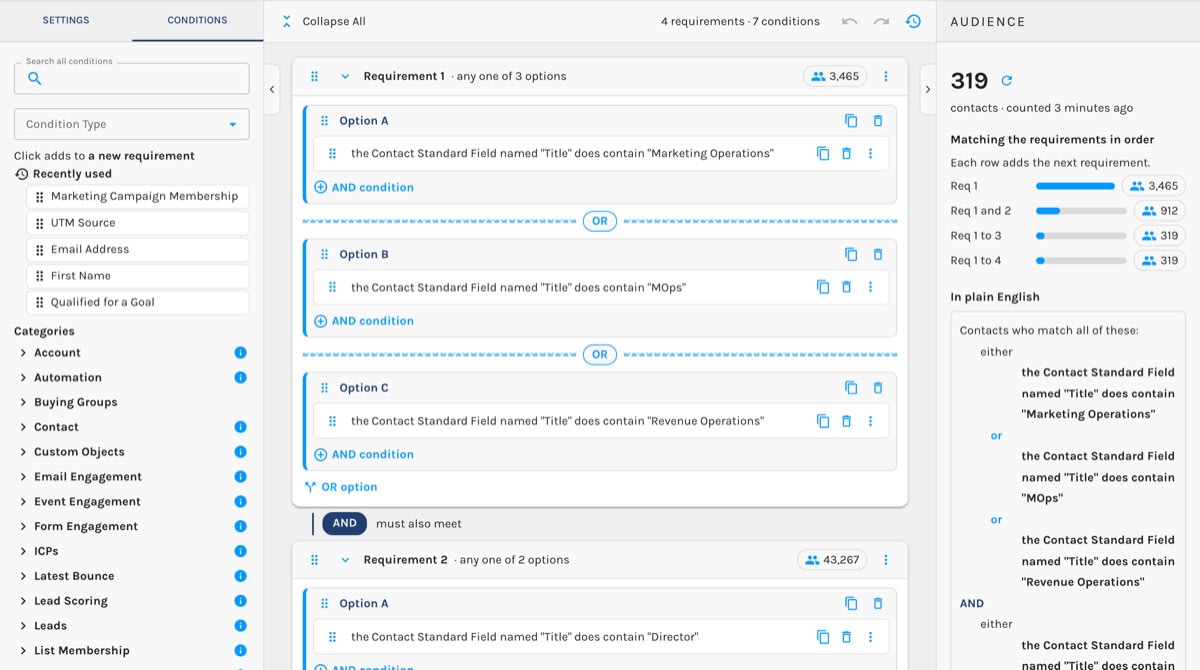
The new Drag-and-Drop Segment Builder shows you who matches your segment while you build it — requirement by requirement, before you ever click Save.
Segments are the engine of Paminga. They decide who enters a Workflow, who gets scored, who sees which content on a form, who your sales team hears about... All things conditional leverage Segments.
This new drag & drop experience combines ease and clarity, enabling you to build audiences, goals, and more with confidence.
The Drag-and-Drop Segment Builder:
Key Capabilities
- Live counts on every requirement, recalculated about 1.5 seconds after each edit. You don't need to save first.
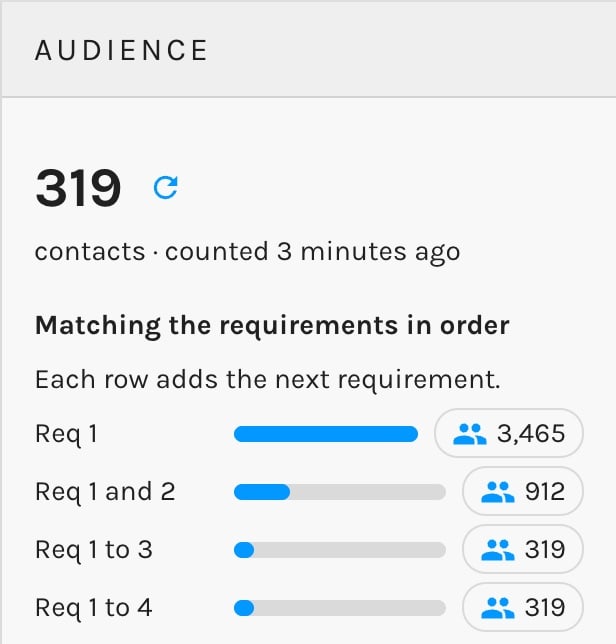
- A narrowing funnel ("Req 1 → 1 and 2 → 1 to N") that shows exactly which requirement removes contacts.
- Click any count to see the contacts behind it.
- A clear layout of the logic: Requirements (AND), lettered Options (OR), and Conditions, with no nesting or parentheses.
- A plain-English readback of the whole segment ("Contacts who…"), plus a clickable Outline.
- Drag and drop or click-to-add. Drop zones say what each drop means, and explain why a drop isn't allowed before you let go.
- Rearrange anything: move or reorder requirements, options and conditions; shift-click several to move them together; Option-drag to copy; or use a Move To menu.
- Undo and redo for every change (⌘Z / ⇧⌘Z), including value edits, plus an Undo button on every move and delete message.
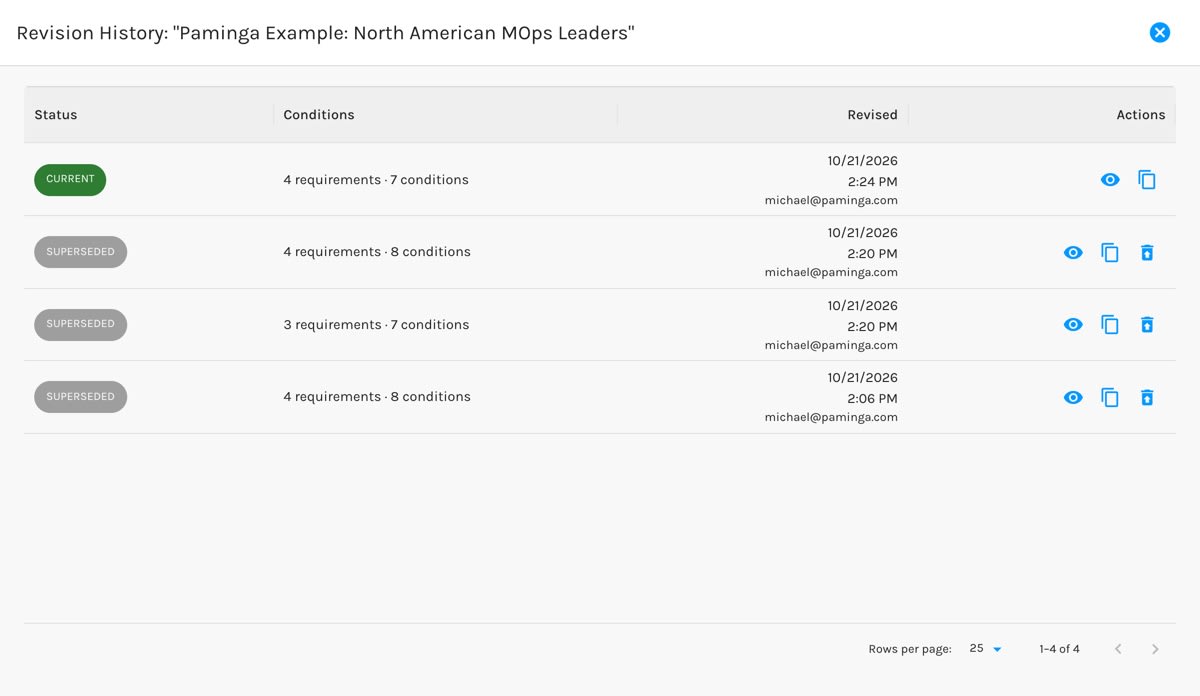
- Revision History: who changed the segment and when, with Preview, Restore (itself undoable) and Clone to a new segment.
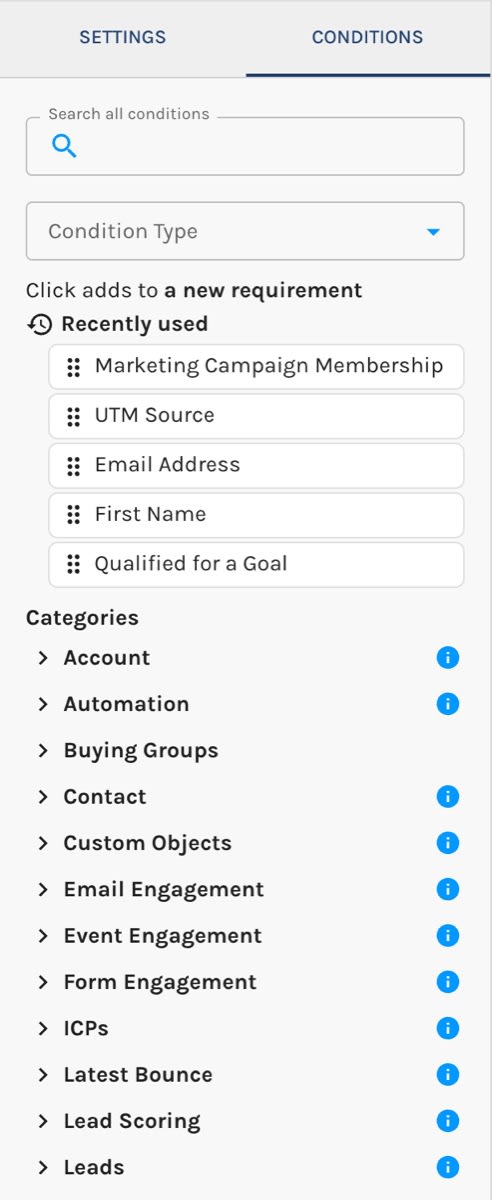
- A palette with search across all conditions, a filter by condition type, and your 5 most recently used conditions, saved per user.
- Help with long segments: Collapse or Collapse All (saved with the segment), counts of requirements and conditions, and a one-click jump to incomplete conditions.
- Available everywhere conditions appear: Global Segments and Personas, Workflow audiences, branches and goals, Drip Series, Lead and Account Scoring, and Forms.
- Keyboard and screen-reader support: keyboard dragging, announcements as you drag, and a Move To menu.
Key Benefits
- Catch a wrong segment before it ships, not after a Workflow sends to the wrong audience.
- Debug in seconds when the audience is smaller than you expected: the funnel points at the requirement that cut it.
- Fewer logic errors, because AND and OR are visible and read back in plain English.
- Safe to experiment: everything can be undone, and Revision History can restore earlier versions.
- Accountability: every save records who changed the segment and when.
- No risk in trying it: it's opt-in per user, and it edits the same conditions as the classic builder, so you can switch back and forth freely.
- Faster building: drag, click, duplicate and recently used conditions mean less hunting and retyping.
See Who Matches As You Build
This is the piece I've been waiting to ship.
Every requirement on the canvas carries its own live count — the number of contacts who meet it. The Audience panel shows your total. And Matching the Requirements in Order shows how each requirement narrows the audience: Requirement 1, then 1 and 2, then 1 through 3.
Ever built a segment that came back with 14 contacts when you expected 4,000? Now you see exactly which requirement did it — and you fix it in seconds instead of guessing.
❌ Don't save, launch, and hope the audience size looks right.
✅ Do watch the count move with every change, and click any number to see the contacts behind it.
Live Counts:
Logic You Can Read
AND and OR logic is where segments go wrong. The new builder lays it out the way you think about it:
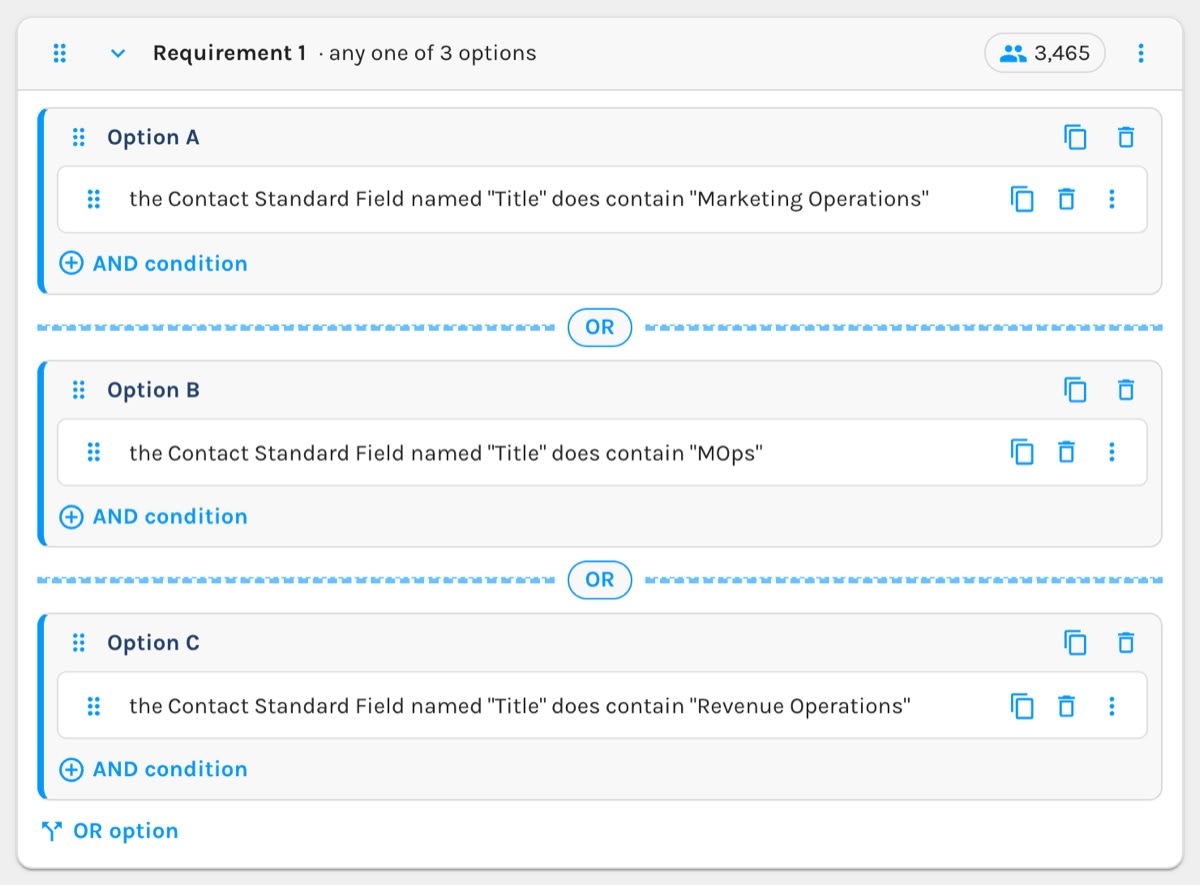
- Requirements — a contact must meet every one
- Options — lettered A, B, C — any one of them satisfies a requirement
- Conditions — everything inside an option must be true
No parentheses. No squinting at nesting.
A Requirement With Three Options:
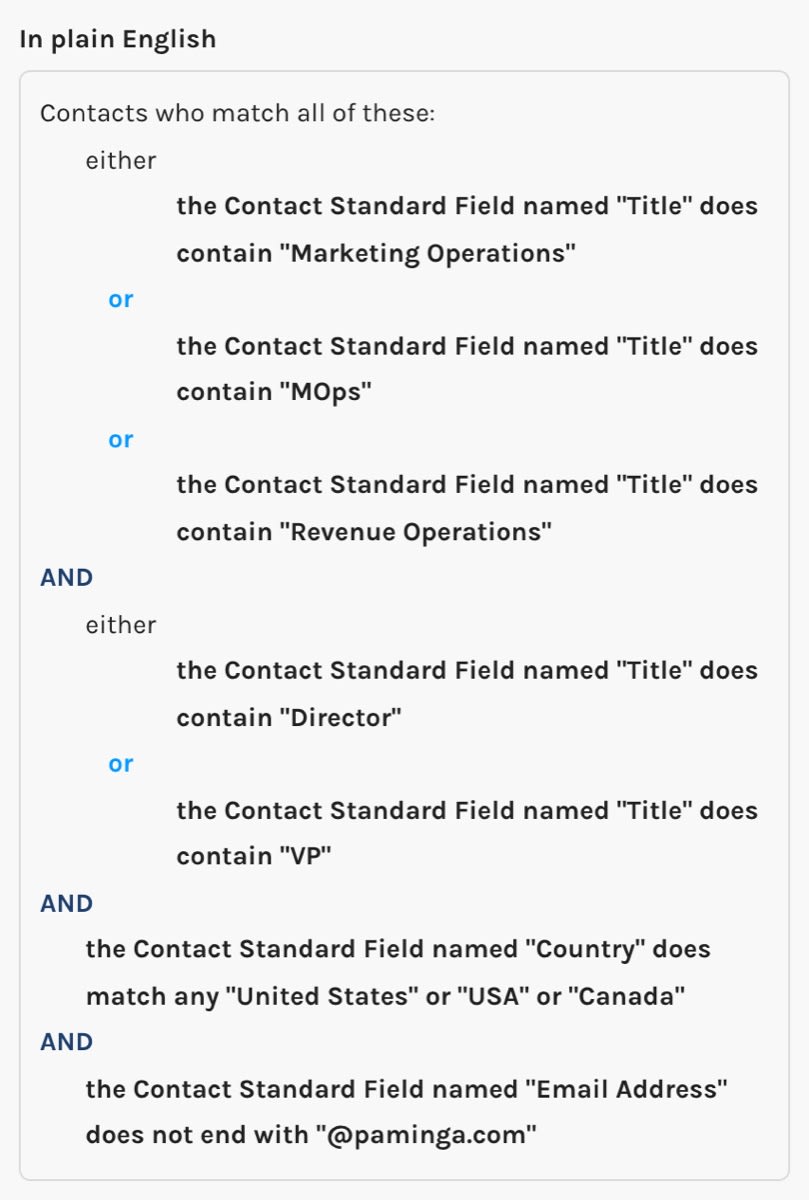
And the builder reads your segment back to you In Plain English — "Contacts who…" — so you can confirm it says what you meant. Paste it into Slack when you want a second set of eyes.
Your Segment, In Plain English:
Drag It, Drop It, Done
Pull a condition from the panel on the left and drop it on the canvas. While you drag, every place it can land lights up and tells you what it means — new requirement, OR, or AND. If a drop isn't allowed, it tells you why before you let go.
Not a dragger? Click a condition and it lands where you aimed it.
And everything on the canvas moves:
- Reorder requirements
- Move a condition into a different option
- Shift-click several conditions and move them together
- Hold Option while you drag to copy instead of move
Your five most recently used conditions sit at the top of the list — because you build the same kinds of segments over and over (maybe you don't think of it that way, but you do 🙂).
The Conditions Tab:
Undo Everything
Moved the wrong requirement? Deleted a condition you needed? ⌘Z.
Every change can be undone — adds, moves, deletes, even value edits. And when you restore an older version from Revision History, that's undoable too.
Revision History
Every save keeps a revision — who changed it and when. Preview any revision in plain English, Restore it, or Clone it into a brand-new segment.
When a Workflow audience changes size overnight, you'll know why.
Revision History:
Built for the Big Ones
Real-world segments get long. The new builder keeps them manageable:
- Collapse requirements to one-line summaries — or Collapse All — and Paminga remembers the view for the next person
- The Outline lists every requirement — click one to jump straight to it
- Incomplete conditions are flagged in red, with a one-click jump to the first one
Everywhere You Build Conditions
The same builder shows up wherever Paminga asks for conditions — Workflow Audiences, Drip Series, Lead Scoring, Account Scoring, Personas, and more.
Same conditions, same segments. Switch back to the classic builder whenever you like — nothing about your segment changes.
Get Started
- Open any Global Segment
- Click Try the New Builder at the top of the page
- Drag in a condition and watch the count
The choice is yours alone — your teammates keep whichever builder they prefer.
Read the Drag-and-Drop Segment Builder docs to dig in — and tell us what you think.


