Workflow Goals: Measure What Your Workflows Actually Accomplish

Goals pull a contact out of your Workflow or Drip Series the moment they've done what the automation was designed to accomplish — booked the demo, made the purchase, converted, whatever counts — and can fire Actions on the way out.
Goals are entirely optional. Many automations don't need them. But the moment yours does, this is how you handle it cleanly.
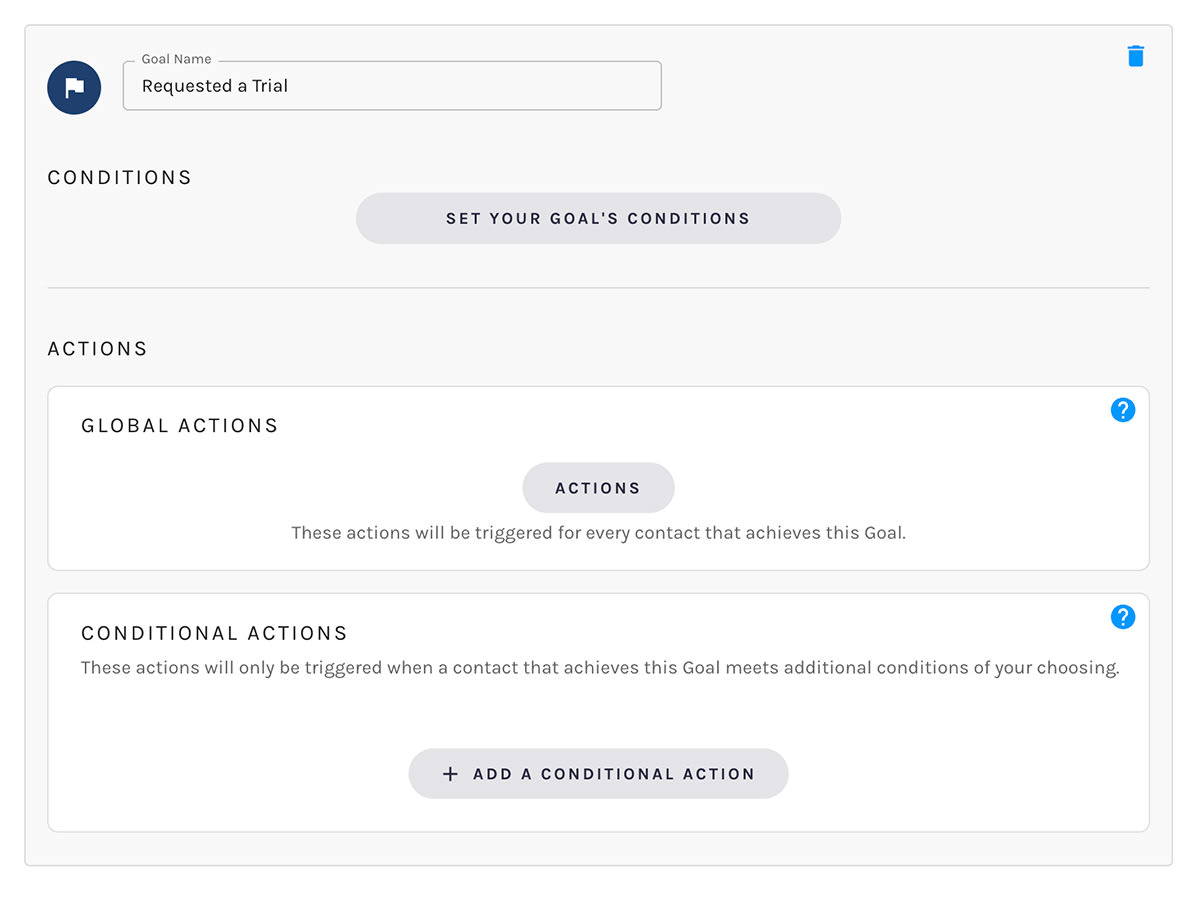
Defining a Goal
What a Goal Actually Does
When a contact meets a goal's conditions, two things happen:
- The contact is removed from the automation — they stop progressing through nodes.
- Any Actions you've configured on the goal fire for that contact — globally or conditionally.
That's the whole model. Define the conditions, define the Actions, let the Workflow self-clean.
Conditions, Powered by the Segment Builder
Conditions are defined using Paminga's Segment Builder — the same surface you use everywhere else. Demographic, firmographic, behavioral conditions, nested freely.
If your conditions are time-based (visited a page, opened an email), Paminga uses a rolling evaluation window. Say you set 7 days on a perpetual automation:
- At 2:00 PM on the 16th, Paminga looks back to 2:00 PM on the 9th
- At 2:05 PM, it looks back to 2:05 PM on the 9th
- And so on, every cycle
The first time the window contains qualifying activity, the contact achieves the goal.
Global Actions vs. Conditional Actions
Actions on a goal split into two buckets:
- Global Actions fire for every contact that achieves the goal
- Conditional Actions only fire when a goal-achiever also meets additional conditions you define
Same Conditional Actions model you know from Action Sets. Different segments of goal-achievers, different follow-up — without splitting a goal into many.
How Often Goals Are Evaluated
- Perpetual automations — every execution cycle, roughly every 5 minutes
- One-time automations — after audience evaluation, and again whenever the automation cycles (after a Wait node completes, for example)
Multiple Goals, In Order
You can create as many goals as you need. They're evaluated top to bottom, and only one goal's Actions ever fire per contact per cycle.
If a contact meets the conditions for both Goal 1 and Goal 2 in the same cycle, Goal 1 wins — its Actions fire, the contact exits, and Goal 2 is skipped for that cycle. Order matters; put the goal that should "win ties" higher.
Achievement Lands in the Activity Stream
Every goal achievement is logged to the contact's activity history as a "Goal Achieved" entry. You can confirm goals are firing, see exactly when each contact was pulled out, and segment downstream on the goal achievement itself.
That last part matters. A goal isn't just an exit — it's a signal you can use anywhere a Segment can.
A Few Practical Notes
- Name your goals like a human would name them. "Booked a Demo" reads better than "Goal 1" — and that's exactly what shows up in the activity stream.
- Once an automation is running, goal editing is disabled. Pause first if you need to change them.
- A contact can only achieve a goal once per qualification. If a perpetual automation requalifies them, they can achieve the same goal again in the new qualification.
Get Started
- Open any new Workflow or Drip Series and head to the Goals step
- Define conditions that mean "this contact is done" — booked the demo, hit a lead-score threshold, made the purchase
- Add the Actions you want fired on exit — CRM update, internal notification, list move, whatever closes the loop
- Ship it — and check the activity stream after the next cycle to confirm
Read the Goals docs for the full walkthrough.


