Countdown
The Countdown element is in beta. It may not be turned on for your account yet. To request access, contact Paminga Support.
A Countdown shows visitors exactly how long they have left — until the webinar starts, the early-bird price ends, or the doors open. It ticks live, second by second, in front of the visitor, and it looks like the rest of your page because it takes its type straight from your Brand Kit.
Countdowns are available in the Landing Page, Form, and CTA builders.
A countdown needs JavaScript to tick, and no email client runs JavaScript, so the Email Builder doesn't offer this element.
This page covers the Countdown element in Paminga's current builders. The classic Landing Page builder has its own Countdown Timer Module, with different settings.
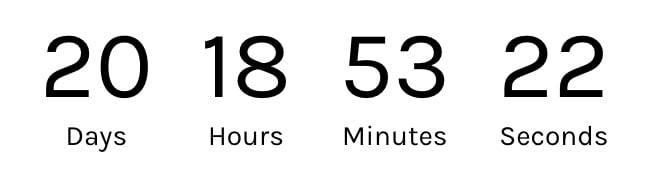
A Countdown, Styled by the Page's Brand Kit:
Add a Countdown
Click the + icon in the builder and choose Countdown (searching "timer", "deadline", or "webinar" finds it too). It arrives already counting down to one week from the moment you add it, so you can see what it looks like right away. Then set the deadline you actually want.
Select the countdown to open its settings in the Countdown tab on the right.
Set the Deadline
Under Deadline, choose where the countdown gets its end time.
From a Date
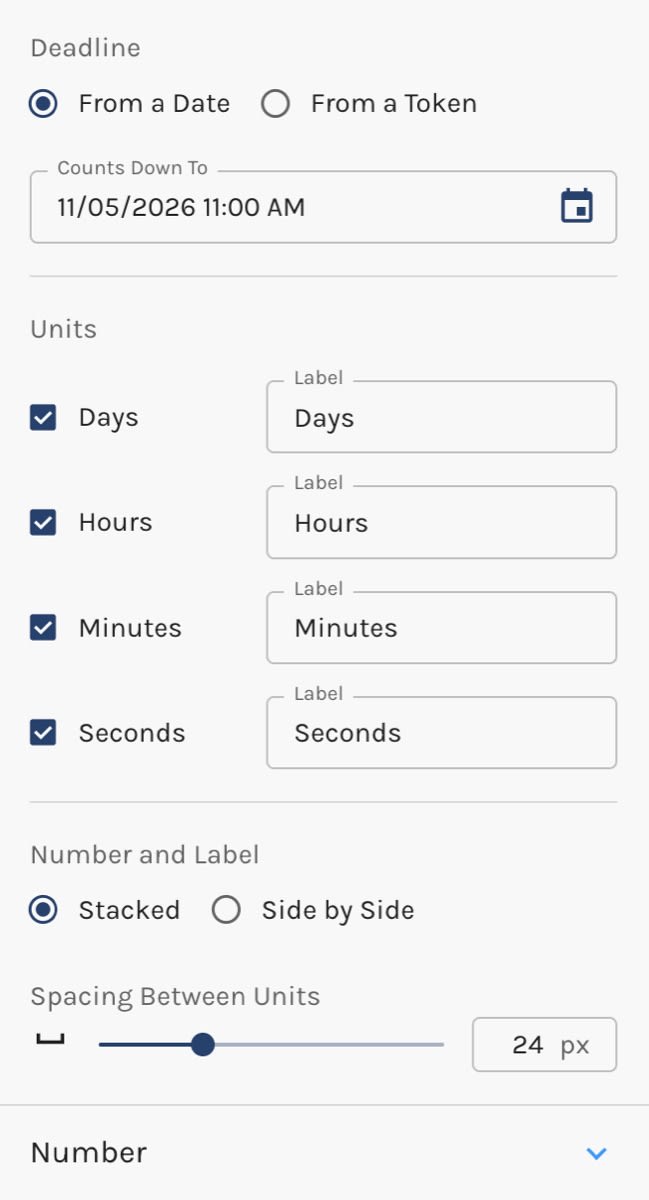
Pick a date and time in Counts Down To. Enter it in your own time zone; Paminga stores it as a single moment, so every visitor, wherever they are, counts down to that same instant. A 2:00 PM Eastern webinar reads as starting in the same number of hours for someone in London as for someone in Denver.
From a Token
Choose From a Token when the deadline should come from your data rather than a date you type. Click Counts Down To and pick a date or date/time token from Standard/Custom Fields, Folder Tokens, or Global Tokens. Only date and date/time fields are offered, since nothing else can be a deadline.
If the token has no value, the countdown shows zeros.
Once chosen, the field shows the token's name; hover over it to see the value it currently resolves to.
When the Deadline Passes
A countdown stops at zero and stays there. It never counts into negative numbers.
A countdown whose token has no value for a given visitor also shows zeros.
Choose Which Units to Show
Under Units, check or uncheck Days, Hours, Minutes, and Seconds. Leaving off seconds makes a calmer countdown; leaving off days suits a deadline that's only hours away.
Each unit has its own Label, the word shown with the number. Change it to shorten it ("Hrs") or to write it in your visitors' language.
Layout
- Number and Label — Stacked puts each label under its number; Side by Side puts them on one line.
- Spacing Between Units — 0 to 80px between each unit.
Style the Numbers and Labels
The Number and Label sections each hold the same typography controls you use in your Brand Kit, with sizes you can set separately for desktop, tablet, and mobile.
You don't have to touch them. By default the numbers use your Brand Kit's Header 2 style and the labels use its Paragraph style, so a countdown matches the page it's on, and it picks up later changes to the Brand Kit too. Change a setting here only when this countdown should look different from the rest of your type.
Countdown Settings: