Signature
The Signature element is in beta. It may not be turned on for your account yet. To request access, contact Paminga Support.
The Signature element places one of your account's Email Signatures in an email. It's available in the Email Builder only. Forms, Landing Pages, and CTAs don't have sign-offs.
The element doesn't hold a copy of the signature. It points at one. Whatever the signature says in Account Settings at send time is what your recipients get, so a new title or phone number never means hunting down every email that mentions the old one.
Add a Signature to an Email
- In the Email Builder, add an element where you want the sign-off and choose Signature. Searching for "sign-off" or "owner" finds it too.
- The element's settings open. Signature is already set to your account's default signature.
- Keep the default, or pick a different signature from the list.
That's the whole configuration. The content itself is managed in Account Settings › Email Signatures, and the settings panel links you there.
The Signature Element:
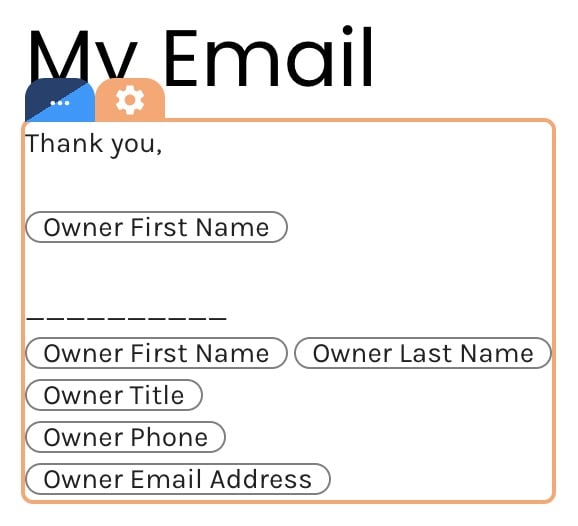
Signature Settings:
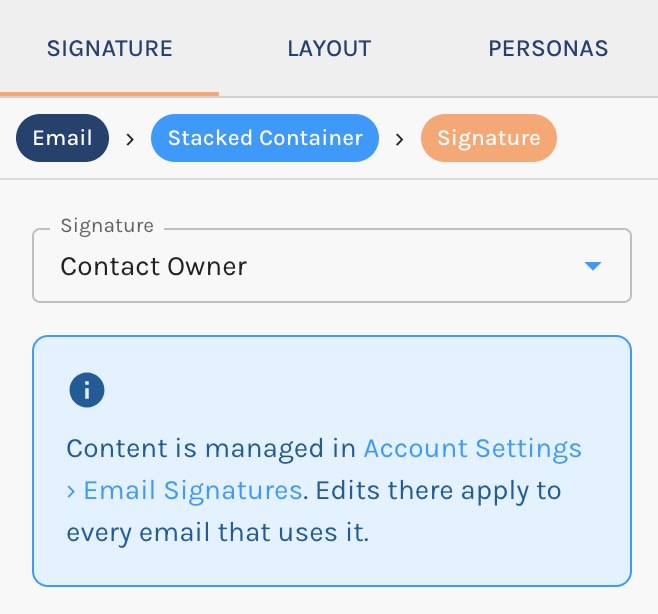
Which Signature Renders
The one you pick. Each Signature element names a specific signature, and that's what sends. The element doesn't swap signatures based on who sends the email.
Personalization comes from inside the signature. Paminga's built-in Contact Owner signature uses the contact owner's name, title, phone, and email address, so one email sent to a thousand contacts signs each copy as that contact's owner. Build your own signatures the same way with any personalized fields you like.
How It Looks
The signature takes on the typography of the email's Brand Kit, the same as the body text around it. That's deliberate: one signature can appear in emails with different Brand Kits and look native in each.
What the Canvas Tells You
The canvas shows a live preview of the selected signature. Two other states are worth knowing:
- Choose a signature – no signature is selected. Pick one in the element's settings, or the element sends nothing.
- Signature no longer exists – a signature was selected, then deleted in Account Settings. Pick another one.
In the sent email, an element with no signature to show renders nothing at all rather than an empty box.


