Date Time
Date Time elements used on forms are a type of input field that allow visitors to enter or select a date with a time.
This type of element is usually used when a specific date and time is required. Examples include a date of an event, webinar, meeting requests etc.
Visitors submitting the form can input the date and time value or use the date picker to choose a date and time.
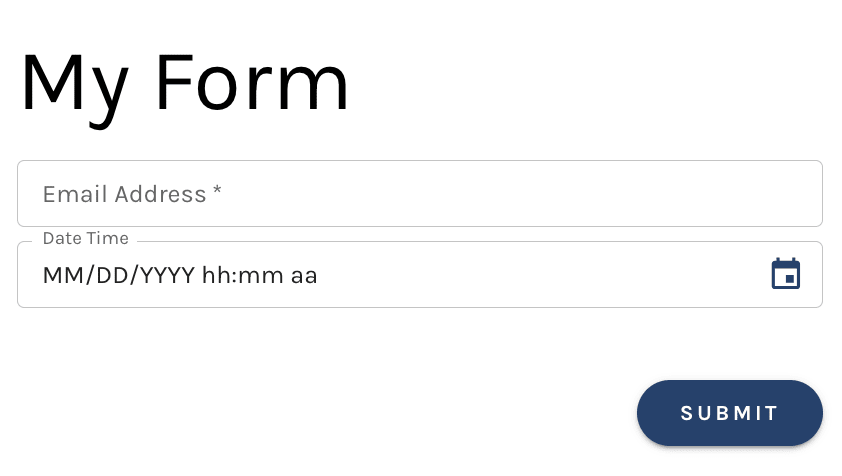
Add a Date Time Element to your Form
To add a Date Time element to your form select the orange + icon within the builder and then select "Date Time".

Once added you can then edit the fields settings on the right hand side of the screen.
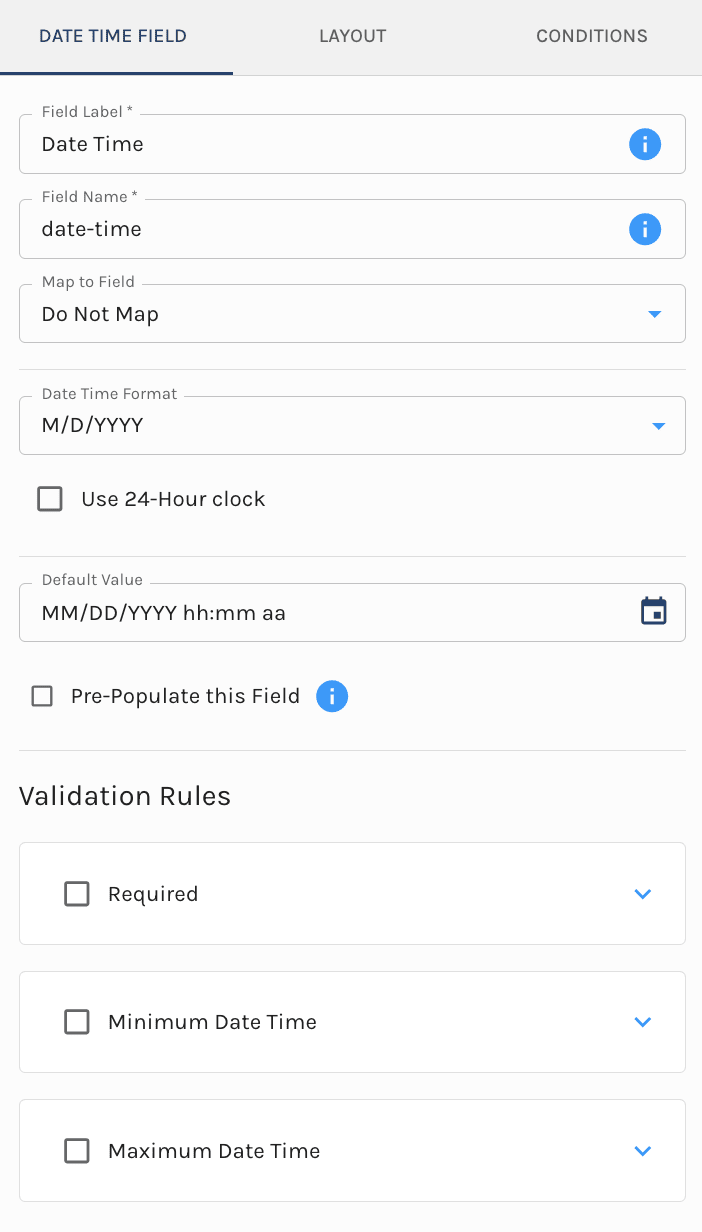
Date Time Field Element Settings
Under the date time field settings there are various options to set.
These options include:
- Field Label: Value that is always visible to persons filling in your form
- Hint: Optional light instructions, shown in smaller text beneath the field. A validation error message temporarily takes its place. More on hints
- Field Name: The Field Name is "behind the scenes".
- The field name is not shown to persons filling in your form
- Map to Field: Choose the field in Paminga you would like to map this data to when the form is submitted.
- Any date field types within your account will be available to map to via the drop down
- Date Format: Select the format you would like the date field displayed. Available options include:
- YYYY-MM-DD
- M/D/YYYY
- DD/MM/YYYY
- Use 24 Hour Clock: Checkbox. When selected a 24 hour clock will be displayed
- Default Value: If you choose to set a Default Value, this field will be pre-filled with that value when the form is rendered
- Pre-Populate This Field: Checkbox. Paminga may be able to recognize the website visitor submitting your form. When this is the case, you can have Paminga pre-populate fields with values that are already known for that person
Validation Rules
Within the date field settings you can set validation rules for the persons submitting the form.
These validation rules include:
- Required: Make it so that when the person is submitting the form the field is required to submit
- By default a message is set to "This is a required field." This message can be edited

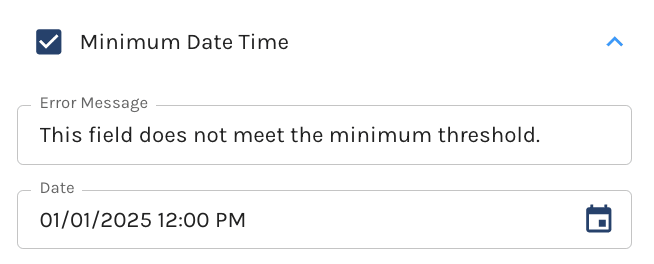
- Minimum Date Time: The earliest date and time that can be entered to submit the form. Set it to a specific date and time with the date picker, or relative to today. The error message can be edited
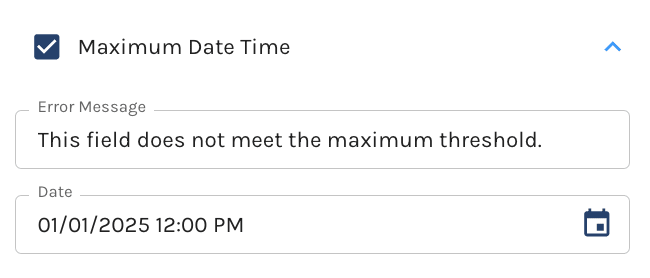
- Maximum Date Time: The latest date and time that can be entered to submit the form. Set it to a specific date and time with the date picker, or relative to today. The error message can be edited
Rolling Minimum and Maximum Dates
Rolling minimum and maximum dates is in beta. It may not be turned on for your account yet. To request access, contact Paminga Support.
A fixed date can't express an age gate. "You must be 13 or older" is a boundary that moves every day, and so is "book at least 7 days out." For rules like these, set the minimum or maximum relative to today instead of to a specific date and time.
When you enable a Minimum or Maximum rule, choose between A specific date and Relative to today. With Relative to today:
- Amount: a whole number, 1 or more
- Unit: Minutes, Hours, Days, Weeks, Months, or Years
- Direction: Before today or After today
The direction is yours to choose, so all four combinations work:
| Rule | Direction | Reads as | Typical use |
|---|---|---|---|
| Maximum | Before today | Must be at least 13 years ago. | Age gate |
| Maximum | After today | Must be no more than 90 days from now. | Booking window |
| Minimum | Before today | Must be within the last 30 days. | Recent purchase date |
| Minimum | After today | Must be at least 7 days from now. | Lead time |
As you fill it in, the builder reads the rule back in plain English, along with the date and time it resolves to today, so you can check it before you publish.
The boundary is worked out fresh each time the form is validated, so a rule you set once stays correct tomorrow, next month, and next year. Date/time values are compared as exact moments, so a bound like "48 hours after today" means 48 hours from the moment the visitor's entry is checked.
A Rolling Maximum Date:

Layout
Under the layout tab you have the ability to edit the layout of the field on the form.
Here you can set the fields:
- Alignment (Left, Center, Right)
- Width
- Margins (Top, Bottom, Left, Right)
Easily set these parameter using the slider, or input the value to the right of each layout option.

Conditions
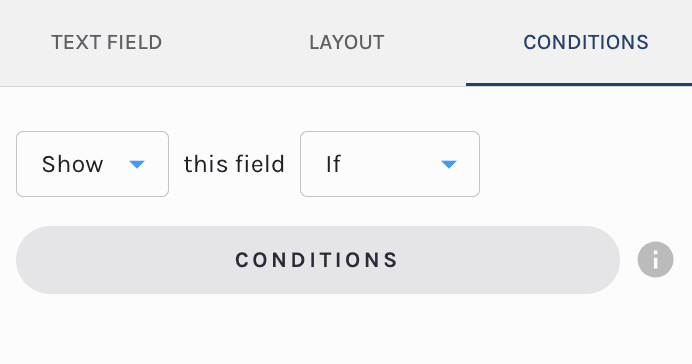
By default the field is set to show always. That said, you have the ability to edit the fields visibilty to conditionally display.

If you would like to edit the visibilty of the form field update the settings under the conditions tab.
You can set the field to:
- Show This Field Always
- Hide This Field Always
- Show This Field If
- Hide This Field If
Selection of the last two will prompt you to set conditions of display for this field using the Paminga segemnt builder.
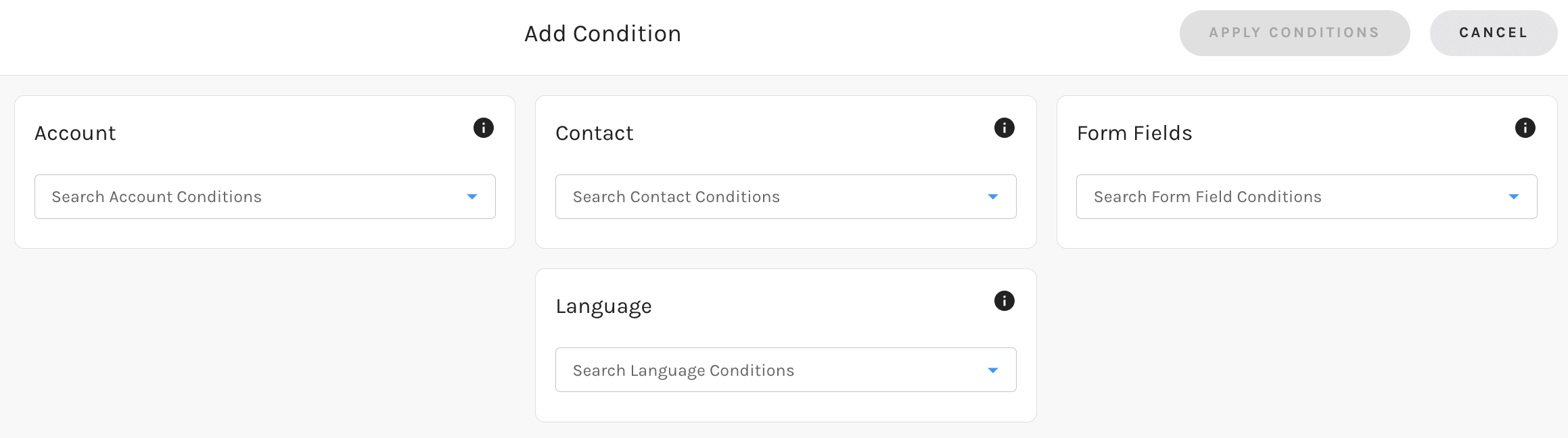
The conditions available to dispaly off of are:
- Account Fields (standard & custom)
- Contact Field (standard & custom)
- Form Fields: Set the conditons based on any field's value on your form
- Language: If you leverage "Internationalization" each language you have added to the form will be available to select here
Make sure to check out our in-depth documentation here.


