Drop Down
Drop Down elements are used on forms as a type of field that allows your visitors to choose one option from a list of preset values.
It is often used when there are a limited set of choices, and it saves space by condensing the list into a compact format.
If your form is translated, the option labels come along: translate the Drop Down once in Account Settings and every form that uses it shows the right labels in each language.

Add a Drop Down Element to your Form
To add a Drop Down element to your form select the orange + icon within the builder and then select "Drop Down".

Once added you can then edit the fields settings on the right hand side of the screen.

Drop Down Element Settings
Under the drop down field settings there are various options to set.
These include:
- Field Label: Value that is always visible to persons filling in your form
- Hint: Optional light instructions, shown in smaller text beneath the field. A validation error message temporarily takes its place. More on hints
- Field Name: The Field Name is "behind the scenes".
- The field name is not shown to persons filling in your form
- Map to Field: Choose the field in Paminga you would like to map this data to when the form is submitted.
- Any drop down field types within your account will be available to map to via the drop down
- Pre-Populate This Field: Checkbox. Paminga may be able to recognize the website visitor submitting your form. When this is the case, you can have Paminga pre-populate fields with values that are already known for that person
Drop Down Options
Within the options of the drop down field settings you have a few options to set.
These include:
- Use a Pre-Exisiting Drop Down: When selected you will be able to choose from any already exisiting drop downs within your account
- Type to select a drop down or use the arrows to sort
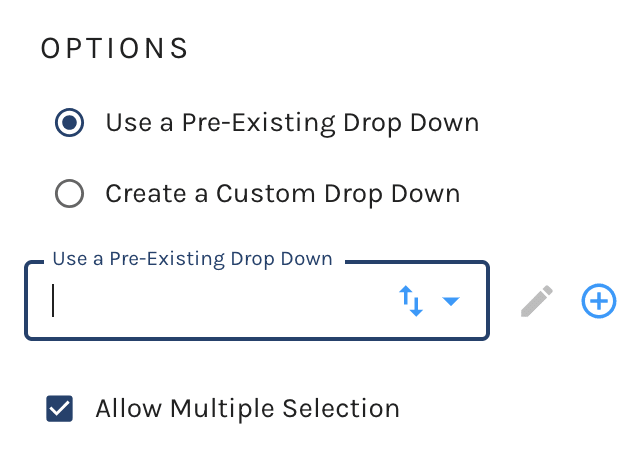
- Create a Custom Drop Down: If you would like to create a new drop down within the form select this option. Upon selection you can update the label and add options for the drop down

- Allow Multiple Selection: Selecting this checkbox will allow your visitors to select more than one option from the drop down
Choose Which Options Appear
A Drop Down you maintain in Account Settings often holds more options than a particular form should offer. A product-interest list might carry every product line while a webinar sign-up only wants three of them.
When the field uses a pre-existing Drop Down, or is mapped to a drop-down custom field, an Options to Include card lists every option with a checkbox. Untick the options this field should not show. Visitors see only the ticked ones, and the Drop Down itself is untouched, so every other form using it keeps its full list.
- A field you have never narrowed shows every option, including options added to the Drop Down later.
- Once you untick something, the field shows exactly the options you left ticked. Options added to the Drop Down later appear in the card unticked, so they stay off this form until you tick them.
- Tick every option again and the field goes back to showing the whole list, new options included.
- Options deleted from the Drop Down disappear from the card, and renamed options show their new names.
- At least one option always stays ticked. Clearing Select All leaves just the first option ticked.
- If the field's Default Value is an option you untick, the Default Value is cleared.
Lists of 10 or more options also get a Search Options box, a Select All checkbox, and a count of how many are selected.
Picking a different Drop Down, switching to Create a Custom Drop Down, or changing what the field is mapped to starts the list over with every option included. (A custom drop down doesn't need this card: you already decide exactly which options it has.)
Choosing Which Options Appear:

Validation Rules
Within the date field settings you can set validation rules for the persons submitting the form.
These validation rules include:
- Required: Make it so that when the person is submitting the form the field is required to submit
- By default a message is set to "This is a required field." This message can be edited

Layout
Under the layout tab you have the ability to edit the layout of the field on the form.
Here you can set the fields:
- Alignment (Left, Center, Right)
- Width
- Margins (Top, Bottom, Left, Right)
Easily set these parameter using the slider, or input the value to the right of each layout option.

Conditions
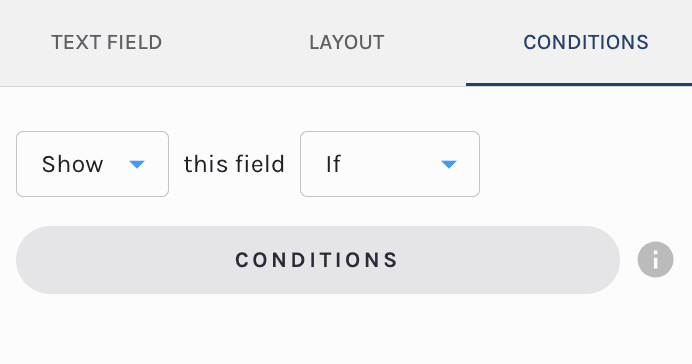
By default the field is set to show always. That said, you have the ability to edit the fields visibilty to conditionally display.

If you would like to edit the visibilty of the form field update the settings under the conditions tab.
You can set the field to:
- Show This Field Always
- Hide This Field Always
- Show This Field If
- Hide This Field If
Selection of the last two will prompt you to set conditions of display for this field using the Paminga segemnt builder.
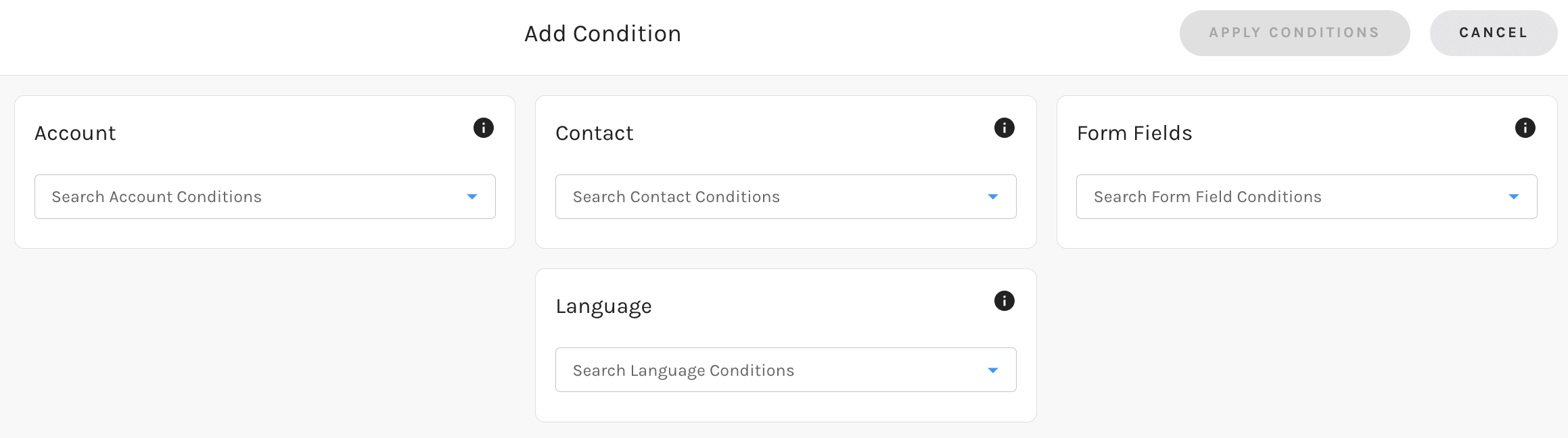
The conditions available to dispaly off of are:
- Account Fields (standard & custom)
- Contact Field (standard & custom)
- Form Fields: Set the conditons based on any field's value on your form
- Language: If you leverage "Internationalization" each language you have added to the form will be available to select here
Make sure to check out our in-depth documentation here.


