Segment Builder
Segments are the key to Paminga's power. They allow you to define conditions that combine demographics, firmographics, and behavioral/engagement in limitless combinations.
Critically, Paminga's segment builder is omnipresent: in every place where you can do something conditionally in Paminga, you will use this Segment Builder to select your conditions.
Complex Segment Conditions:
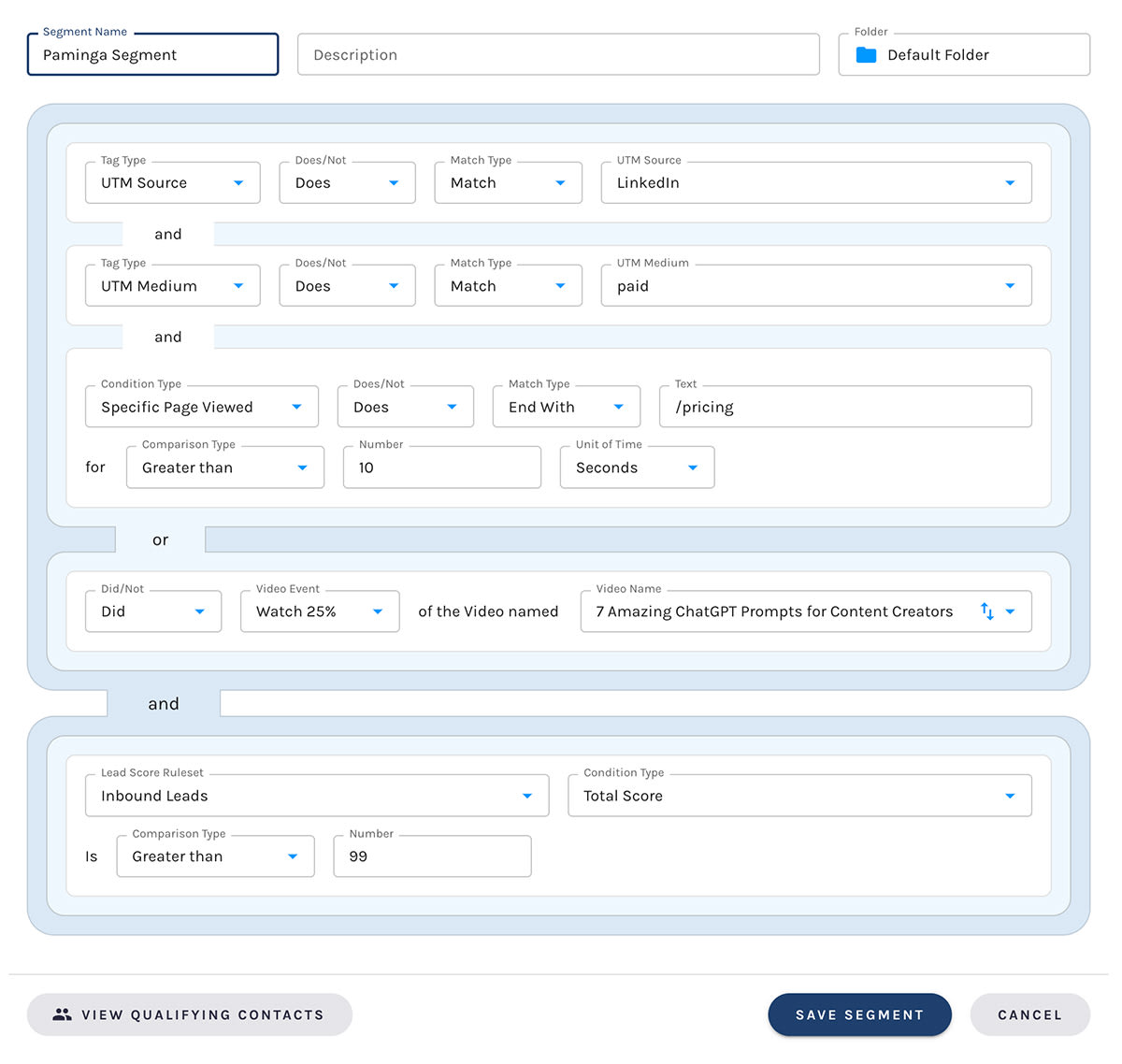
Omnipresence Throughout Paminga
Paminga's Segment Builder is used to:
- Create Audiences for Workflows, Drip Series, and One-Off Email Blasts
- Decide when a Workflow will branch
- Set the conditions for Goal attainment in Workflows and Drip Series
- Dynamic Content: conditionally show Sections, Rows, and Elements in Paminga's:
- Email Builder
- Form Builder
- Landing Page Builder
- CTA Builder
- Control conditional navigation through multi-page Forms
- Control conditional redirect (or conditional "thank you" messages) upon form submission
- Set the conditions that trigger Scoring changes
- Set the conditions under which any Sales Alert will be triggered
- Conditionally trigger any of Paminga's dozens of Actions including:
- Conditional CRM Lead creation
- Conditional add to Campaign (setting status and custom field values)
- Conditional CRM Task creation
- Conditional CRM Opportunity creation
- Control the triggering of Conditional Actions everywhere they appear in Paminga
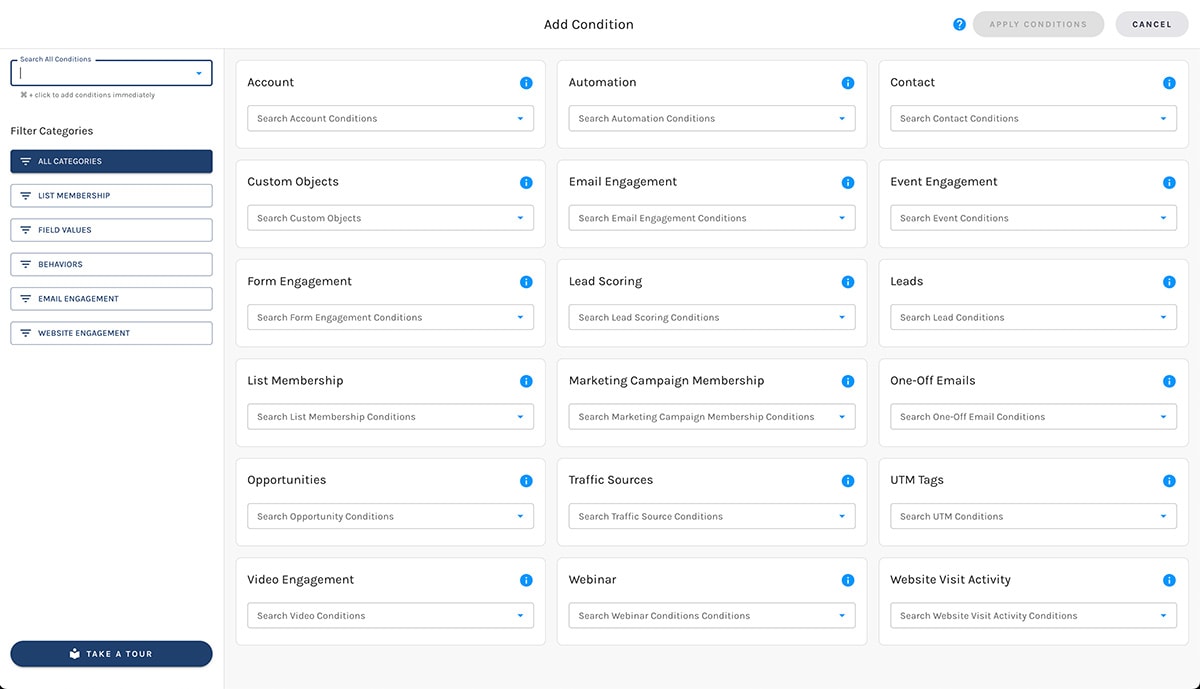
Segment Condition Categories:
What is a Segment?
A Segment is a set of conditions. Some examples:
- Persons who spent at least 30 seconds on your pricing page in the last 7 days
- Persons in Manufacturing who clicked through from a particular email and registered for your event
- Customers who have spent more than $500 in the last 90 days
A Segment is not a list of these persons. Rather it is a set of conditions that are used at the moment they are needed.
And when would that moment be? We're glad you asked. 🙂
Segments Are Dynamic
- When your new Drip Series launches at, for example, 4:00pm. At that moment, we'll query using your segment's conditions to find all the contacts that should be included in your Drip Series Audience
(the segment builder is the audience builder) - When your lead scoring rules are evaluated. You use segment conditions to tell Paminga: "when these conditions are met, add 10 points to the prospect's lead score". We'll query using your segment's conditions and adjust lead scores for prospects that meet them.
- ...and in many other instances. Read on!
Segment Conditions
Paminga's segment conditions are endlessly flexible.
Let's look at some basic field types: text, numeric, and date.
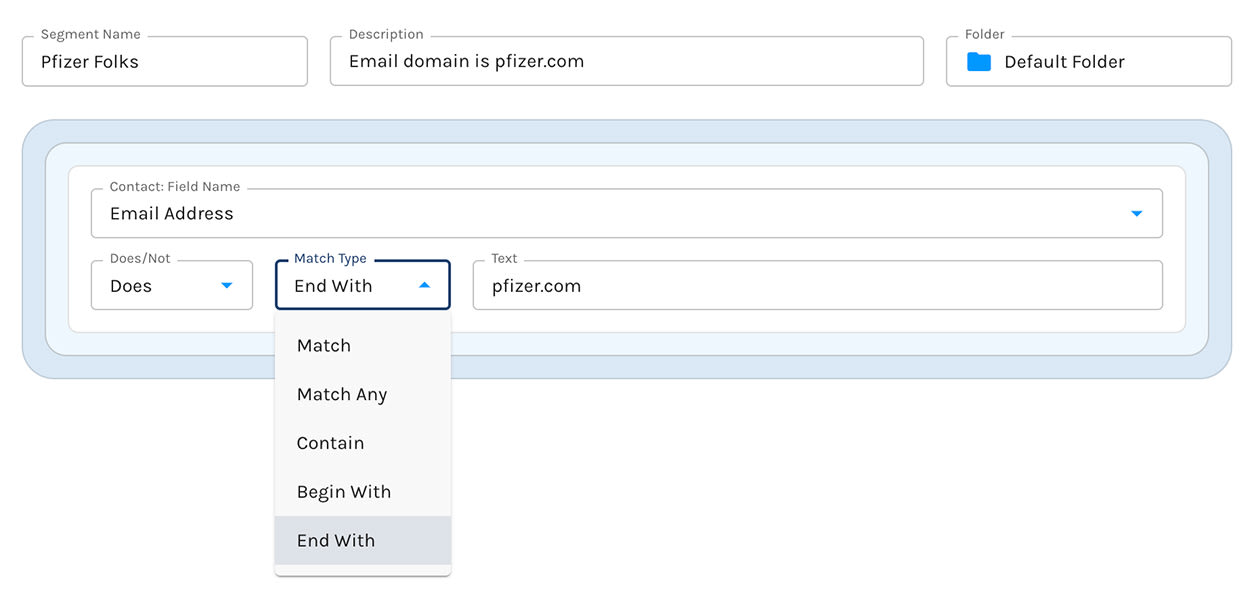
Text Fields
Fields that are comprised of text, like an email address
- Does or Does Not
- Match, Contain, Begin With, End With, or Match Any
...relative to the text you choose.
- Email Address Does End with "pfizer.com"
- Company Name Does Contain "Manufacturing"
- Zip Code Does Match Any: 90123, 80202, 44145
Numeric Fields
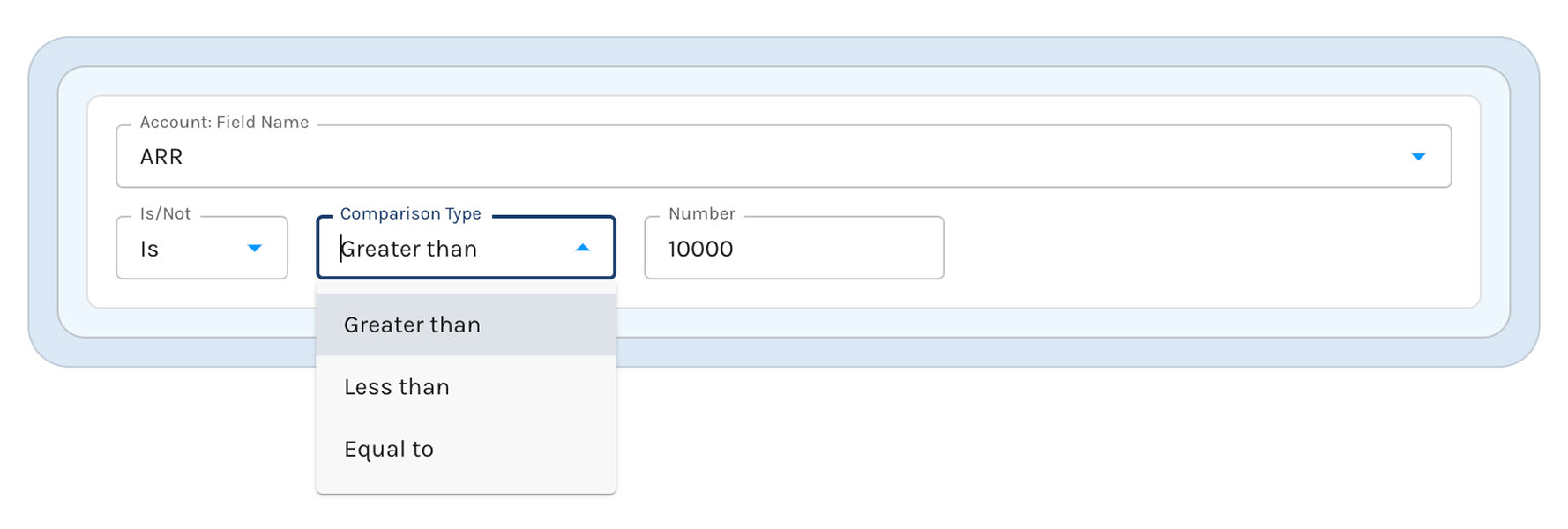
Numeric fields may be integers or decimal values, and may be selected based on:
- Is or Is Not
- Greater Than, Less Than, or Equal To
...the numeric value you choose.
Date & Date/Time Fields
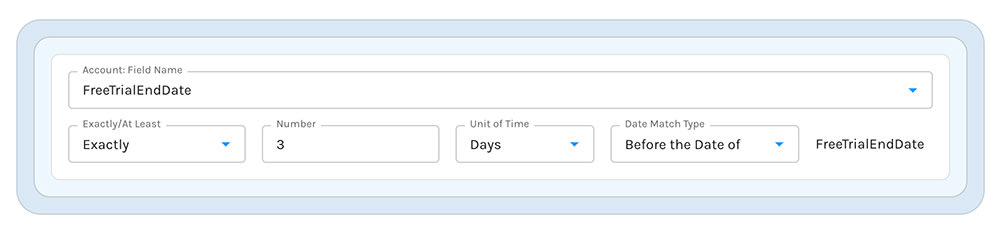
Date & Date/Time fields may be leveraged in multiple ways.
Here we are find prospects whose free trial is ending in 3 days:
Condition Categories
Segment conditions are grouped into categories to make it easy to find the conditions you would like to use.
Account
Select contacts based on values in any of your standard or custom account fields.
Automation
Select contacts based on whether they:
- Qualified to participate in a specific automation
- Achieved a Goal in a specific automation
Buying Groups
Buying Groups are named subsets of an Account's contacts, where each member carries the role they play in the deal.
Select contacts based on whether they are (or are not) a member of:
- A specific Buying Group in any role — everyone involved in one deal
- Any Buying Group in a specific role — every Champion, or every Economic Buyer, across your entire pipeline
- A specific Buying Group in a specific role
Leave either picker empty and it means "any". That's what makes "is not a member of any Buying Group" work: the contacts at your target accounts nobody has mapped to a deal yet.
Member Roles are defined once, account-wide, so "Champion" means the same thing on every Buying Group your segments touch.
Contact
Select contacts based on values in any of your standard or custom contact fields.
Custom Objects
Select contacts based on values in any the standard or custom fields associated with your custom objects.
You will first choose which Custom Object you'd like to leverage. You will then see all available standard and custom fields associated with that Custom Object.
Email Engagement
This category allows you to select persons who:
- Did or Did Not Receive an email from a specific automation, or any automation at all
- Did or Did Not Open an email sent in a specific automation, or any automation at all
- Did or Did Not Click through from an email sent in a specific automation, or any automation at all
- Did or Did Not Visit your website by clicking a link in an email sent in a specific automation, or any automation at all
- Did or Did Not have their email address hard bounce in a specific automation, or any automation at all
- Did or Did Not opt out after receiving an email in a specific automation, or any automation at all
...during an applicable time period.
In every one of these cases, you may also select person who do not meet the conditions: For example, find persons who did not click in an email in a specific automation.
Event Engagement
Paminga supports both digital events (webinars) and physical or IRL events.
Select contacts who:
- Did or Did Not Register for a specific event
- Did or Did Not Attend a specific event
Form Engagement
Select contacts who:
- Did or Did Not Submit a specific form
- Did or Did Not Submit a any form at all
...during an applicable time period.
Leads
Select contacts based on the fact that the record is tied to a Lead in CRM.
You may do the same with CRM Contacts.
Lead Scoring
Select contacts whose:
- Total Score is Greater Than, Less Than, or Equal To
- Contact Score is Greater Than, Less Than, or Equal To
- Activity Score is Greater Than, Less Than, or Equal To
- Engagement Score is Greater Than, Less Than, or Equal To
- Manual Score is Greater Than, Less Than, or Equal To
...a numeric value of your choosing.
Depending on the package your company subscribes to, you may have the ability to create multiple "Lead Scoring Rulesets".
You are able to choose which scoring ruleset will be examined by your segment.
List Membership
Select contacts based on their membership (or lack of membership) in any number or Marketing or Subscription Lists.
This is a very common and powerful way to segment your prospects as it's quite simple to use intersections of lists.
Marketing Campaign Membership
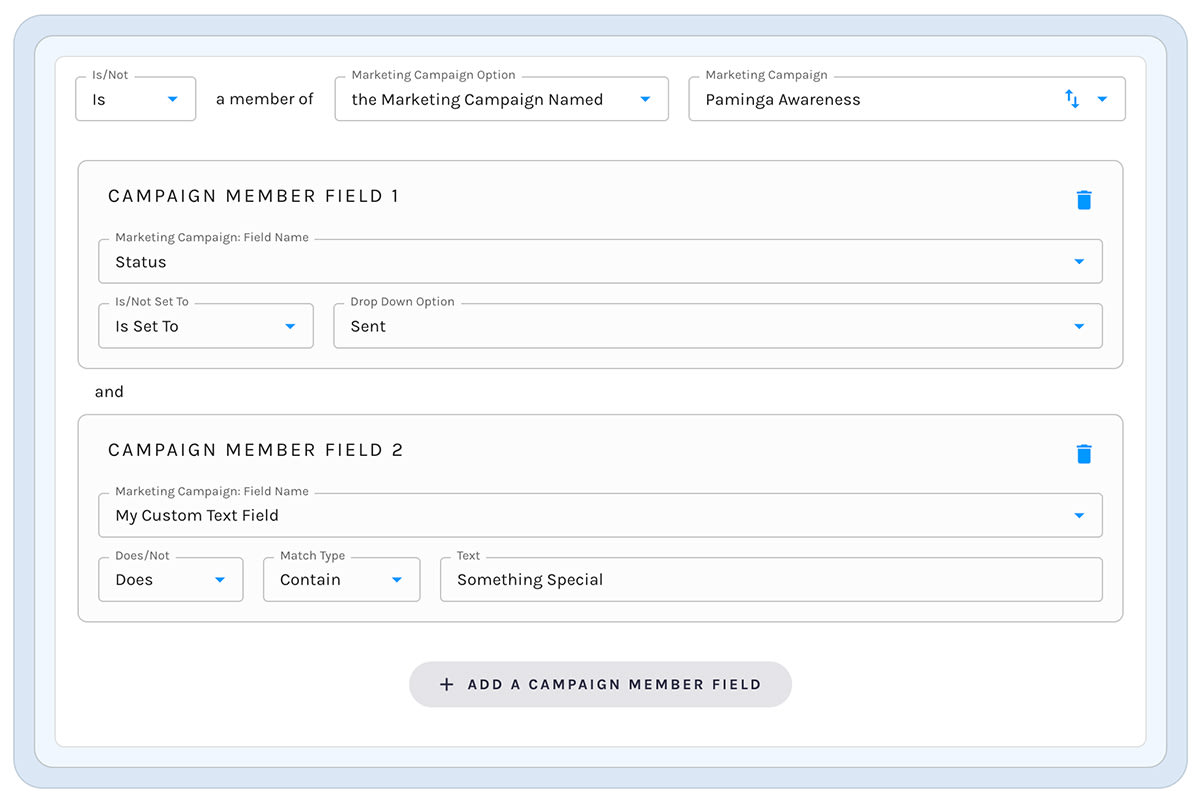
Paminga's Marketing Campaigns sync bidirectionally with CRM Campaigns – along with member statuses and custom fields.
- Select contacts based on their membership (or lack of membership) in any campaign
- Select contacts based on their current status in a campaign
- Select contacts based on values of custom campaign member fields
Segment on Marketing Campaign Membership + Fields
One-Off Emails
Opportunities
Select contacts based on their association to Opportunities based on Opportunity:
- Name
- Stage
- Type
- Probability
- Amount
- Expected Close Date
- Custom fields without limitation
UTM Tags
Paminga records UTM tags for every visit. Paminga never deletes visit or other history.
Select contacts based on their having visited your site with any combination of:
- UTM Campaign
- UTM Source
- UTM Medium
- UTM Content
- UTM Term
Video Engagement
If you embed videos on your website with YouTube, Wistia, Vimeo, or Vidyard, Paminga knows who watches your videos and for how long.
You don't need to tell Paminga when you add a video to your website. Our tracking beacon sees it automatically the first time a visitor plays your video.
Select contacts based on which videos they:
- Play at all
- Watch at least 25% of the video
- Watch at least 50% of the video
- Watch at least 75% of the video
- Watch at least 100% of the video
Website Visit Activity
Searching for Conditions in a Category
Each category has a search box that allows you to search for conditions in that category.
Searching for Conditions Across All Categories
When choosing conditions, a global search box is available in the upper left corner.
Because Paminga loves you, you'll find that the cursor is automatically placed in this search box every time you open the segment builder.


