Drag-and-Drop Segment Builder
The Drag-and-Drop Segment Builder is a new way to build the same Segments you already use across Paminga. You drag conditions onto a canvas, and the builder shows you how many contacts meet each requirement while you work.
It edits the same conditions as the classic builder, so you can switch between them at any time. Nothing about your segment changes when you switch.
At a glance:
- Live counts for every requirement, and a funnel that shows which requirement removed contacts
- Your whole segment read back to you in plain English
- Drag, drop, or click to add conditions, and rearrange anything on the canvas
- Undo and redo for every change
- Revision History of who changed the segment and when, with Restore
The Drag-and-Drop Segment Builder:
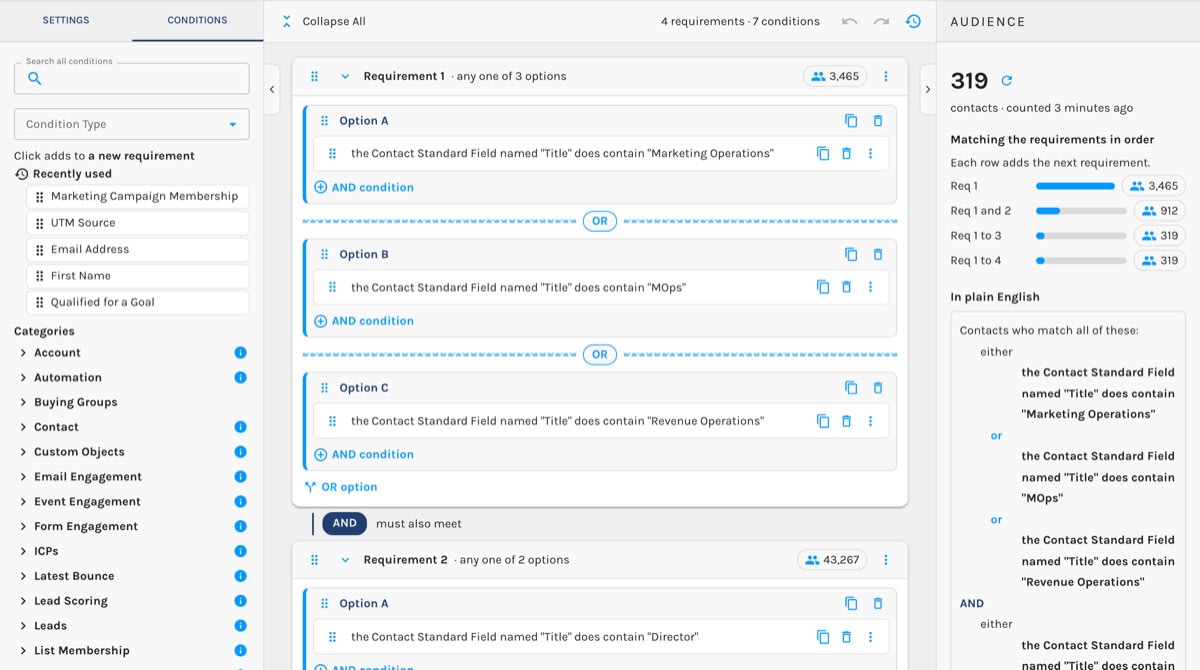
Turning It On
Open any Global Segment or Global Persona, and click Try the New Builder at the top of the page.
Switching never changes your segment, so there's no risk in trying it. The choice belongs to you, not to your account. Your teammates keep the builder they prefer, and Paminga remembers yours on every device. Click Classic Builder at the bottom of the page to go back.
Try the New Builder:

How a Segment Is Organized
The builder lays your logic out the way you think about it.
- Requirements are the big blocks. A contact must meet every requirement. The builder joins them with "AND · must also meet".
- Options live inside a requirement. A contact needs to meet only one option to satisfy that requirement. Options are lettered A, B, C, and are joined by "OR".
- Conditions live inside an option. A contact must meet every condition in that option.
So a requirement with two options reads: "this requirement is met by Option A or Option B". You never write a parenthesis.
A Requirement With Three Options:
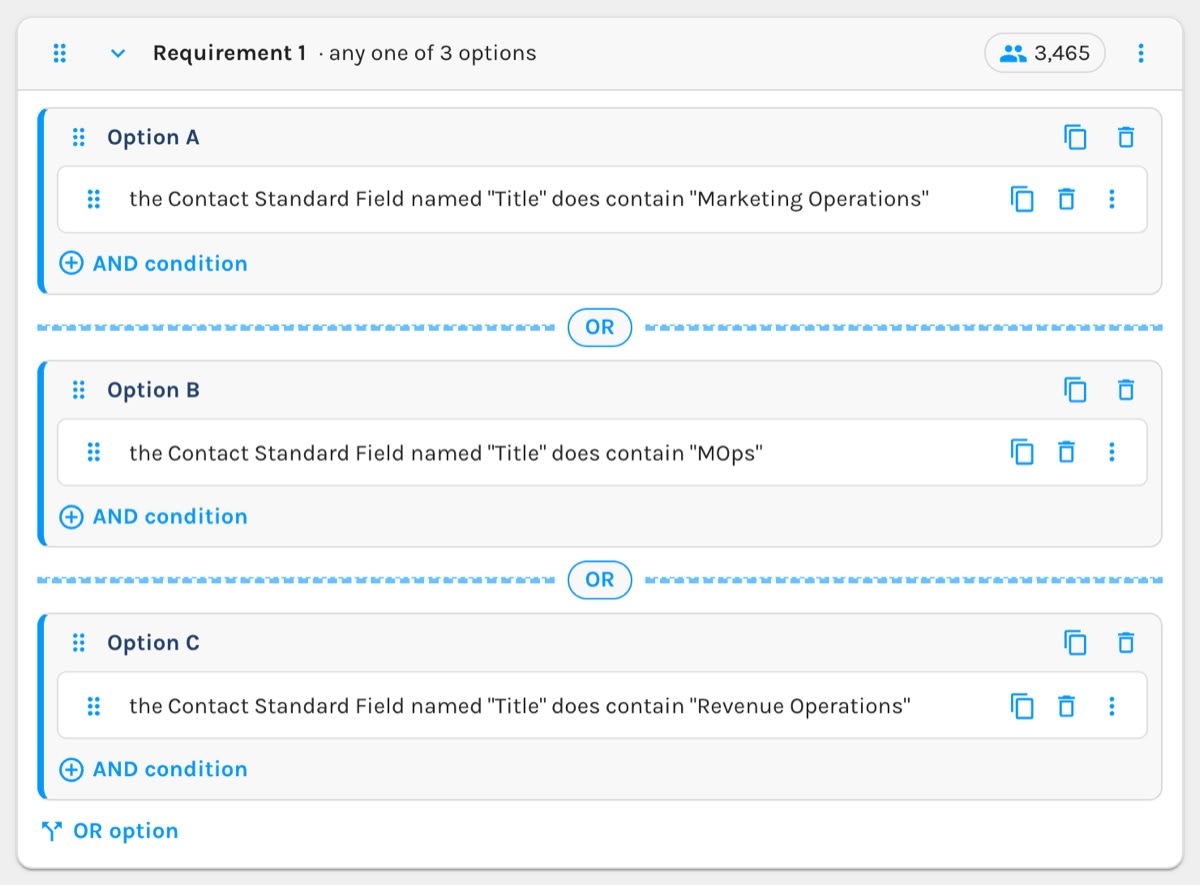
Adding Conditions
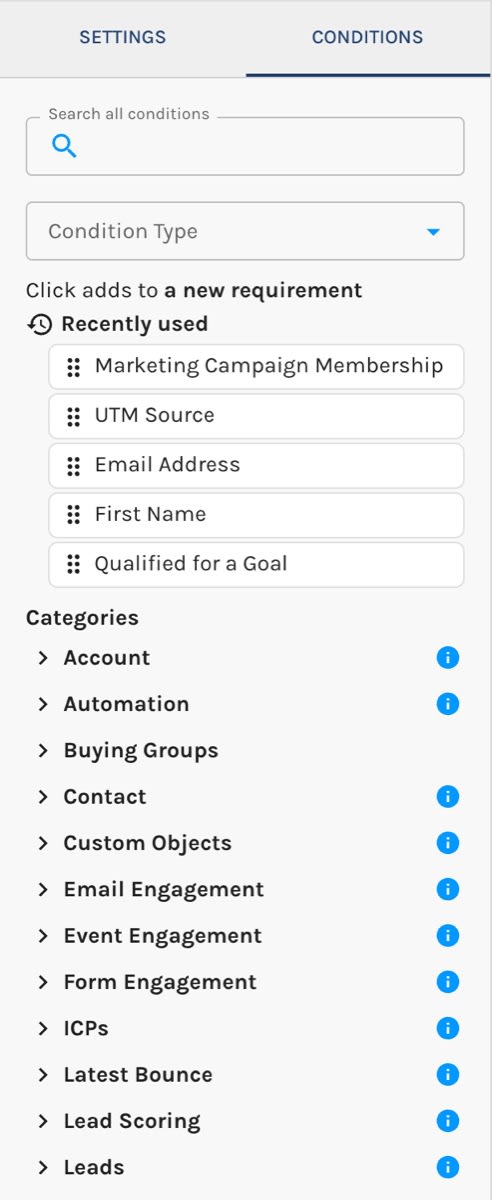
The Conditions tab on the left lists every condition you can use, grouped into the same Condition Categories as the classic builder.
- Search all conditions finds a condition by name across every category.
- Condition Type narrows the list to List Membership, Field Values, Behaviors, Email Engagement, or Website Engagement.
- Recently Used keeps your last five conditions at the top, so the ones you reach for most are always one click away.
- Browse all conditions opens the full condition picker you know from the classic builder.
The Conditions Tab:
Drag a Condition
Drag a condition from the left onto the canvas. While you drag, the canvas shows you every place it can land, and says what each one means:
- New requirement here adds a new requirement (AND).
- OR adds a new option, another way to meet that requirement.
- AND adds the condition to an existing option.
If a drop isn't allowed, the drop zone says why before you let go.
Click a Condition
Prefer the mouse to stay still? Click a condition and it's added where the line above the list says: "Click adds to a new requirement". Click AND condition or OR option on the canvas first to aim the next click somewhere else.
After you add a condition, its editor opens so you can set its values. Click Done (or press Escape) when you're finished.
Rearranging Your Logic
Everything on the canvas can be moved:
- Drag a requirement by its handle to change the order.
- Drag an option into another requirement.
- Drag a condition into another option or requirement.
- Shift-click several conditions to select them, and drag them together.
- Hold Option (Alt on Windows) while you drag to copy instead of move.
Every condition also has a Move To menu that lists each place it can go. It's the fastest way to move a condition into a requirement far down a long segment.
Use Duplicate to repeat a condition, option, or requirement and then change one value.
Undo and Redo
Every change can be undone: adding, moving, deleting, and editing values. Use the arrows in the top bar, or press ⌘Z to undo and ⇧⌘Z to redo (Ctrl+Z and Ctrl+Shift+Z on Windows).
When you delete or move something, a message confirms what happened and offers an Undo button right there.
Live Counts
Live counts let you catch a wrong segment before it reaches a Workflow, not after. You don't have to save a segment to find out whether it's any good. As soon as every condition is complete, the builder counts the contacts who match, and it updates a moment after each change.
- Each requirement shows how many contacts meet that requirement on its own.
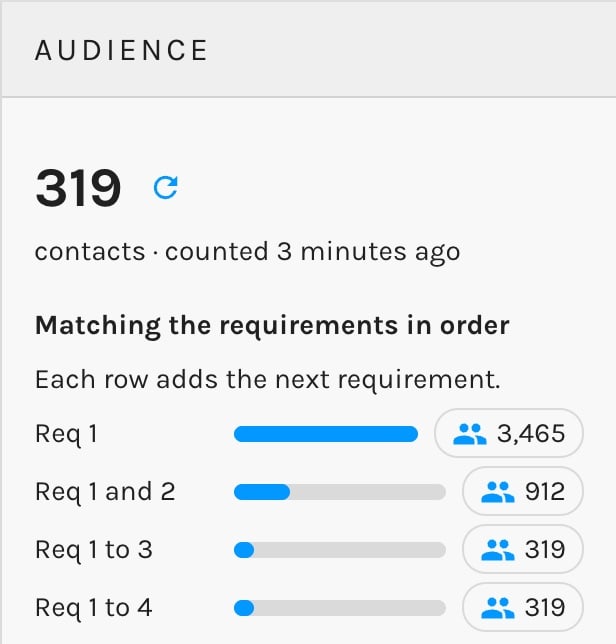
- The Audience panel on the right shows how many contacts meet them all.
- Matching the Requirements in Order shows how each requirement narrows your audience: Req 1, then Req 1 and 2, and so on.
That last view is where segments get debugged. When a segment comes back with fewer contacts than you expected, you see exactly which requirement removed them.
Click any count to see the contacts behind it. Click Count Again to refresh.
Live Counts:
Segments with date-based conditions are counted over the last 30 days. Segments that use a specific page-viewed condition are counted over the last day. These match the defaults of View Qualifying Contacts.
Plain English and Outline
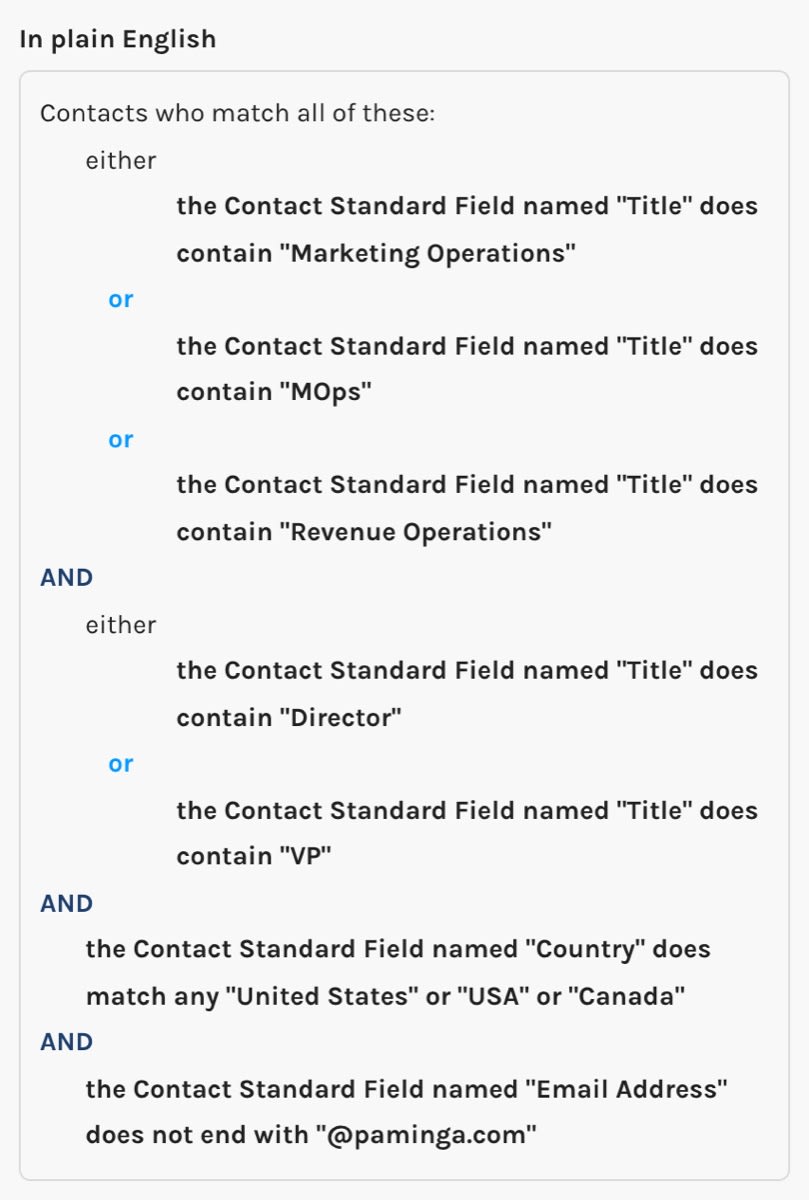
The Audience panel also reads your segment back to you.
- In Plain English describes the whole segment as sentences, starting with "Contacts who…". It's the quickest way to confirm that the logic says what you meant, and it's easy to paste into a request for review.
- Outline lists every requirement in one line. Click a line to jump to that requirement. A line turns red when something in it needs a value.
Your Segment, In Plain English:
Long Segments
A segment with a dozen requirements stays readable:
- Collapse a requirement to a one-line summary, or use Collapse All in the top bar.
- Paminga saves which requirements you collapsed along with the segment, so the next person sees the same view.
- The top bar shows how many requirements and conditions the segment has, and how many conditions still need a value. Click that warning to jump straight to the first one.
- Hide the left or right panel with the arrows on its edge when you want more room for the canvas.
Settings
The Settings tab on the left holds the segment's name, description, and folder, plus the Advanced options: Domain Group, Hide Anonymous Contacts, Exclude Known ISPs, and GET Variables Determine Distinct Web Pages.
Revision History
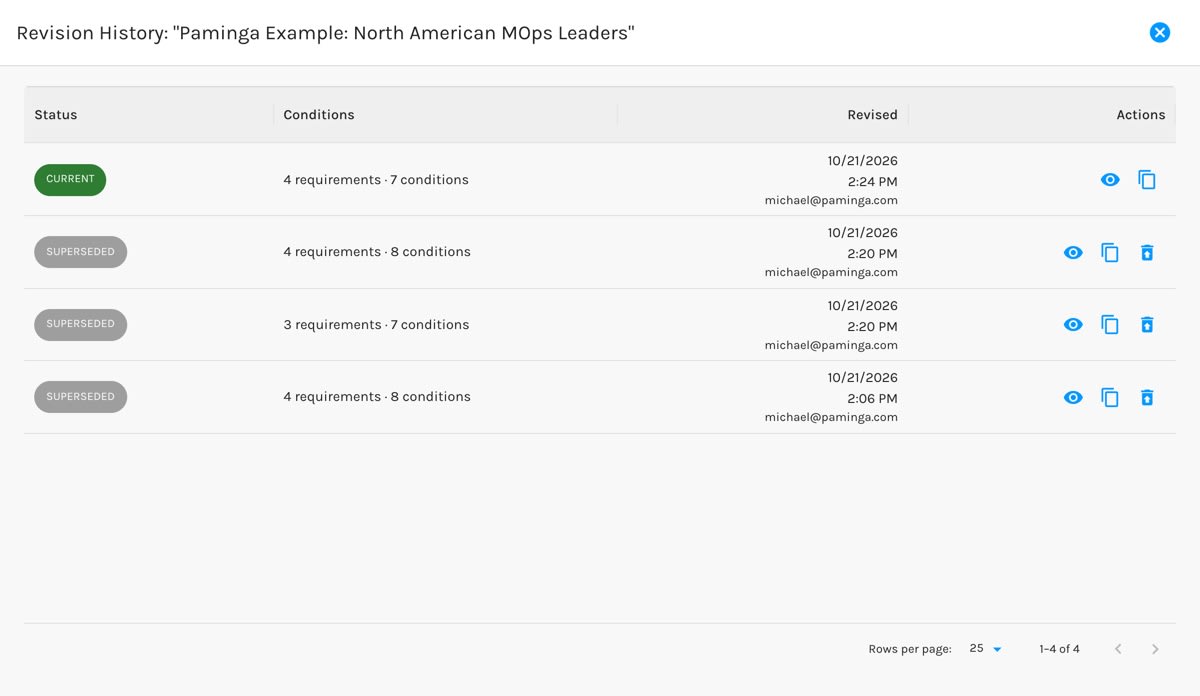
Every time you save a Global Segment or Persona, Paminga keeps a revision. Click the clock icon in the top bar to see them all, with who changed the segment and when. When a Workflow's audience changes size overnight, this is where you find out why.
For any earlier revision you can:
- Preview it in plain English.
- Restore it into the builder. Restoring is a change like any other, so nothing is saved until you click Save, and Undo puts your conditions back.
- Clone it to a new segment or persona.
Revision History:
Keyboard and Screen Reader Support
You can build an entire segment without a mouse.
- Drag from the keyboard: focus a drag handle, press Space or Enter to pick the item up, move it with the arrow keys, and press Space or Enter to drop it. Escape cancels.
- Move To: every condition's menu lists each place it can go, so you can move a condition without dragging at all.
- Screen readers announce each pick-up, move, and drop, including where the item will land and whether a move was cancelled.
- Shortcuts: ⌘Z / ⇧⌘Z undo and redo, Enter opens a condition, and Escape closes its editor.
Everywhere You Build Conditions
The Drag-and-Drop Builder isn't limited to Global Segments. Once you turn it on, it's what you see wherever Paminga asks you for conditions, including:
- Workflow Audiences, branches, and Goals
- Drip Series Audiences and Goals
- Lead Scoring and Account Scoring rules
- Conditional logic in Forms and Personas


