What's Changed in the Builders
Paminga's Email, Form, Landing Page and CTA builders now build every layout from one building block: the Container. Sections, Rows and Blocks are gone, and so are the limits that came with them.
Your existing emails, forms, landing pages and CTAs convert automatically the first time you open each one. There's nothing for you to do, and they look the way they did.
This page covers what moved and what's new. For the full tour, see Layout Control in the Email, Form, Landing Page or CTA builder.
The pictures on this page pair one of Paminga's own emails before it converted with the same email after.
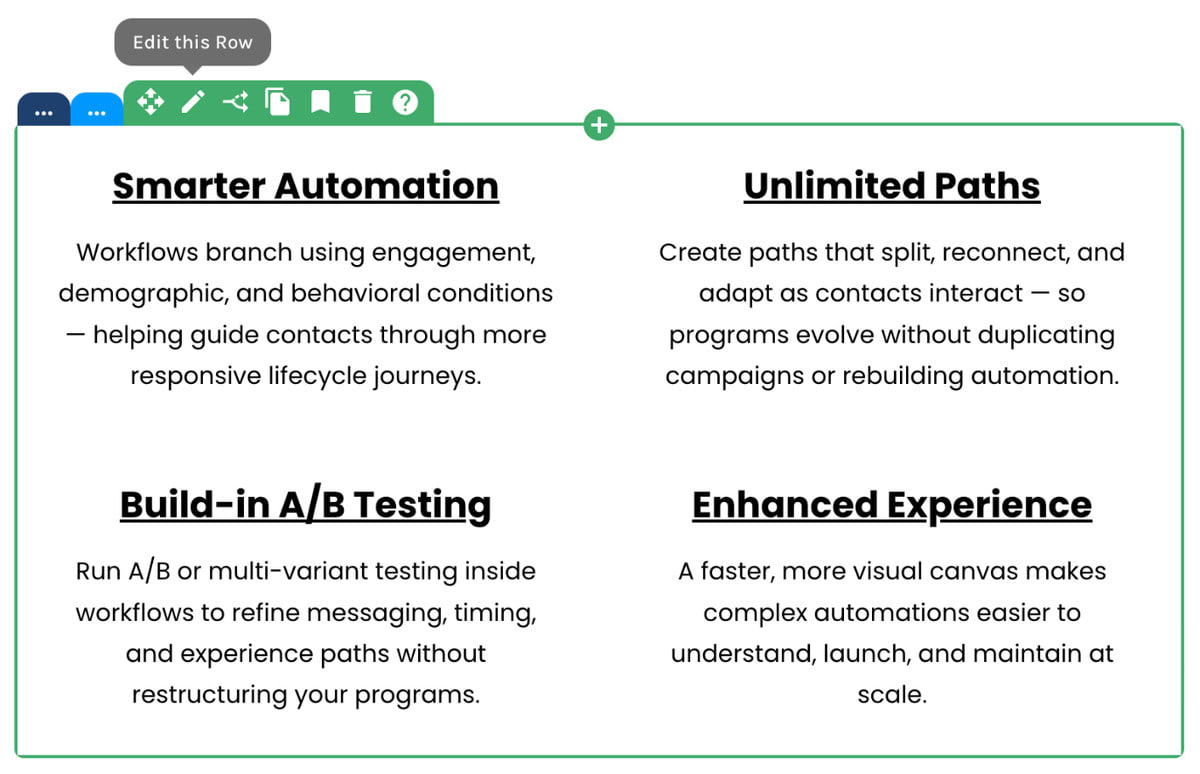
Before – A Row Selected:

Now – The Same Email, Converted:

Sections, Rows and Blocks Became Containers
The builders used to give you a fixed ladder: a Section held Rows, a Row was split into Blocks, and Blocks held your Elements. Rows came in five splits – halves, thirds, fourths, two-thirds and one-third, or one-third and two-thirds.
Now a Container holds Elements or more Containers, nested as deep as your layout needs (up to six levels). Every Container is one of three types:
- Stacked – places its contents one above another
- Side by Side – places its contents in a single row
- Grid – divides into cells, from 1 to 12, with as many per row as you choose
Here's how the old parts map to the new ones:
| You had | You now have |
|---|---|
| A Section | A Stacked Container |
| A Row split into Blocks | A Grid Container with one cell per Block, at the same widths |
| A Row that wasn't split | A Stacked Container |
| A Block | A cell in that Grid |
| Row and Section spacing | Gap on the Container |
Here's the same block of one email, before and after it converted. It was a two-column Row:
Before – A Row:
Now it's a Grid Container with two cells per row, at the same widths:
Now – A Grid Container:

The Row's settings, and the Grid's:
Before – Row Settings:

Now – Grid Settings:

Wrappers that never did anything you could see – no background, border, padding or width of their own – are folded away during the conversion. So the structure you open is usually simpler than the one you built, with the same result on the page.
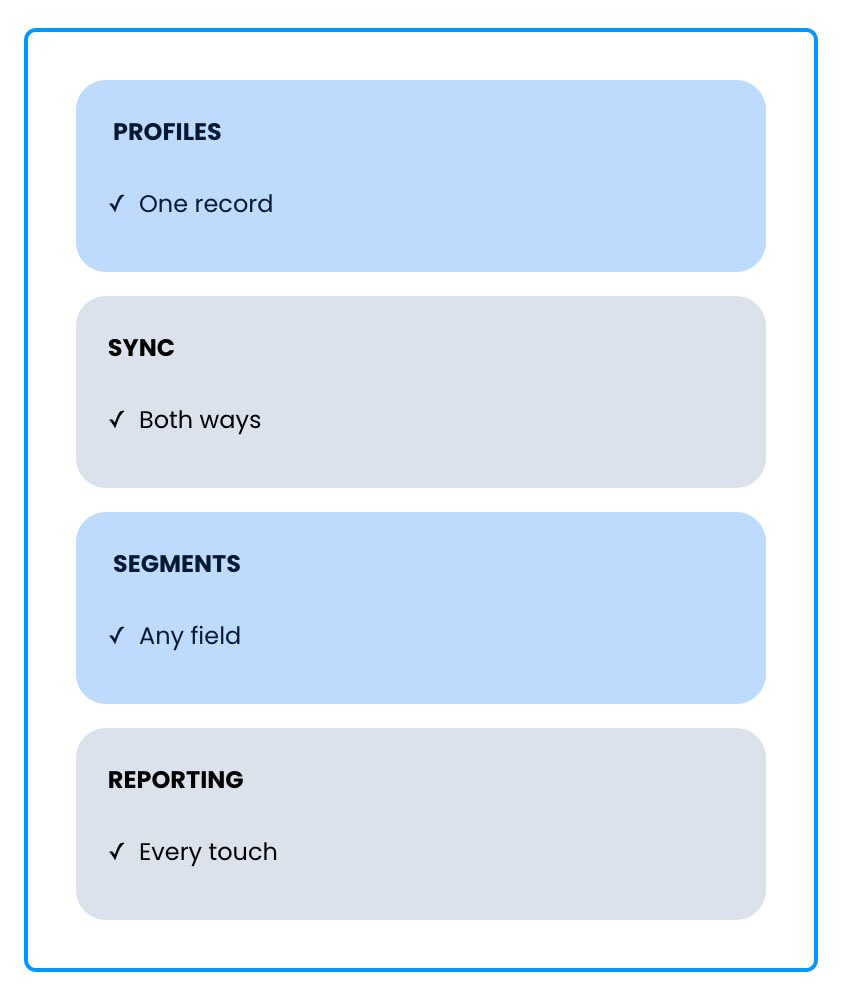
Rows set to stack on mobile still stack on mobile: each Grid cell goes full width on phones. Rows that didn't stack keep their columns.
The Same Grid on a Phone:
Getting Around the Canvas
Most of what you knew still works. A few things moved.
Selecting What's Around an Item
You used to get a colored tab above the selected item for each level around it – its Block, its Row and its Section.
Before – A Tab for Each Level:

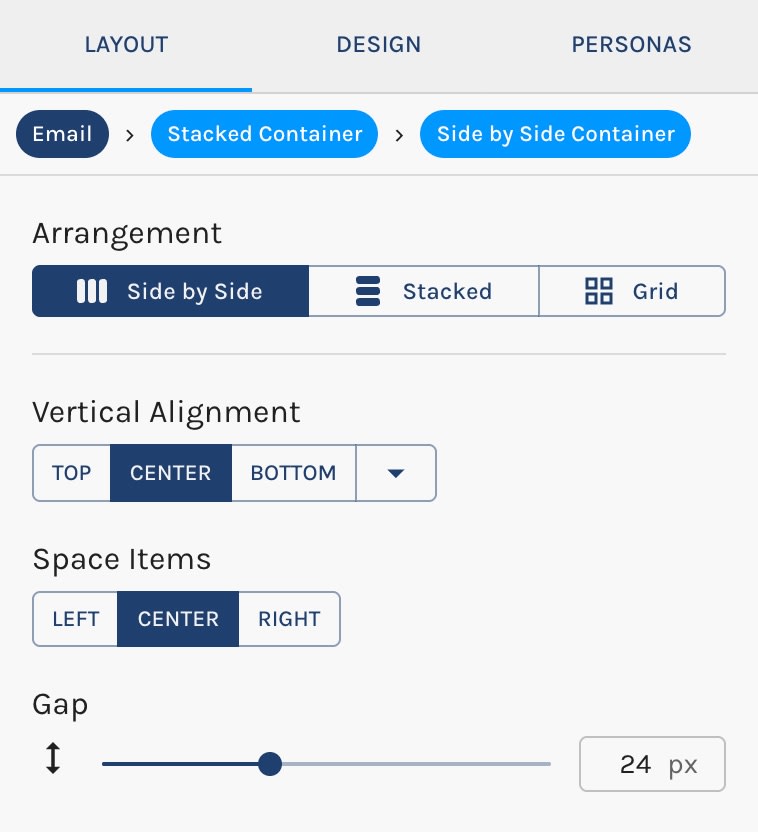
Now there's one … tab, and a breadcrumb at the top of the right panel. The breadcrumb shows every Container from your asset down to the item, and you can click any step to select it.
Now – One Tab:

The Breadcrumb:
Adding Things
Rows and Sections each had their own + button and their own dialog.
Before – Add a New Row:

Now blue + buttons add a Container and orange + buttons add an Element. Hover one and it says exactly where its new item will go: above, below, or to the left or right.
Now – Blue for Containers, Orange for Elements:

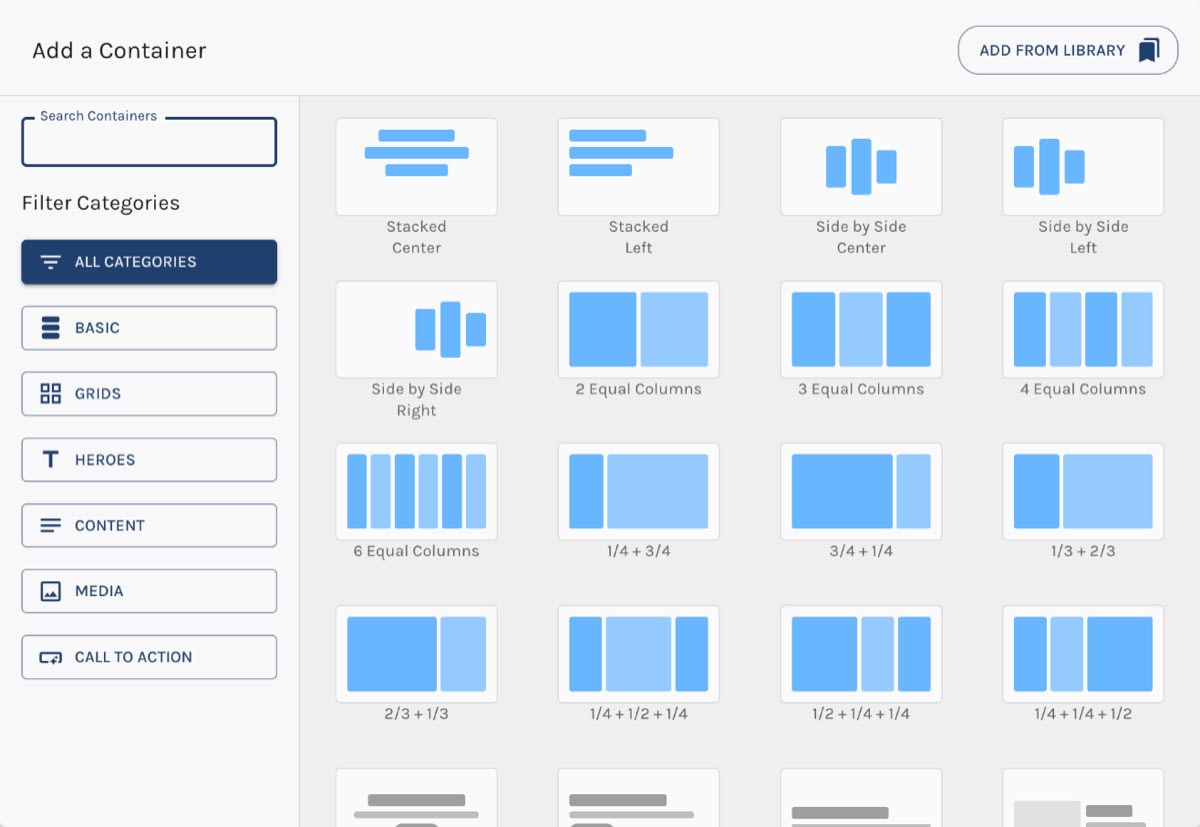
The Section and Row dialogs are replaced by one Add a Container dialog. It holds ready-made Stacked, Side by Side and Grid Containers, uneven splits like 1/4 + 1/2 + 1/4, and layouts that arrive with placeholder content – heroes, feature columns, testimonials and more. Add from Library sits at the top of it.
Now – Add a Container:
Seeing Your Structure
Show Outlines in the top bar draws a dashed outline around every Container, Grid cell and Element at once, so you can read the nesting at a glance. Hold Alt (⌥ on a Mac) to peek at them without turning them on.
Show Outlines:
Control bar tooltips name the Container by its type – "Edit this Grid Container", "Clone this Side by Side Container" – so you always know what you're about to act on.
New Controls
Containers bring controls the old parts didn't have.
Arrangement and Grid Cells
Arrangement switches any Container between Stacked, Side by Side and Grid, and its contents carry over in order.
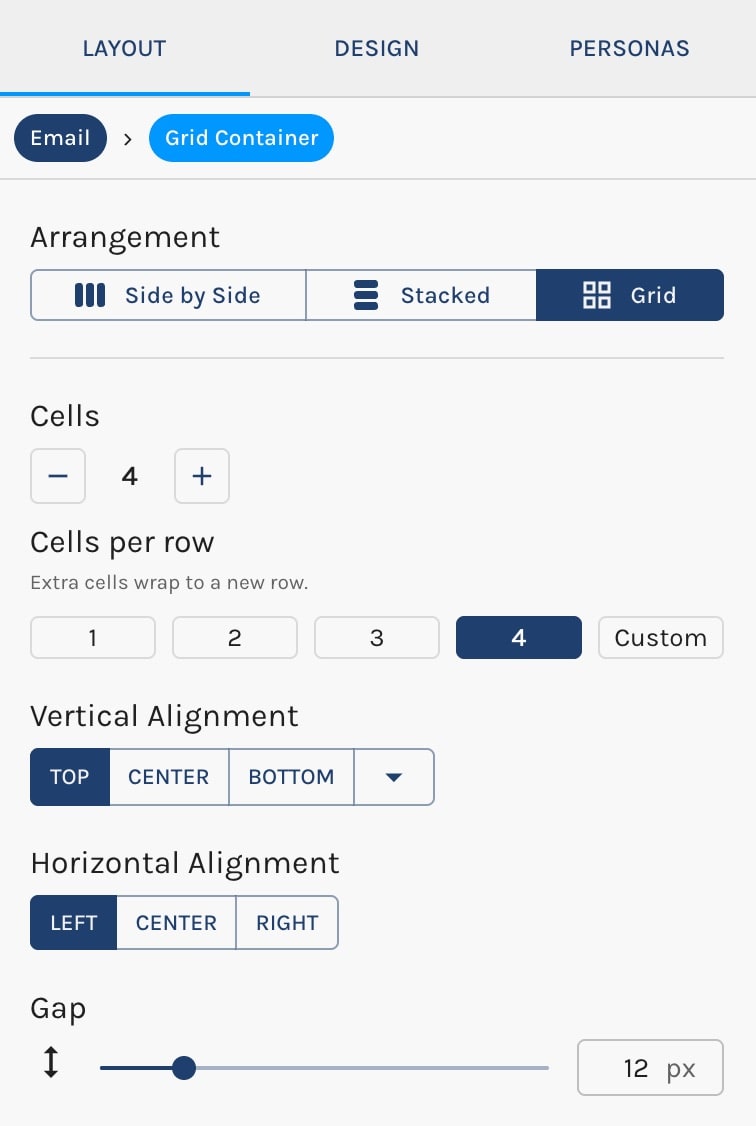
A Grid lets you set how many cells it has, how many sit in each row, or a custom width per cell. Extra cells wrap to a new row, and you can reorder cells or hide one on specific devices.
Grid Container Settings:
Space Items
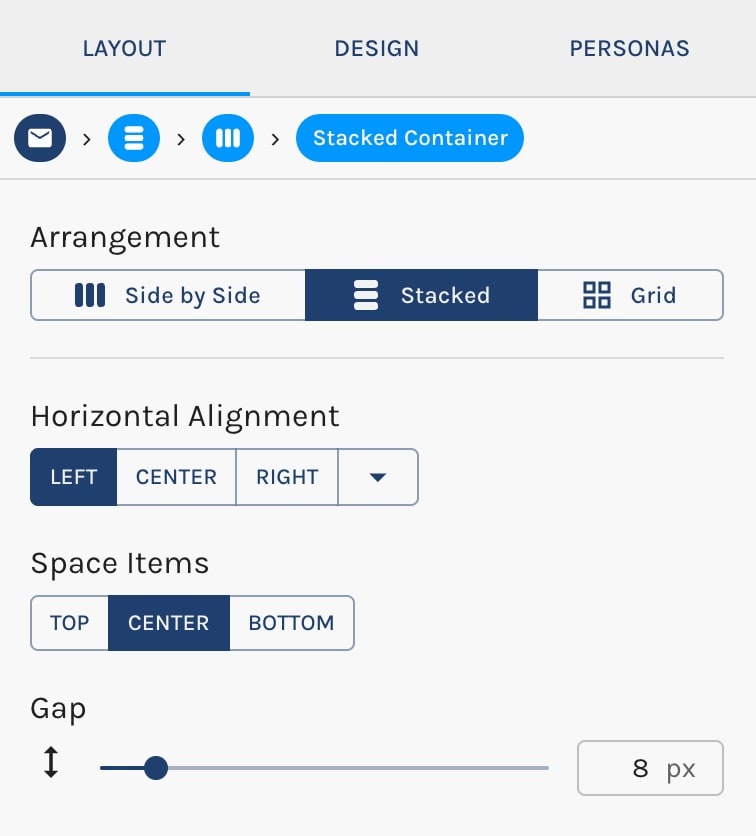
Space Items pushes a Container's contents to the start, middle or end, or spreads them out, when there's spare room. It's greyed out when there isn't, and the tooltip tells you how to make room.
Space Items on a Stacked Container:
Position, Width and Height
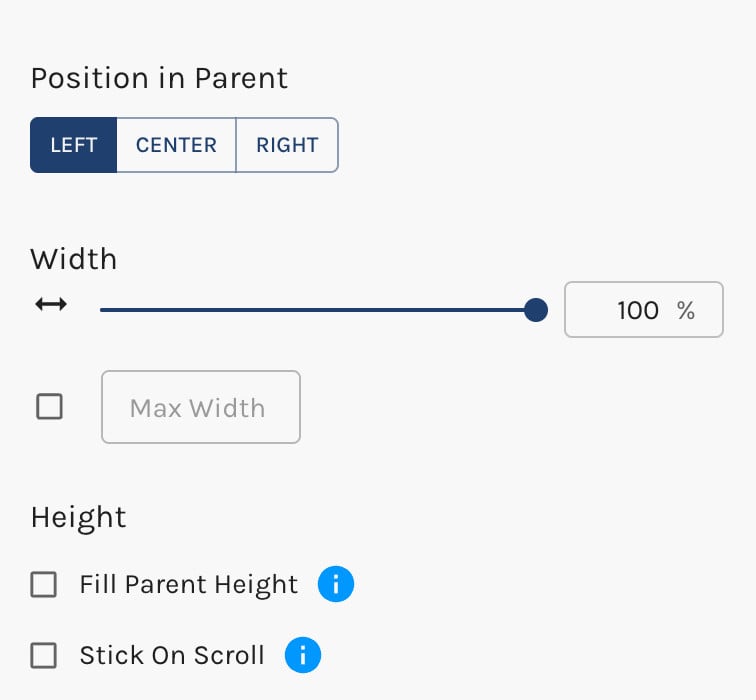
- Position in Parent places a Container – or a text Element – left, center or right within the Container around it. Other Elements call this Element Alignment.
- Fill Parent Height stretches a Container to the full height of the Grid cell it sits in.
- Controls that can't do anything step aside. Width disappears inside a Side by Side Container, for example, because the Container is sized by what's in it.
A Container Inside a Grid Cell:
What Carries Over
Everything you built comes with it:
- Content, copy and images
- Styling, including your Brand Kit and any overrides
- Personas and the content you set for each one
- Translations
- Margins, padding, widths and per-device settings
Sections and Rows you saved to your Template Library convert the same way, so they arrive as Containers when you add them.


