Import History
Every CSV file you import into Paminga leaves a record behind. Import History is where you find it.
It answers the questions that come up after an import: did it finish, how many new contacts did it create, how many already existed, and how many rows were rejected (and why). When a list from an event or a partner looks thinner in Paminga than it did in the spreadsheet, this is the first place to look.
Go to Contacts & Accounts › Contacts › Import History. The Import Contacts button at the top of the page takes you straight into a new import.
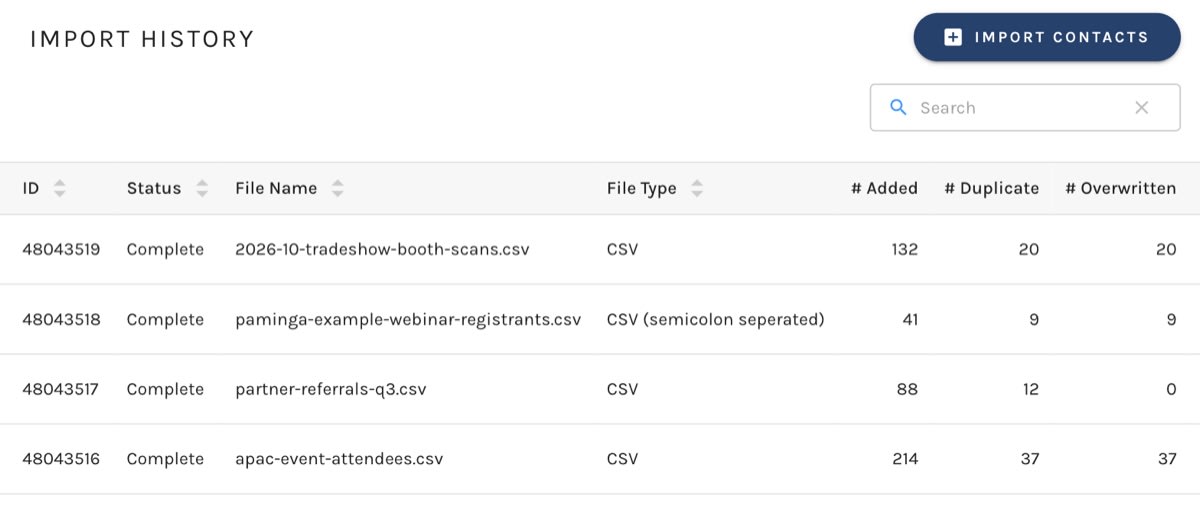
Import History:
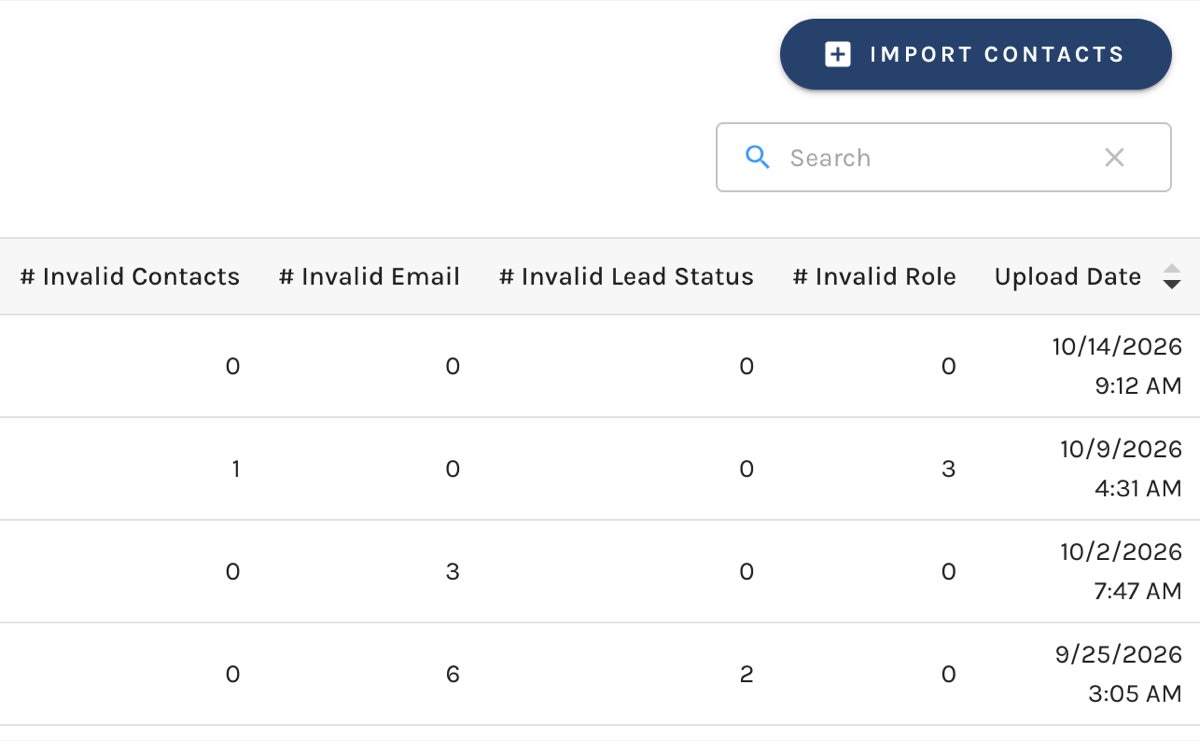
Invalid Counts and Upload Date:
What Each Column Tells You
| Column | What it shows |
|---|---|
| ID | The import's ID. |
| Status | Processing while the file is still being worked through, Complete once it has finished, or Failed. |
| File Name | The name of the file you uploaded. |
| File Type | CSV for a comma-separated file, or CSV (semicolon seperated) for a semicolon-separated one. |
| # Added | New contacts the import created. |
| # Duplicate | Rows that matched a contact already in Paminga. |
| # Overwritten | Existing contacts whose fields were updated from the file. |
| # Invalid Contacts | Rows flagged as an invalid contact. |
| # Invalid Email | Rows flagged for an invalid email address. |
| # Invalid Lead Status | Rows flagged for an invalid lead status. |
| # Invalid Role | Rows flagged for an invalid role. |
| Upload Date | When the file was uploaded. |
Whether a duplicate is updated or skipped depends on the choice you made under Existing/Duplicate Leads or Contacts when you ran the import. Comparing # Duplicate with # Overwritten shows you which way that went.
Finding an Import
The newest imports are listed first. Use the search box to find an import by its file name, and click the ID, Status, File Name, File Type, or Upload Date heading to sort by that column.
Import History searches on file name, so a name like 2026-10-tradeshow-booth-scans.csv pays for itself the first time someone asks where a batch of contacts came from.
Related
- Importing Contacts walks through the import itself: upload, field mapping, duplicate handling, and actions.
- Exporting Contacts covers the other direction, including Export History.


