Leads
Leads is in beta. It may not be turned on for your account yet. To request access, contact Paminga Support.
A Lead in Paminga is a pursuit, not a person. It ties together the Contacts you're talking to, the Account they work for, an Owner on your team, and where the pursuit stands in your pipeline.
That distinction matters. The person already lives in Paminga as a Contact, and the company as an Account. A Lead doesn't copy either of them. It points at them, so nothing about the person or the company ever goes stale on the Lead.
When a Lead is ready to become a deal, you move it to a converting stage and Paminga converts it to an Opportunity, carrying its Account, Owner and Contacts across.
Your stages, types, sources and ratings are yours to define. See Lead Pipeline Settings.
Leads (the pursuit) are separate from Contact Lead Stages, which describe where an individual Contact sits in your marketing funnel.
The Leads Grid
Go to Sales › Leads to see every Lead in your account.
The Leads Grid:
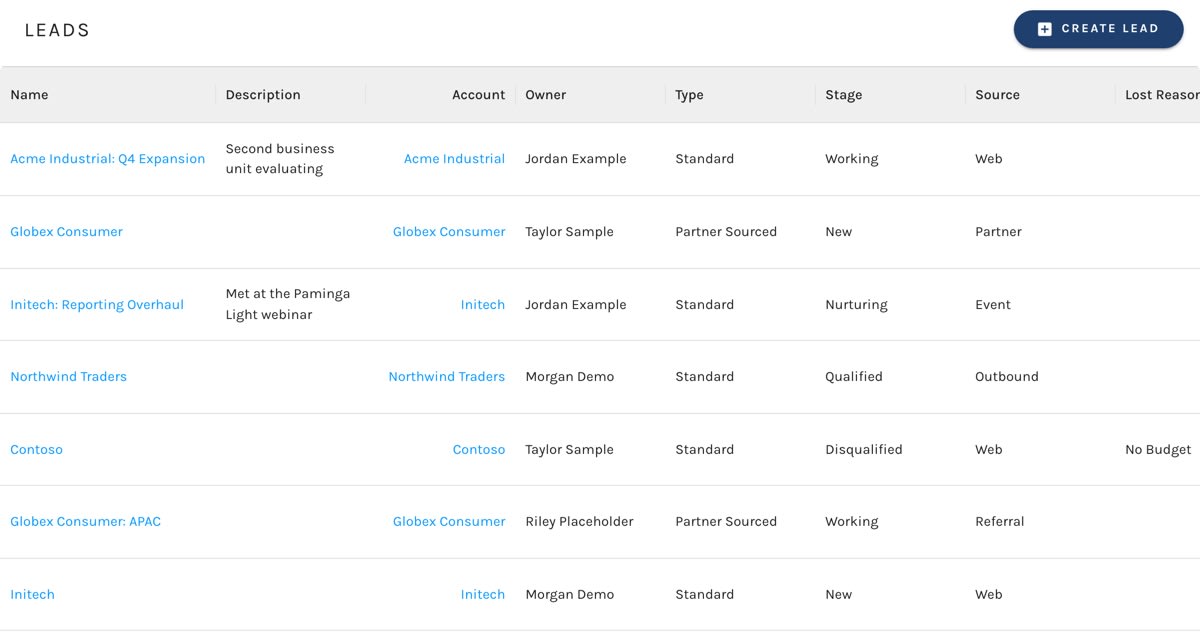
The grid has a column for each Lead field:
| Column | What it shows |
|---|---|
| Name | The Lead's name. Click it to open the Lead. |
| Description | Free-form notes about the pursuit. |
| Account | The Lead's Account. Click it to open the Account. |
| Owner | The user on your team who owns the Lead. |
| Type | The Lead Type, which decides which stages the Lead can move through. |
| Stage | Where the Lead sits in its pipeline. |
| Source | Where the Lead came from. |
| Rating | How warm the Lead is. |
| Lost Reason | Why a Lead was closed without converting. |
| Closed | Whether the Lead's stage closes it. |
| Converted At | When the Lead converted to an Opportunity. |
| Converted Opportunity | The ID of the Opportunity the Lead converted to. |
| Primary Contact | The email address of the Lead's primary Contact. Click it to open the Contact. |
| Created / Updated | When, and by whom, the Lead was created and last changed. |
There is also a Created At column, hidden by default. On a Lead created in Paminga it says the same thing as Created. On a Lead synced from a CRM it holds the CRM's own create date, which is the one that matters for attribution, so it stays available in the column picker and in filters.
Sorting and Filtering
The grid sorts by Created, newest first, by default. You can also sort on Name, Converted At and Updated.
Filtering happens on the server, across every Lead in your account, not only the page you're looking at. Filter on any Lead field: pick values from a list for Account, Owner, Type, Stage, Source, Rating and Lost Reason, use date operators for the date columns, and true/false for Closed.
Your sort, filters, page size and column choices are remembered for several hours, so you can step away and come back to the same view.
Row Actions
Each row's actions menu lets you Edit or Delete the Lead.
Create a Lead
Click Create Lead above the grid, or the + beside Leads in the Sales menu. A drawer opens with just what a Lead needs to exist:
The Create Lead Drawer:
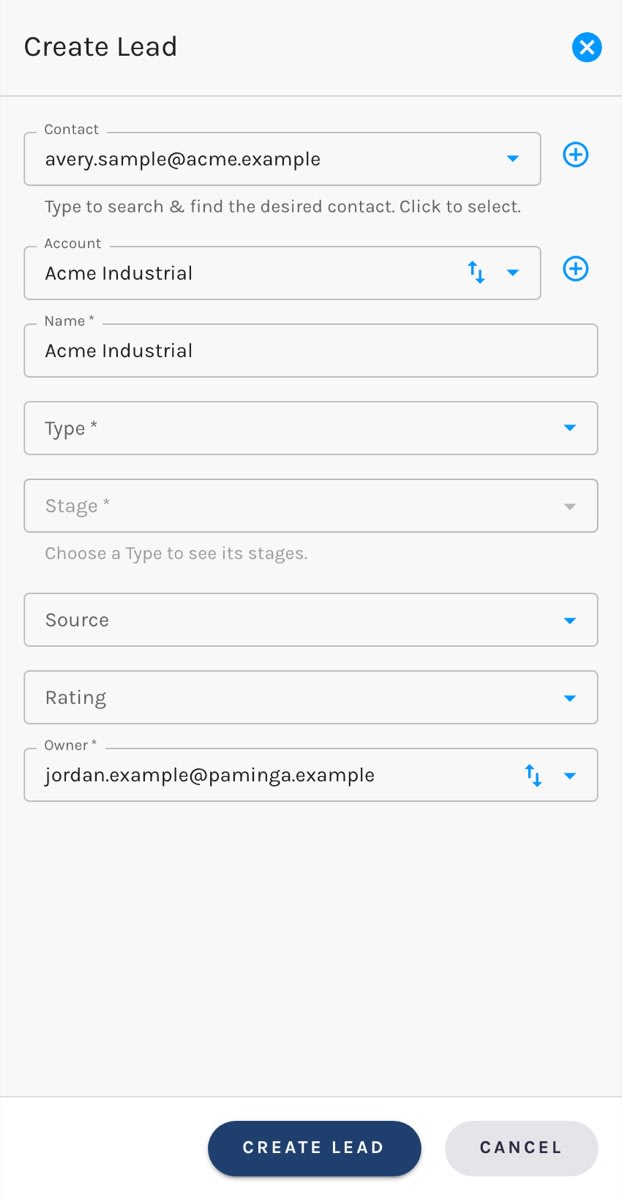
- Contact (required). Search for an existing Contact, or click the + beside the field to create a new one without leaving the drawer.
- Account. Filled in from the Contact's Account when you pick a Contact. Leave it empty and Paminga finds an Account whose website matches the Contact's email domain, or creates one named for that domain. You can also create a new Account right from the field.
- Name (required). Filled in from the Account name, or from the Contact's email domain when there's no Account. Change it to anything you like; once you've typed in it, Paminga stops filling it in.
- Type (required).
- Stage (required). Stages belong to a Lead Type, so this stays disabled until you choose a Type, then offers only that Type's stages. Changing the Type clears the Stage.
- Source and Rating (optional).
- Owner (required). Defaults to you. Only enabled users are offered.
Click Create Lead. Paminga saves the Lead with that Contact as its primary Contact and opens the Lead so you can fill in the rest.
If you create a Lead directly onto a stage that converts, it converts as soon as it's saved. That's handy when you're logging a pursuit that's already a deal.
Edit a Lead
Click a Lead's name in the grid (or Edit in its row actions) to open the full Lead.
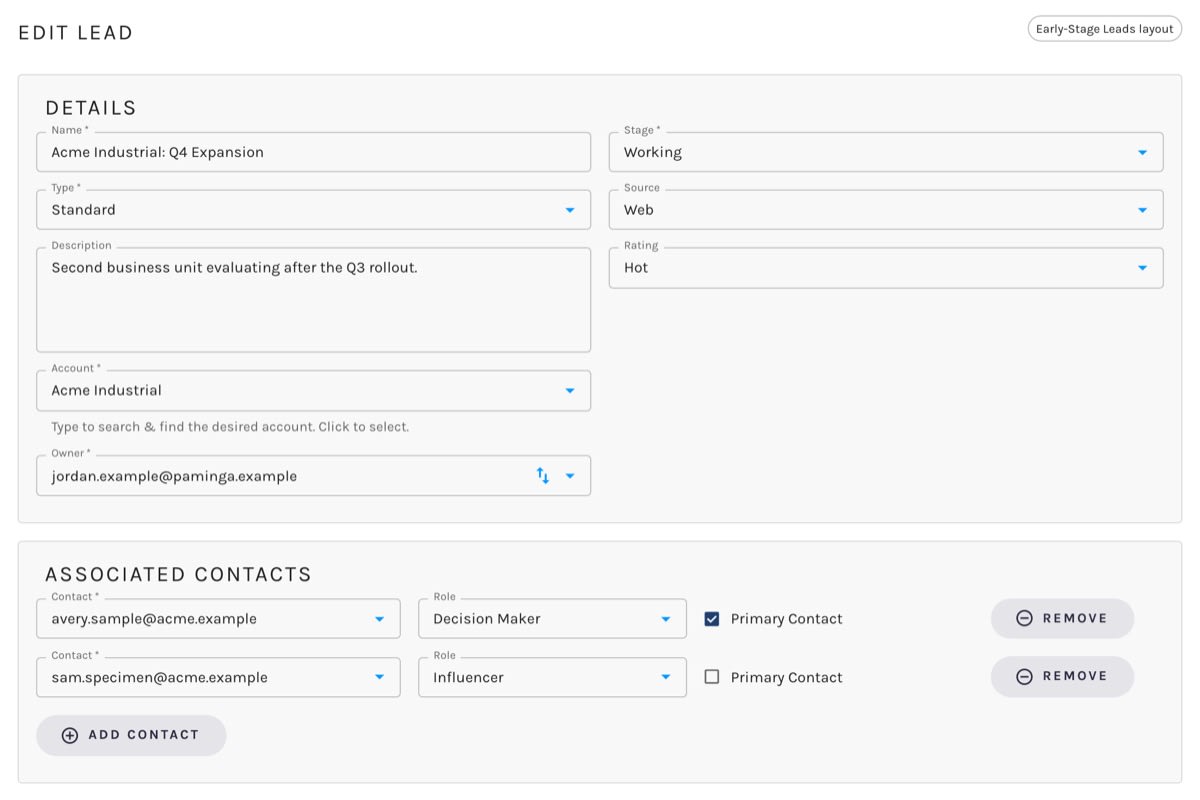
Editing a Lead:
Lead Fields
The page shows Name, Type, Description, Account and Owner alongside Stage, Source and Rating. Name, Type, Account, Owner and Stage are required.
The Account field searches as you type, so it stays fast however many Accounts you have.
If your account uses Record Layouts, the layout decides how these fields are arranged on the page, and rules on a Lead's Type, Stage, Source, Rating, or Owner can open different Leads in different layouts.
Lost Reason appears only when you move the Lead to a stage that closes it without converting it, and then it's required. A Lead that converted became an Opportunity, so it wasn't lost. If you later move the Lead back to an open stage, its Lost Reason is cleared when you save. The reasons on offer come from your shared Lost Reasons list.
Closed, Converted At and Converted Opportunity are managed by Paminga and never appear in the form. Closed follows the Lead's stage, and the conversion fields are stamped when the Lead converts. You can still see and filter on all three in the grid.
Associated Contacts
A Lead can involve several people. Under Associated Contacts, each row holds:
- Contact. Only Contacts at the Lead's Account are offered, so pick the Account first. Changing the Account clears the list.
- Role. Chosen from the Contact Roles offered on Leads.
- Primary Contact. Only one Contact can be primary; ticking it on one row unticks it everywhere else.
Click Add Contact to add a row and Remove to take one away.
Click Save in the bar at the bottom of the page. Cancel discards your changes and returns you to the grid.
Stage Changes
A Lead's stage drives its status. Move it to a stage that closes it and Closed flips on; move it back to an open stage and it flips off. Move it to a stage that converts and the Lead converts to an Opportunity.


