Opportunities
An Opportunity is a deal you're working with an Account. Each one carries the essentials your team needs to forecast — a type, a stage, an owner, an estimated amount, and a projected close date — along with the Contacts involved and the role each one plays.
The stage does a lot of the work for you. Every stage carries its own probability and forecast category, and closing an Opportunity is a matter of moving it to a closed stage. You define those stages, and which Opportunity Types use them, in Sales Properties.
Opportunities live under the Sales menu, which appears only when your account has no CRM integration connected. See Who Sees the Sales Menu.
The Opportunities Grid
Go to Sales → Opportunities to see every Opportunity in your account.
The Opportunities Grid:
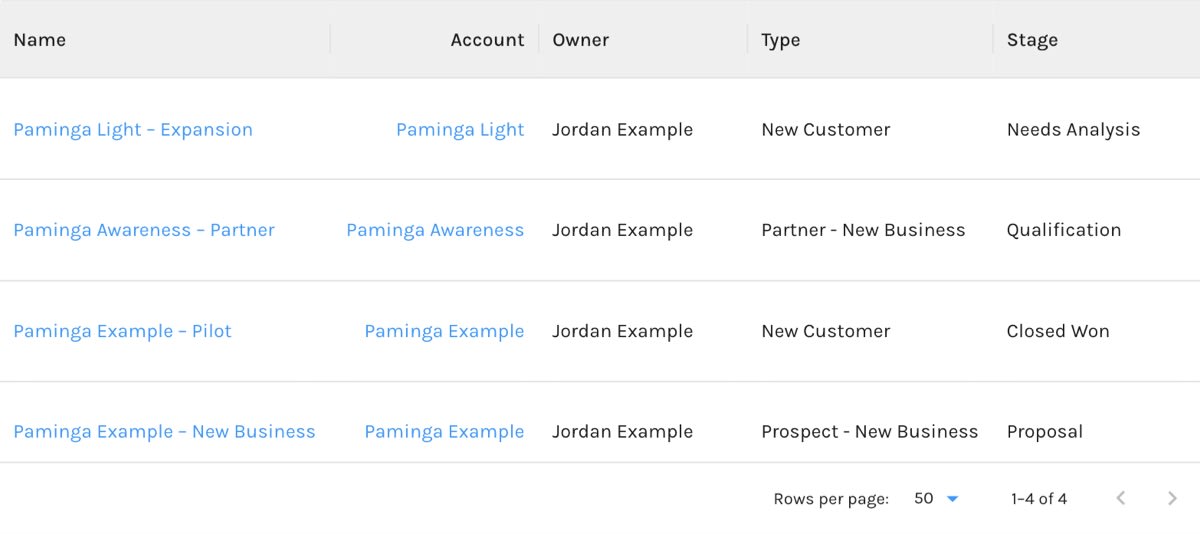
The grid shows one column for every Opportunity field — the standard fields and any Opportunity custom fields you've created — followed by:
- Primary Contact — the email address of the Contact marked as the Opportunity's primary contact, linked to that Contact.
- Created and Updated — when, and by whom.
- Actions — delete or edit the Opportunity.
The Name column links to the Opportunity, and the Account column links to the Account.
The grid is sorted newest first. Every field column can be filtered, and filtering happens on the server, so a filter applies across all of your Opportunities, not just the page you're looking at. Owner, Account, Forecast Category, and drop-down fields filter by picking values from a list.
Creating an Opportunity
Click Create Opportunity above the grid, or click the + beside Opportunities in the Sales menu.
Creating an Opportunity:
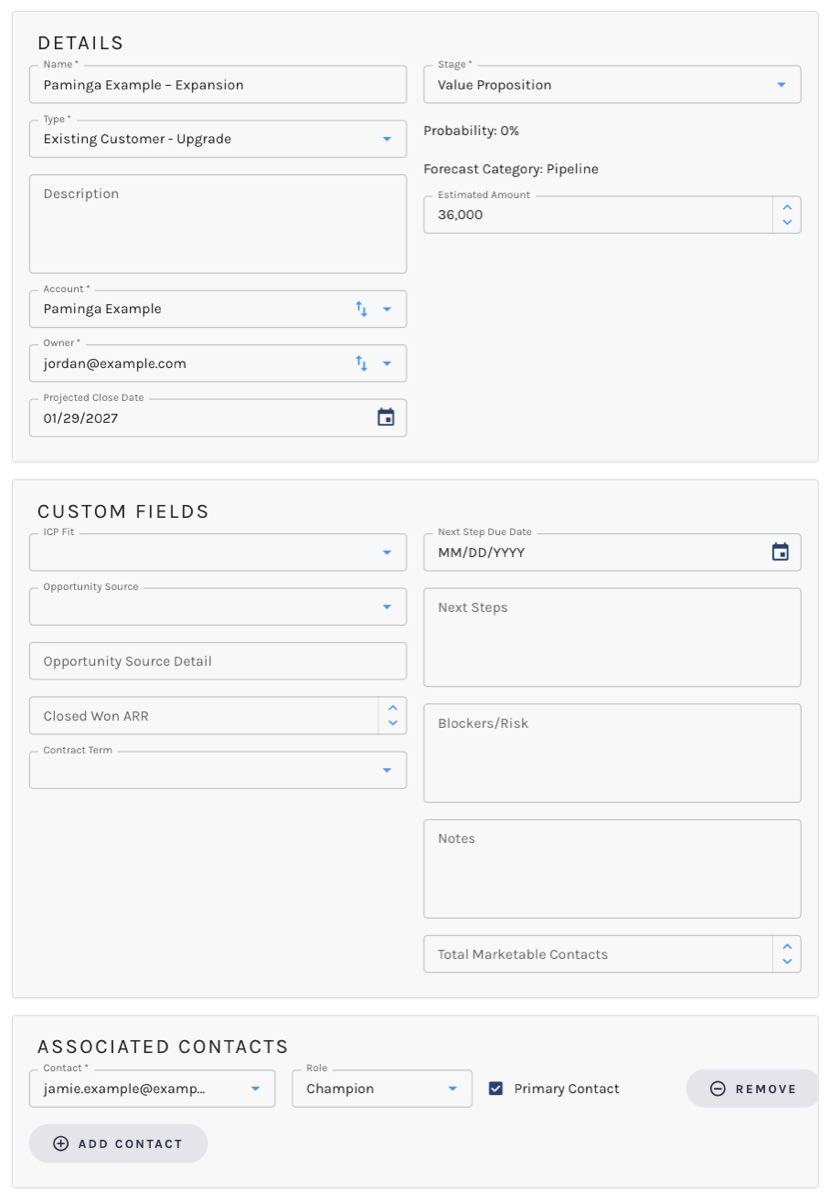
Standard Fields
| Field | What it holds |
|---|---|
| Name | The name of the deal. Required. |
| Type | The Opportunity Type. Required. The type decides which stages are offered. |
| Description | Free-form notes about the deal. |
| Account | The Account the deal is with. Required. |
| Owner | The Paminga user who owns the deal. Required. Only enabled users are offered. |
| Stage | Where the deal sits in your pipeline. Required. Only the stages used by the selected Type are offered. |
| Lost Reason | Why the deal was lost. Appears, and is required, only when the Stage is a closed stage that is not a won stage. |
| Probability | Shown, not edited. It comes from the Stage. |
| Forecast Category | Shown, not edited. It comes from the Stage. |
| Estimated Amount | The deal's expected value. |
| Projected Close Date | When you expect the deal to close. |
If you change an Opportunity's Type and its current Stage isn't used by the new Type, Paminga clears the Stage so you pick one that fits.
What the Stage Sets for You
You never type a probability or a forecast category. Paminga takes them from the Stage, and keeps a few other things in step when the Stage changes:
- Open stages use the stage's default probability and forecast category.
- Closed won stages set the probability to 100% and mark the Opportunity closed.
- Closed lost stages set the probability to 0% and mark the Opportunity closed.
- Moving to a closed stage records the date it closed. Moving back to an open stage clears it.
Custom Fields
Any Opportunity custom fields you've created appear in a Custom Fields section below the standard fields. Create them in Account Settings → Custom Fields → Opportunity Custom Fields. See Custom Fields for the field types available.
Associated Contacts
The Associated Contacts section lists the people involved in the deal. Click Add Contact to add a row, then choose:
- Contact — offered from the Contacts on the selected Account. Pick the Account first. Changing the Account clears the list.
- Role — the part this Contact plays in the deal, from your Contact Roles.
- Primary Contact — tick it for the deal's main contact. Only one Contact can be primary; ticking another moves it.
Click Remove to take a Contact off the deal.
Click Save when you're done. After the first save, you stay on the Opportunity so you can keep working on it.
Editing and Deleting Opportunities
Click an Opportunity's name in the grid, or choose Edit from its row actions, to open it. Choose Delete from the row actions to remove it.


