Add Contacts to a Sequence
Sequences is in beta. It may not be turned on for your account yet. To request access, contact Paminga Support.
Contacts enter a Sequence only when someone puts them there: a rep working a single contact, a rep adding a list from the Contacts grid, or an automation acting on a signal you care about.
Whichever way they arrive, the person or automation adding them decides who works the steps. The assignment travels with the enrollment, so it doesn't depend on who owns the contact — a team can share a list without anyone reassigning ownership first.
From a Contact Record
- Open the contact and click Actions.
- Choose Add to Sequence.
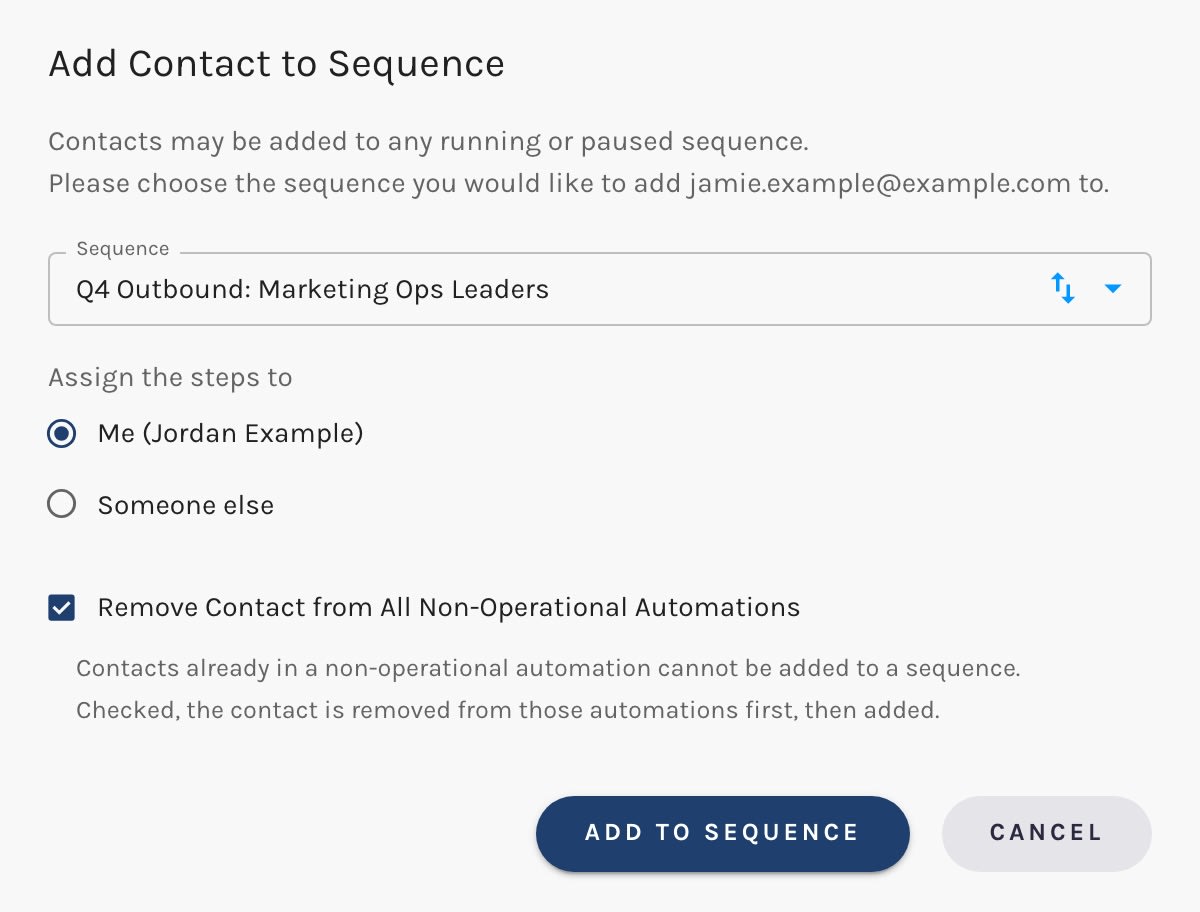
- Choose the Sequence. Any running or paused sequence is listed; paused ones are marked (Paused).
- Under Assign the steps to, choose Me or Someone else, and pick the User.
- Click Add to Sequence.
If the contact can't be added, Paminga tells you why rather than reporting success.
Adding One Contact from Their Record:
From the Contacts Grid
- Select the contacts in the Contacts grid.
- Click Add to Sequence above the grid.
- Choose the Sequence.
- Under Assign the steps to, choose:
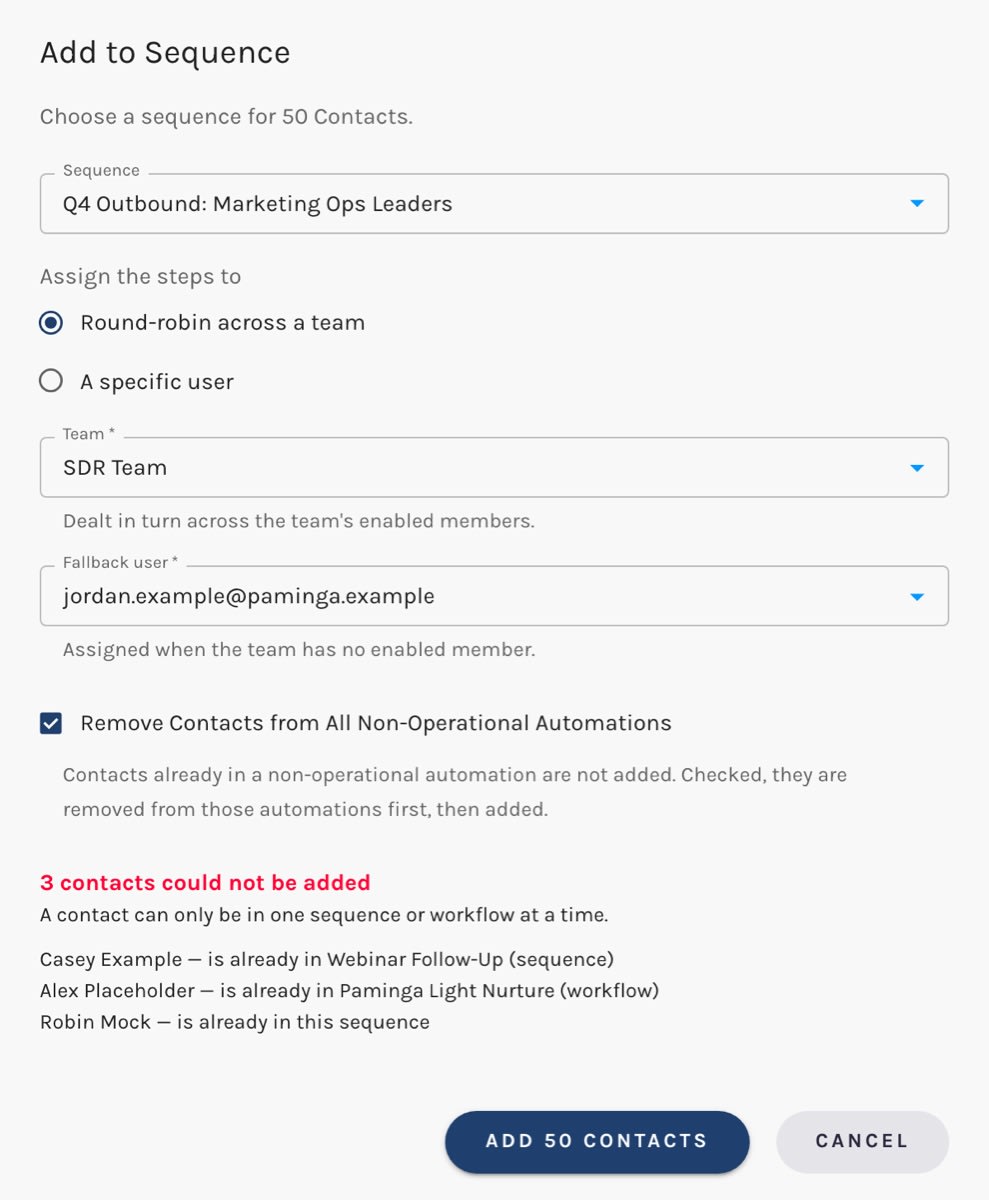
- Round-robin across a team — pick the Team. Contacts are dealt in turn across the team's enabled members, continuing from where the last batch left off. The Fallback user gets them if the team has no enabled member.
- A specific user — every contact goes to that User.
- Click the Add button, which names how many contacts you selected (for example, Add 25 Contacts).
Enrollment is partial. Every contact that can go in does, and the dialog lists the ones that couldn't, with the reason for each — for example, that a contact is already in another named sequence or workflow. Refusing a whole list over one contact would make bulk enrollment useless on a real list.
Adding Contacts in Bulk:
From an Automation
Use the Add to Sequence action to enroll contacts automatically — when a lead hits a score threshold, say, or fills out a demo request form. Choose the Sequence and who works the steps, exactly as in the Contacts grid.
The Remove from Sequence action does the reverse: it ends the contact's run in the sequence you choose and withdraws any step still waiting on them.
Who Can Be Added
Paminga applies the same rules no matter how a contact arrives:
- One at a time. A contact can be in only one sequence at a time.
- Not while a nurture has them. A contact in a non-operational automation — a nurture, a drip series — can't be added. Operational workflows, such as owner assignment or CRM sync, don't count: they aren't messaging the contact.
- Not deleted contacts.
- Not over the daily cap. If the sequence has a daily enrollment cap, contacts beyond it aren't added today. You're told how many were skipped.
Remove Contacts from Non-Operational Automations
Each way of adding contacts offers Remove Contacts from All Non-Operational Automations (checked by default in the dialogs). With it checked, a contact held by a nurture is taken out of it first, then added to the sequence.
Only contacts the sequence would otherwise accept are pulled out — nobody is removed from a nurture and then turned away anyway.
Assignees
Only enabled users can be assigned steps. Assigning work to a disabled user is indistinguishable from losing it.
To change who works a contact's steps after they're enrolled, use Reassign on the Sequence Board.
On the Contact Record
A contact's record shows a Sequences section listing every sequence they've been in, when they were enrolled, and when they left. Where a sequence email started a conversation, it links straight to that conversation in the Inbox.
Sequence emails sent and the replies to them also appear on the contact's Email activity.


