Build a Sequence
Sequences is in beta. It may not be turned on for your account yet. To request access, contact Paminga Support.
A Sequence is a straight line, not a branching flow. Contacts move through the steps in order, one at a time, waiting a set number of business days between each. That's what makes a sequence fast to build and easy to read: you see the whole cadence on one screen, with the day each step lands on written beside it.
The Sequences List
Go to Sales › Sequences to see every sequence with its status, tags, number of steps, active contacts, and when it was created and last updated. Filter by name, status, tags, or dates.
Each row's actions let you Delete the sequence, View Participants (once it has run), or Edit it.
Create a Sequence
- Go to Sales › Sequences and click Create a Sequence.
- Enter a Sequence Name, and optionally choose a folder and add tags.
- Click Create Sequence.
Paminga opens the new sequence in the editor. It starts as a Draft, and enrolls nobody until you start it.
The editor has five tabs: Intro, Settings, Audience, Steps, and Goals. Each tab saves on its own.
Settings
General Settings
The sequence's Sequence Name, Description, folder, and tags.
Sending Window
Restrict steps to business hours is on by default, with the window open from 9:00 AM to 5:00 PM. Choose when it Opens and Closes.
The window is in the contact's local time. A step that falls due outside it waits for the window to open — so a 9 AM call is a 9 AM call for the person you're calling, not for you.
Pacing
- Escalation grace — how many business days a task may sit open past its due date before it surfaces as needing attention on My Team. The contact keeps holding either way. Nothing auto-skips.
- Daily enrollment cap — the most new contacts this sequence takes in per day. Leave it empty for no cap. Contacts that don't fit aren't rejected — they're simply not added today, and the person adding them is told how many were skipped.
A cap is how you keep a sequence from flooding your reps' queues. A sequence that enrolls 500 contacts on Monday has 500 first steps due on Monday.
Audience
Every sequence carries an audience, defined exactly as a workflow's is: Simple Conditions, Advanced Conditions, or an existing Global Segment. See Workflow Audience for how each option works.
Paminga requires an audience before you can start a sequence. Contacts don't flow in from the audience automatically, though: a sequence only takes in contacts that someone, or an automation, adds to it.
Steps
Click Add Step to add a step to the end, or the + between two steps to insert one there. Day numbers are calculated from the waits, so inserting a step reflows the calendar rather than leaving stale numbers behind.
The Steps Tab:
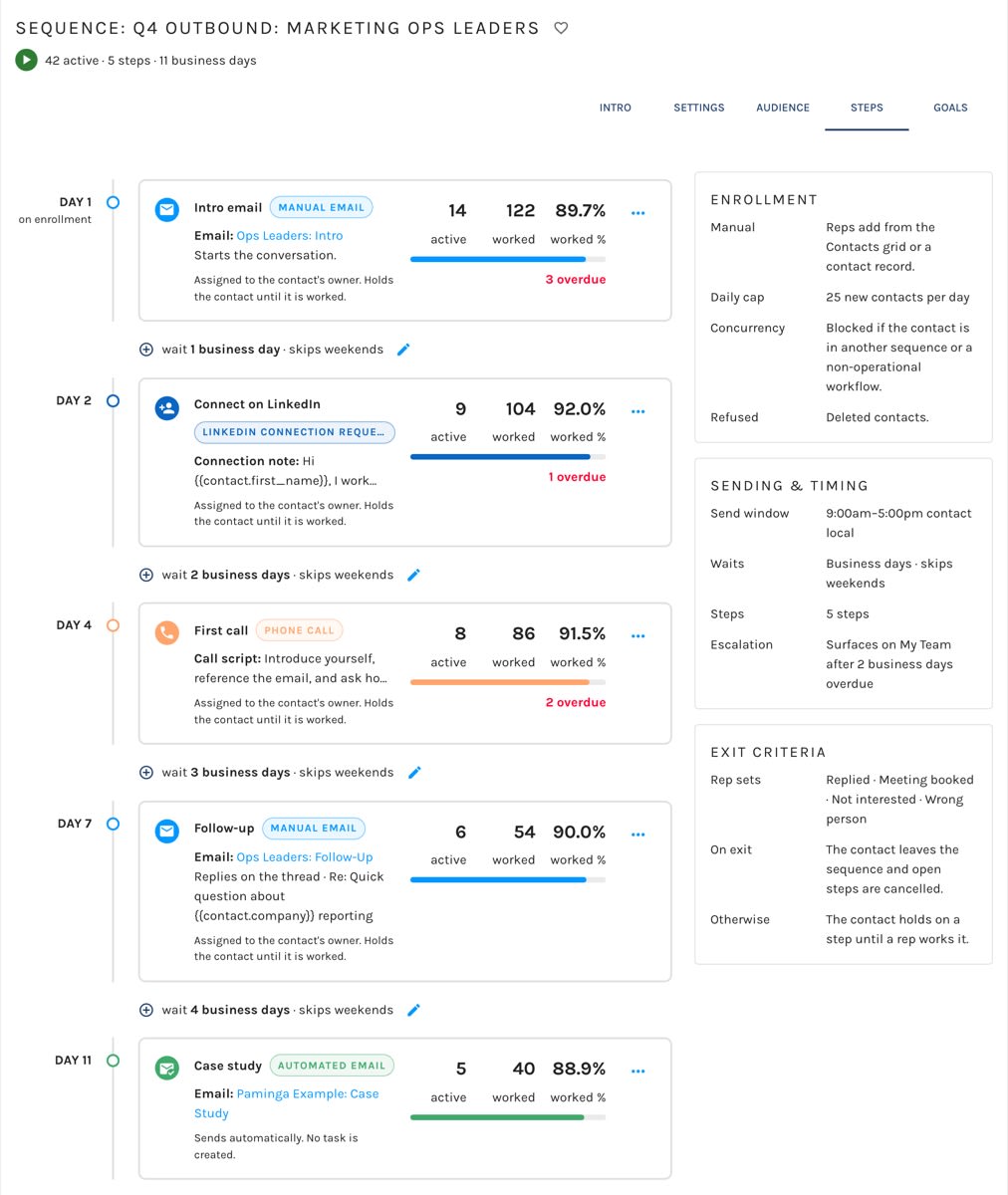
For each step, choose a Step type and optionally give it a Step name. Use the step's actions menu to edit it, move it earlier or later, or remove it. Click Save when you're done — steps save together.
Step Types
Manual Email : A Personally Authored email the rep reviews and sends from one of their mailboxes. Pick a published Personally Authored email. Only that kind is offered: a rep sends this from their own address, so it has to read like a message a person typed.
Automated Email : Sends any published email automatically, through Paminga's ordinary email delivery. No task is created.
Phone Call : The rep dials. Write the Call script they'll read from.
LinkedIn Connection Request : The rep sends a connection request with your Connection note. LinkedIn caps notes at 300 characters, and the editor counts as you type.
LinkedIn Message : The rep sends your Message in LinkedIn.
Call scripts and LinkedIn copy are plain text — LinkedIn discards formatting and a script is read aloud — with personalization tokens available from the editor.
If your account uses the HeyReach integration, each LinkedIn step also asks Who sends it: A rep, as a task, or HeyReach, automatically. An automated LinkedIn step is sent from the LinkedIn account of the person the contact is assigned to, creates no task, and a reply ends the sequence for the contact.
Waits
Between each pair of steps is a wait, counted in whole business days. Weekends are skipped. Click the edit icon beside a wait to change it.
The first step is Day 1, due on enrollment. Each step after it is due once its wait has passed — and, if you've restricted steps to business hours, once the sending window is open.
Email Threads
A Manual Email step after the first one asks how it relates to earlier emails, under Conversation:
- Reply on the previous email's thread (the default) sends as
Re:the subject of the conversation the most recent earlier email step started, inside that same conversation. The step's own email still supplies the body, attachments and approval; only its subject is set aside. - Start a new thread sends with the email's own subject, as a new conversation.
The first Manual Email step always starts the conversation.
How Steps Are Worked
Every step except an Automated Email (and an automated LinkedIn step) is worked by a person. When it falls due, Paminga raises a task for the rep the contact is assigned to, and the contact holds on that step until the rep works it, skips it, or ends the sequence for them. Reps work these from My Queue.
A sequence never skips a step on its own. A rep who falls behind sees overdue steps, and their manager sees them on My Team — but the contact doesn't silently move on with a call that was never made.
Once a sequence has run, each step card shows how many contacts are active on it, how many have been worked, the worked percentage, and how many are overdue.
The Reference Rail
Beside the steps, a rail summarizes how this sequence will behave — daily cap, sending window, waits, escalation, and exit criteria — read from its own settings.
Goals
Sequences carry the same conversion goals as every other automation. Click Create a Goal, define the segment that counts as reaching it, and add the actions to run when a contact does. See Workflow Goals for the details.
Start, Pause, and Resume
Click Activate in the bar at the bottom of the editor to start the sequence. Paminga checks that it's ready first, and tells you exactly what to fix if it isn't:
- The sequence has an audience.
- It has at least one step.
- Every step has content — a chosen email, a script, or a message.
- Every email step's email still exists and has a published version, and every Manual Email step's email is a Personally Authored one.
- Any step set to send through HeyReach has HeyReach connected.
Once running, Pause stops steps from being worked until you Resume. Contacts can still be added to a paused sequence; they wait until it resumes.
You can keep editing a running sequence. Save or cancel any unsaved step changes before pausing or resuming.
Exits
A contact leaves a sequence when they reach the end of it, or when one of these happens first:
| Exit | How it happens |
|---|---|
| Replied | A reply arrives in the rep's mailbox and is matched to the sequence, or the rep records it. |
| Meeting booked | The rep records it. |
| Not interested | The rep records it. |
| Wrong person | The rep records it. |
| Bounced | A sequence email to the contact hard-bounces. The contact is marked bounced. A soft bounce is recorded but changes nothing. |
When a contact exits, any open steps they had in the sequence are cancelled and withdrawn from the rep's queue. An automatic reply, such as an out-of-office, does not end the sequence. See Inbox for how replies are classified.
The Sequence Board
Click Sequence Board at the bottom of the editor to see where every active contact is right now. Each step is a lane, and each contact is a card showing their account, when their step is due, and who it's assigned to. Overdue cards are marked with how many days late they are.
The Sequence Board:
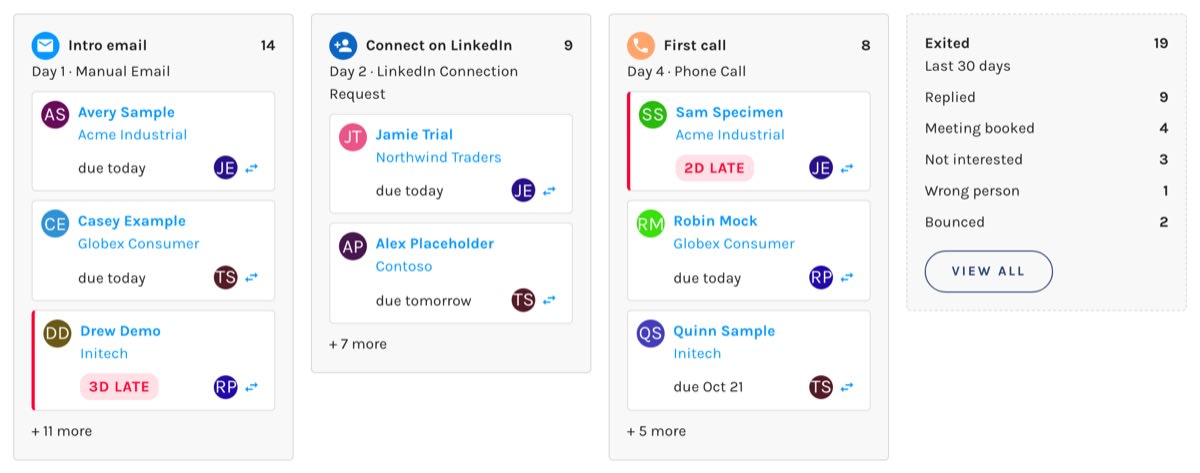
- Click a contact's name to open the contact, or their account to open the account.
- Click anywhere else on a card to open that step in Focus Mode.
- Click Reassign on a card to hand the contact's remaining steps to someone else. If the contact has an open task, choose whether to Also move the open task.
- Click Rewind on a card to put the contact back on a step that was skipped. Its task goes back into the assignee's queue, due now. Rewind is offered only when the step before was skipped and nothing has run since.
The Exited lane counts how many contacts left the sequence recently, by exit reason.


