Mailboxes
Mailboxes is in beta. It may not be turned on for your account yet. To request access, contact Paminga Support.
A Manual Email step in a Sequence doesn't go out through Paminga's marketing email infrastructure. It goes out from a real mailbox, under a rep's name, and lands in the prospect's inbox as a message a person wrote — because it is one.
That's why Sequences need mailboxes, and why Paminga watches those mailboxes for replies. A reply that arrives in a rep's mailbox is matched back to the sequence that earned it, and the contact stops receiving steps.
There are two kinds of mailbox:
- A rep's own Gmail mailbox. Each rep connects their Google Workspace address themselves.
- InboxKit mailboxes. Dedicated outreach mailboxes and domains, managed in InboxKit and assigned to reps by an admin. Keeping cold outreach on separate domains protects the reputation of your primary domain.
A rep can have any number of mailboxes of either kind. Sequences spread the work across them.
My Mailboxes
Every rep finds their mailboxes under Settings › Personal › My Mailboxes. Each mailbox shows where it comes from (Gmail or InboxKit), whether it can send, how many sequence emails it has sent today against its daily cap, and when Paminga last checked it for replies.
My Mailboxes:
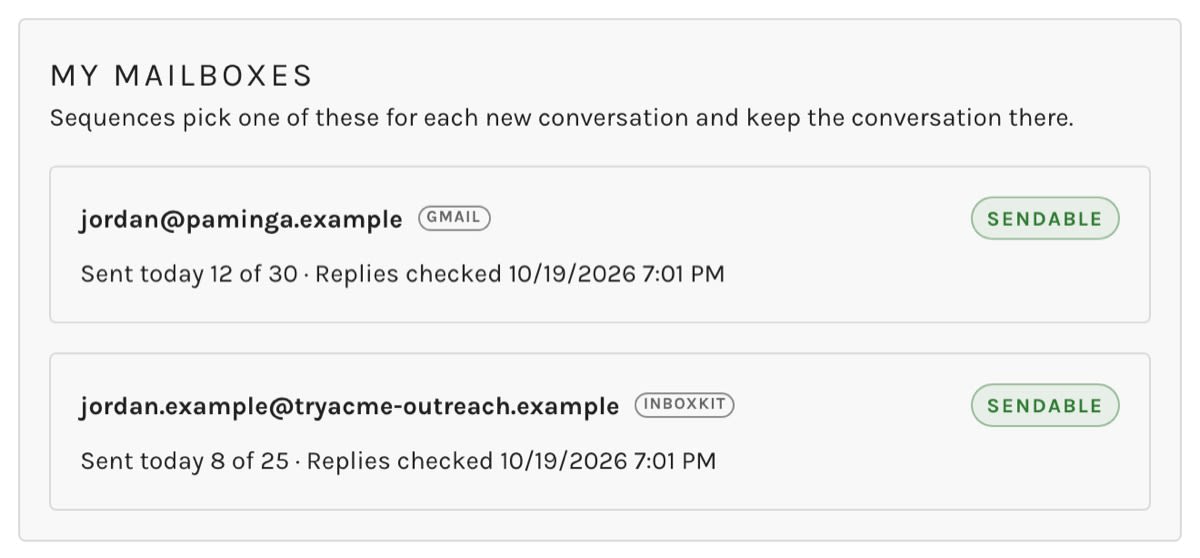
Connect Your Gmail Mailbox
- Go to Settings › Personal › My Mailboxes.
- Click Connect Paminga to Gmail.
- Sign in to Google and allow both permissions.
Paminga asks Google for exactly two permissions: send email on your behalf, and read your mail so replies to sequence emails can be matched. Both are required — a mailbox that can send but can't be read would let replies go unnoticed while the sequence keeps sending. Nothing else in your mailbox is read or stored.
If Google stops accepting the connection (a changed password, an admin revoking access), the mailbox shows Reconnect and Paminga stops sending from it. Click Connect Paminga to Gmail again to restore it, or Disconnect to remove it.
Paminga marks a mailbox for reconnection only after a run of authorization failures, not after a single one. Google occasionally refuses a token for a moment, and one hiccup shouldn't pause a rep's day.
Account Mailboxes
Admins manage every mailbox in the account under Settings › Account › Mailboxes. This screen requires the manage level of the Sequences permission.
Connect InboxKit
- Go to Settings › Account › Integrations and find the InboxKit card.
- Click Connect and enter a Label, your InboxKit API Key, and your Workspace ID.
- Paminga syncs your InboxKit domains and mailboxes. Click Sync Now on the card at any time to pull changes immediately.
Disconnecting InboxKit keeps existing sends and conversations. That account's mailboxes are paused.
Domains
The Domains panel at the top of the Mailboxes screen lists each InboxKit domain, its platform, its status at InboxKit, how many mailboxes it holds, and its Paminga Access.
Domains and Mailboxes:
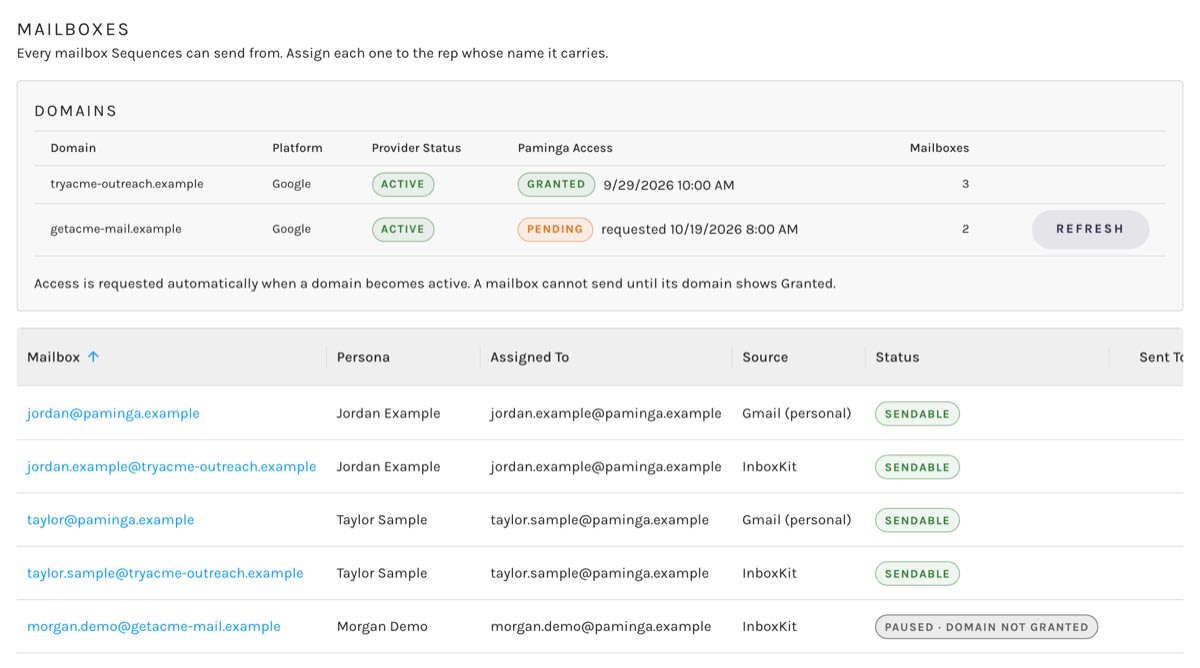
Paminga sends from InboxKit mailboxes through Google's domain-wide delegation, which the domain has to grant. Access is requested automatically when a domain becomes active. If it shows Not requested or Failed, click Grant Access; while it shows Pending, click Refresh to check again. Hover a Failed status to see why.
A mailbox can't send until its domain shows Granted. Mailboxes waiting on their domain are paused, and resume on their own once the grant completes.
The Mailboxes Grid
Below the domains, the grid lists every mailbox Sequences can send from — your reps' Gmail mailboxes and your InboxKit mailboxes alike — with its persona, who it's assigned to, its source, transport, status, emails sent today against its daily cap, its bounce rate over the last 7 days, and when replies were last checked. Every column can be filtered.
Each row's actions:
- Pause or Resume the mailbox. A paused mailbox stops sending, but its replies are still read.
- Send a test email from the mailbox to yourself.
- Edit the mailbox.
Assign a Mailbox to a Rep
Click Edit on a mailbox and choose who it's Assigned To. An InboxKit mailbox sends only for the rep it's assigned to.
Assign each mailbox to the rep whose name it carries. If the persona on the mailbox doesn't match the rep you pick, Paminga warns you: prospects would see one person's emails signed with another person's name. Change the name at InboxKit first.
In the same drawer, Sequences may send from this mailbox turns a mailbox off entirely without unassigning it.
Sending Limits
Every mailbox has a Daily Send Cap: the most sequence emails it may send in a day. By default, a new mailbox starts at 30 a day. Change it in the mailbox's Edit drawer.
- The day is counted in the mailbox owner's time zone, so the cap resets at the rep's midnight.
- A brand-new mailbox needs a gentler start. InboxKit suggests 20–30 a day for a mailbox under 30 days old.
- Emails count the moment they are reserved for sending, so two sends going out at once can't both slip under the cap.
When a rep's mailbox reaches its cap, Focus Mode says so, and the step can be skipped or snoozed until tomorrow.
How Paminga Picks a Mailbox
When a rep has more than one mailbox, Paminga chooses which one each email goes out from:
- A conversation stays on its mailbox. If the contact already has a conversation with this rep, the next email continues it from the same address — even across sequences, and even if that mailbox has reached its cap for the day. A second sender address appearing in a prospect's inbox does more damage than waiting a day.
- New conversations go to the least-used mailbox. Among the rep's mailboxes that can send and are under their cap, Paminga picks the one that has used the smallest share of its cap today.
Focus Mode always tells the rep which address an email will go out from, and whether it continues an existing conversation.
If the mailbox a conversation lives on is paused, the rep can choose to Send anyway from another mailbox. That starts a new conversation from a different address, and the prospect will see the change.
Mailbox Health
Paminga measures each mailbox's health from its own sends: every bounce is counted against the email it answers. It doesn't rely on InboxKit's numbers, because InboxKit can't see mail sent through Google on your behalf.
An InboxKit mailbox whose bounce rate over the last 7 days climbs above the limit — 5% by default — is paused automatically to protect its domain's reputation. Paminga waits until a mailbox has sent a minimum number of emails in that window (20 by default) before acting on its bounce rate — one bounce in a handful of sends is noise, not a reputation problem.
When the rate falls back under the limit, the mailbox resumes on its own at the next health check. You can also resume it from the grid right away — but if its rate is still over the limit, it pauses again at the next check.
Mailbox Statuses
| Status | What it means |
|---|---|
| Sendable | Enabled, connected, and ready. |
| Disabled | Sequences may send from this mailbox is turned off. |
| Reconnect | Google no longer accepts the connection. The owner needs to reconnect it. |
| Paused · Manual | Paused by an admin from the grid. |
| Paused · Health | Paused automatically for its bounce rate. Resumes on its own once the rate is back under the limit. |
| Paused · Domain not granted | Waiting on its domain's access grant. Resumes on its own. |
| Paused · Provider status | InboxKit reports the mailbox isn't active. Resumes on its own when InboxKit reports it active again. |


