My Queue and Focus Mode
My Queue is in beta. It may not be turned on for your account yet. To request access, contact Paminga Support.
My Queue is a rep's home for the day: every Sequence step assigned to them that's due now. It's grouped by urgency, not by sequence, because a rep's constraint is time, not campaign.
Focus Mode is how the queue gets worked. It opens one step at a time, with everything needed to do it on one screen, and moves to the next as soon as you're done.
My Queue
Go to Sales › My Queue. The header shows today's date and how many steps are due.
My Queue:
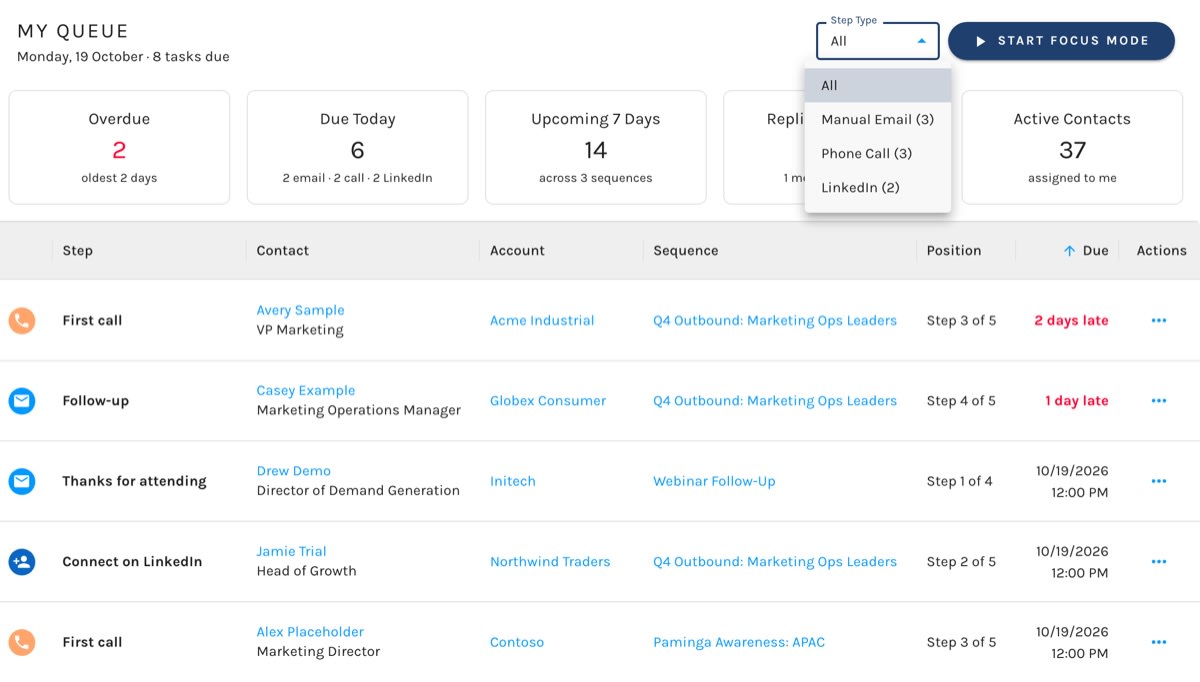
The Tiles
| Tile | What it shows |
|---|---|
| Overdue | Steps whose due day has passed, and how many days the oldest has waited. Red once it's above zero. |
| Due Today | Steps due today, split into emails, calls, and LinkedIn. |
| Upcoming 7 Days | Steps falling due over the next week, and how many sequences they come from. |
| Replies This Week | Contacts of yours who replied in the last 7 days, and how many meetings you booked. Click it to see who replied. |
| Active Contacts | Contacts with an open sequence step assigned to you. |
A step is due for the whole of its due day and overdue only once that day has passed — in your own time zone, from your profile, not your browser's. A rep traveling across time zones sees the same queue Paminga counted.
The Grid
Each row is one step: what it is, the contact and their account, the sequence, where it falls in that sequence (Step 2 of 5), and when it's due.
Reps batch their work — an hour of calls, then an hour of email. Use the Step Type filter to show only Manual Email, Phone Call, or LinkedIn steps. Each option shows its count before you click it.
Automated steps never appear here. They send on their own.
Focus Mode
Click Start Focus Mode to work the queue from the top, or choose Work this task on a row to start there. Focus Mode follows the queue as you were looking at it: the same Step Type filter and the same sort.
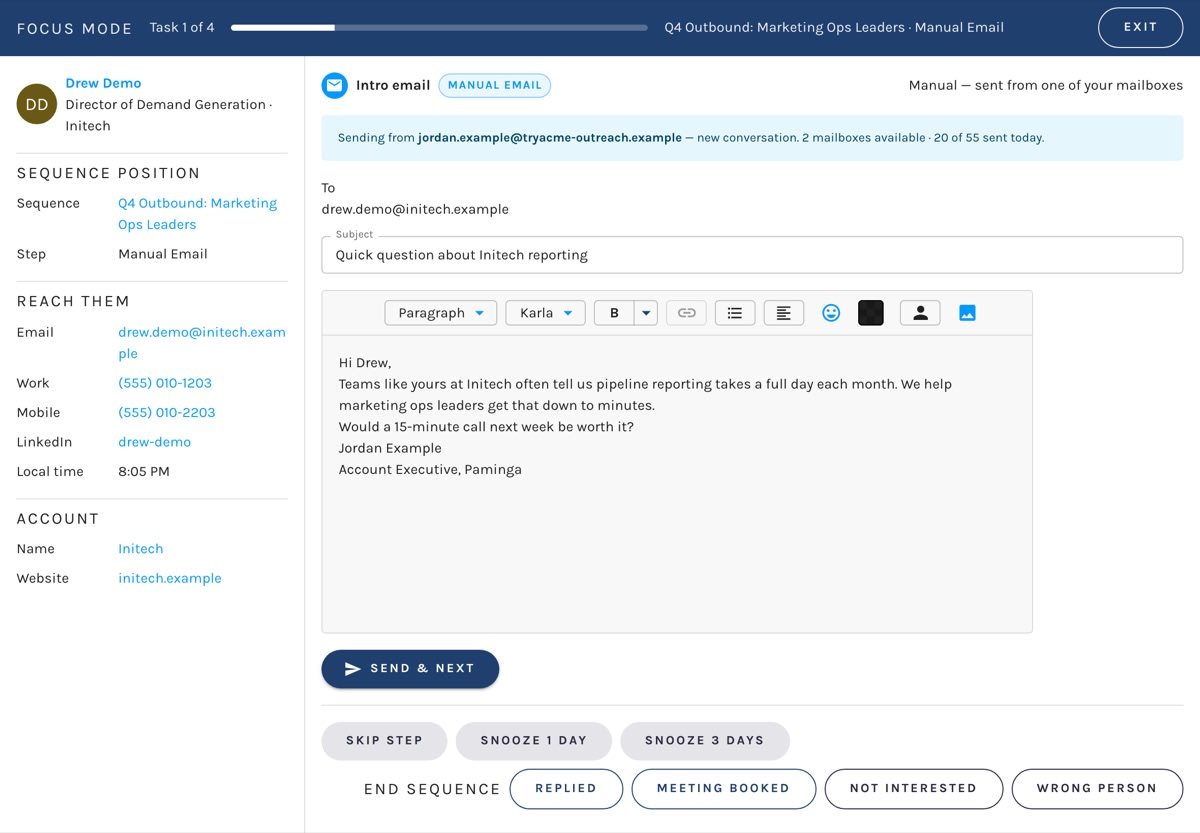
The bar across the top shows which task you're on out of how many, your progress, and the sequence and step. Click Exit to return to My Queue.
On the left, a rail shows who you're contacting: their title and account, the sequence and step, their email, work and mobile phone numbers, LinkedIn profile, their Local time, and their account's name and website.
Manual Email Steps
The email appears with its tokens filled in for this contact, in the same composer it was written in. Edit the Subject and body as you like, then click Send & Next.
Above the email, Focus Mode tells you which of your mailboxes it will go out from, and whether it continues an existing conversation (with that conversation's subject) or starts a new one.
Focus Mode on a Manual Email Step:
It also stops you before a send that shouldn't happen:
- No mailbox. You don't have a mailbox to send from yet. Connect one under Settings › Personal › My Mailboxes, or ask an admin to assign you one.
- Mailbox needs reconnecting, or is paused. Reconnect it, or ask an admin.
- Daily cap reached. Every mailbox you have has hit its cap for today; sends resume tomorrow. Skip or snooze the step. If only this conversation's mailbox is at its cap, the email stays on it rather than switching addresses.
- The contact can't be emailed. They've unsubscribed, their address has bounced, they have no email address, or the sequence requires GDPR consent they haven't given. Skip the step.
- The contact is sunset. They've stopped engaging with email. You can still send by checking Send anyway — just expect silence.
If Google doesn't confirm a send, Focus Mode says so plainly and tells you not to send it again. Paminga is notified and checks it.
Phone Call Steps
The contact's work number appears large and selectable (with their mobile beside it, if they have both), with your call script below. After the call, choose an Outcome — Connected, Voicemail, No Answer, Gatekeeper, Wrong Number, or Bad Number — add Call notes, and click Log & Next.
LinkedIn Steps
Click Copy message to copy the connection note or message, then Open LinkedIn profile and send it there. Paminga can't see whether it was sent, so confirm it yourself: add any Notes and click Sent & Next.
Skip, Snooze, or End the Sequence
Every step offers the same choices beneath it:
- Skip step — move the contact on to the next step without doing this one. A skipped step can be rewound from the Sequence Board.
- Snooze 1 day or Snooze 3 days — push the step's due date out. The contact keeps holding on this step. A snooze is not a skip.
- End sequence — Replied, Meeting booked, Not interested, or Wrong person. Each ends the sequence for this contact instead of advancing them, and withdraws their remaining steps.
Steps That Aren't Yours
If you open a step assigned to someone else — from the Sequence Board, for instance — Focus Mode shows it read-only and tells you whose it is. There are no controls to work it, and a link takes you to the contact if you need to act on them directly.


