Tasks
Tasks are the follow-up work behind your pipeline: a call to make, a proposal to send, a demo to schedule. Each Task belongs to a Contact and is assigned to a Paminga user, so nothing slips between marketing handing a lead over and sales picking it up.
You can create Tasks by hand, from a Contact's details, or automatically with the Create Tasks Action.
Tasks live under the Sales menu, which appears only when your account has no CRM integration connected. See Who Sees the Sales Menu.
My Tasks
Go to Sales → Tasks to see My Tasks — every Task assigned to you.
My Tasks:
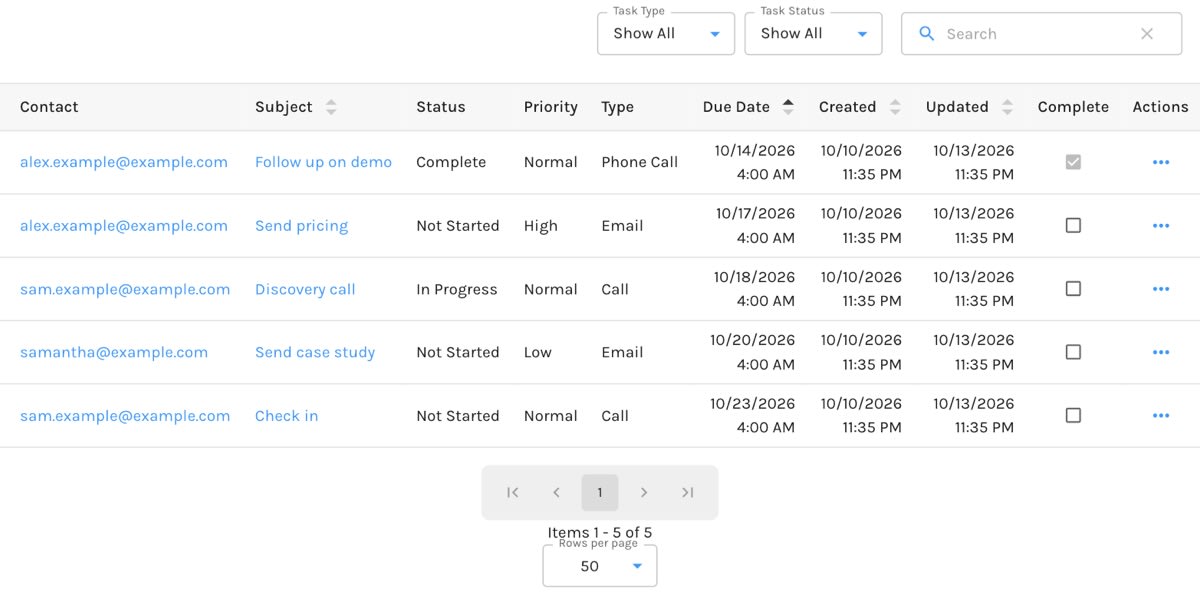
The grid shows each Task's Contact, Subject, Status, Priority, Type, Due Date, Created and Updated dates, a Complete checkbox, and row Actions to edit or delete it. It's sorted by Due Date, soonest first.
Use the Type and Status filters above the grid to narrow the list — to see only what's still open, for example.
Tick a Task's Complete checkbox to mark it done without opening it.
Creating a Task
Click Create Task above the grid, or click the + beside Tasks in the Sales menu. A drawer opens on the right.
Creating a Task:
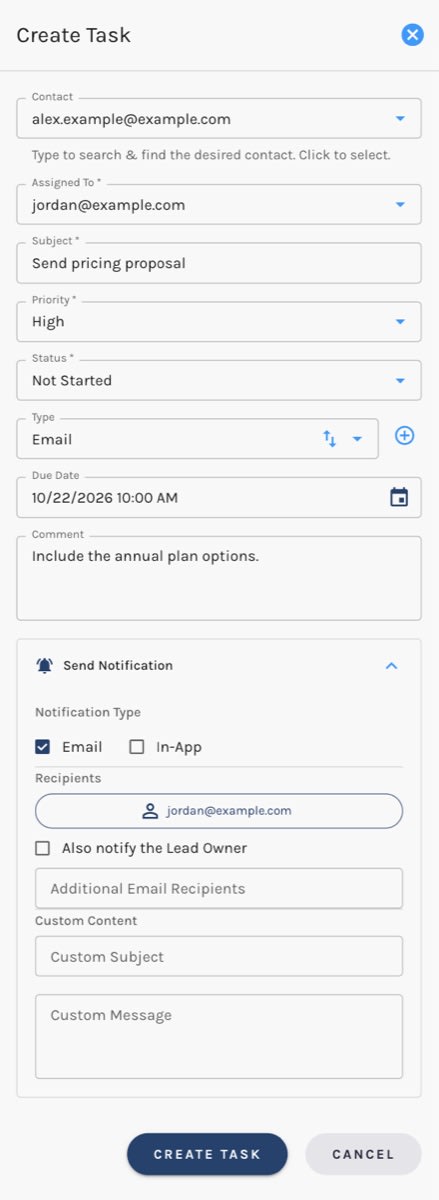
| Field | What it holds |
|---|---|
| Contact | The Contact the Task is about. Required. Search for the Contact by typing. |
| Assigned To | The Paminga user responsible. Required. Defaults to you. |
| Subject | A short description of the work. Required. |
| Priority | Low, Normal, or High. Defaults to Normal. |
| Status | Not Started, In Progress, or Complete. Defaults to Not Started. |
| Type | The kind of work this is. Click the + beside the field to create a new Task Type on the spot. |
| Due Date | When the Task is due. It can't be in the past. |
| Comment | Any notes, up to 255 characters. |
Send Notification
When you create a Task, expand Send Notification to tell people about it:
- Notification Type — how the assigned user is notified: by Email, In-App, or both.
- Recipients — the assigned user is always a recipient. Tick Also notify the Lead Owner to also email the Paminga user who owns the Contact (if the Contact has an owner). Anyone you add under Additional Email Recipients is notified by email.
- Custom Content — optionally set a Custom Subject and Custom Message.
Click Create Task to save it.
Editing a Task
Click a Task's subject, or choose Edit from its row actions. If the Task isn't finished, the drawer opens with a Mark this task Complete shortcut at the top, so closing out a Task is one click.


