Approvals
Paminga's Approval Workflow gives your team a structured review process for marketing assets before they go live. Authors request review, designated approvers review and comment, and only approved content gets published.
This keeps your brand consistent, reduces errors, and gives the right people visibility into what's going out the door — without slowing anyone down with unnecessary process.
Enabling Approvals
Approvals are turned on or off at the account level. When you enable approvals, all supported asset types gain the ability to go through the review process before publishing.
Go to Account Settings > Approvals and toggle the switch to enable the feature.
Disabling approvals does not delete any existing review history or comments. Assets currently in review will return to Draft status.
Designating Approvers
Approvers are the users who can approve, request changes, or publish assets that have been submitted for review.
Paminga supports a two-tier approver hierarchy:
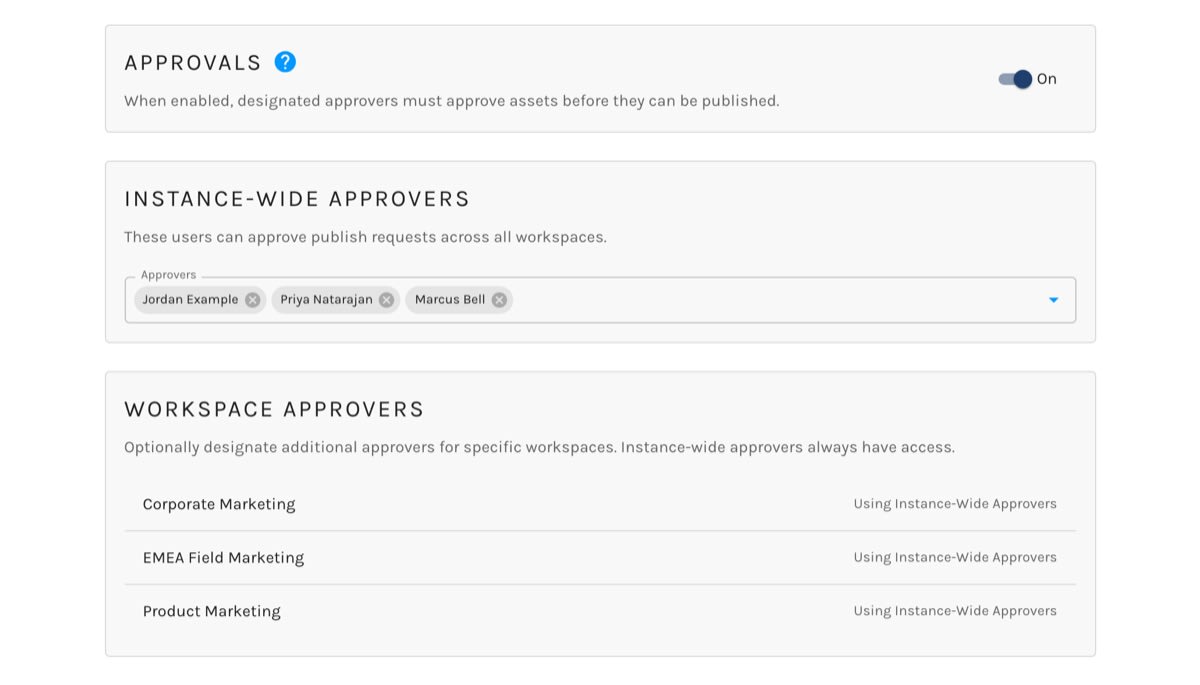
Turn Approvals on and choose your approvers:
Instance-Wide Approvers
Instance-wide approvers can review and approve assets across your entire Paminga instance — regardless of which workspace an asset belongs to.
Add one or more users as instance-wide approvers from the Approvals settings page.
Workspace-Specific Approvers
For organizations that need additional reviewers for specific Workspaces, you can designate workspace-specific approvers.
Workspace-specific approvers are additive — they can approve assets within that workspace in addition to the instance-wide approvers, who always have access.
How the Review Process Works
Every asset starts in Draft status. From there, it moves through a clear set of states:
- Draft — The asset is being worked on. Only the author interacts with it.
- Review Requested — The author submits the asset for review. Approvers are notified.
- Changes Requested — An approver has reviewed the asset and asked for revisions. The author is notified.
- Approved — An approver has signed off. The asset is ready to publish.
- Published — The asset is live.
Authors can withdraw a review request at any time, returning the asset to Draft. Approvers can approve directly from Review Requested or Changes Requested status.
Assigning Specific Reviewers
When requesting review, authors can optionally select specific approvers to review their asset. Only the selected reviewers will see the item in their Approval Queue and receive notifications.
If no specific reviewers are selected, all eligible approvers for that workspace are notified.
Authors can also manage reviewer assignments after submission — adding or removing reviewers without withdrawing the review request.
Pre-send Checks on Emails
Emails are checked before they move. Request Review and Publish (including Approve & Publish) run Pre-send Checks first, and refuse when the email has a blocking failure — or a warning, unless you hold the Override Warnings permission. The refusal opens the results, so the author sees exactly what to fix.
Approvers see each email's results in the Checks column of the Approval Queue.
Comments
Comments are a running conversation attached to an asset's review. Authors and approvers can leave comments at any point during the review process.
Comments are threaded, so replies stay organized. An unread comment indicator on the Comments button lets you know when someone has added to the conversation.
Approvers can combine a comment with a status change — for example, leaving a comment and requesting changes in a single action.
Notifications
When a review is requested, a status change occurs, or a comment is added, Paminga notifies the relevant people through up to three channels:
- Notification Center — In-app notifications visible from the bell icon
- Banner — A prominent in-app banner (used for approvals)
- Email — A summary email with a direct link to the asset
Each user can configure their own notification preferences under Personal Settings > Notifications. All channels are enabled by default.
Publish Without Approval
Organizations that want the review process for most users but need certain roles to bypass it can grant the Publish Without Approval permission.
Users with this permission see a Publish button alongside the Request Review option, letting them skip the review process when appropriate.
Configure this in Permissions under the Assets category.


