Drop Downs
A Drop Down is a reusable list of options you define once and then point at from anywhere in Paminga — a form field, a custom field on a contact, account, opportunity or campaign member, or a field you sync with your CRM.
That reuse is the point. Change "Mid-Market" to "Midmarket" in one place and every form and field using that Drop Down changes with it, rather than you hunting through a dozen forms hoping you got them all.
Your ability to access account settings may depend on the permissions setup by your organization.
Creating a Drop Down
To create a new Drop Down, in the top right corner of the app, select ‘Create Drop Down’.
Once selected, a drawer will appear.
Here you will give your Drop Down a name and then select ‘Create Drop Down’.
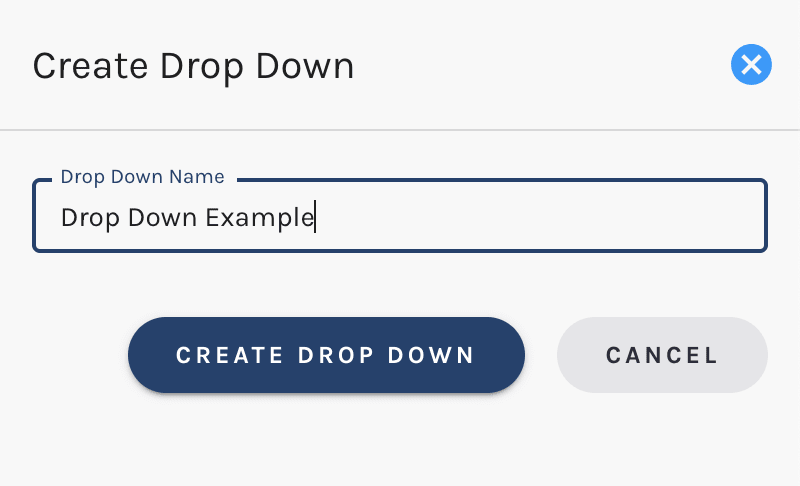
Upon creation, you will then be asked to create options for your Drop Down.
This is where you will input any fields which you would like present on your form, or match fields that are present on your Drop Down within your CRM that you would like to sync to Paminga.
To add options, on the bottom of the folder, select ‘Create New Option’. After adding your option, select the checkbox and the field will be added.
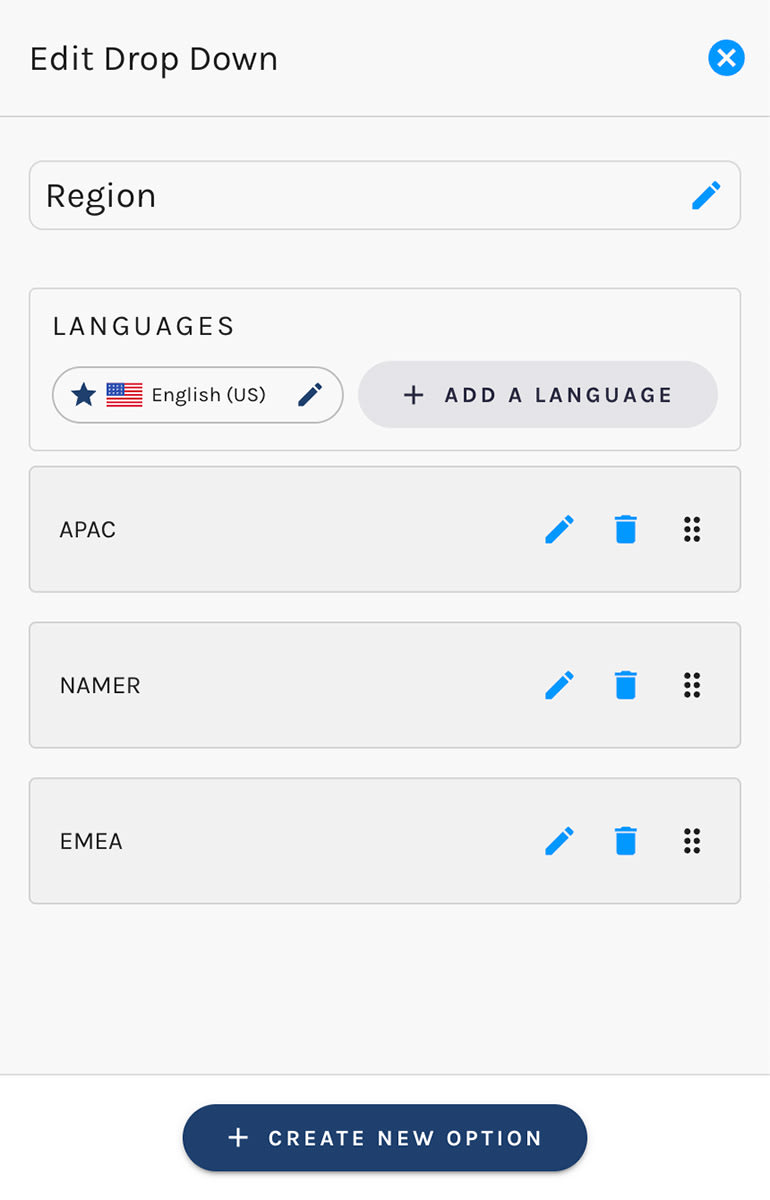
You can add as many fields as you would like to your Drop Down. You also have the ability to drag and drop to re-organize.
Editing Drop Downs
To edit a Drop Down, click its name, or hover the ‘Actions’ column of the Drop Down and click the pencil/edit icon.
You'll find that you can:
- Add and edit options
- Set the label that your prospects see separately from the value that gets stored for that option
- Order your drop down's options via drag and drop.
- Internationalize your drop down by providing translations for the labels
Values and Labels
Every option carries two things, and the distinction matters more than it first appears:
- The value is what gets stored on the record and synced to your CRM. It's the data.
- The label is what a person reads on a form. It's the presentation.
Leave the value blank and it takes the label. But when the two need to differ they can, and that flexibility is what makes a Drop Down survive contact with a CRM. Your Salesforce picklist may expect ENT-001 while your form should say "Enterprise (1,000+ employees)". One option, both truths.
Because the value is the stable part, you can change a label — or translate it into multiple languages — without touching a single stored record, breaking a segment, or re-mapping anything in your CRM.
Where Drop Downs Appear
Once a Drop Down exists, it's available to:
- Forms — add a Drop Down element and choose which Drop Down supplies its options
- Custom fields — contact, account, opportunity, custom object, and campaign member custom fields may be tied to any of your Drop Downs
- CRM sync — a picklist coming from Salesforce, Dynamics, or other CRM needs a matching Drop Down on the Paminga side so the two agree on what a valid value is
- Segments — because the values are constrained, segmenting on them is exact rather than a text match that misses "Mid-Market" when someone typed "mid market"
Localization / Internationalization
When you create a Drop Down, Paminga detects your web browser's language and sets that language as the default for that Drop Down.
Adding a Language
You may add additional languages as needed.
You must provide translations for all existing options when adding a language.
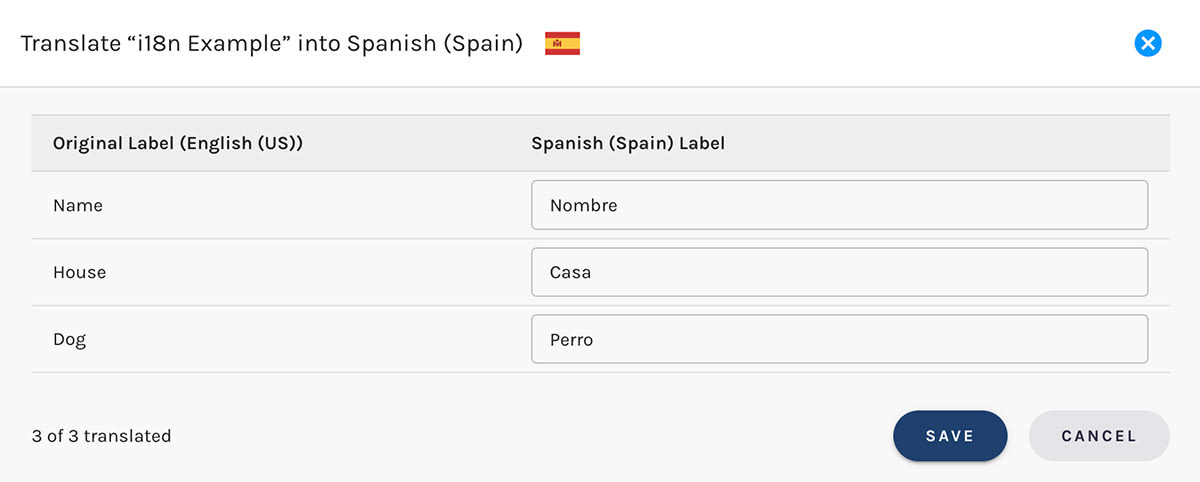
Adding Options Later
When adding options to an internationalized Drop Down, you must provide translations for languages.
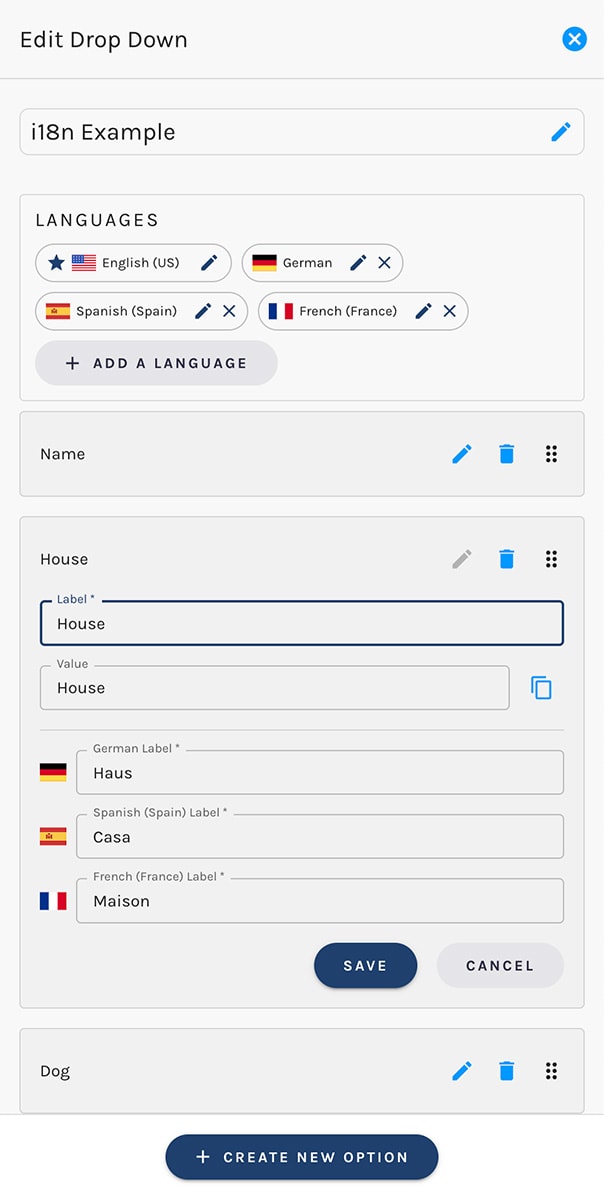
Removing a Language
Click the "X" icon on a language to remove it. Every label for that language is deleted, and forms rendering in it fall back to the default labels.
How Paminga Chooses Which Language to Show
When a Paminga Form is rendered, it detects the browser's language setting and will render your form in that language, if you've internationalized that form to that language.
But what if a Drop Down used in that form has not been internationalized to your website visitor's language?
In this case, Paminga will render the default labels for that Drop Down.
Be sure to translate your Drop Downs into all languages used in your forms.
Dialects
Paminga supports not only languages but dialects as well:
- Spanish as spoken in Spain vs. as spoken in Mexico
- French as spoken in France vs. as spoken in Canada
- English as spoken in England vs. as spoken in the United States vs. Canada
If your website visitor's browser emits FR-CA (French Canadian), but your Drop Down only has a French (FR) translation, your drop down will be rendered in French.
If you've not provided a French translation, your Drop Down will render in the default language in which it was created.
What Values Get Stored in Paminga
The "Value" associated with each drop down option is the only value ever stored on the Contact record or form submission.
If you create an option whose value is "House", and a prospect submits your form in Spanish ("Casa"), the value you'll see in Paminga will be "House".
This applies not only to the contact record, but to the form submission as well. "House" is therefore the value that would be synced to your CRM, should have that record synced.
Exporting Your Drop Downs
You can export your Drop Downs as an Excel file at any time.
Click the Export All Drop Downs button at the upper right. Paminga builds a single-sheet Excel file containing every Drop Down, every option, and every translation, laid out side by side.
What's in the Excel File
One row per option in each Drop Down, sorted by Drop Down name and then by the order your options appear in.
| Column | What it holds |
|---|---|
| Drop Down | The name, repeated on each of its option rows so you can sort and filter freely |
| Default Language | The language this Drop Down's labels are written in |
| Option Order | Where the option sits in the list |
| Stored Value | The value written to the contact record and synced to your CRM |
| One column per language | The label someone reads in that language |
| Used By | Every field and form that references this Drop Down |
| Created / Updated | When the Drop Down was created, and when it last changed |
A Drop Down's labels land in the column for its language. If a Drop Down's language is French, its labels sit under French, with any English translation under English. The Default Language column tells you which to read as the original.
An empty language column means that Drop Down was never translated into that language. Because translations are all-or-nothing, a language is either complete for a Drop Down or absent from it. So every blank is a whole Drop Down waiting for a language, which makes the gaps easy to scan for.
The Used By column is the other half of the audit. It names each referencing field — a contact or account custom field, a custom object field, a CRM mapping, a LinkedIn or Calendly form field — so you can see that an untranslated Drop Down is sitting on a live form, or that one nothing references any more is safe to delete.
Where the File Lands
The file is built in the background. You'll get a notification when it's ready with a download link, and the file also appears under Reporting → Download Center — which is where to go if you dismissed the notification or want the file again later.
The export is an Excel file rather than a CSV so that accented and non-Latin labels survive. Excel corrupts those characters when it reads a CSV, turning États-Unis into États-Unis.


