PLG Triggers
You can fire PLG Triggers from your app or website when prospects complete high-intent actions:
- Logging in for the first time
- Completing onboarding
- Watching a demo video
- Clicking a CTA button
- Beginning checkout
- etc.
...and trigger Action Sets in Paminga automatically.
PLG Triggers are a powerful tool for Product-Led Growth (PLG).
PLG Triggers were called Custom Events until October 2026. Only the name changed. Your events, slugs, Actions and reporting carry over as they were, and the captureEvent call and the triggerCustomEvent mutation keep their names.
You define the event in Account Settings, fire it from your app or site with a single JavaScript call (or via the API), and Paminga handles the rest: identifying the contact, recording the event, attributing it if it counts as a conversion, and executing any actions you've configured.
Read About PLG Trigger Use Cases
Check out PLG Playbooks in this blog post from our Founder & CEO.
This page covers creating and configuring PLG Triggers. To connect them to automation and view performance data, see PLG Triggers — Actions & Reporting.
There are two ways to fire a PLG Trigger:
- From your website — a single JavaScript call via the Paminga tracking beacon. No contact data required; Paminga identifies the visitor automatically from their session.
- Via the GraphQL API — fire server-side from integrations, mobile apps, or backend pipelines by passing the contact's email address.
Managing PLG Triggers
PLG Triggers are created and managed under Settings → Account → PLG Triggers. From there you can create new events, edit existing ones, and delete events you no longer need. Every event you create is immediately available for action configuration and reporting in the Automations area.
Your PLG Triggers:
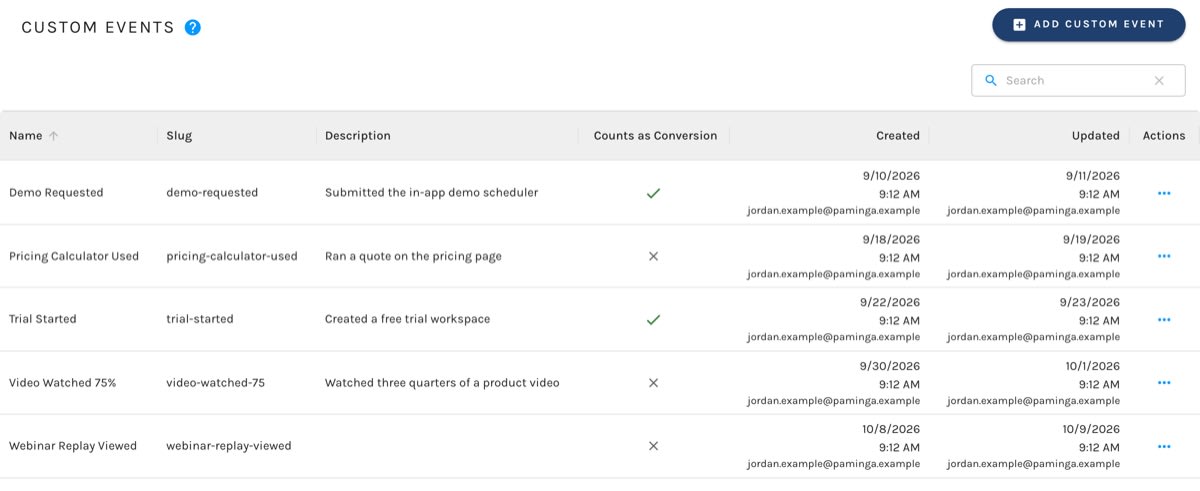
PLG Trigger Settings
Name
The display label for the event — used throughout Paminga and in reporting. Choose something descriptive: Watched Product Video, Visited Pricing Page, Downloaded Whitepaper.
Slug
The slug is what your website code passes to identify which event fired. It must be lowercase letters, numbers, and hyphens only — no spaces, no underscores, no uppercase.
Valid examples: watched-product-video, visited-pricing-page, downloaded-whitepaper-q1
Slugs must be unique within your account. The slugs impression and form-submission are reserved by Paminga and cannot be used.
Description
Optional free-form text. Useful for documenting intent — especially for events whose slug alone might not tell the full story six months from now.
Counts as Conversion
When enabled, firing this event marks it as a conversion and attributes it to the most recent Paminga impression in the visitor's current session. This flows into conversion metrics across Paminga — reporting, attribution, and anywhere conversion rates are calculated.
Enable it for high-intent signals: a demo request, a trial signup, a pricing page visit. Leave it off for informational or mid-funnel tracking events where conversion attribution doesn't apply.
Conversion reporting for your forms, landing pages, and CTAs reads this setting as it stands today, not as it stood when each event fired. Turn it off and the event's past occurrences leave your conversion numbers; turn it back on and they return. Nothing is rewritten either way, so there's nothing to rerun after you change your mind.
Firing a PLG Trigger from Your Website
PLG Triggers are fired via Paminga's website tracking beacon. Once the beacon is installed on your site, firing a PLG Trigger is a single JavaScript call:
$__MA.captureEvent('your-event-slug');
Replace your-event-slug with the slug you defined in Paminga. Place this call inside whatever handler fires when the target action occurs — a button click listener, a video play callback, a scroll threshold trigger, etc.
You don't need to pass any contact information. Paminga identifies the visitor automatically from their existing tracking session — the same session established when they first arrived on your site with the beacon present.
Passing Additional Data
You can pass arbitrary metadata with any PLG Trigger. This data is stored alongside the event record in Paminga and is accessible in reporting.
$__MA.captureEvent('your-event-slug', {
  metadata: {
    videoTitle: 'Product Overview',
    percentWatched: 87,
    planTier: 'enterprise',
  }
});
Metadata is a plain JavaScript object. It is JSON-serialized before sending — keep it under 4,096 bytes or it will be dropped.
Timing
The $__MA object is available once the Paminga beacon has finished loading. If you call captureEvent before the beacon loads, it will silently do nothing. The safe pattern is to wait for $__MA using setInterval:
let attempts = 0;
const maxAttempts = 200; // ~6 seconds at 30ms intervals
const id = setInterval(function () {
  attempts += 1;
  if (window.$__MA !== undefined) {
    clearInterval(id);
    $__MA.captureEvent('your-event-slug');
    return;
  }
  if (attempts >= maxAttempts) {
    clearInterval(id);
  }
}, 30);
PLG Triggers require the Paminga tracking beacon to be present and loaded. Visitors using ad blockers that prevent the beacon from loading will not have their PLG Triggers recorded.
Firing via the GraphQL API
If you're working server-side — integrations, mobile apps, backend pipelines — you can fire a PLG Trigger directly via Paminga's GraphQL API without the browser beacon.
mutation {
  triggerCustomEvent(input: {
    slug: "your-event-slug"
    email: "contact@example.com"
  })
}
If no contact exists for the email address, Paminga creates one automatically.
Full Input Reference
| Field | Type | Required | Description |
|---|---|---|---|
slug | String | Yes | The slug of the PLG Trigger to fire |
email | String | Yes | Contact's email address. Created if not found. |
page_url | String | No | The URL associated with the event |
utm_source | String | No | UTM source |
utm_medium | String | No | UTM medium |
utm_campaign | String | No | UTM campaign |
utm_term | String | No | UTM term |
utm_content | String | No | UTM content |
marketing_channel | MarketingChannel | No | Attribution channel (see enum values below) |
marketing_source | String | No | Attribution source name (matched against your account's marketing sources) |
metadata | JSON | No | Arbitrary key/value data stored with the event. Max 4,096 bytes. |
asset_type | LayoutBuilderType | No | The kind of asset the event happened on: FORM, LANDING_PAGE, or CALL_TO_ACTION. Pass it with asset_id. |
asset_id | ID | No | The id of that form, landing page, or CTA. Pass it with asset_type. |
embedded_in_asset_type | LayoutBuilderType | No | The asset that one was embedded in: LANDING_PAGE or CALL_TO_ACTION. Pass it with embedded_in_asset_id, and only alongside asset_type and asset_id. |
embedded_in_asset_id | ID | No | The id of that landing page or CTA. Pass it with embedded_in_asset_type. |
Naming the Asset an Event Happened On
When an event happens on one of your Paminga forms, landing pages, or CTAs, say so, and the event belongs to that asset:
mutation {
  triggerCustomEvent(input: {
    slug: "demo-booked"
    email: "contact@example.com"
    asset_type: LANDING_PAGE
    asset_id: 42
  })
}
If the event counts as a conversion, it then counts as a conversion of that asset, in its reporting and in asset engagement reports, where it shows under its name (Demo Booked) alongside form submissions and clicks. Rename the event and its history follows the new name. If two of your events share a name, the event's id is added to the label, e.g. Demo Booked (#512), so the two never blur together. If an event's name matches a built-in type (say you called one Form Submission), it reads Form Submission (Custom Event #512), and filtering on Form Submission still means form submissions. An event fired without an asset still records and still fires its Actions; it just isn't credited to any one asset.
Send both fields or neither. The asset has to exist in your account and not be deleted, or the call is rejected and nothing is recorded. Emails aren't assets an event can belong to.
Naming the Page an Asset Sits On
When the form or CTA the event happened on is embedded in a landing page (or a form sits inside a CTA), name that too:
mutation {
  triggerCustomEvent(input: {
    slug: "demo-booked"
    email: "contact@example.com"
    asset_type: FORM
    asset_id: 17
    embedded_in_asset_type: LANDING_PAGE
    embedded_in_asset_id: 42
  })
}
The conversion is then credited exactly the way a form submission on that page is: once to the form, once to the landing page, and once (not twice) in any total across your assets.
The same rules apply: send both fields or neither, the landing page or CTA has to be in your account and not deleted, and you can only name one alongside asset_type and asset_id. A landing page can't be embedded in anything, and nothing can be embedded in itself.
MarketingChannel Values
| Value | Description |
|---|---|
DIRECT_TRAFFIC | Direct traffic |
ORGANIC_SEARCH | Organic search |
PAID_SEARCH | Paid search |
ORGANIC_SOCIAL | Organic social |
PAID_SOCIAL | Paid social |
EMAIL_MARKETING | Email marketing |
DISPLAY_AD | Display advertising |
REFERRAL | Referral |
VIRTUAL_EVENT | Virtual event |
PHYSICAL_EVENT | Physical event |
OUTBOUND_CALL | Outbound call |
INBOUND_CALL | Inbound call |
DIRECT_MAIL | Direct mail |
AFFILIATE | Affiliate |
OTHER_CAMPAIGNS | Other campaigns |
INTERNAL_TRAFFIC | Internal traffic |
VIDEO_HOSTING_PLATFORM | Video hosting platform |
UNKNOWN | Unknown |
NONE | No channel |
A Note on Attribution
When firing via the API there is no browser session, so visit-level and impression-level conversion attribution is not available. If the call names an asset with asset_type and asset_id, that asset's conversion reporting still counts the event, by its Counts as Conversion setting as it stands today. No specific impression is attributed.
Actions configured on the PLG Trigger fire normally.
Once your events are firing, head to PLG Triggers — Actions & Reporting to configure automation responses and monitor performance.


