Pre-send Checks
Pre-send Checks inspect every email before it can leave the building. Paminga checks the email when someone requests review, publishes it, launches an automation that sends it, or sends it with Send It — and refuses the action when something is wrong.
They catch the mistakes that are expensive to make in front of a list: a token that renders blank, a missing unsubscribe link, a placeholder sender, a 2 MB hero image, a link that goes nowhere. More than two dozen built-in checks run on every email they apply to. You add your own rules with Policies, and you can see the email in real inboxes with Rendering Previews.
Block and Warn
Every check that finds a problem reports it at one of two severities:
- Block — the action is refused. Nobody can override a blocking failure. Fix the email and try again.
- Warn — the action is refused unless you hold the Override Warnings permission. Users with that permission see the warnings and proceed.
Some checks have both: a heavy image warns over 300 KB and blocks over 1 MB. The built-in checks below list the severity of each.
Override Warnings lives in the Administrative category under Pre-send Checks in Permissions. Give it to the people you trust to judge a warning — usually the same people who approve emails.
When Checks Run
Checks run on demand, and every time an email is about to move toward an inbox:
| Action | What is checked |
|---|---|
| Request Review | The email's current draft |
| Publish (including Approve & Publish in the Approval Queue) | The revision being published |
| Launching an automation | The published revision of every email the automation's Send Email actions send |
| Send It | The published revision of the email being sent |
| Run Checks in the Email Builder | The email as it stands now |
Checks never run on autosave. You can build freely and check when you're ready.
Every run is saved. When an email goes through Approvals, the run that let it through is kept with the approval history.
Checking an Email in the Builder
The Checks button sits in the bottom bar of the Email Builder. Its badge summarizes the latest run:
The Checks Button and Its Badge:

- Red with a number — that many blocking failures
- Amber with a number — that many warnings, and nothing blocking
- Green check mark — nothing failed or warned
Click Checks to open the Pre-send Checks dialog. It lists every result grouped by category — Policies first, since your own rules are usually why an approver is looking. Failures sort to the top of each category. Each result says what is wrong, how to fix it, and exactly where: the language, the field, or the snippet of content that tripped the check.
Click Run Checks to check the email again after you change it.
The Pre-send Checks Dialog:
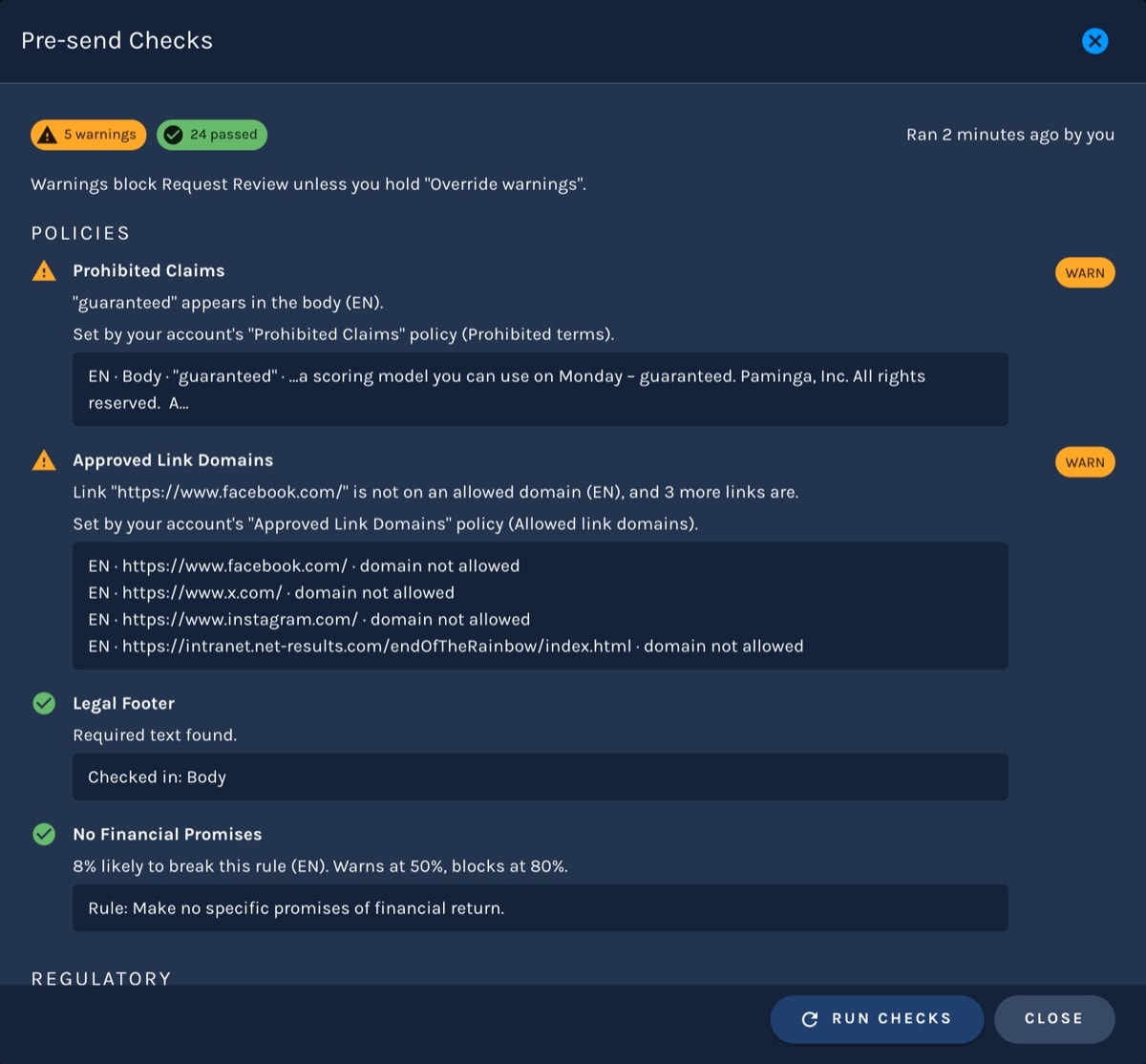
When a Request Review or Publish is refused, Paminga opens the same dialog with the reason at the top, so you go straight from "refused" to "here's what to fix."
In Send It and Automations
The Send It drawer checks the email as soon as it opens. A blocking failure disables the send button and tells you why. Warnings show as an alert you can read before you send.
When you launch an automation such as a Workflow, every email its Send Email actions send is checked. Any failures appear in the list of problems that keep the automation from launching.
In the Approval Queue
The Approval Queue shows a Checks column for emails: a red count of blocking failures, an amber count of warnings, or a green Passed. Approvers open the full results from the row's actions without leaving the queue.
The Checks Column:

Multi-Language Emails
Paminga checks each language of an internationalized email separately. A subject line missing in German fails, even when the English subject is fine, and the result names the language.
Built-in Checks
Built-in checks run on every email they apply to, and can't be switched off. The Built-in Checks tab in Account Settings lists them, with their severities and what they apply to.
Built-in Checks:
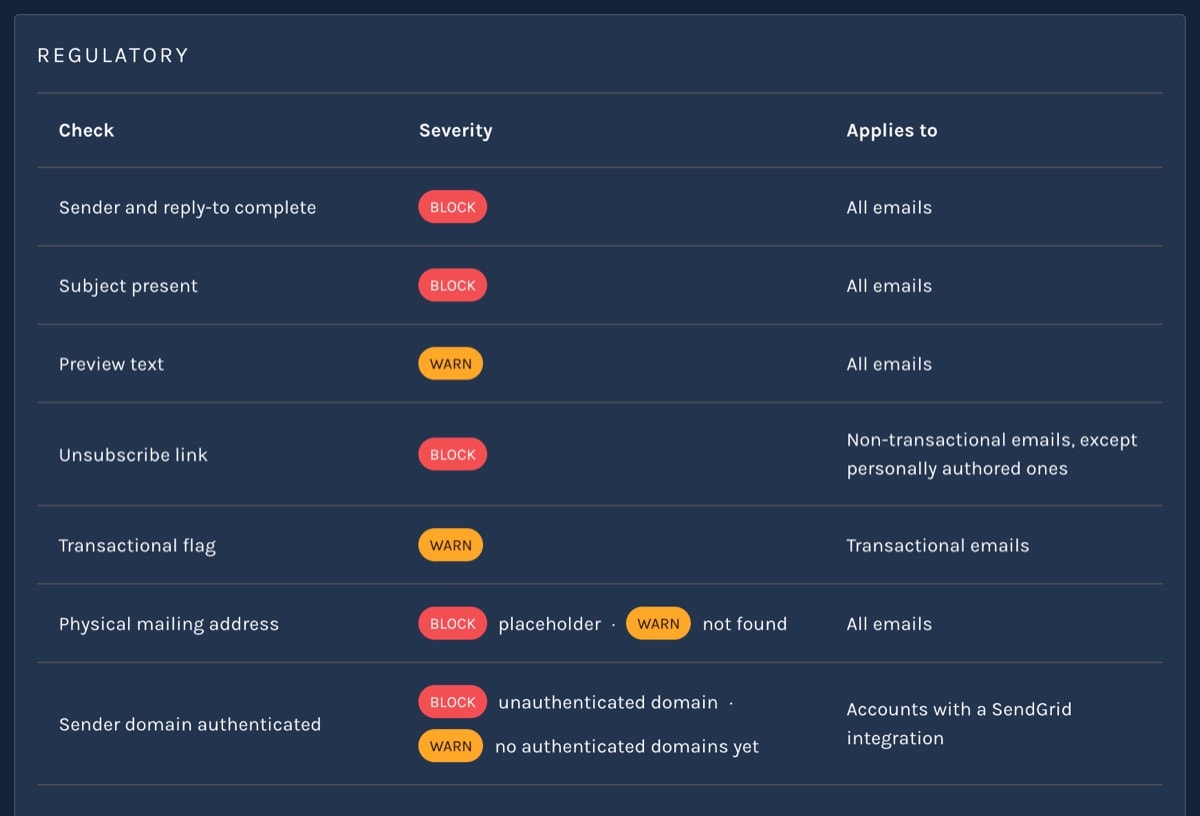
Regulatory
| Check | Severity | What it catches |
|---|---|---|
| Sender and reply-to complete | Block | A missing or invalid from name, from address, reply-to name, or reply-to address |
| Subject present | Block | An empty subject in any language |
| Preview text | Warn | Missing preview text, or preview text over 255 characters |
| Unsubscribe link | Block | No unsubscribe link with visible text. Transactional and Personally Authored emails are exempt |
| Transactional flag | Warn | An email marked transactional that reads like marketing. Paminga IQ judges it |
| Physical mailing address | Block / Warn | Blocks when the builder's (Address) placeholder is still in the email. Warns when no postal address can be found in the email |
| Sender domain authenticated | Block / Warn | Blocks a From domain you haven't authenticated in SendGrid. Warns when the account has no authenticated domains yet. Applies only to accounts with a SendGrid integration |
Transactional emails ignore unsubscribes. That makes a marketing email marked transactional a compliance problem, not a style choice.
Images
| Check | Severity | What it catches |
|---|---|---|
| Oversized image | Warn over 2×, Block over 3× and 300 KB | An image far wider, in real pixels, than the width it is displayed at |
| Heavy image | Warn over 300 KB, Block over 1 MB | A single image file that is too heavy |
| Total email weight | Warn over 1 MB, Block over 2.5 MB | The HTML plus every image, per language |
| PNG without transparency | Warn | A PNG over 100 KB with no transparency. As a JPEG it would typically be several times smaller |
| Image without a width | Warn | An image with no width set. Applies to Custom HTML emails |
Tokens
| Check | Severity | What it catches |
|---|---|---|
| Orphaned token | Block | A token whose source was deleted, so it would render as its default and lose the personalization |
| Token without a default | Warn | A token for a field that can be empty, with no default value |
| Setting that is only an empty-default token | Block | A subject, from, or reply-to that is nothing but such a token, so some contacts would get a blank value |
| Liquid error | Block | Liquid that does not parse or render |
| Placeholder sender | Block | A from or reply-to on a placeholder domain such as example.com |
| Unresolved custom field | Block | A token or Liquid reference to a field that no longer exists |
Links
| Check | Severity | What it catches |
|---|---|---|
| Invalid link | Block | A link that is empty, #, or not a valid URL. Anchors to a spot in the same email are fine |
| Insecure link | Warn | A link or image served over http: instead of https: |
Accessibility
| Check | Severity | What it catches |
|---|---|---|
| Image alt text | Warn | Missing alt text, placeholder alt text like "image" or a file name, or a linked image with empty alt text |
| Document language | Warn | No language declared on the email |
| Text-to-image ratio | Warn | An email that is mostly images, with under 120 characters of real text |
| Descriptive link text | Warn | Link text like "click here", "read more", or a raw URL |
Accessibility checks are also deliverability checks. Image-only emails and vague links are the same patterns spam filters look for.
Content and Rendering
| Check | Severity | What it catches |
|---|---|---|
| HTML size | Warn over 80 KB, Block over 100 KB | HTML large enough that Gmail clips the email and hides the rest — often including the unsubscribe link |
| Empty body | Block | A language with no visible text and no image |
| Render failed | Block | An email Paminga could not render in a given language |
Permissions
Two permissions govern Pre-send Checks. Both are in the Administrative category of Permissions:
- Override Warnings — request review, publish, launch, or Send It despite warnings
- Manage Policies — open the Pre-send Checks settings page and create, edit, and delete Policies
Neither permission is granted to existing roles automatically. Add them to the roles that need them.


