Policies
The built-in checks catch what is wrong with any email. Policies catch what is wrong for your emails: the disclaimer legal requires, the claim you're not allowed to make, the domains your emails may send from and link to.
Policies run alongside the built-in checks, at the same moments, with the same Block and Warn outcomes. In the Checks dialog they are listed first.
Creating a Policy
- Go to Account Settings > Pre-send Checks and open the Policies tab.
- Click Create.
- Name the policy and pick its Type. The fields for that type open beneath it.
- Choose a Severity: Block or Warn. A Content Rule uses its outcome slider instead.
- Set the policy's Scope.
- Leave Active on and click Save.
A Required Text Policy:
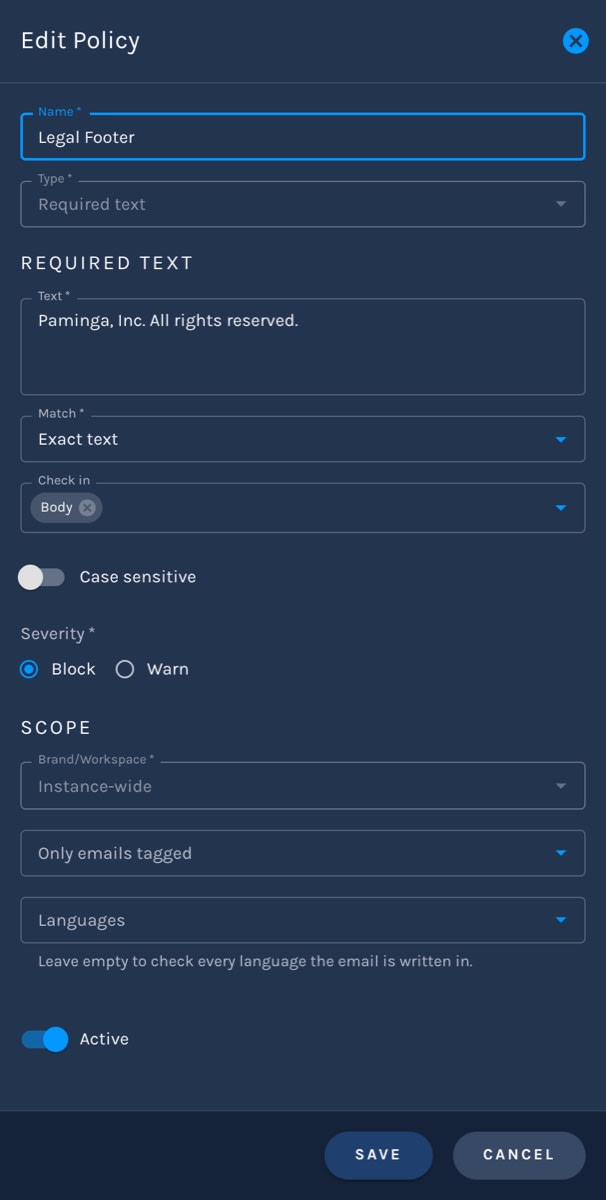
A policy's Type and Brand/Workspace can't change once it's saved. Turn Active off to pause a policy without deleting it.
Policy Types
Required Text
Text that must appear in the email. Use it for the disclaimer, the regulatory footer, or the legal entity name that every email must carry.
- Text — what must appear
- Match — Exact text, or Regex for text that varies
- Check in — the Body, Subject, Preview text, or any combination. The text must appear in at least one of the places you pick
- Case sensitive — off by default
Markup and extra whitespace are ignored, so a disclaimer split across two lines still matches.
Prohibited Terms
Words and phrases that must never appear. Competitor names, "guaranteed", "risk-free", a retired product name.
- Terms — type each one and press Enter
- Match — Whole word, Anywhere (so "free" also catches "risk-free"), or Regex
- Check in — the Body, Subject, Preview text, or any combination
- Case sensitive — off by default
Each hit is reported with its language, its location, and the snippet around it.
Content Rule
A rule written in plain English, judged by Paminga IQ. Use it for what a word list can't catch:
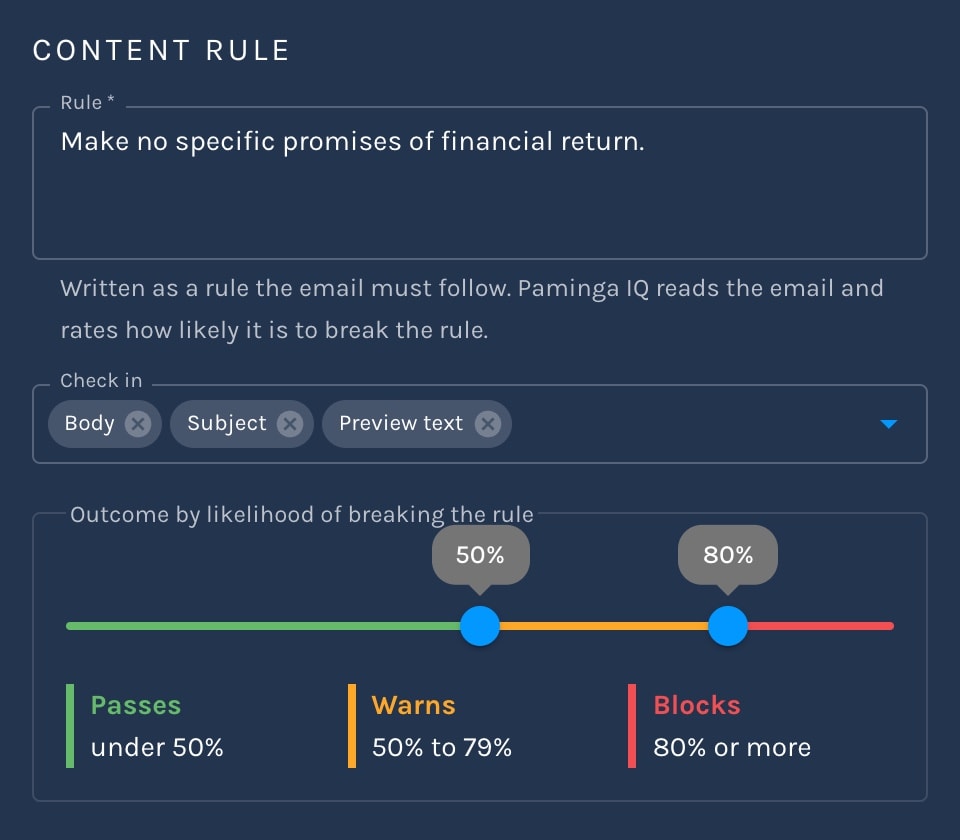
Make no specific promises of financial return.
Don't mention pricing or discounts.
Never describe the product as HIPAA certified.
Paminga IQ reads the email and rates how likely it is to break the rule. Instead of a Severity, a content rule has a two-handle slider — Outcome by likelihood of breaking the rule:
- Below the first handle, the email passes
- From the first handle up to the second, it warns
- At or above the second handle, it blocks
The default is warn at 50% and block at 80%. Drag the second handle to the top and the rule warns but never blocks. When it fails, the result shows the likelihood and quotes your rule, so the author knows what to fix.
A Content Rule and Its Outcome Slider:
Content rules need Paminga IQ to be on. If Paminga IQ can't give an answer, the rule is skipped rather than failed.
Allowed Sender Domains
The domains your emails may send from. An email whose From or Reply-to address is on any other domain fails.
- Domains — your authenticated sending domains are offered. Type any other domain and press Enter
- Include subdomains — let
mail.example.comcount asexample.com - Apply to — From, Reply-to, or both
Addresses are judged after token defaults are filled in, so a tokenized sender is checked against what it actually resolves to.
Allowed Link Domains
The domains your emails may link to. Any link elsewhere fails.
- Domains — type each one and press Enter
- Include subdomains — let
www.example.comcount asexample.com - Allow mailto and Allow tel — permit email-address and phone-number links
Paminga's own links, such as unsubscribe and view-in-browser links, are always allowed.
Scope
The Scope section decides which emails a policy applies to.
Brand/Workspace
- Instance-wide — every email in your Paminga instance
- Brand: name — only emails in Workspaces attached to that Brand
Most teams that market one brand use Instance-wide for everything. When you market several, a Brand policy lets each brand keep its own disclaimers and its own domains.
Only Emails Tagged
Limit the policy to emails carrying certain Tags. Pick the tags, then choose the Tag match:
- Any of — the email carries at least one of the tags
- All of — the email carries every one of them
Leave it empty and the policy applies to every email in its Brand/Workspace. A tag such as Financial Services or EU makes it easy to hold just the emails that need a stricter rule.
Languages
Limit the policy to certain languages of an internationalized email. A German disclaimer only needs to appear in the German version. Leave it empty to check every language.
How Policies Combine
More than one policy can apply to the same email:
- Required Text, Prohibited Terms, and Content Rules add up. An email must satisfy every one that applies to it.
- Allowed Sender Domains and Allowed Link Domains use the most specific match. A Brand policy replaces an Instance-wide one, and a policy with a tag condition replaces one without. That way a brand's own domain list isn't also held to the instance's list.
Managing Policies
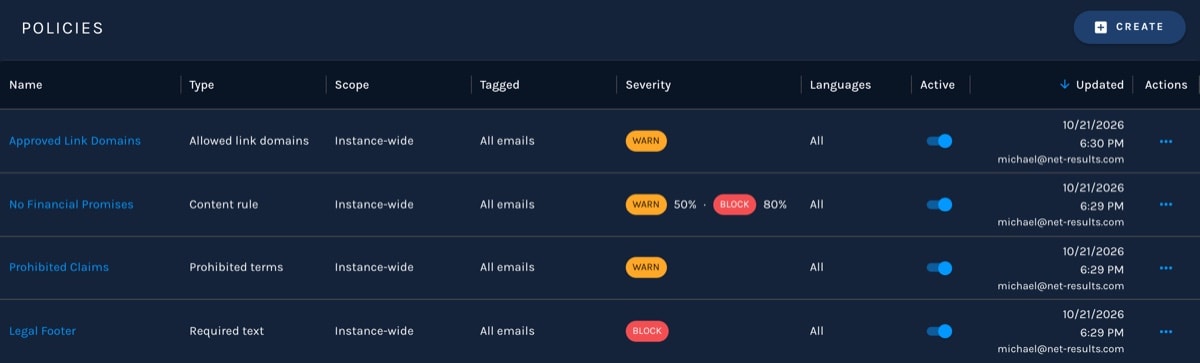
The Policies grid lists each policy's Type, Scope, Tags, Severity, Languages, and whether it's Active. Click a policy's name to edit it, or delete it from the row's actions.
Your Policies:
Creating, editing, and deleting policies requires the Manage Policies permission.


