Rendering Previews
An email that looks right in the builder can still fall apart in Outlook. Rendering Previews show you the email as real inboxes draw it — Outlook, Gmail, Apple Mail, iOS Mail, Yahoo, in light and dark mode — from the same dialog where you run your Pre-send Checks.
Previews come from Mailgun Inspect, through your own Mailgun account. You connect your key once, and every preview is billed to your Mailgun Inspect plan.
Connect Mailgun Inspect
- Go to Account Settings > Integrations and find the Mailgun Inspect card.
- Paste an Admin API key from your Mailgun account into API Key.
- Choose the Region — US or EU. It must match the region of your Mailgun account.
- Save. Paminga checks the key with Mailgun Inspect before it saves it.
The Mailgun Inspect Card:
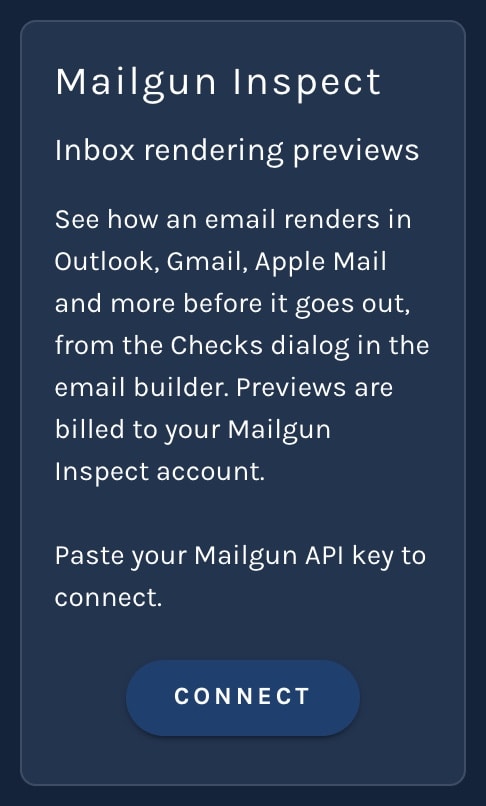
Your key is stored encrypted. Disconnecting stops new previews and keeps the screenshots you already have.
Choose Your Email Clients
When you connect, Paminga selects up to ten widely used clients for you: Apple Mail, iOS Mail in light and dark mode, Gmail on the web, Android, and iOS, Outlook for Windows, Mac, and the web, and Yahoo. Paminga takes the newest version of each that your Mailgun Inspect account offers, and skips any it doesn't offer.
Change that default set on the Rendering tab of Account Settings > Pre-send Checks. Clients are grouped by Desktop, Web, and Mobile, and dark-mode variants are separate clients. You can pick up to 25.
Email Clients to Preview:
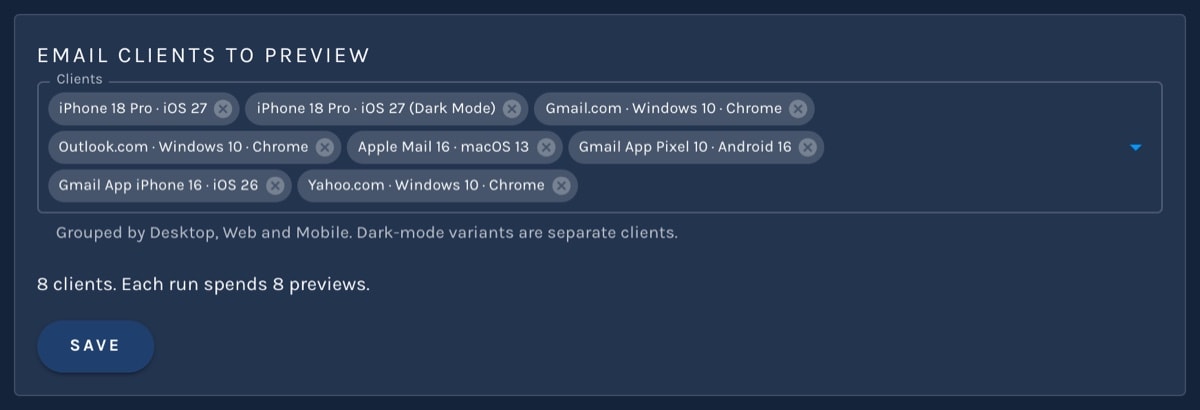
Pick the clients your audience actually uses. Each one costs a preview every time Paminga generates a new render.
Changing the default clients requires the Integrations permission.
Generate Previews
Previews never run on their own. Running checks — whether you click Run Checks or Paminga checks the email on Publish — never spends a preview.
- Open the email in the Email Builder and click Checks.
- In the Rendering section, find Client previews.
- Pick a language if the email has more than one. Click Change clients to use a different set for this run only.
- Click Generate previews. The line beside the button tells you how many previews the run will spend.
Thumbnails fill in as each client finishes. Click one to see it full size.
If you change the email afterward, the previews are dimmed and marked out of date. Click Regenerate when you're ready to look again. If nothing has changed, Paminga reuses the previews it already has rather than spending new ones.


