Sales Properties
Your ability to access account settings may depend on the permissions setup by your organization.
Sales Properties is where you define the vocabulary of your pipeline: the stages a deal moves through, the types of deals you run, the roles people play in them, and the reasons you lose them. Define them once and every Opportunity, picker, and report uses the same list.
That consistency is the point. A forecast only means something when "Commit" means the same thing on every deal, and a lost-deal analysis only works when everyone picks from the same Lost Reasons.
Go to Account Settings → Sales Properties. This page covers two of its tabs, each with its own sub-tabs:
- Opportunities — Stages and Types
- Shared — Contact Roles and Lost Reasons, lists used by more than one kind of record
Accounts with native Leads also see a Leads tab.
Each sub-tab has its own address, so you can bookmark or share a link straight to the list you need.
The stages here belong to Opportunities. The Lead Stage on a Contact is a different thing, managed in Contact Lead Stages.
Opportunity Stages
Stages are your pipeline. Each stage carries the numbers your forecast depends on, so an Opportunity never needs them typed in by hand — they follow from its stage.
Opportunity Stages:

The grid lists every stage, ordered by probability, with these columns:
- Name
- Probability — the stage's default probability.
- Forecast Category
- Closed and Won — whether the stage closes the deal, and whether it closes it as won.
- One checkbox column per Opportunity Type — grouped under an Opportunity Types header when you have more than one type. A tick means that type uses the stage. Click a checkbox to change it; it saves right away.
- Created and Updated
- Actions — delete or edit the stage.
Creating and Editing a Stage
Click Add Stage, or choose Edit from a stage's row actions. A drawer opens with:
| Setting | What it does |
|---|---|
| Stage Name | The name your team sees in the Stage picker. Required. |
| Default Probability (%) | The win probability for open Opportunities in this stage, from 0 to 100. Required. |
| Forecast Category | Pipeline, Best Case, Commit, Closed Won, Closed Lost, or Omitted. Defaults to Pipeline. |
| Is Closed Stage | Tick it for a stage that ends the deal. |
| Is Won Stage | Tick it for a closed stage that ends the deal as won. Only available once Is Closed Stage is ticked. |
| Used by Opportunity Types | The types that offer this stage. A new stage starts on every type, so it never goes missing. |
How a stage is flagged decides what happens when an Opportunity moves into it:
- Open — the Opportunity takes the stage's default probability and forecast category.
- Closed and won — the probability becomes 100% and the Opportunity is closed.
- Closed, not won — the probability becomes 0%, the Opportunity is closed, and a Lost Reason is required.
Every Type Needs a Stage
An Opportunity Type always has at least one stage. If a stage is the only one a type uses, Paminga won't let you untick it for that type, and won't let you delete it — hover the locked checkbox to see which type needs it. Add another stage to that type first.
Opportunity Types
Types let you run different kinds of deals — new business, renewals, upsells — through the pipelines that suit them. On an Opportunity, the type decides which stages are offered.
Opportunity Types:

The grid lists each type with its Name, its Stages read left to right in pipeline order, Created and Updated, and row Actions to delete or edit it. Pipeline order is open stages by probability, then closed stages by probability.
Click Add Type, or edit an existing one, to set:
- Name — required.
- Stages — tick the stages this type uses. Pick at least one.
Contact Roles
Contact Roles describe the part a person plays: Decision Maker, Economic Buyer, Champion, and so on. One list serves both the Contacts on an Opportunity and the members of a Buying Group, so a "Champion" means the same thing everywhere.
Contact Roles:
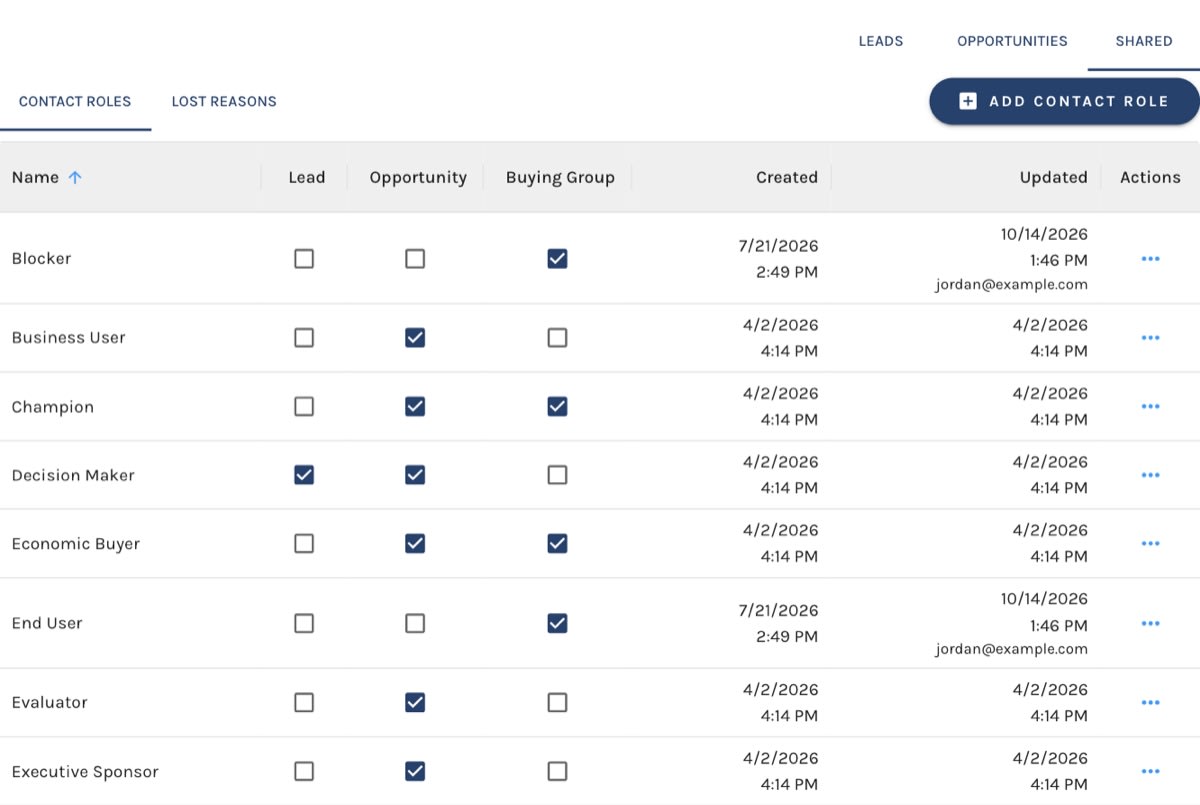
The grid lists each role with a checkbox column for each place it can be offered — Opportunity and Buying Group (accounts with Leads also see a Lead column). Click a checkbox to offer or withdraw the role there; it saves right away.
Click Add Contact Role, or edit an existing one, to set its Name and where it's Available on. A new role is offered everywhere by default.
Withdrawing a role from a picker doesn't strip it from records that already hold it. Those records keep showing it.
Lost Reasons
Lost Reasons record why a deal didn't close. An Opportunity moved to a closed stage that isn't a won stage must have one, which gives you clean data on why deals get away.
The grid and drawer work exactly like Contact Roles: a Name, and an Opportunity checkbox for whether the reason is offered on Opportunities. Click Add Lost Reason to create one.
Defaults
New Paminga accounts start with a ready-made set of Contact Roles and Lost Reasons. The Opportunity roles match Salesforce's default Opportunity Contact Roles. Treat them as a starting point — rename, add, and remove until they match how your team actually sells.


