Favorites
Every team has a handful of things it opens ten times a day: the newsletter template, the main demo request form, the nurture workflow, the dashboard the VP asks about every Monday. Favorites put those one click away from anywhere in Paminga.
Favorites are personal. What you favorite is yours alone; your teammates keep their own lists.
Find Your Favorites
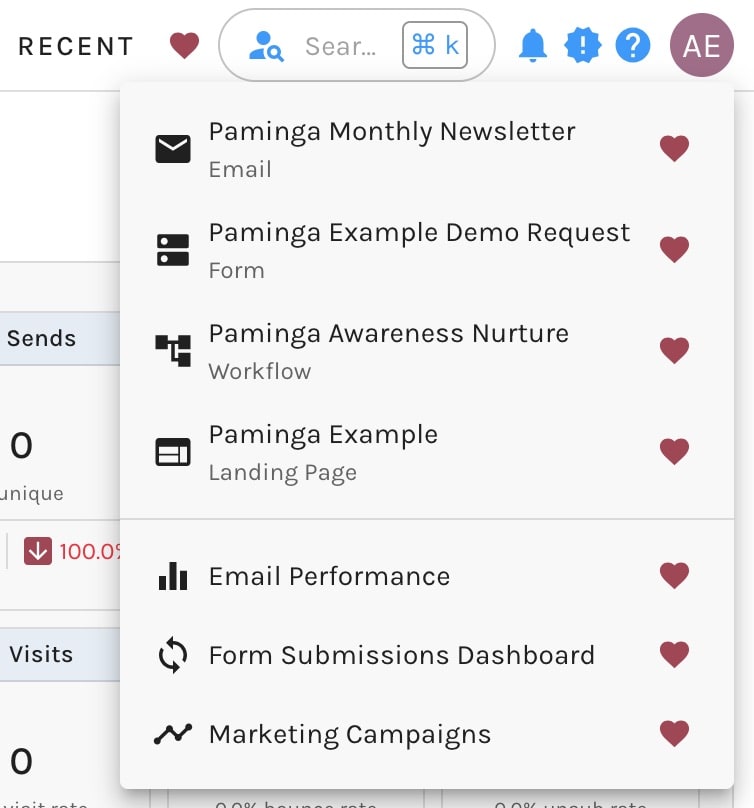
Hover over the red heart icon in Paminga's top bar, just to the right of the Recent menu. Your favorites drop down in a menu. Click any one to go straight to it.
The menu lists favorited assets first, then favorited pages, each group with your most recently added favorites at the top. A favorited folder opens the Finder right where it lives, rather than taking you away from the page you're on.
Your Favorites, One Hover Away in the Top Bar:
Add a Favorite
There are two ways to favorite something.
From the Finder
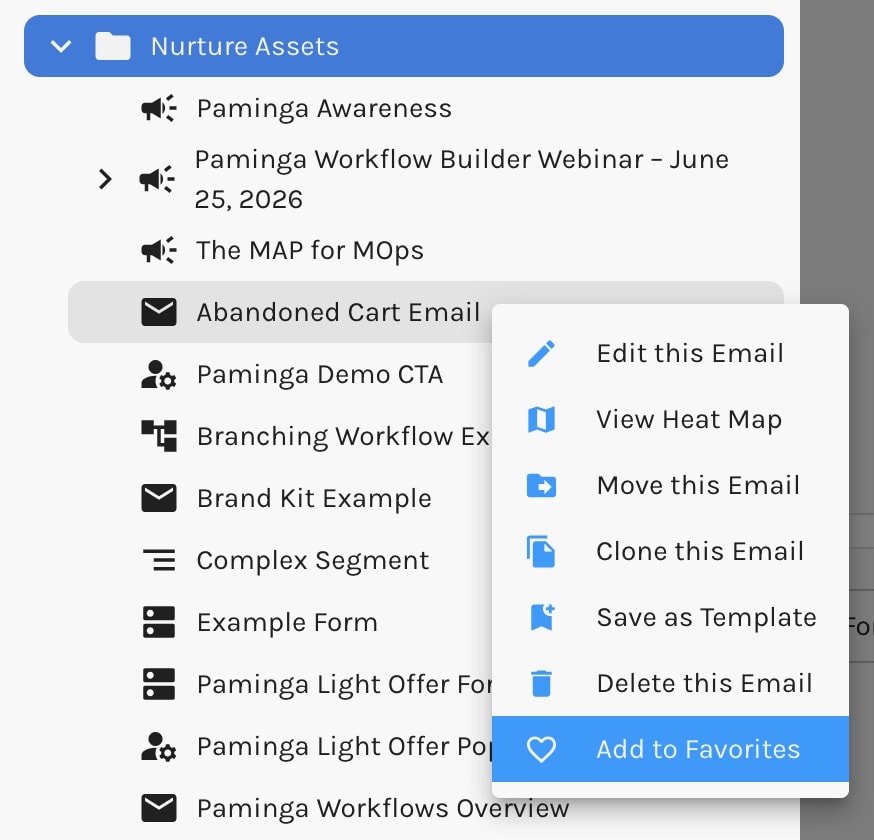
Right-click a form, email, landing page, CTA, workflow, segment, marketing list, subscription list, action set, or folder in the Finder and choose Add to Favorites.
Favorite Any Asset Straight From the Finder:
From the Heart Icon
Many screens carry their own heart icon. An outlined heart means the item isn't a favorite yet; click it to add it, and the heart fills in red. You'll find it:
- In the Settings tab of the Email, Form, Landing Page, and CTA builders, beside the asset's name
- Beside the name of a workflow, segment, action set, or sequence while you edit it
- On dashboards and other reporting pages, so you can favorite a whole page rather than a single asset
Favorite an Asset From Inside Its Builder:

Remove a Favorite
Do any of these:
- In the Favorites menu, click the red heart at the right end of the item's row (its tooltip reads Remove from Favorites)
- Click a filled heart icon
- Right-click the item in the Finder and choose Remove from Favorites
If you delete an asset, it drops out of your Favorites on its own. You won't be left clicking through to something that no longer exists.
Limits
You can keep up to 200 favorites. Once you reach that, Paminga tells you so when you try to add another; remove one you no longer need, then add the new one.


