Notification Preferences
When your team uses Approvals, Paminga keeps authors and approvers in the loop: who needs to review what, what came back with changes, what got approved, and who commented. Notification Preferences is where you decide how each of those reaches you.
Everyone's tolerance for notifications is different. An approver who lives in the Approval Queue may not want an email for every review request, while an author waiting on sign-off may want every channel switched on. These settings are yours alone. They don't change what anyone else on your team receives.
Go to Personal Settings › Notifications.
The Notifications entry appears in Personal Settings once Approvals have been enabled for your account, or if your account has Social Listening. If you don't see it, Approvals are off.
Channels
Each event can reach you three ways:
- Email: a message in your inbox
- Notification Center: an entry under the bell icon in Paminga
- Banner: a prominent banner inside Paminga
Approval Events
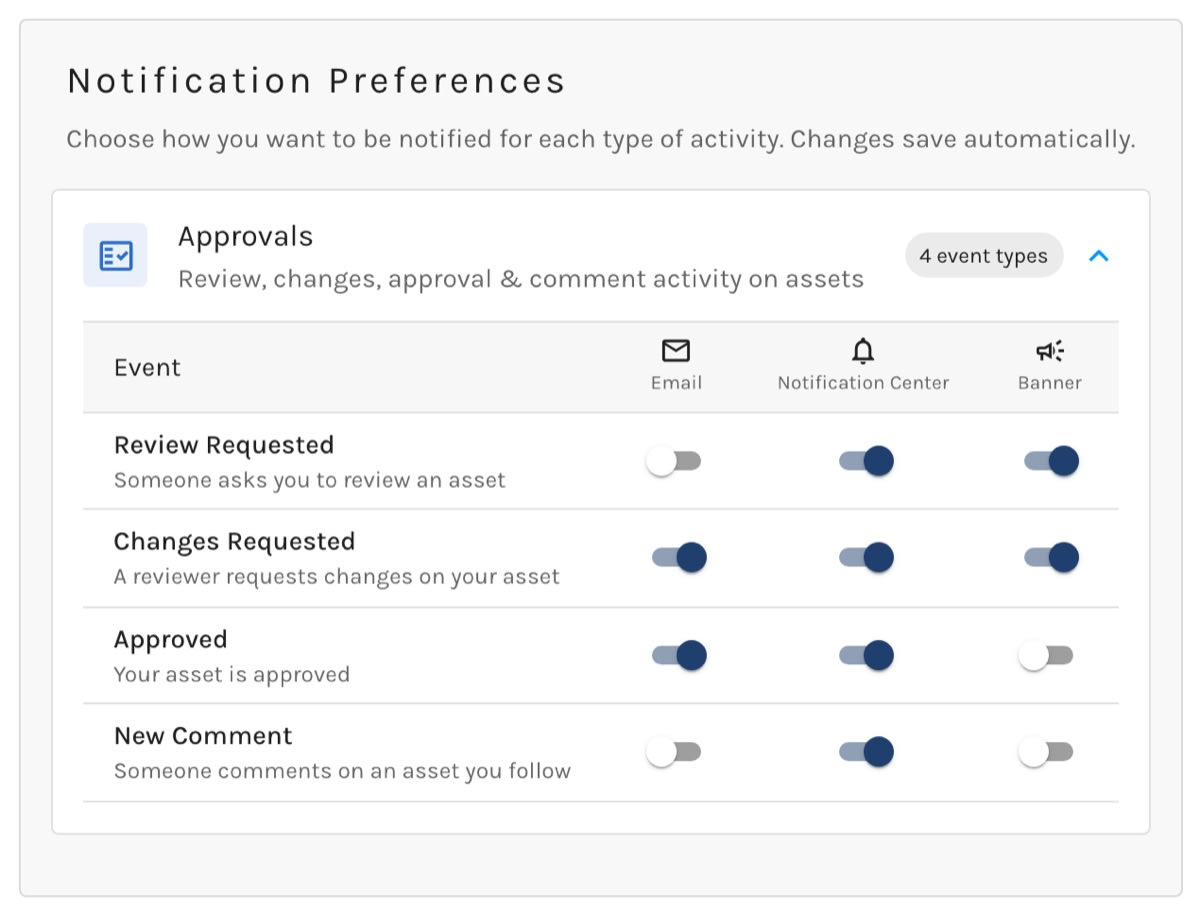
The Approvals section lists four events, each with its own switch for every channel:
| Event | When it fires |
|---|---|
| Review Requested | Someone asks you to review an asset. |
| Changes Requested | A reviewer requests changes on your asset. |
| Approved | Your asset is approved. |
| New Comment | Someone comments on an asset you follow. |
Turn a switch off to stop that event arriving on that channel. For example, keep Review Requested on in the Notification Center but off for Email, and review requests stop landing in your inbox while still showing up under the bell.
Notification Preferences:
Defaults and Saving
Every switch starts on. Your changes save the moment you flip a switch, and there's no Save button to look for.


