Personal Access Tokens
Personal Access Tokens are the quickest, most convenient way to securely authenticate with Paminga.
For server-to-server integrations you'd rather manage as a system credential — with a client secret you can rotate and revoke — use an OAuth App instead.
Generating Personal Access Tokens
Login as the user for whom you wish to generate a personal access token.
It may make sense to create a user that is only used for API operations.
You can generate and use a Personal Access Token tied to such a user.
This user then survives personnel changes and continues to function.
Navigate to Personal Settings, and, in the left nav, select Personal Access Tokens.
Your existing Personal Access Tokens, if any, will be listed.
Click on the "Generate Token" button.
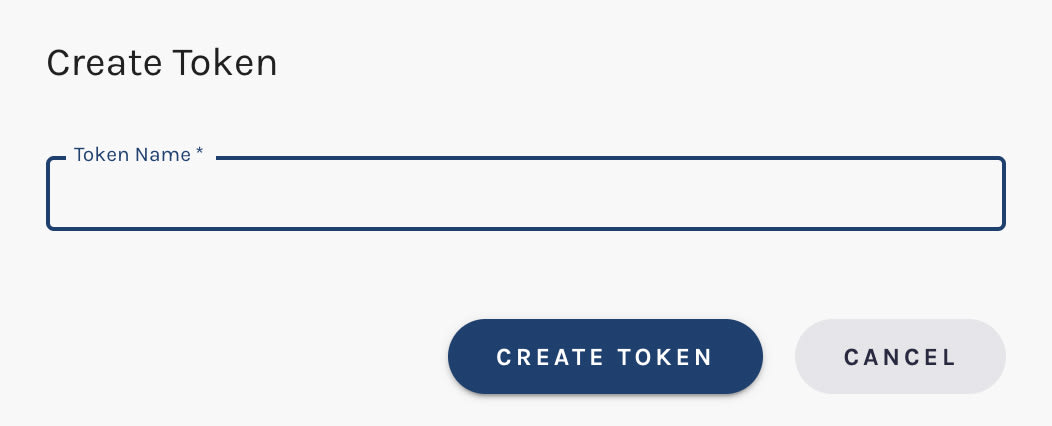
You'll be asked to provide a name for your token. This name is to help you recall the purpose for the token.
Optionally, choose an Expires On date. Leave it blank for a token that never expires.
To let an AI assistant connect to Paminga with this token, tick Allow AI assistant (MCP) access. See AI Assistant Access below.
Click the "Create Token" button.
Token Expiration & Refresh
A token expires on the date you chose when you created it. A token created without an expiration date never expires. The Expires At column shows which is which.
Tokens don't refresh. When one expires, generate a new one and swap it into whatever used the old one.
AI Assistant Access
A token can also connect an AI assistant such as Claude or ChatGPT to Paminga over MCP, but only if you ticked Allow AI assistant (MCP) access when you created it. The AI Assistant column shows which of your tokens can.
Tokens created without it, including every token created before the option existed, still work for the API but won't connect an assistant. You can't add the access to an existing token; generate a new one.
Most assistants don't need a token at all: they sign in to Paminga instead. The MCP page covers both ways to connect.
Revoking Personal Access Tokens
Hovering the icon in the "Actions" column in the listing of Personal Access Tokens reveals an icon that allows you to delete a token.


