Calendly
Paminga's Calendly integration enables the automatic creation (or updating) of Paminga Contact records as Calendly events are scheduled.
The best part: Choose an Action Set to trigger for each Calendly event. Action Sets allow you to trigger Actions conditionally based on the event scheduled, the attendee, and more.
Connect Paminga to Calendly
Be sure that a Calendly admin is the person that establishes the connection to Paminga. This enables Paminga to sync Event Types for all team members.
Find the Calendly connection on the Integrations page in Paminga and click "Connect Paminga to Calendly."
Connect Paminga to Calendly
Event Types Synced to Paminga
All Event Types from your Calendly account will be discovered and synced them to Paminga as "Third Party Forms."
Paminga syncs each event type as a "Third Party Form"These appear in the Third Party Forms table.
Mapping Calendly Form Fields
By default, Calendly sends a "name" field in its webhooks. Paminga does not have a name field
(we use First Name and Last Name).
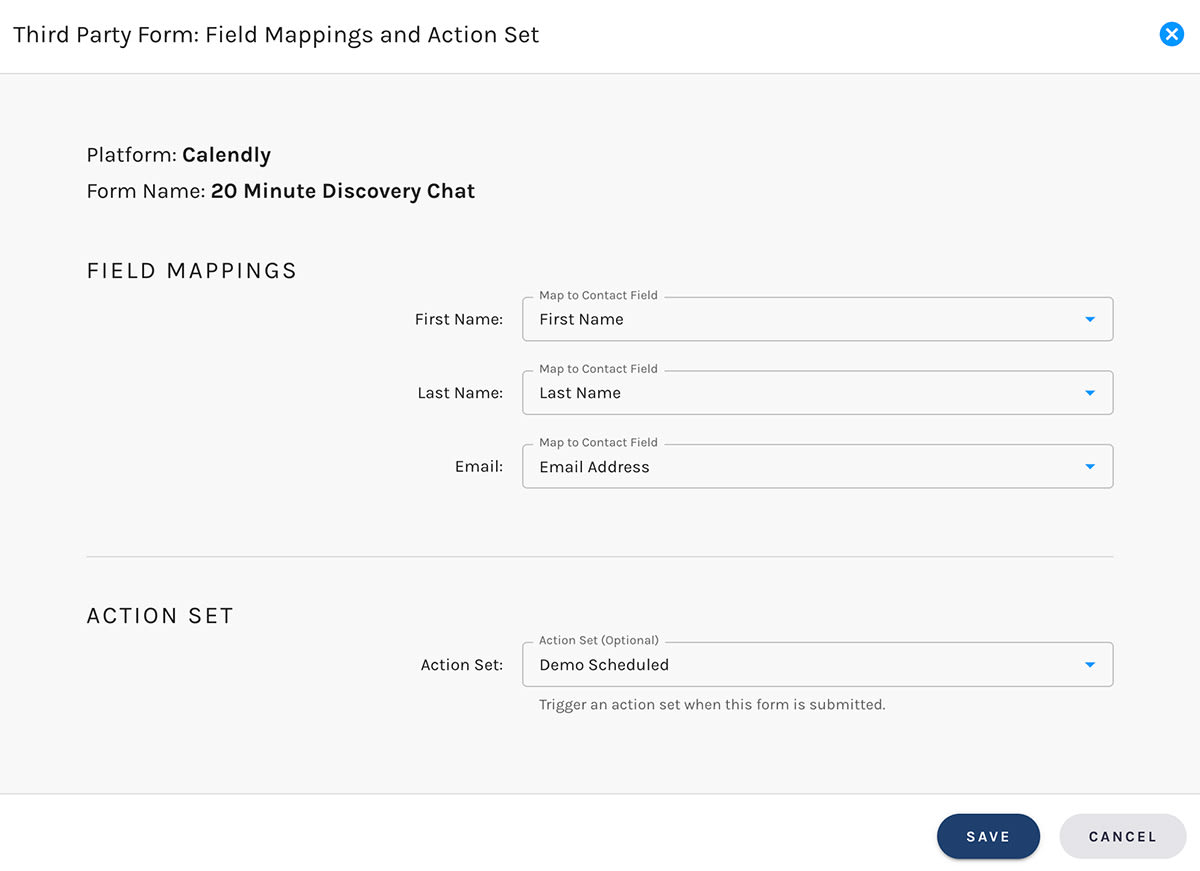
If you've altered a given Calendly Event Type to have First Name and Last Name fields, we'll automatically map and use those fields.
If your Calendly Event Type has only a Name field, we'll treat everything up the first space as the First Name, and everything after as the Last Name.
You end up with at least three fields in every Calendly webhook received by Paminga: First Name, Last Name, and Email.
Paminga automatically maps these standard fields for you.
If you've added other fields to any Event Type you may choose to map them as you wish, or not map them at all.
Calendly Lead Form Field Mapping
Trigger an Action Set
This is definitely the best part: choose which Action Set you'd like Paminga to execute each time a given Calendly Event is scheduled.
This is real power. If you don't know about Paminga's Action Sets, you'll want to.
When Events Are Scheduled
Paminga will attempt to find an existing Contact using the email address passed by Calendly.
If we find a matching record, any mapped fields will be updated to the values passed by Calendly.
If no matching record is found, a new Contact is created.


