Create Accounts and Contacts in IFS
Paminga writes Contacts into IFS on your terms — when the right form is submitted, when a lead score crosses a threshold, when someone hits a goal in an automation. IFS won't accept a Contact without a Customer to attach it to, so Paminga resolves the Account side first, creating the Customer in IFS if it doesn't exist yet.
The result is that your reps find a complete record rather than an orphaned name, and you never have to think about the order of operations.
The "Create/Update a Contact in CRM" Action
The Action is available everywhere Paminga offers Actions, which includes:
- Form Builder — when a form is submitted
- Lead Scoring Thresholds — when a score crosses a threshold you define
- Lead Stage Change Actions — when a contact reaches a new lead stage
- Drip Series Goals and Workflow Goals
- Action nodes on the workflow canvas
- PLG Triggers — when your own application tells Paminga something happened
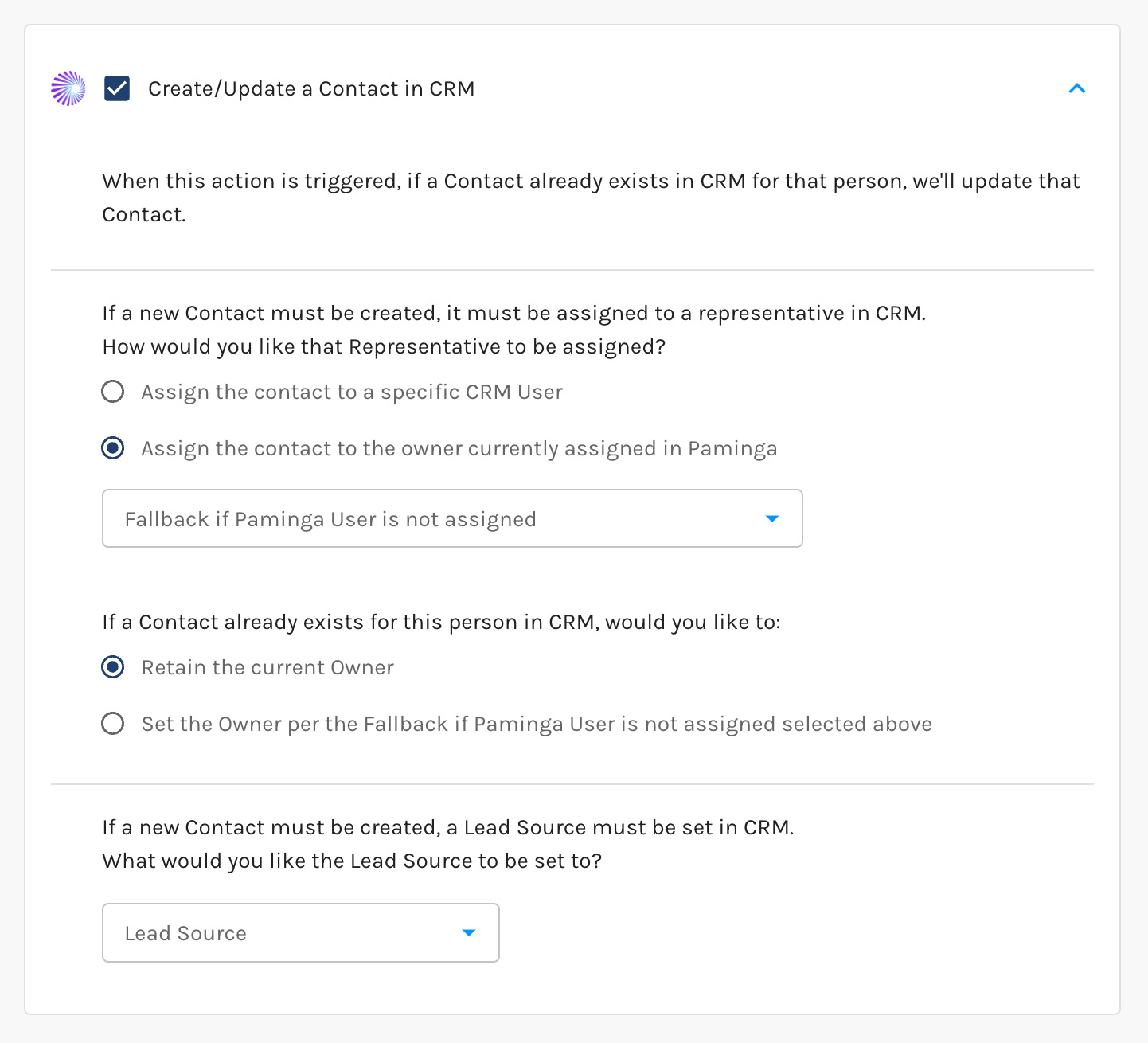
Create/Update Contact in IFS Action
The Account Is Handled First
Before Paminga touches the Contact, it settles the Account:
- If Paminga has already linked the contact's Paminga Account to a Customer in IFS, it uses that Customer.
- If not, Paminga looks for a Customer in IFS matching the account name.
- If there's still no match, Paminga creates the Customer in IFS.
When an existing Customer is found, Paminga uses it rather than creating a duplicate — and leaves it as it is. A Customer that's already in IFS belongs to your ERP, so Paminga doesn't touch its address, phone, Main Representative, or Key Account flag. Address, phone, and Main Representative are written once, on a Customer Paminga creates. (A custom Account field you've mapped for Upload is the exception: that's you asking for the write.)
When There's No Account Name to Work With
Some contacts arrive without a company — a form that doesn't ask for one, or a personal email address on a free provider. Creating a Customer in IFS named "gmail.com" helps nobody, so Paminga doesn't.
Instead, contacts whose account is blank or belongs to a known ISP are attached to your Default Account Name, set on your
page. It starts out as "Unknown" — change it to whatever your sales team expects to see.
What Comes Back
When Paminga finds or creates the Customer, it saves the IFS Customer ID on the Paminga Account as its account number, so later syncs land on the same Customer.
Create or Update
Paminga looks for an existing Contact in IFS using the link it already stores for that person, then falls back to a match on email address.
- Found — the Contact is updated.
- Not found — a new Contact is created and added to your "IFS Contacts" list in Paminga.
If the Contact already existed but the Customer was created during this run, Paminga also attaches that existing Contact to the new Customer, so the relationship isn't left dangling.
Who Owns the Contact
Every Contact in IFS needs a representative. You decide how that representative is chosen when a new Contact must be created:
- Assign the contact to a specific CRM User — pick one IFS user
- Assign the contact to the owner currently assigned in Paminga — Paminga's Lead Owner is carried across to IFS
Then decide what happens when the Contact already exists in IFS: keep the existing owner, or change the owner to the option you selected above. Keeping the existing owner is usually the right call — the rep working the account shouldn't be reassigned by a form submission.
Setting the Lead Source
IFS requires a Lead Source on new Contacts, so you choose one on the Action. The options come from IFS itself — Paminga syncs your pick lists down, so you're choosing real IFS values rather than typing strings and hoping they match.
As with ownership, you decide whether an existing Contact keeps its current Lead Source or gets the one you selected. Overwriting the original source on a contact your team already knows is rarely what you want.
Create Contacts Conditionally
You almost certainly don't want every form submission producing a Contact in IFS.
Conditional Actions let you add qualifying criteria in front of the Action. Only prospects who meet your criteria are written to IFS — everyone else can be routed to a different action entirely, like a notification or a nurture workflow.
Fields That Will Be Touched
Paminga honors your Field Mappings when creating or updating Accounts and Contacts in IFS.
Paminga will only write to fields you have selected to be synced "up" to IFS. Review them on your
page, or read up on IFS Field Mappings.Confirming It Happened
Every Contact Paminga creates or updates in IFS is recorded on the contact's timeline in Paminga, along with the Action that triggered it. You'll find it under CRM Activity on the Contact Details page.


