Create Cases in IFS
Not every form submission is a marketing event. A support request, a warranty question, a "something is broken" note from an existing customer — those belong in front of your service team, in IFS, as a Case.
Paminga creates that Case directly, categorized and dispatched to the queue you choose, with the submitted details attached. Nobody has to read an inbox and retype it.
The "Create a Case in CRM" Action
The Action is available everywhere Paminga offers Actions, which includes:
- Form Builder — when a form is submitted
- Lead Scoring Thresholds — when a score crosses a threshold you define
- Lead Stage Change Actions — when a contact reaches a new lead stage
- Drip Series Goals and Workflow Goals
- Action nodes on the workflow canvas
- PLG Triggers — when your own application tells Paminga something happened
Create Case in IFS Action
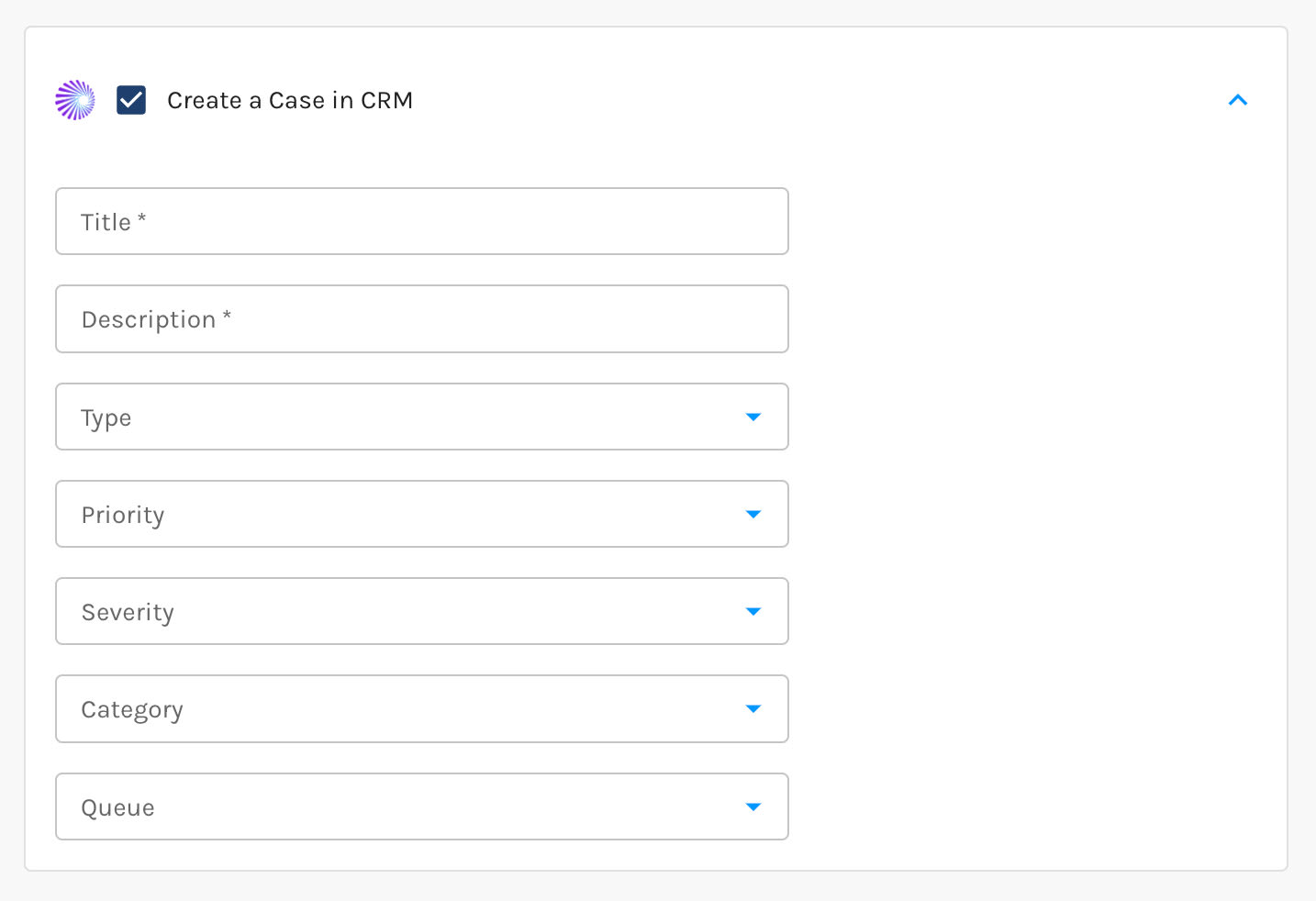
Setting Up the Case
You configure the Case once, on the Action, and every Case it creates is filed the same way:
| Setting | What it does |
|---|---|
| Title | Becomes the title of the Case in IFS |
| Description | Describes what this Action is opening a Case about |
| Type | The IFS Case Type |
| Priority | The IFS Case Priority |
| Severity | The IFS Case Severity |
| Category | The IFS Case Category |
| Queue | The IFS queue the Case is dispatched to on creation |
Type, Priority, Severity, Category, and Queue are pick lists that Paminga syncs down from IFS. You're choosing real values from your own IFS configuration, so a Case created by Paminga looks exactly like one created by a rep.
Because the Type, Priority, Severity, Category, and Queue are fixed on the Action, build a separate Action for each kind of Case you want to open — warranty, billing, technical — rather than one generic Action. Combined with Conditional Actions, that's what routes a submission to the right queue at the right priority.
The Account Must Be a Customer in IFS
This one catches people, so it's worth knowing up front.
IFS only allows a Case to be opened against an Account whose Customer Category is Customer. If the contact's Account in IFS is still a Prospect, IFS won't accept the Case.
Paminga treats that as a no-op rather than an error. The Action doesn't fail, nothing is retried in a loop, and no Case is created. If you're expecting Cases and not seeing them, the Customer Category on the Account in IFS is the first thing to check.
Paminga also needs to know which Customer in IFS the contact belongs to. It uses the link it already stores for that Account, and if there isn't one, it looks the contact up in IFS by email address and uses that contact's Customer.
What the Case Looks Like in IFS
The Case is filed against the Customer, with the Paminga contact as the Caller — their name, email address, and phone number are carried across so your service team can respond without going hunting.
When the Action is triggered by a form submission, Paminga writes the submitted field and value pairs into the Case description. The rep opening the Case sees exactly what the person told you, in the order they told you, rather than a bare "web form" note.
Create Cases Conditionally
A single form rarely warrants a Case on every submission. Conditional Actions let you decide which submissions become Cases and which take a different path — a notification, a lead in IFS, a nurture workflow.
A common setup on a "Contact Us" form: existing customers with a support-shaped reason open a Case, everyone else creates or updates a Lead.
Confirming It Happened
Every Case Paminga opens is recorded on the contact's timeline, with the IFS Case number. You'll find it under CRM Activity on the Contact Details page.


