Create Leads in IFS
The "Create/Update Lead" Action
This Action is available, and may be triggered, in multiple places in the Paminga platform:
- Form Builder: Trigger lead creation when a form is submitted
- Lead Scoring Thresholds: Trigger lead creation when a prospect's lead score crosses a threshold
- Drip Series & Workflow Goals: Trigger lead creation when a goal is achieved
Settings for the Create Lead Action
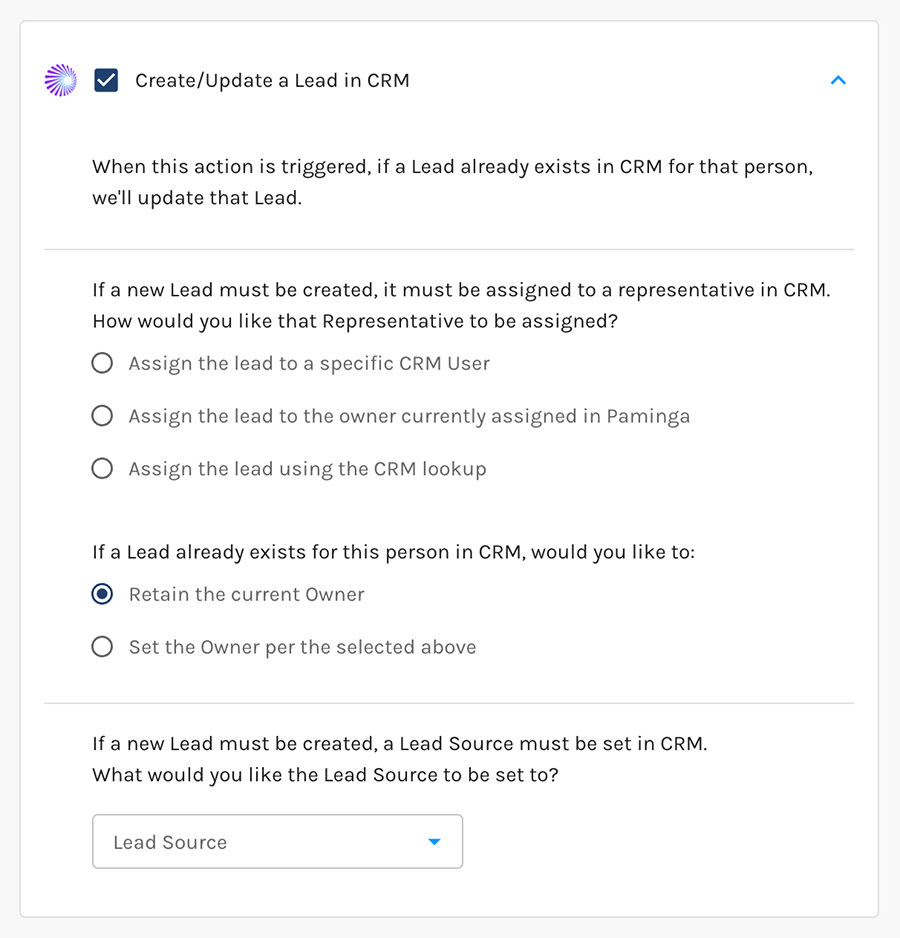
Create or Update
If Paminga finds that this lead already exists in IFS CRM, the lead will be updated. Otherwise, a new lead will be created.
In either case, the fields that are written to are controlled by your Field Mappings.
The Lead Owner
Every Lead goes to IFS with an owner, set as the Lead's Main Representative. You choose how Paminga picks that owner on each Create/Update Lead Action:
- A specific CRM user: every Lead goes to the IFS user you pick.
- The owner assigned in Paminga: the Lead goes to the contact's owner in Paminga. If the contact has no owner linked to an IFS user, it goes to the owner of the contact's company in Paminga. If neither is linked, it goes to the fallback user you pick.
- The Customer's Main Representative: when the Lead attaches to a Customer that already exists in IFS, it goes to that Customer's Main Representative. This keeps a Lead with the rep who already owns the account. When the Customer has no Main Representative, or the Lead does not attach to an existing Customer, it goes to the fallback user you pick.
A Paminga user counts as linked when you match them to an IFS user in your CRM user settings.
When the Lead already exists in IFS, you also choose whether to keep the existing Lead Owner or change it to the owner picked above. Keep it when your sales team reassigns Leads by hand in IFS, so a later form fill does not undo their work.
The Lead's Company
What Paminga does with the lead's company name depends on When a Lead's Company Is Not in IFS, a setting on your
. When Paminga creates a Lead, it looks the company up in IFS first. If the company is already linked to a Customer, or a Customer with that name exists, Paminga attaches the new Lead to it in either mode — and leaves that Customer as it is.
Whenever the Lead attaches to a Customer, Paminga also finds the contact's Person in IFS: the one it is already linked to, or else one with the same email address. If the contact is not in IFS yet, Paminga creates the Person under that Customer, so the Lead goes up attached to both.
- Create the Customer in IFS, then attach the Lead (the default): Paminga creates the Customer and the Person under it, then creates the Lead attached to them.
- Do not create the Customer. Create the Lead unattached, with the company name in Lead Company: Paminga creates the Lead with Existing Account set to No. The company name goes into the Lead's Lead Company field. Paminga never creates a Customer in this mode. (When the Lead attaches to a Customer that already exists, the Person is still created under it, as described above.) IFS creates the Customer when your sales team converts the Lead.
A contact with no company name, or whose company name is an email provider's (gmail.com and the like), is filed under your Default Account Name. In the second mode, if that Customer is in IFS the Lead attaches to it. If not, the Lead goes up with an empty Lead Company.
Create Leads Conditionally
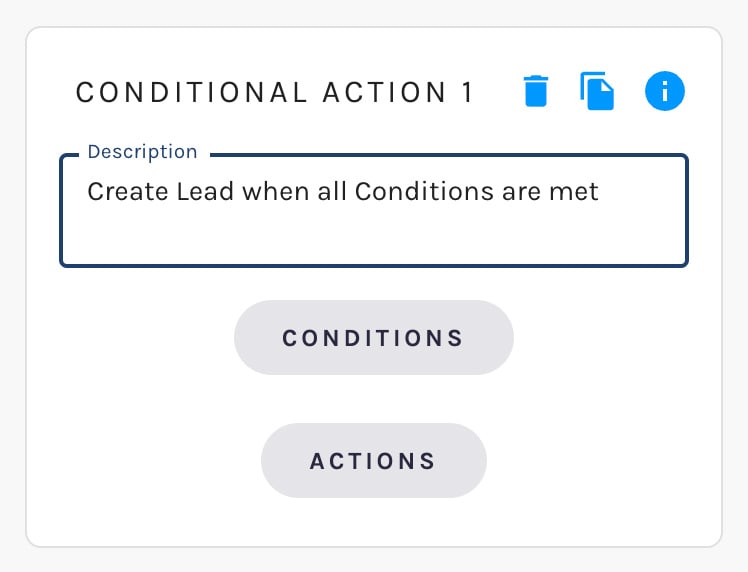
Wherever the Create/Update Lead Action is available, Paminga gives you explicit control over whether a Lead will be created in IFS, or another action taken (you may want to send a notification or create a Case rather than creating a Lead).
These are called Conditional Actions in Paminga.
Using a form submission as an example, it's likely that you don't want every form submission to cause a Lead to be created.
Rather, you add conditions to ensure that your prospect meets your qualifying criteria. Only then is a Lead created in IFS.
Create a Lead with A Conditional Action
The Lead's Note
Every Create/Update Lead Action writes to the IFS lead's Note. You don't switch it on — Paminga always sends it. What goes in depends on what triggered the action:
- A form submission: a summary of the submission — the form's name and every field your prospect filled in.
- Anything else (a list import, a workflow, a lead scoring threshold): nothing, unless you map a contact field.
To put your own text on the lead — the name of the campaign or trade show a list came from, a note from your CSV — map a contact custom field to the Note row on your
. Paminga sends that field's value on every create and update, in front of any form summary. A Set Field Values action on your list import (or a column in the CSV) is the usual way to fill it.When Paminga updates a lead that already has notes, the new note goes on top of what's there, stamped with the date and time. Nothing is overwritten, and when there is nothing new to say the lead's notes are left alone.
Fields That Will Be Touched
Paminga will honor your Field Mappings when creating or updating Leads in IFS:
Paminga will only write to fields you have selected to be synced "up" to IFS via


