Create Tasks in IFS
Marketing knows the moment a prospect becomes worth a phone call. Sales finds out later, if at all.
This Action closes that gap. When someone crosses your qualifying line, Paminga creates a Task in IFS — assigned to the rep who owns them, due on the day you decide, with the context already written into it. Your reps work from their IFS task list, which is where they already are.
The "Create Tasks in CRM" Action
The Action is available everywhere Paminga offers Actions, which includes:
- Form Builder — when a form is submitted
- Lead Scoring Thresholds — when a score crosses a threshold you define
- Lead Stage Change Actions — when a contact reaches a new lead stage
- Drip Series Goals and Workflow Goals
- Action nodes on the workflow canvas
- PLG Triggers — when your own application tells Paminga something happened
Create Tasks in IFS Action
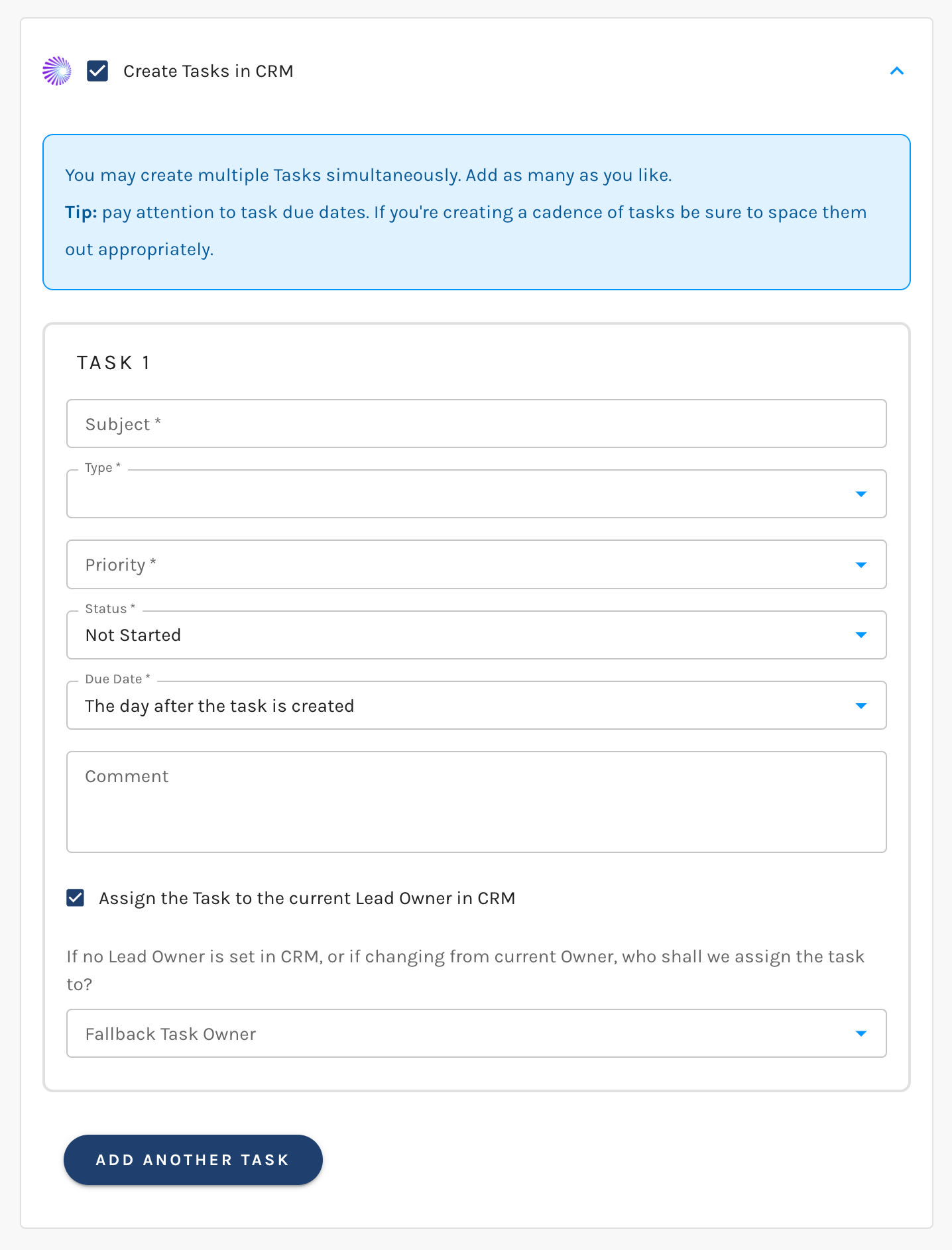
Setting Up a Task
| Setting | What it does |
|---|---|
| Subject | What the rep sees as the task description in IFS |
| Type | The IFS activity type |
| Priority | The IFS activity priority |
| Status | Not Started, In Progress, or Complete |
| Due Date | No due date, the same day the task is created, or 1 through 30 days after |
| Comment | A note carried into IFS with the task — up to 1,024 characters |
| Assign the Task to the current Lead Owner in CRM | Assigns the task to the rep who owns that person |
| Fallback Task Owner | Who gets the task when no Lead Owner is set |
Type and Priority are pick lists Paminga syncs down from IFS, so you're choosing real values from your own configuration.
Due dates are relative, not absolute, which is what makes the Action reusable. "3 days after the task is created" means three days from whenever this particular prospect triggers it.
Build a Cadence, Not Just a Task
One Action can create as many Tasks as you like. Add a second, a third, a fifth — each with its own subject, priority, due date, and comment.
That's how you hand sales a follow-up sequence instead of a single reminder: call the day the demo request comes in, follow up three days later, check back at two weeks.
Tasks are created at the same moment. If several of them are due the same day, they land as a pile rather than a cadence. Set the due dates deliberately.
Who the Task Is Assigned To
Tasks in IFS need an owner, and an unassigned task is a task nobody does.
Check Assign the Task to the current Lead Owner in CRM and Paminga routes the task to the rep who owns that person in IFS. Not every contact has an owner, so you also choose a Fallback Task Owner — a real person who picks up anything unclaimed.
Due dates are calculated in the task owner's time zone, so "due the same day" means their day, not a server's.
Accounts and Contacts Come First
IFS attaches activities to a Customer and a contact. If the person triggering the Action doesn't exist in IFS yet, Paminga creates what it needs — the Customer, then the Contact — before creating the Task, following the same rules covered in Create Accounts and Contacts.
You get a task attached to a complete record, not a task pointing at nothing.
Create Tasks Conditionally
Sales trust breaks down fast if the tasks you create aren't worth doing. Put criteria in front of the Action so they always are.
Conditional Actions let you require whatever qualifies a prospect for your team's attention — lead score, lead stage, job title, the specific page they were on — before a single Task is created.
Confirming It Happened
Every Task Paminga creates is recorded on the contact's timeline, with the IFS activity number. You'll find it under CRM Activity on the Contact Details page.


