Paminga Salesforce Integration Setup
Setting up Paminga's Salesforce integration can take as little as 30 minutes.
- Connect Paminga to Salesforce
- Adjust Integration Settings as needed
- Map fields between Salesforce and Paminga
- Kick off your first full sync (differential syncs will then run automatically)
- Add Paminga iFrames to your Salesforce layouts
Location in Paminga
Hover your user avatar in the upper right corner of Paminga and click on "Integrations".
You'll find many of Paminga's integrations listed alphabetically.
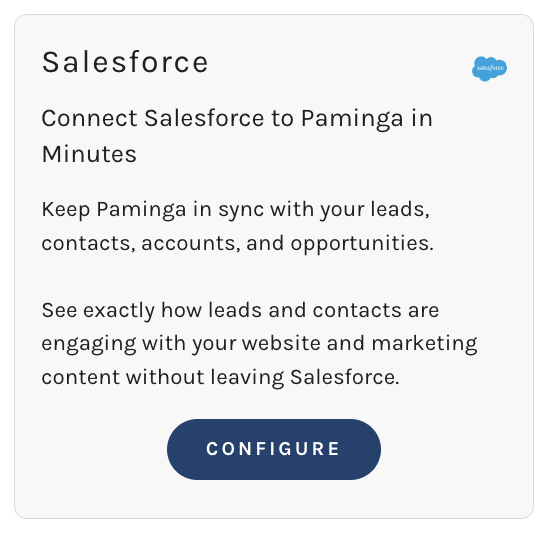
Scroll to Salesforce and click the "Configure" button.
Configure Your Salesforce Integration
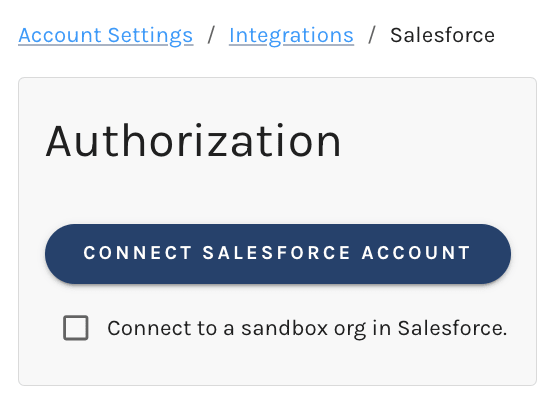
Authorization
Begin the Process
Click the "Connect Salesforce Account" button.
Login to Salesforce
If you're not already logged in, Salesforce will prompt you to do so.
Be sure to log in to Salesforce as the User that will be used for sync.
Grant Access to Paminga
Once logged in to Salesforce, you'll be asked to grant access to Paminga.
This screen may reference "Net-Results", our old brand name, rather than Paminga.
Paminga requires permission to:
- Access the identity URL service
This allows Paminga to login and get required info about the user - Manage user data via APIs
This allows Paminga to make the required API calls to sync data - Perform requests at any time
This allows Paminga to use "refresh" tokens
Click "Allow". You will be redirected back to Paminga (this may take a few seconds).
Authorization is now complete.
Sync Settings
The Sync Settings screen provides high-level control of certain aspects of your Salesforce Sync.
Salesforce Sync Settings
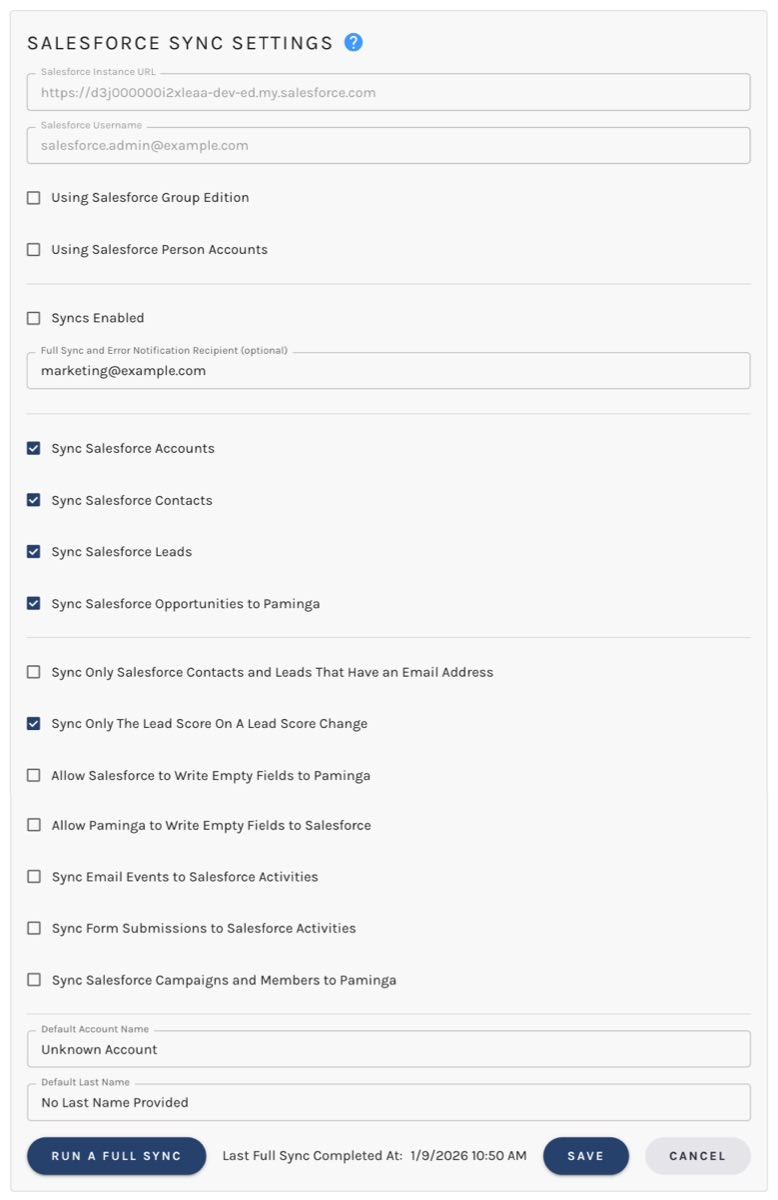
Every option on the Sync Settings page, in the order you'll find it:
- Salesforce Instance URL: shows the URL of the Salesforce instance connected to your Paminga account
- Salesforce Username: shows the username tied to the sync
- Using Salesforce Group Edition: Group and Essentials Editions lack a Campaign object.
Checking this box causes Paminga to skip syncing to/from Salesforce Campaigns. - Using Salesforce Person Accounts: Salesforce Person Accounts are commonly used in B2C e-commerce.
Person Accounts combine fields from both the Account and Contact objects.
Check this box if you're sure you're using Salesforce Person Accounts.
If you have any doubts, please contact Paminga support. - Syncs Enabled: enable or disable Paminga's Salesforce sync.
If disabled, no data will sync to or from your connected Salesforce instance.
While disabled, Actions in Paminga may queue records for sync to Salesforce (creation of Leads, for example).
Re-enabling will cause those records to be created/synced. - Full Sync and Error Notification Recipient (optional): an email address to notify whenever sync errors occur, or when a Full Sync completes
- Sync Salesforce Accounts: includes Salesforce Accounts in your sync. On by default.
With it off, the Lead "Company" field and the Contact "Account" lookup aren't offered on your Field Mappings page. - Sync Salesforce Contacts: includes Salesforce Contacts in your sync. On by default.
- Sync Salesforce Leads: includes Salesforce Leads in your sync. On by default.
- Sync Salesforce Opportunities to Paminga: brings your Salesforce Opportunities into Paminga. On by default.
While it's off, the Opportunity tab on your Field Mappings page tells you Opportunity sync is turned off instead of listing fields. Your Opportunity field mappings are kept, so turning it back on picks up where you left off. - Sync Only Salesforce Contacts and Leads That Have an Email Address: check this box to limit your sync to Salesforce Contacts and Leads that have an email address. Off by default.
- Sync Only The Lead Score On A Lead Score Change:
Paminga's Managed Salesforce Package creates custom fields for "Paminga Lead Score" on the Lead and Contact objects. The numeric value of this field is updated automatically when lead scores change.- With this box checked: the Lead or Contact record itself will not be updated per current values in Paminga when lead scores change
- With this box unchecked: Paminga will update the Lead or Contact record itself per current values in Paminga when updating the lead score in Salesforce
- Allow Salesforce to Write Empty Fields to Paminga: Gives Salesforce the ability to "blank out" fields in Paminga when blanked out in Salesforce. An example:
- The "Job Title" field is mapped from Salesforce to Paminga.
- Due to sync, the value is the same in both Salesforce and Paminga
- A Salesforce user "blanks out" or removes the job title in Salesforce (and saves their changes)
- Do you want the job title field to be "blanked" in Paminga also? If so, check this box.
- Allow Paminga to Write Empty Fields to Salesforce: Same as above, but in the opposite direction.
Best practice is to leave this box unchecked. - Sync Email Events to Salesforce Activities: Create Activities in Salesforce for email sends, opens, and clicks
- Sync Form Submissions to Salesforce Activities: Create a completed Task in Salesforce, holding every value the prospect entered, each time a Lead or Contact submits one of your forms. See Form Submission Activities below.
- Sync Salesforce Campaigns and Members to Paminga: When checked, Paminga will create a Marketing List for each of your Salesforce Campaigns and keep members in sync as they are added/removed in Salesforce
- Default Account Name: You may choose to have Paminga create Accounts in Salesforce. When doing so, if your Paminga contact lacks an account name, this default value will be used.
An example use case is a Paminga contact created via a Form that does not ask for the prospect's company name. - Default Last Name: Salesforce requires a last name when creating a lead or contact, but maybe you only have the lead's email address.
In such a case, this default value will be used to fill the "Last Name" field in Salesforce.
Form Submission Activities
Your sales team lives in Salesforce. When a prospect fills out a form, the rep who owns that Lead or Contact should be able to see exactly what they said without leaving the record. Check Sync Form Submissions to Salesforce Activities and every completed form submission becomes a Task on the submitter's Activity timeline.
Each Task is created as follows:
- Subject: "Form Submitted: " followed by the form's name
- Status: Completed, so it reads as a record of what happened rather than a to-do
- Date: the date of the submission, in your Salesforce org's default timezone
- Owner: the same owner Paminga uses for email event Activities, which is normally the owner of the Lead or Contact
- Comments: the form's name, when it was submitted, and the page it was submitted from, followed by one line for each field and its value. Hidden fields are included, and file uploads appear as links to the uploaded files.
A few things worth knowing:
- Only completed submissions sync. A partially completed multi-page form doesn't create a Task, so your reps' timelines aren't cluttered with half-finished forms.
- First-time submitters are covered. A brand-new prospect usually isn't in Salesforce at the moment they submit. If the same form runs a Create Salesforce Lead or Contact action, Paminga waits for that Lead or Contact to exist (for up to about an hour) and then attaches the Task to it.
- Contacts who never reach Salesforce are skipped. If no Lead or Contact exists for the submitter by then, no Task is created. Paminga never creates a Lead just to hold a form submission. That decision stays with your actions.
- One Task per submission. A submission never produces duplicate Tasks, even when it's processed more than once.
- It applies going forward. Checking the box doesn't backfill submissions made before it was enabled.
- Failures are visible. If Salesforce rejects a Task (a validation rule, for example), Paminga retries it. If it keeps failing, it appears on the Sync Errors page with an entity of "Salesforce Task".
If you only want Tasks for particular forms, or want a rep to follow up by a due date, leave this box unchecked and add the Create Salesforce Tasks action to those forms instead.
"Run a Full Sync" Button
You'll see that the Sync Settings page includes a button to "Run a Full Sync", as well as the date and time the last full sync was run.
Learn about Full Syncs (and Differential Syncs) on the Syncing CRM Data page.
Field Mappings
You control which fields will be synced to Paminga from Salesforce – and vice versa – from within Paminga.
There's no need to involve (or wait for) a Salesforce Admin. Simple checkboxes let you decide which fields to sync.
You'll probably want to setup your Field Mappings before running your first full sync, but you may do so at any time.
Salesforce Sync Actions
Salesforce Sync Actions are an innovation unique to Paminga.
They allow you to trigger actions on Leads and Contacs as they sync to Paminga from Salesforce.
There's no need to create separate workflows (though you can do so if you choose).
On great use use is using sync actions to augment or transform data for hyper-personalization as it syncs to Paminga.
Sync Errors
Sync errors can occur for a variety of reasons.
Paminga provides a searchable table of all sync errors – that may be cleared individually or in bulk – to help you keep data flowing.


