Salesforce Sync Health
A sync that fails quietly is worse than one that fails loudly. Records stop reaching Salesforce, event registrants never show up on the campaign, and you find out when a sales rep asks where their leads went.
Sync Health answers one question at a glance: is your Salesforce sync working right now? Paminga checks the sync every five minutes, in both directions, and shows you the verdict, the numbers behind it, the issues still open, and every incident in the last 30 days. When something goes wrong, it tells you what, since when, and where to fix it. If you want, it tells you by email, in Paminga, or in Slack as soon as a check detects the problem.
Go to Account Settings › Integrations › Salesforce › Sync Health. You'll also find it under Salesforce Settings in the menu behind your avatar.
Salesforce Sync Health:
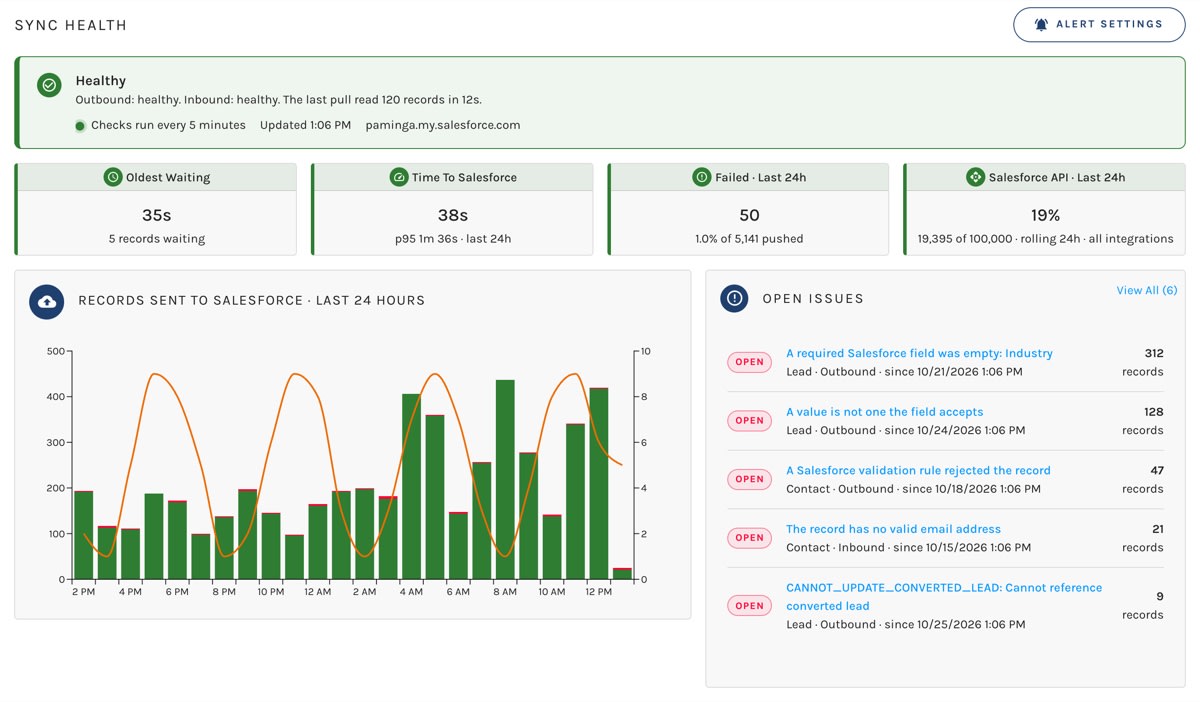
The Verdict
The banner at the top is the page's answer. It reads one of:
| Status | What it means |
|---|---|
| Healthy | Every check passed on the latest reading. |
| Degraded | Something is outside its threshold, but records are still moving. |
| Down | Something has stopped: Salesforce rejected Paminga's credentials, the outbound queue has been stuck for an hour, or the last pull from Salesforce failed. |
| Waiting for the first health check | The integration is new and the first five-minute check hasn't run yet. |
| Sync is turned off | Your integration's sync switch is off, so there is nothing to measure. Turn it on under Salesforce Sync Settings. |
A Healthy Verdict:

A Degraded or Down banner says when the trouble started and lists each problem as a plain sentence, such as "312 of 5,120 records handled in the last hour failed (6.1%)." View Issue takes you straight to the Sync Errors page.
The banner also tells you that the page is live: when the latest reading was taken, that checks run every five minutes, and which Salesforce org you're looking at. The page refreshes itself every minute, so you can leave it open.
Once Paminga has a pull from Salesforce on record, the banner adds what the last one covered: "The last pull read 7 records in 15s."
The Four Tiles
| Tile | What it shows |
|---|---|
| Oldest Waiting | How long the oldest record waiting to go to Salesforce has been waiting, and how many records are waiting. "None" is what you want to see. |
| Time To Salesforce | The median time from a record being queued to it landing in Salesforce, with the 95th percentile underneath, so you can see both the usual case and the slow tail. |
| Failed · Last 24h | How many records Paminga tried to send to Salesforce in the last 24 hours that failed, as a count and a percentage of everything sent. Click it to see those errors. |
| Salesforce API · Last 24h | How much of your org's Salesforce API allowance is used. |
Each tile takes the colour of its worst open incident: green when all is well, amber when degraded, red when down. So a red tile is the place to look first.
Salesforce counts API calls over the preceding 24 hours, not per calendar day. Calls age out one at a time, so there is no midnight reset. The allowance is also shared by every integration connected to your org, not only Paminga, which is why the tile says "all integrations." If another tool burns through the allowance, Salesforce refuses Paminga's calls too, and this tile is where you'll see it coming.
Records Sent To Salesforce
The chart shows the last 24 hours by the hour: records that reached Salesforce in green, records Salesforce rejected in red, stacked so the bar's height is the hour's volume. The line is the number of records waiting at the end of each hour, on its own axis on the right. A waiting line that climbs while the bars stay short is a backlog building up.
Open Issues
Paminga groups sync errors by their cause, so 300 records that failed for the same reason are one issue, not 300 rows. The Open Issues panel lists the five open issues affecting the most records, each with its status, what kind of record it affects, which direction it failed in, when it started, and how many records are waiting on a fix.
Click an issue to open it on the Sync Errors page, with the explanation of what it means and how to fix it. View All shows the count when there are more than five. See Sync Errors for what you can do with an issue.
Incidents
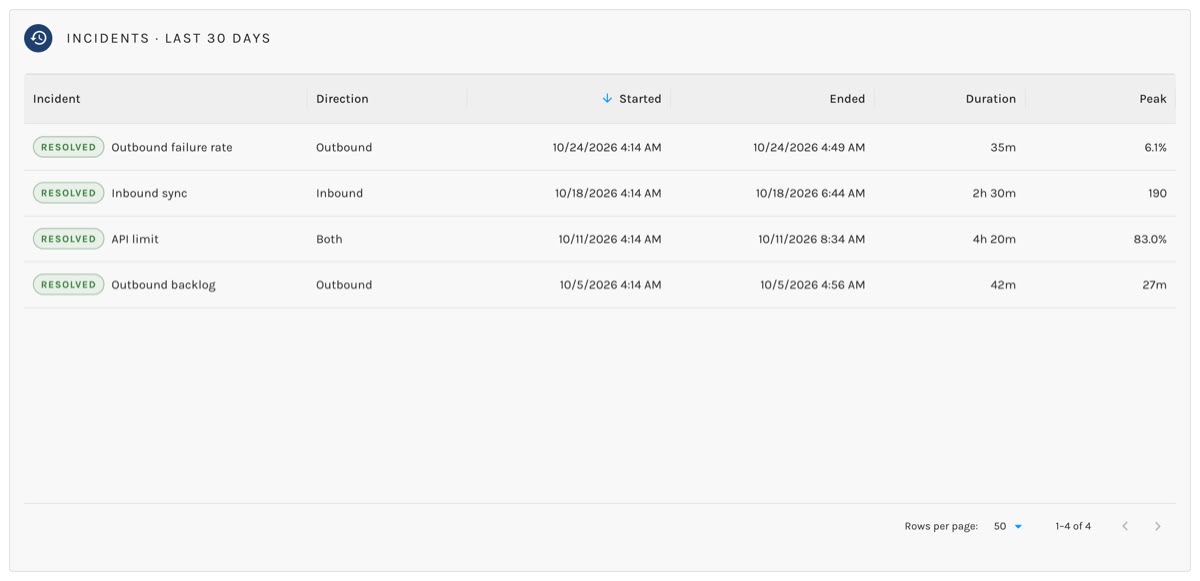
An incident is a period when one of Paminga's checks was outside its threshold. It opens on the reading that first sees the problem and closes on its own when a later reading comes back clean. The Incidents table lists every incident from the last 30 days, with when it started and ended, how long it lasted, and its worst reading.
Incidents · Last 30 Days:
| Incident | Opens when |
|---|---|
| Outbound backlog | The oldest record waiting to go to Salesforce has waited longer than your threshold (15 minutes by default). After an hour it's Down. |
| Outbound sync stalled | Records are waiting, but Paminga hasn't sent any of them for 15 minutes. |
| Outbound failure rate | More than your threshold of the records sent in the last hour failed (2% by default), and at least 25 of them did. The minimum keeps a slow hour with two failures from raising an alarm. |
| Authorization failed | Salesforce rejected Paminga's credentials. Nothing syncs in either direction until you reconnect under Salesforce Authorization. |
| API limit | Your org has used more than your threshold of its rolling 24-hour API allowance (80% by default). At 95% it's Down. |
| Inbound sync | The last pull from Salesforce failed, a pull has been running far longer than usual, or no pull has succeeded for more than twice your integration's usual gap (two hours at least). |
| Error spike | Far more errors than usual were written in the last hour: at least 50, and five times your integration's own normal for that time. Paminga learns "normal" from the previous week of readings, so this one switches on once it has a couple of hours of history. |
| Event deadline missed | A member was added to a Marketing Campaign but still isn't in Salesforce after your event deadline (15 minutes by default). One incident per campaign, named for it. |
The event deadline exists for the case that hurts most: someone registers for your webinar, and the rep who owns the account never sees them on the Salesforce campaign. You'll also see each member's Salesforce status in the Salesforce column of a Marketing Campaign's member list, along with how long any waiting members have waited.
Alert Settings
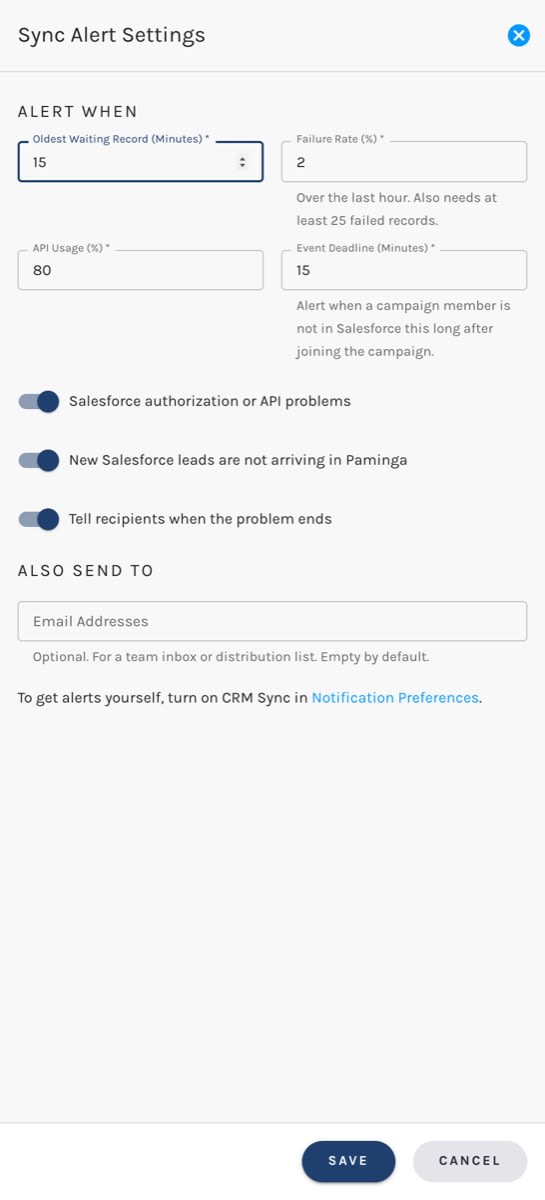
Click Alert Settings to tune when Paminga raises an incident and who hears about it. Settings belong to the integration, so everyone on your team sees the same thresholds.
Sync Alert Settings:
Alert When
| Setting | Default |
|---|---|
| Oldest Waiting Record (Minutes) | 15 |
| Failure Rate (%) | 2, with at least 25 failed records |
| API Usage (%) | 80 |
| Event Deadline (Minutes) | 15 |
Every incident appears on this page regardless. Three switches, all on by default, decide which ones also send an alert:
- Salesforce authorization or API problems covers the Authorization failed and API limit incidents.
- New Salesforce leads are not arriving in Paminga covers the Inbound sync incident.
- Tell recipients when the problem ends sends a recovery message when an incident closes, as well as the alarm when it opens.
Who Gets Alerted
Alerts are off until you turn them on. Each person decides for themselves, under CRM Sync in Notification Preferences, whether to hear about incidents by email, in the Notification Center, or as a banner in Paminga. Only people with permission to manage your integrations are offered the choice, since they're the people who can act on it. See Permissions.
Under Also Send To, add email addresses, such as a team inbox or a distribution list. If your account is connected to Slack, you can add a Slack channel too. Both are empty until you fill them in.
Paminga sends one alert when an incident opens and, if you asked for it, one when it resolves. It doesn't repeat itself every five minutes while a problem persists.
Ask Paminga IQ
Paminga IQ reads the same health readings and incidents. Ask it "Is our Salesforce sync healthy?" or "Why did records fail to sync this week?" and it answers from the live data, with a link back to this page.


