Zoom
Paminga's Zoom integration offers a complete solution to drive registration, attendance, and engagement around your digital events.
This page covers connecting Zoom and the Zoom-specific details worth knowing. Once you're connected, see Working with Event Platforms for the full workflow — driving registration, registering contacts into the webinar, and tracking attendance.
Connect Paminga to Zoom
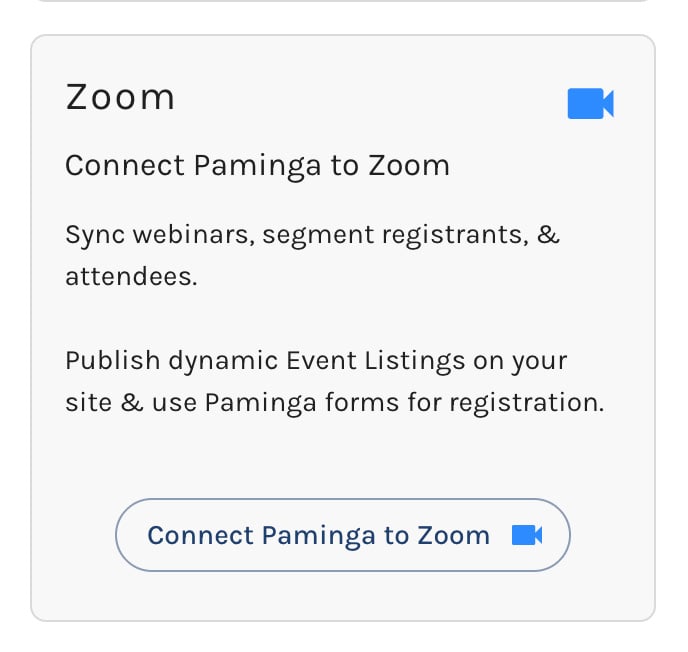
Find the Zoom connection on the Integrations page in Paminga and click "Connect Paminga to Zoom."
Connect Paminga to Zoom
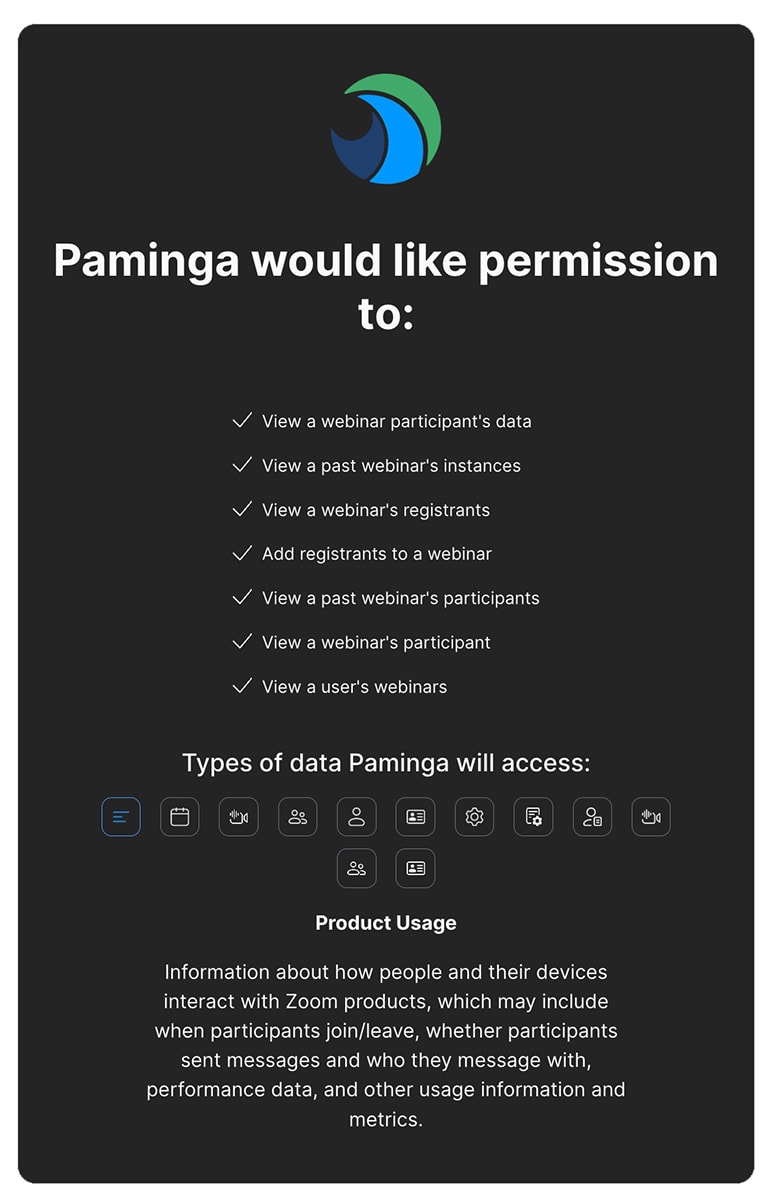
You'll be presented with Zoom's authorization screen. Review the capabilities Paminga requires.
If you're happy with the settings, click "Agree".
Zoom Authorization
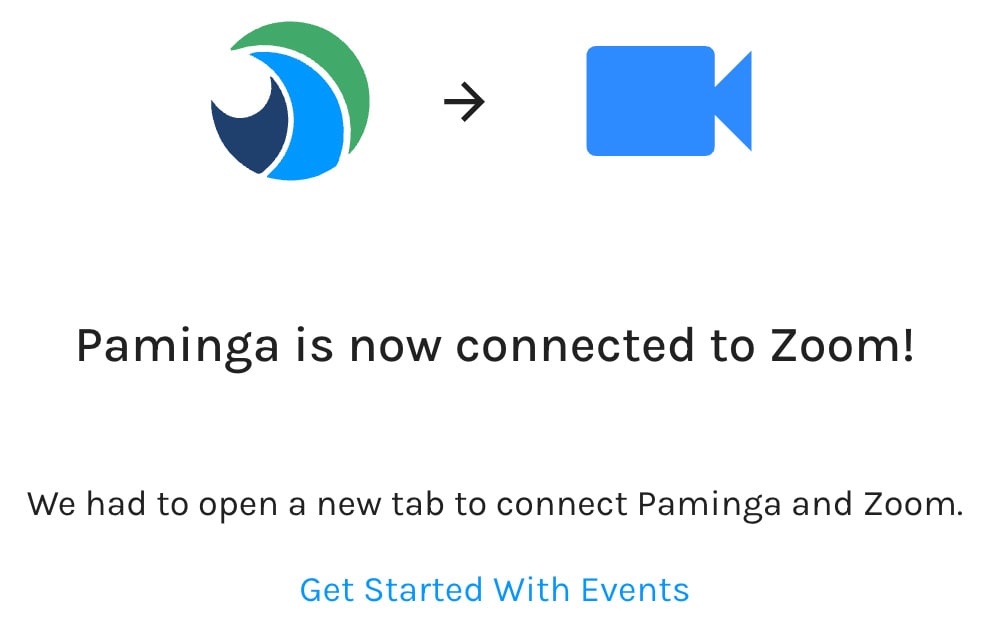
You'll see this confirmation screen upon successful connection.
Zoom Connection Successful
Disconnecting Paminga from Zoom
Simply click the "Disconnect Zoom" button on the Integrations page in Paminga.
What Happens When You Disconnect?
When you disconnect Paminga from Zoom:
- Existing Events: All previously synced Zoom webinars will remain in Paminga as Events, but they will no longer sync with Zoom. Any changes made in Zoom after disconnection will not be reflected in Paminga.
- Historical Data: All historical registrant and attendee data is retained in Paminga. You can continue to view, segment, and export this data.
- Future Events: New Zoom webinars will not be synced into Paminga after disconnection.
- Zoom Account: Disconnecting from Paminga does not affect your Zoom account or webinars. All data remains intact in Zoom.
Reconnecting
You can reconnect Paminga to Zoom at any time by following the connection steps above. Upon reconnection, Paminga will resume syncing your Zoom webinars as Events.
Zoom Webinars Become "Events" in Paminga
Create your webinars directly in Zoom. They will be synced into Paminga automatically as "Events". From there, the registration, attendance, and follow-up workflow is the same for every event platform — see Working with Event Platforms.
Troubleshooting
Connection Issues
Problem: Unable to connect Paminga to Zoom or connection fails during authorization.
Solutions:
- Ensure you're logged into the correct Zoom account before clicking "Connect Paminga to Zoom"
- Check that your Zoom account has the necessary permissions to authorize third-party apps (contact your Zoom administrator if you're on a managed account)
- Clear your browser cache and cookies, then try connecting again
- Try using a different browser or incognito/private browsing mode
Events Not Syncing
Problem: Zoom webinars are not appearing in Paminga as Events.
Solutions:
- Verify that the Zoom connection is active on your Integrations page
- Check that the webinar is published in Zoom (draft webinars may not sync)
- Allow up to 15 minutes for newly created Zoom webinars to sync to Paminga
- Try disconnecting and reconnecting the Zoom integration
- Ensure the webinar hasn't been deleted in Zoom
Registrations Not Syncing
Problem: Registrants from Paminga are not appearing in Zoom, or vice versa.
Solutions:
- Verify that the Event Registration element is properly configured in your form
- Check that the correct event is selected in the Event Registration element
- Allow up to 5 minutes for registration data to sync between systems
- Confirm the webinar has not reached its registration limit in Zoom
- Check that the webinar registration is still open in Zoom
Attendee Data Not Appearing
Problem: Attendees are not syncing from Zoom to Paminga after the webinar ends.
Solutions:
- Allow up to 30 minutes after the webinar ends for attendee data to sync
- Verify the Zoom connection is still active
- Check that the webinar has actually concluded (not just paused)
- Ensure the attendee data is available in your Zoom account
Authorization Expired
Problem: The Zoom integration stops working after some time.
Solutions:
- Zoom authorizations can expire due to security policies or password changes
- Disconnect and reconnect Paminga to Zoom to refresh the authorization
- This will not affect your historical data or existing Events
Frequently Asked Questions
What Zoom permissions does Paminga require?
Paminga requires the following Zoom permissions to provide full integration functionality:
- View webinars: To sync your Zoom webinars into Paminga as Events
- View and manage webinar registrants: To register Paminga contacts for Zoom webinars and sync registration data
- View webinar participants: To sync attendee data after webinars conclude
These permissions allow Paminga to provide seamless event marketing automation while keeping your data synchronized between both platforms.
How often do events sync from Zoom to Paminga?
- New webinars: Typically sync within 15 minutes of creation in Zoom
- Webinar updates: Changes to existing webinars sync within 15 minutes
- Registrations: Sync within 5 minutes of form submission
- Attendees: Sync within 30 minutes after the webinar ends
What happens if I cancel or delete a Zoom webinar?
If you cancel or delete a webinar in Zoom:
- The Event remains in Paminga with all historical data intact
- No new registrations can be created
- All past registrants and attendees remain accessible in Paminga
- You can manually update or delete the Event in Paminga if desired
What types of Zoom meetings are supported?
Paminga's integration is designed specifically for Zoom Webinars. Standard Zoom Meetings are not synced to Paminga. If you need to promote a Zoom Meeting, you can create a custom Event in Paminga and use Paminga's event marketing features independently.
Can I use Paminga to manage Zoom meeting recordings?
Currently, Paminga does not automatically sync or host Zoom recordings. However, you can:
- Add recording links to your post-event emails using Paminga's email builder
- Use folder tokens to dynamically insert recording URLs into follow-up content
- Create landing pages that feature your recording links
How is attendee data determined?
Zoom considers someone an "attendee" if they joined the webinar, even briefly. Paminga syncs this data directly from Zoom's attendee reports. The attendee duration and engagement metrics from Zoom are also available in Paminga.
Can I connect multiple Zoom accounts?
Currently, Paminga supports one Zoom account connection per Paminga account. If you need to manage events from multiple Zoom accounts, consider consolidating your Zoom webinars into a single account.
Does Paminga support Zoom's registration approval workflow?
If you enable registration approval in Zoom, registrants added through Paminga will follow Zoom's approval workflow. Paminga will sync the approved registrants back once they are approved in Zoom.
How do I unsubscribe contacts from event-related emails?
Contacts can unsubscribe from your marketing emails using the unsubscribe link included in all Paminga emails (required by law). Unsubscribed contacts will:
- No longer receive marketing emails from your Drip Series or bulk sends
- Still receive transactional emails (like registration confirmations) if configured
- Remain in your Paminga database with their registration and attendance history intact
You can manage subscription preferences in the contact's profile within Paminga.


