Goals
Goals give you a way to pull contacts out of your automation when they meet conditions you define — and optionally trigger Actions when they do.
Goals are entirely optional. Many automations don't need them. But when you want to stop processing contacts who have already done what your automation was designed to accomplish (converted, booked a demo, made a purchase), goals are how you do it.
- Create as many goals as you need
- Define each goal's conditions using Paminga's Segment Builder — any combination of demographic, firmographic, and behavioral attributes
- Trigger Actions globally or conditionally when a contact achieves a goal
Automation Goal
How Goals Work
When a contact meets a goal's conditions, two things happen:
- The contact is removed from the automation — they stop progressing through nodes.
- Any Actions you've configured on that goal are executed for that contact.
A contact can only achieve a given goal once per automation qualification. If a contact requalifies for a perpetual automation, they can achieve the same goal again in their new qualification.
When Goals Are Evaluated
Goals are evaluated on every automation execution cycle — not just once.
Perpetual automations: Goals are checked approximately every 5 minutes, on every execution cycle.
One-time automations: Goals are checked after the audience is evaluated and again whenever the automation cycles — for example, after a wait node completes.
Multiple Goals and Ordering
If you create multiple goals, they are evaluated in the order they appear — top to bottom. The first goal completes its evaluation and executes its actions before the second goal begins.
This means ordering can matter. If a contact meets the conditions for both Goal 1 and Goal 2, Goal 1's actions will fire, and the contact will be excluded from the remaining goals for that cycle. Only one goal's actions ever fire per contact per cycle.
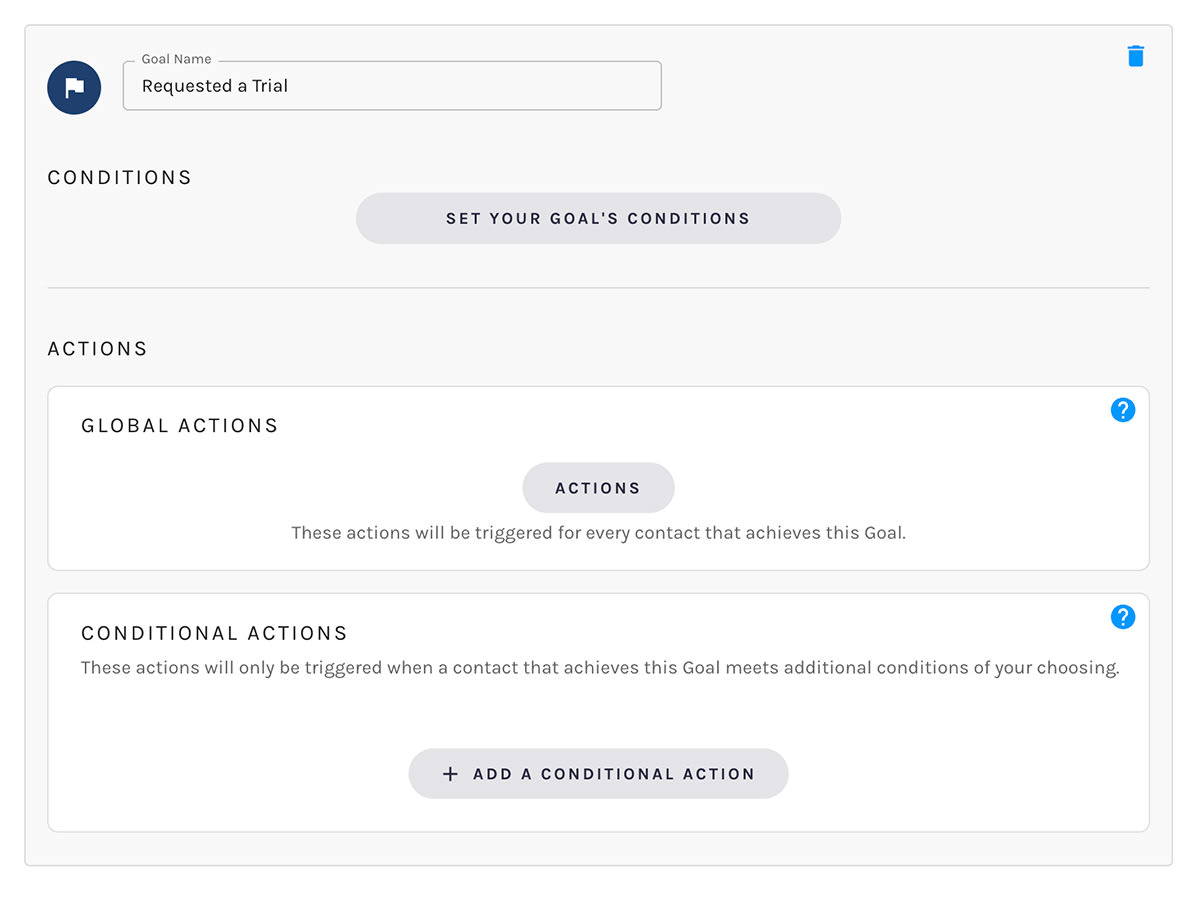
Name Your Goal
Give your goal a name that makes it clear what "achieving" this goal means. Goal names appear in a contact's activity history, so something like "Booked a Demo" or "Purchased" is more useful than "Goal 1."
Conditions
Tell Paminga what conditions a contact must meet for this goal to be achieved.
Conditions are defined using Paminga's Segment Builder, giving you access to nested conditions built from any combination of demographic, firmographic, and behavioral attributes.
Time-Based Conditions
If your conditions include time-based events (like "visited a page" or "opened an email"), Paminga uses an evaluation period to determine how far back to look for qualifying activity.
This window is rolling — it moves forward with each evaluation cycle. For example, if your evaluation period is 7 days and your automation is perpetual:
- At 2:00 PM on April 16th, Paminga looks back from April 16th 2:00 PM to April 9th 2:00 PM.
- At 2:05 PM, it looks back from April 16th 2:05 PM to April 9th 2:05 PM.
- And so on, every cycle
The first time the rolling window contains a contact's qualifying activity, they achieve the goal. After that, they're excluded from future evaluations of that goal — unless the automation allows requalification and the contact requalifies, in which case they can achieve the same goal again.
Actions
You can trigger Actions when a contact achieves your goal. Actions are organized into two categories:
Global Actions
Global Actions fire for every contact that achieves the goal.
Conditional Actions
Conditional Actions only fire when a contact that achieves the goal also meets additional conditions you define. This lets you take different actions for different segments of goal achievers without creating separate goals.
Goal Achievement in Contact Activity
When a contact achieves a goal, a "Goal Achieved" entry is recorded in their activity history. This makes it easy to confirm that goals are working as expected and to see exactly when a contact was removed from an automation.
Editing Goals
You can freely add, remove, and edit goals while your automation is in draft. Once an automation is running, goal editing is disabled — pause the automation first if you need to make changes.


