Settings
The settings step requires you to provide several high-level settings for your automation.
General Settings
Not much explanation is needed here.
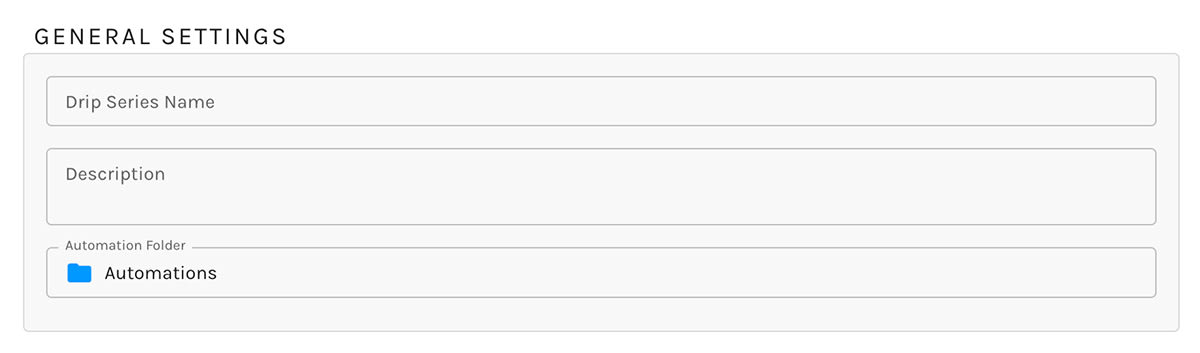
Clicking on the "Automation Folder" field will reveal Paminga's Finder, allowing you to choose or change the folder your automation will be saved in.
The Tags field takes any number of Tags. Type a name and press Enter to add it; a name your account has not seen before becomes a new tag. A tag on an automation also feeds the segment builder: "Did click in any Workflow tagged Webinar" matches a click in any email this automation sends. See Segmenting on Tags.
This is an Operational Workflow
Some automations never message anybody. They assign lead owners, normalize field values, push records into your CRM. Check this box to say so.
The flag does one thing: a contact sitting in an operational automation no longer counts as being "in an automation" when some other automation is deciding whether to let them in. It changes nothing about how this automation runs.
See Operational Workflows for how the two settings work together.
Only add Contacts who are not currently in another Non-Operational Workflow
Check this and the automation refuses anyone currently active in another automation — operational ones excepted, since they are not talking to the contact anyway. It is how you keep someone from receiving two streams of email at once.
It gates entry only. Contacts already in this automation stay put when you switch it on, and nobody is removed.
The option is hidden on an operational automation: that automation sends nothing, so there is no double-messaging for it to prevent.
Launch Settings
-
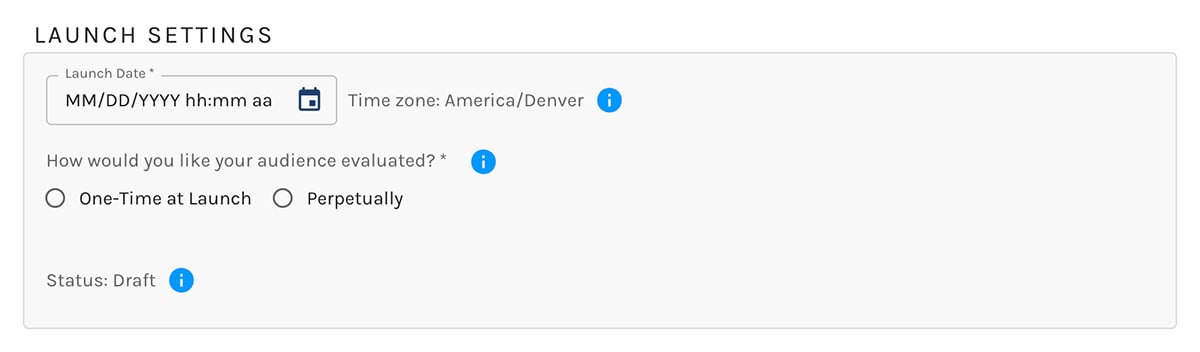
Launch Date: The date and time of launch leverage the time zone you have set in your Personal Settings.
-
Audience Evaluation
- One-Time: Your audience's conditions will be evaluated exactly one time.
Contacts that meet those conditions at that time will become part of your automation's audience.
Your audience will not be evaluated again. - Perpetual: Paminga will evaluate your audience's conditions periodically (approximately every 5 minutes) and will add qualifying contacts to your audience upon qualification.
You may also inject contacts into Perpetual automations- Using an Add to Automation Action
- Via API methods
- Manually via the Contact Details page
- One-Time: Your audience's conditions will be evaluated exactly one time.
-
Perpetual Automation Settings
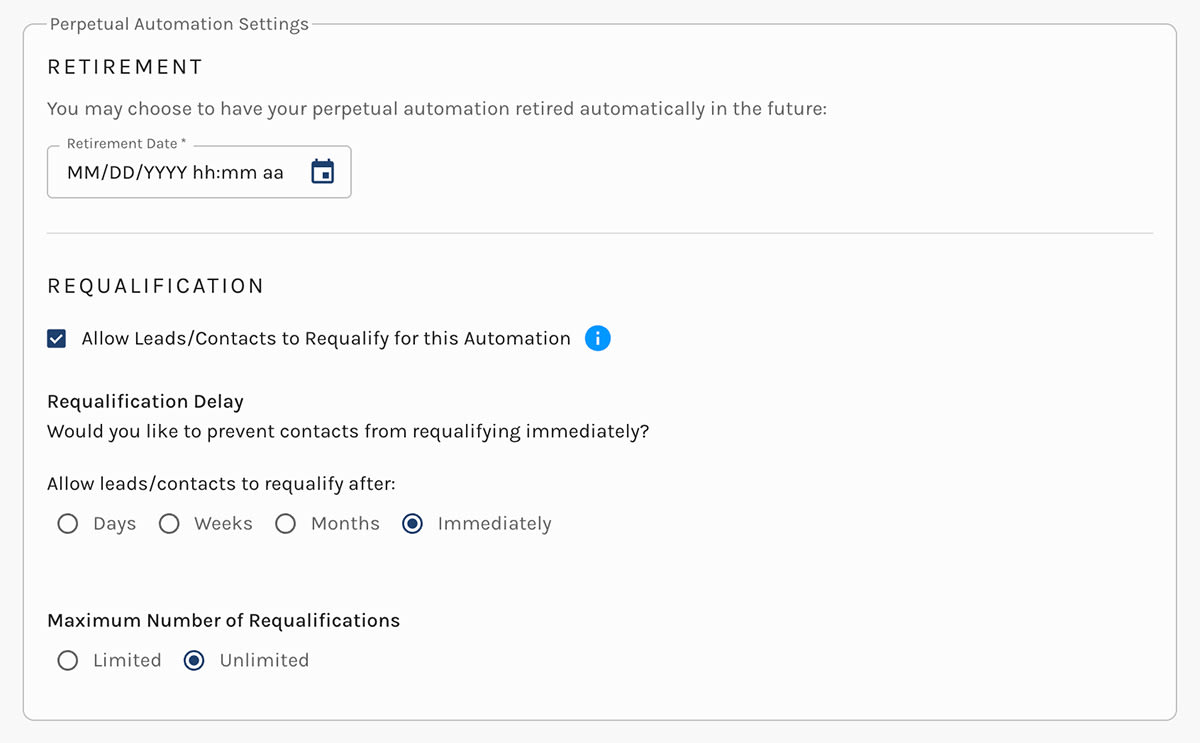
Perpetual automations include some additional settings.- Retirement Date: Optionally, you can set a date at which your automation will be retired
- Requalification: You can choose to allow contacts to requalify for your automation
- Requalification Delay: If you allow requalification, you may choose to allow contacts to requalify:
- After up to 6 days
- After up to 4 weeks
- After up to 12 months
- Immediately
- Maximum Requalifications: You can choose to limit the number of times a contact may requalify for your automation.
You may also choose not to limit the number of requalifications. This setting is selected automatically for Abandoned Cart and Product Recommendation automations.
Automation Retirement Settings
Email Delivery Settings
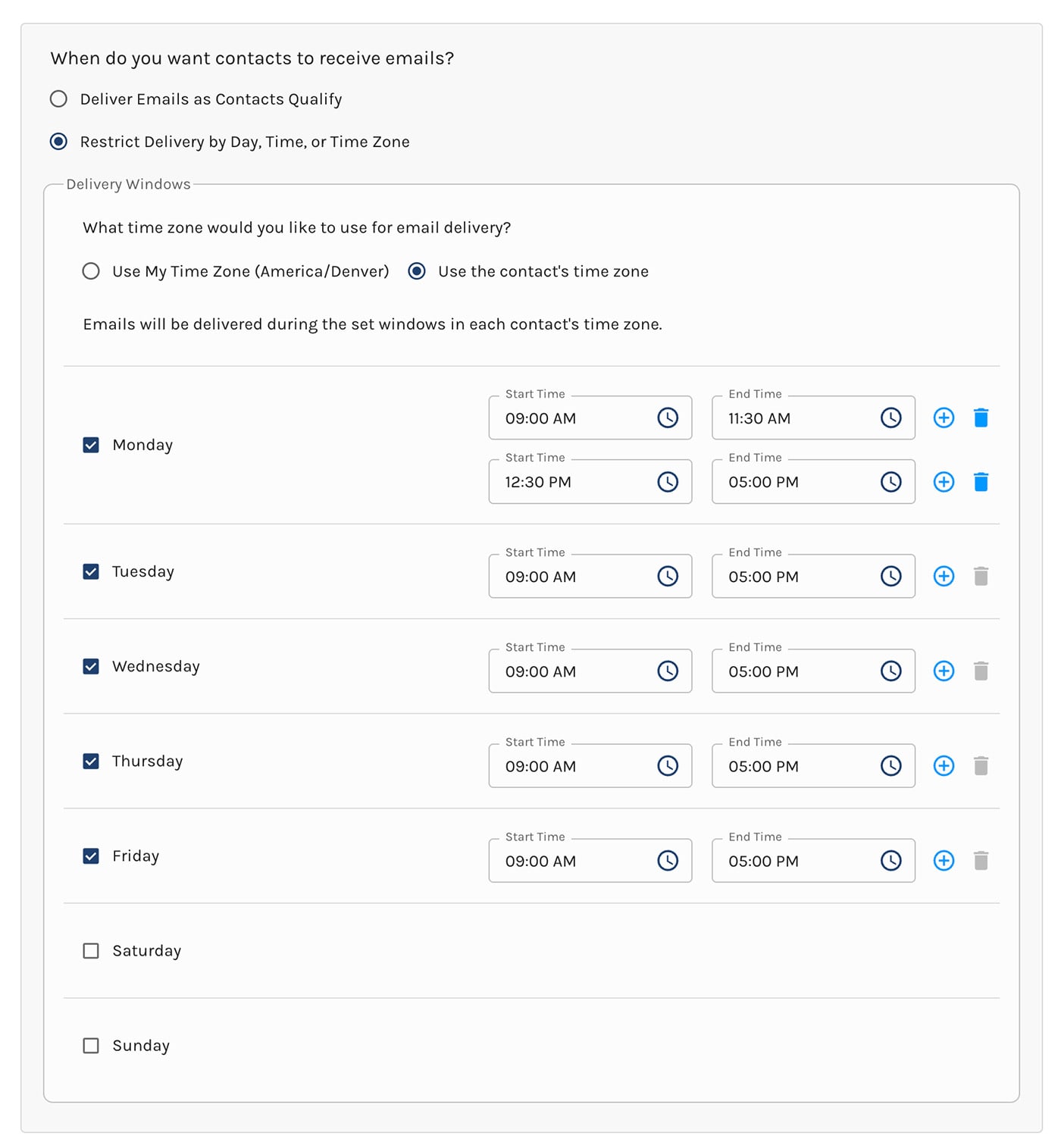
Emails may be delivered based on your chosen time zone or based on the contact's time zone.
Deliver Emails as Contacts Qualify
Emails will be delivered immediately upon qualification.
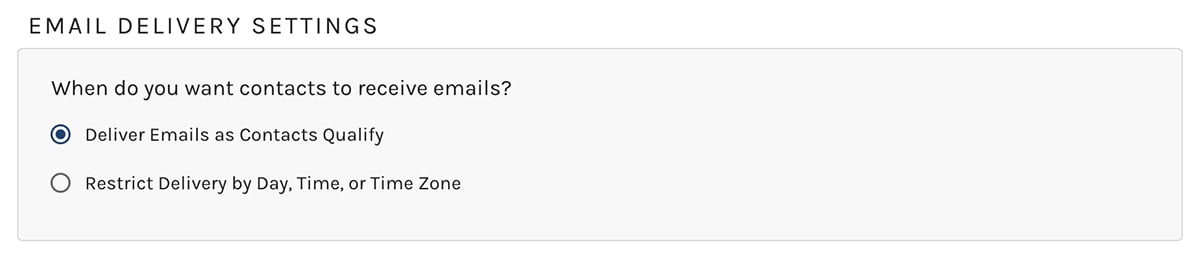
Restrict Delivery by Day, Time, or Time Zone
Emails may be queued for delivery per your settings.
Multiple Delivery Windows
Look at Monday in the image below. Note that you can create multiple delivery windows for the same day.
UTM Tagging
You can set the UTM campaign, source, and medium tags here.
UTM content and term tags are set in the Email Builder when adding links.
Paminga will attempt to set the UTM campaign tag based on the name of your automation. You are free to changes this of course.
Paminga will default UTM source to "Paminga" and UTM medium to "email", both of which can be changed as well.



