Participants
Reporting tells you what an automation did. The Participants list tells you who is in it right now: each contact, the node or step they are on, and what happens to them next.
It is the list you want when a contact asks why they are still getting your emails, when sales needs someone out of a nurture today, or when you just want to see how far through a Drip Series your audience has made it.
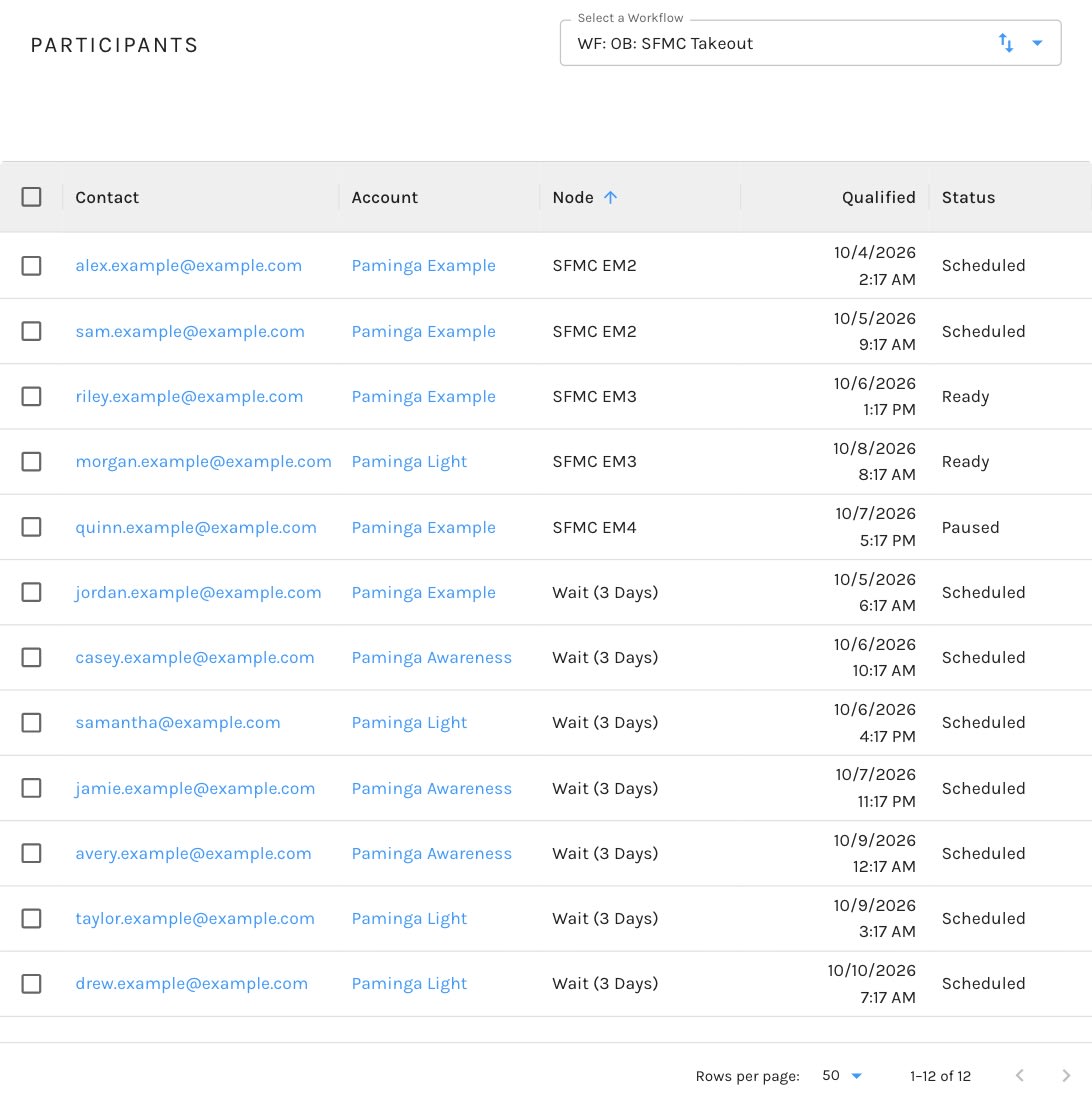
A Workflow's Participants:
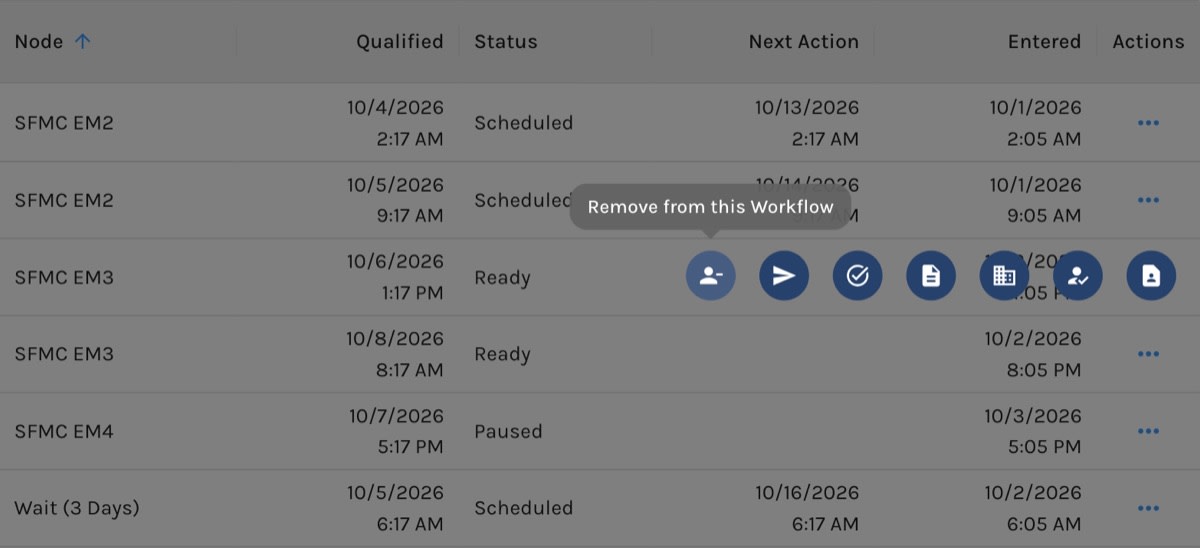
A Participant's Actions:
Getting There
On the Automations table, open a Workflow, Drip Series, or Send It's actions and click View Participants (the people icon). It is there for every automation that has launched. A draft has no participants yet.
Switch to another automation with the Select a Workflow field at the top right. The automation's id is in the address bar, so you can bookmark the list or send it to a colleague.
What You See
One row for each contact currently in the automation, at the node or step they are on now. A contact who holds more than one position at once has a row for each. Contacts who have finished, or have been removed, are not listed.
- Contact: the contact's email address, or their LinkedIn handle if they have no address. Click it to open the contact record.
- Account: click the name to open the account.
- Node (on a Workflow or Send It) or Step (on a Drip Series): where the contact is now.
- Qualified: when the contact reached their current node or step.
- Status: Entered, Scheduled, Ready, Executing, Completed, Failed, or Paused. Contacts who joined before statuses were recorded show a dash.
- Next Action: when the contact's next step is due.
- Entered: when the contact entered the automation.
The list opens sorted by node or step, so the top of the list is the start of the automation. Sort and filter by any column. Filtering by Node or Step and Status together is the quickest way to find contacts stuck in one place.
Acting on a Contact
Hover over the ⋯ icon in a row's Actions column. The page dims and the row's actions fan out as icons. Each icon is named only by its tooltip, so hover over one to see what it does:
- Remove from this Workflow (or Drip Series), the person-with-a-minus icon
- Send a one-off email to this contact, when the contact has an email address
- View/Modify Tasks and View/Modify Notes, when your account uses Paminga's sales features
- View Account Details, when the contact belongs to an account
- View Executed Actions: the actions Paminga has run for this contact
- View Contact Details
Removing Contacts
Remove one contact with the Remove from this Workflow icon in their row's actions, or tick several rows and click Remove from Workflow (or Remove from Drip Series) above the list. Selections carry across pages, so you can pick contacts from more than one page before you remove them.
Paminga asks you to confirm first. A removed contact stops receiving the automation's steps, and any open tasks it raised for them are withdrawn.
Reporting on the Automation
For what an automation has done rather than who is in it now, see the Workflow, Drip Series, and Send It dashboards.


