Canvas
The Canvas is where you lay out the nodes of your workflow. The Canvas is infinite with no limit to the number of nodes you can add.
Workflows may branch and branch again. Nodes may be merged.
If you have a trackpad, you can pinch and zoom the canvas just like a photo on your phone. You can do the same with a mouse, just without the pinching.
Workflow Builder Canvas:

Node Types
Audience
An Audience Node
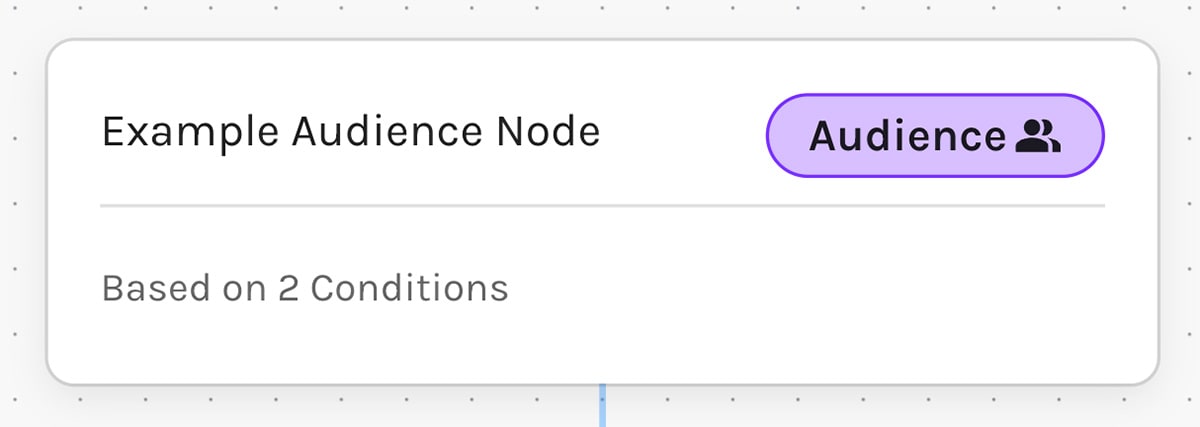
The Audience node comes first in every Workflow.
As its name suggests, this node controls which contacts will qualify for your Workflow.
You can edit your Workflow's audience in two ways:
- By going to the Audience step (the third step that appears at the top of the Workflow Builder)
- By clicking the "Audience Conditions" button on the audience node in the Canvas
Action
Action nodes allow you to trigger any of Paminga's many Actions.
An Action Node
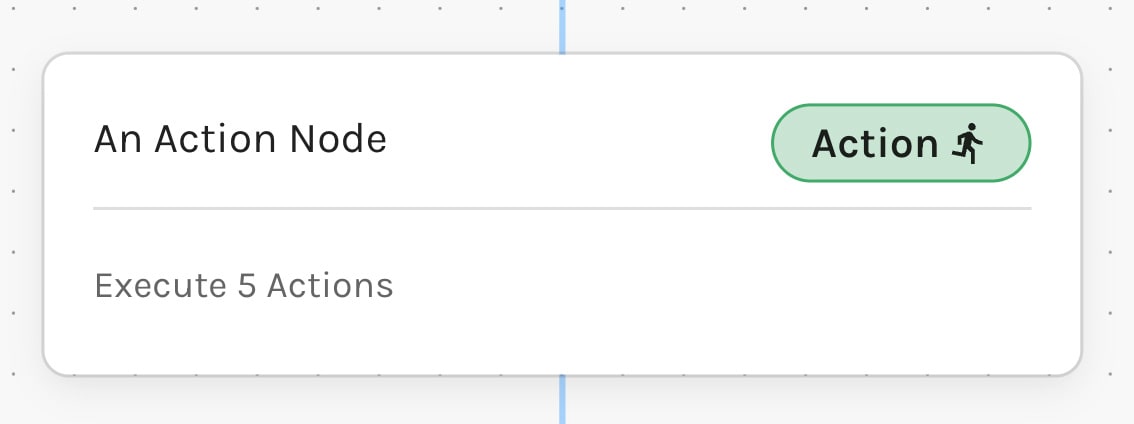
You may enable as many actions as you like in any Action node.
- No race conditions: The contact will not move on to the next node in your workflow until all actions have completed
- Order of execution: Currently, the order of execution is controlled internally.
For example, if you have enabled a Set Field Values action and a Send Email action, Paminga will hold off on sending the email until the Set Field Values action has completed.
A/B Email Test
The A/B Email Test node allows you to split test email engagement at any point within your workflow.
An "A/B Test Merge" node is automatically added after any A/B Email Test node, though you are free to insert additional actions between the A/B test node and the merge node.
An A/B Email Test Node
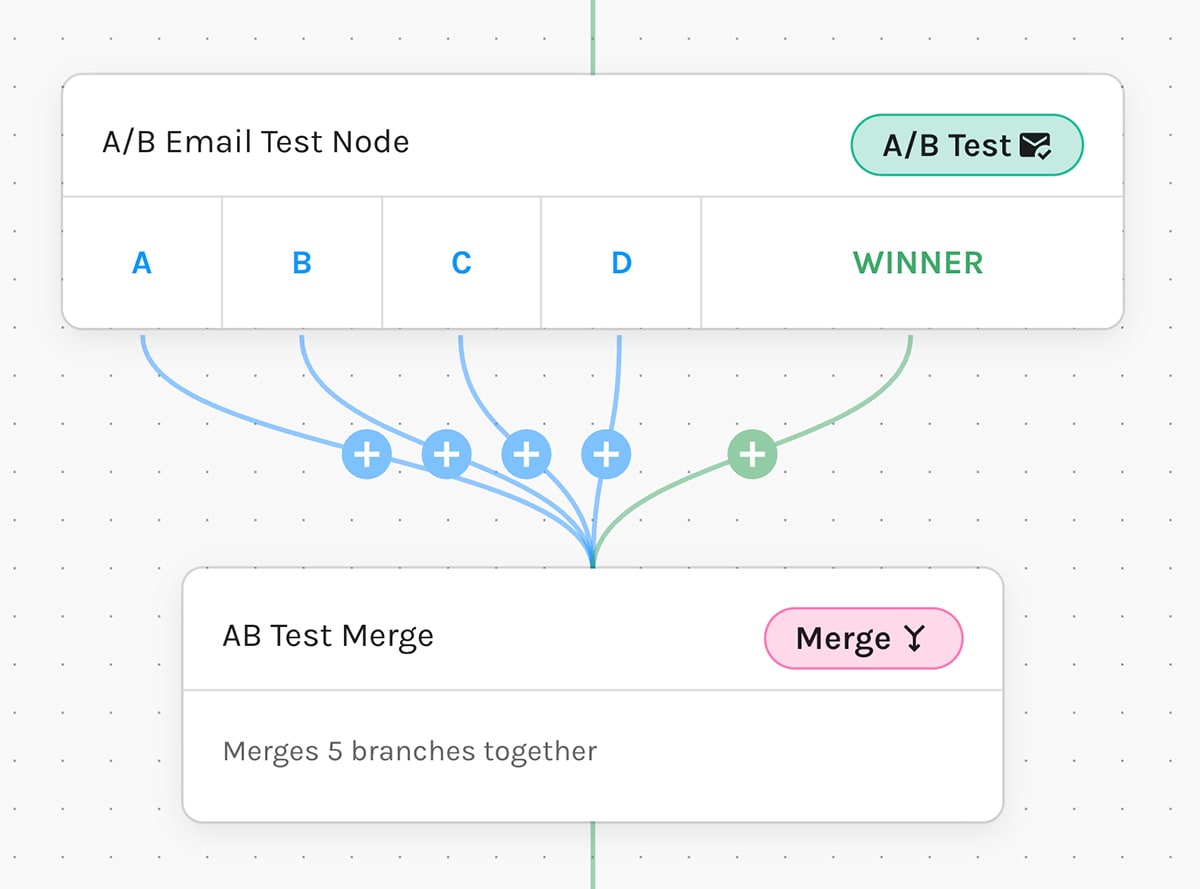
A/B Email Test Node Settings
You can choose to test across up to 4 different emails or email variants:
- Use completely different emails if you like
- Create multiple variants of the same email
An A/B Email Test Node Settings
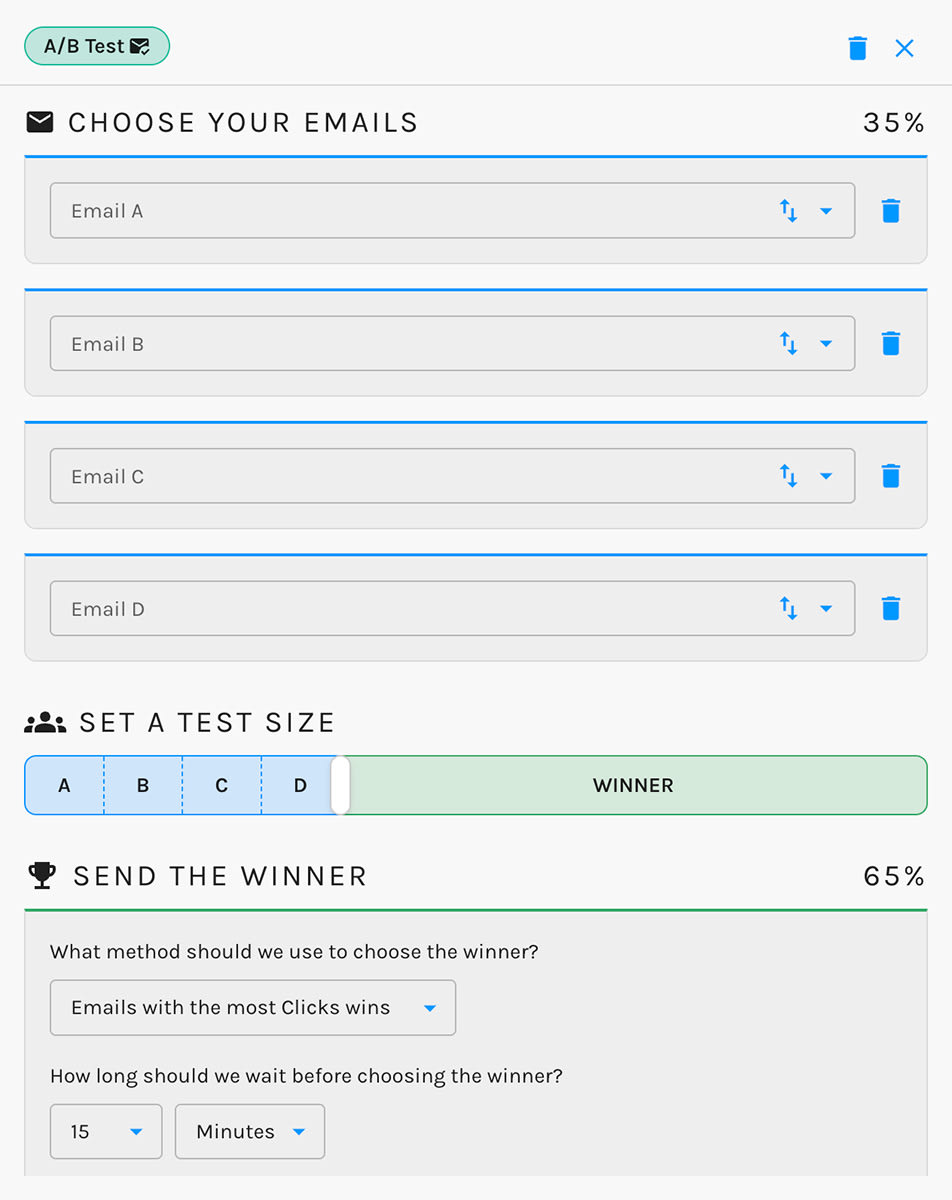
Set a Test Size
Use the slider to determine the percentage of contacts that will receive test emails.
Test emails are distributed in a random manner such that each test variant will be distributed equally.
Send the Winner
You may choose to pick a winner based on:
- The number of opens
- The number of clicks
...in a period after the email is deployed.
Wait
Wait nodes allow you cause a contact to "wait" for the duration of your choosing before proceeding to the next node:
- Weeks: Up to 51 weeks
- Days: Up to 6 days
- Hours: Up to 23 hours
- Minutes: Up to 59 minutes
A Wait Node
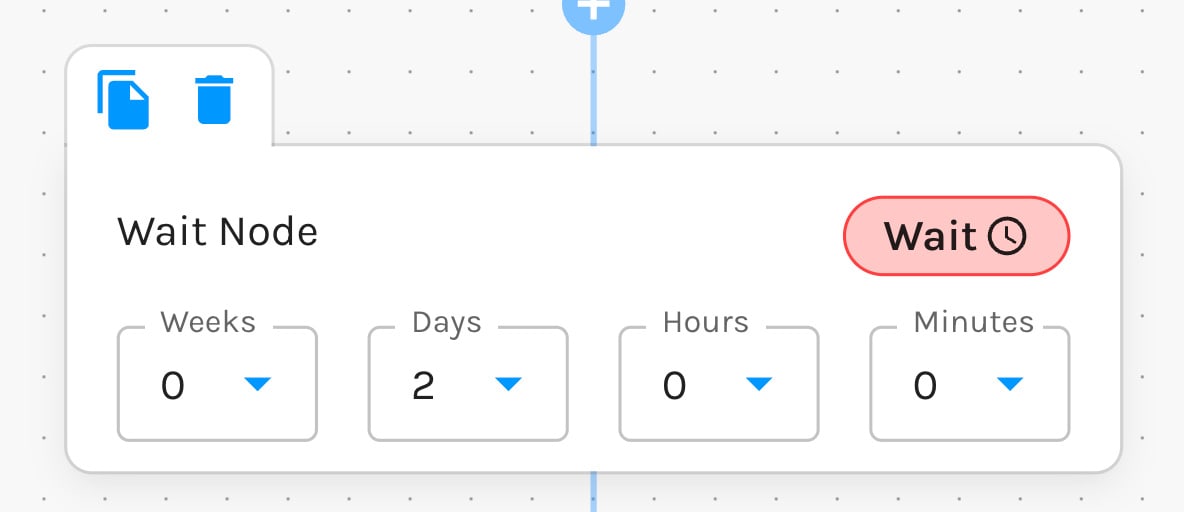
These may be combined to wait, for example, for 2 hours and 30 minutes.
Split
Split nodes come in two different flavors: Conditions and Random Distribution.
Conditions
Split nodes based on conditions allow your workflow to branch as contacts meet conditions of your choosing.
Conditions are set using Paminga's Segment Builder.
A Conditions Split Node
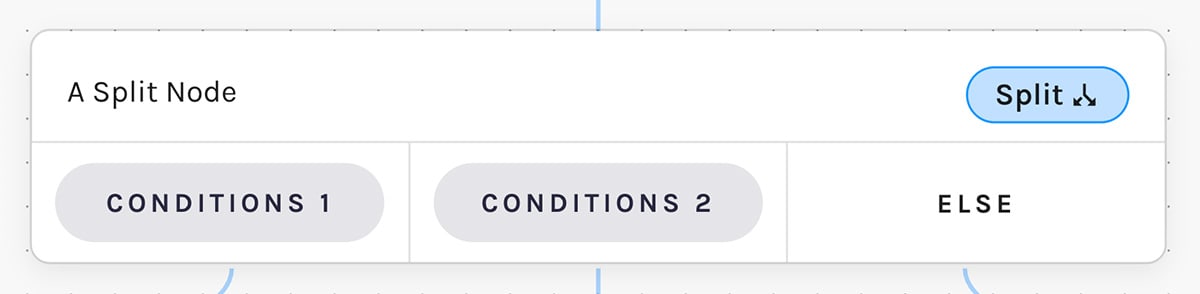
Operationally, the "splits" are executed like a "switch" statement in code, which can also be expressed like so:
if (condition1) {
    // send contacts down this branch
} else if (condition2) {
    // send contacts down this branch
} else {
    // send contacts down this branch OR do nothing at all – it's up to you
}
Some Notes:
- The splits are mutually exclusive.
Once a contact moves down a branch, they are no longer "in" the split node.
It is not possible for a contact to move down multiple branches. - The timing of the execution of the "Else" branch warrants discussion.
If any of your conditions requires a timeframe, which is required for all behavioral conditions (did submit a specific form, for example), the else branch will only execute after the timeframe has elapsed.
This makes sense logically: if your conditions say "if the contact does click in this email within 3 days", we must wait the full 3 days before we can move contacts down the "Else" branch.
Random Distribution
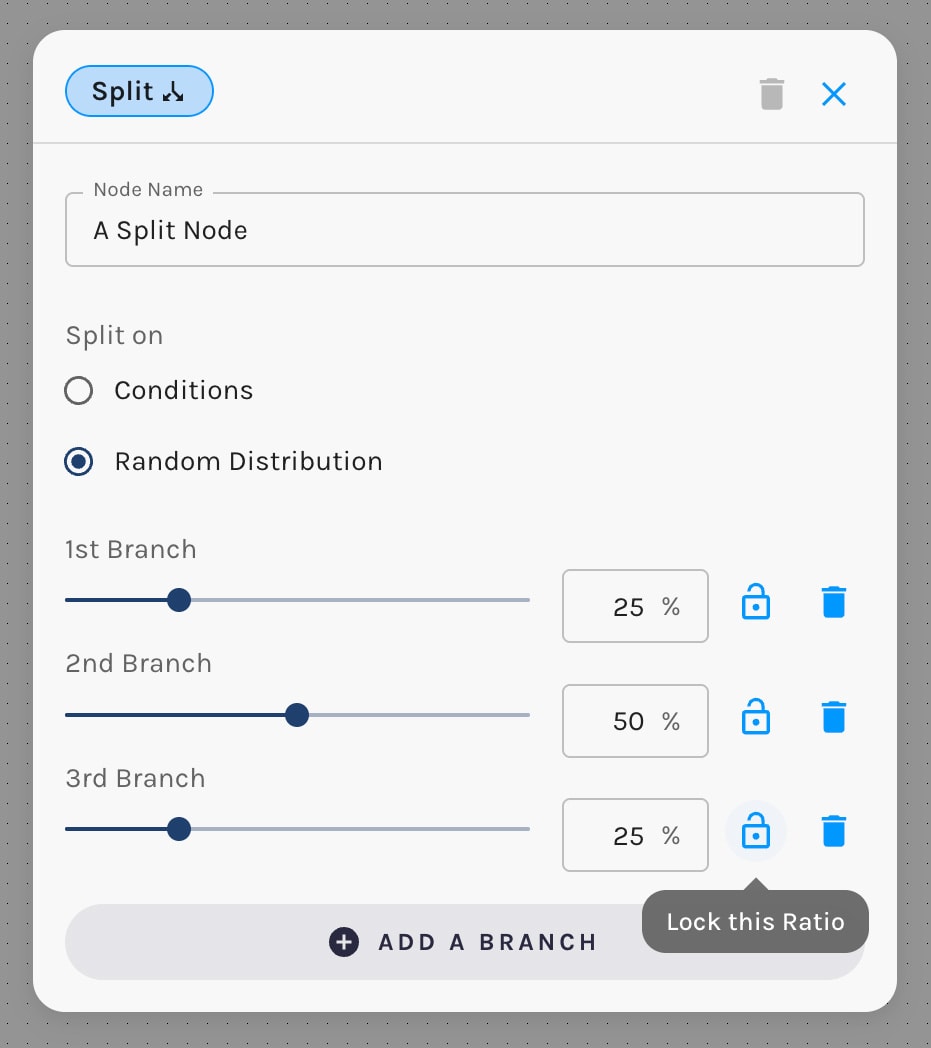
Random Distribution split nodes allow you to do A/B testing within your workflow. This works well in combination with Email "Variants".
A Random Distribution Split Node
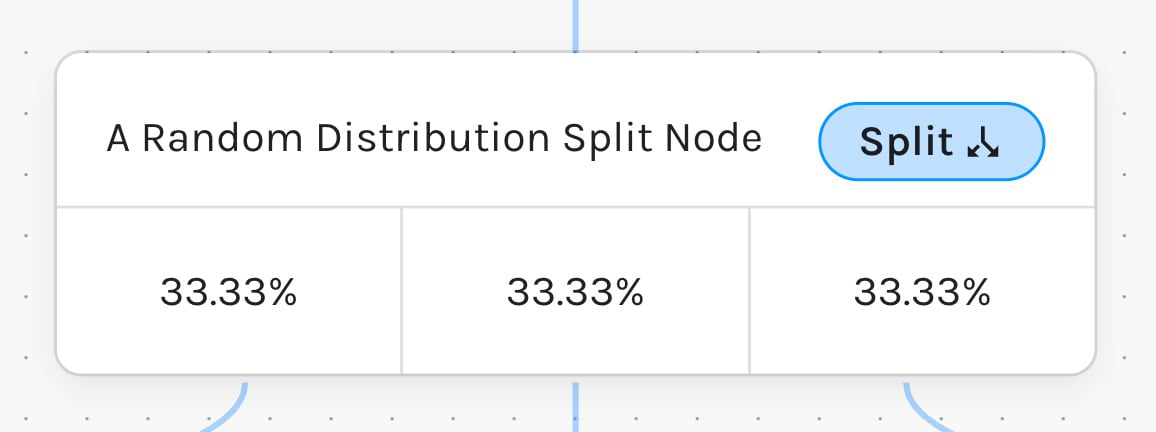
Random Distribution Split Node Controls
You can add additional splits, remove splits, and set split percentages with a slider or by typing in a number.
You can also lock individual splits while continuing to adjust others.
Random Distribution Split Node Controls
Merge
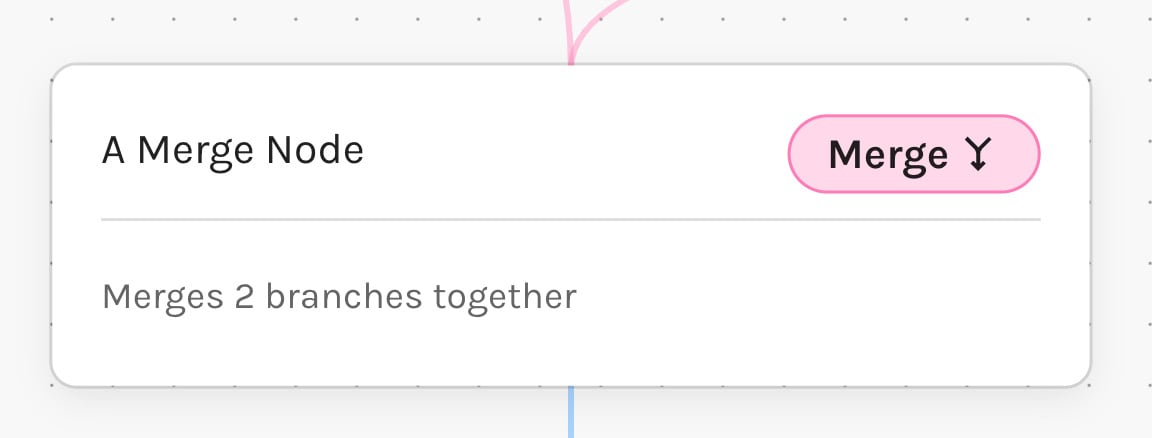
Merge nodes allow you to combine separate branches into a single branch.
A Merge Node
Go To Node
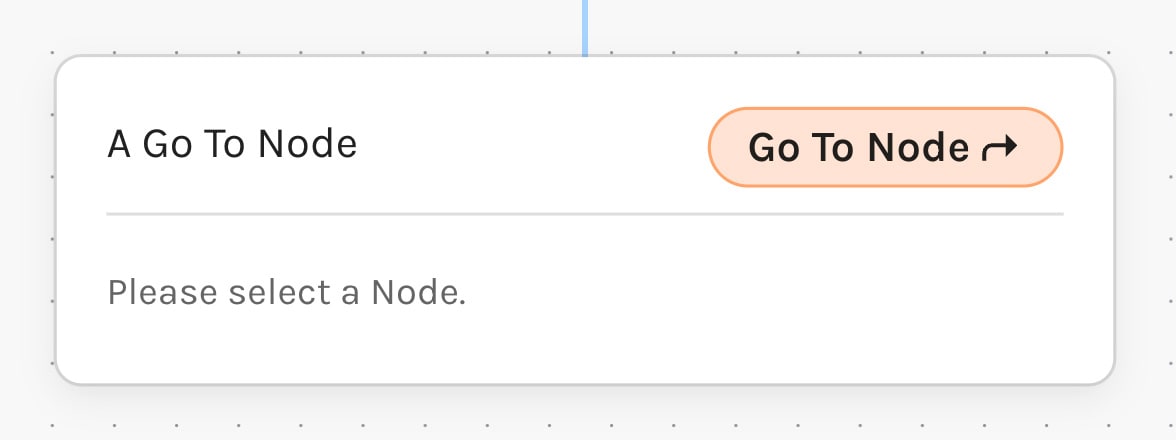
Go To nodes allow you to "jump" to a specific node in your workflow.
These may be used to create controllable loops in workflows.
A Go To Node