Marketing Calendar
The Marketing Calendar shows everything your team has scheduled to go out, all in one place: social posts, automation launches, and events.
It's the view to open before you schedule something new. A product launch email landing the same morning as a webinar and three social posts is easy to miss when each lives on its own screen, and obvious on a calendar.
Go to Marketing Center › Calendar.
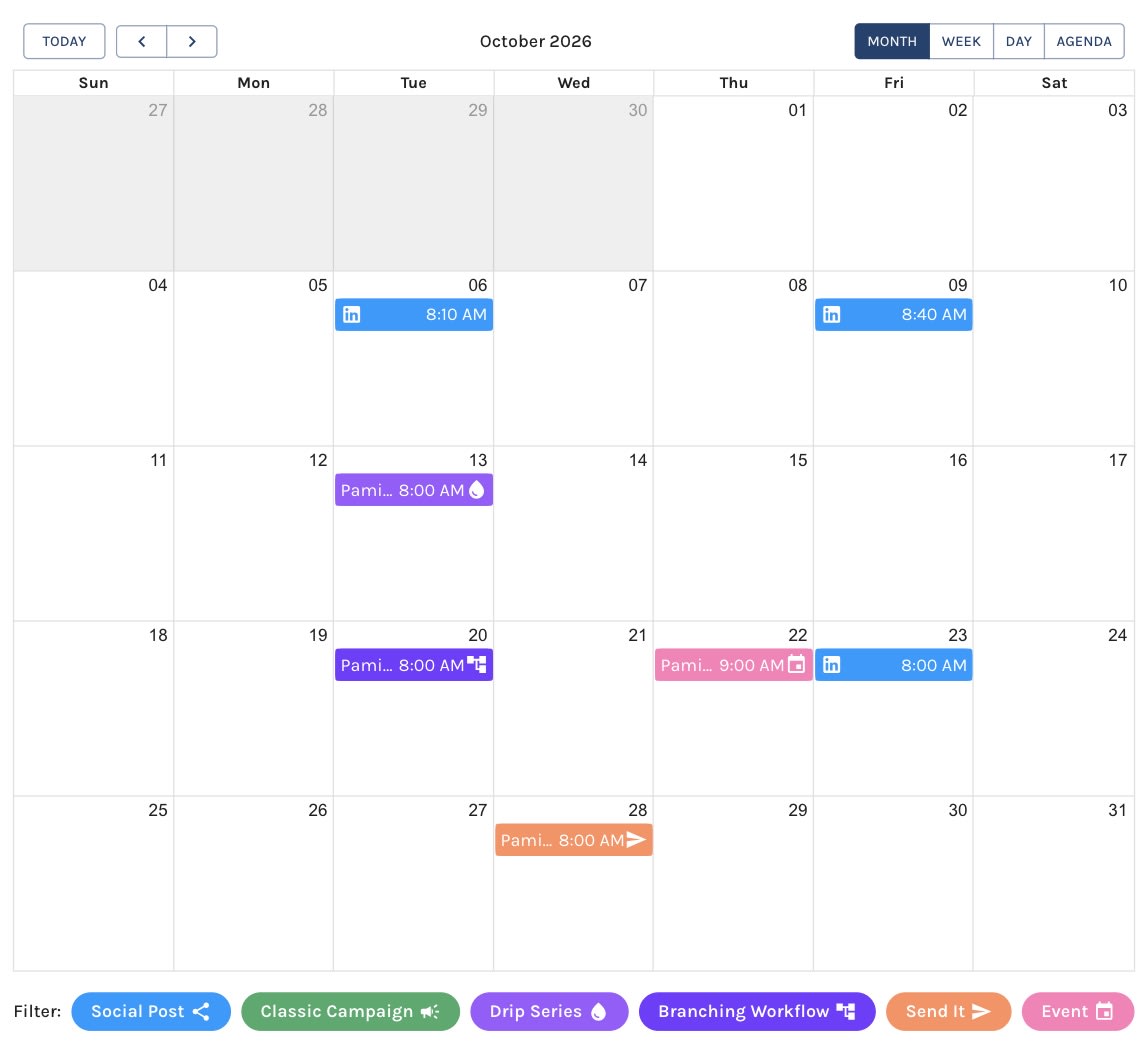
The Marketing Calendar:
What Appears on the Calendar
| Entry | Placed on |
|---|---|
| Social Post | The date and time the post is scheduled to publish, or did publish. See Social Posting. |
| Drip Series | The Drip Series's launch date. |
| Branching Workflow | The Workflow's launch date. |
| Send It | The Send It automation's launch date. |
| Event | The Event's start date and time. |
| Classic Campaign | A classic campaign's launch date, for accounts that still have classic campaigns. |
Archived workflows and archived events are left off.
Each entry type has its own color and icon, shown in the legend beneath the calendar.
Month, Week, Day, and Agenda Views
The calendar opens on the current month. Use the buttons at the top right to switch between Month, Week, Day, and Agenda. Agenda is a plain list, which is the quickest way to scan a busy stretch.
Use the arrows at the top left to move backward and forward, and Today to jump back to the present.
When a day holds more entries than fit in its cell, click the overflow link to see them all.
Filtering by Type
The Filter legend beneath the calendar doubles as a set of toggles. Click a type to hide it, and click it again to bring it back. Hidden types are faded in the legend so you can see what's switched off.
The view, date, and filters you choose are kept in the page's URL. Bookmark it, or send it to a colleague, and it opens exactly as you left it.
Working From an Entry
Click any entry to see its details and jump to where it's managed:
- Social posts show a preview of the post and its status: Scheduled, Published, or Error. A post that hasn't published yet can be edited, cloned, or deleted right from the calendar. A published post can be cloned. A published Facebook or LinkedIn business page post opens its performance metrics instead, and can be cloned from there.
- Drip Series, Branching Workflows, and Send Its link to their settings and, once they've launched and are no longer drafts, to their Performance Dashboard. Classic campaigns link to their settings and their Performance Dashboard.
- Events link to the event's settings and, when it has one, its registration page.
The Calendar View link in the Social Posts left navigation opens this same calendar, with every entry type included. See Social Post Calendar for working with social posts on it.


