Template Library
You can save your Sections, Rows, & Elements to the Template Library and re-use them in your CTAs at will.
Organize your templates with folders. Preview templates in the library.
Adding a Template to Your Library
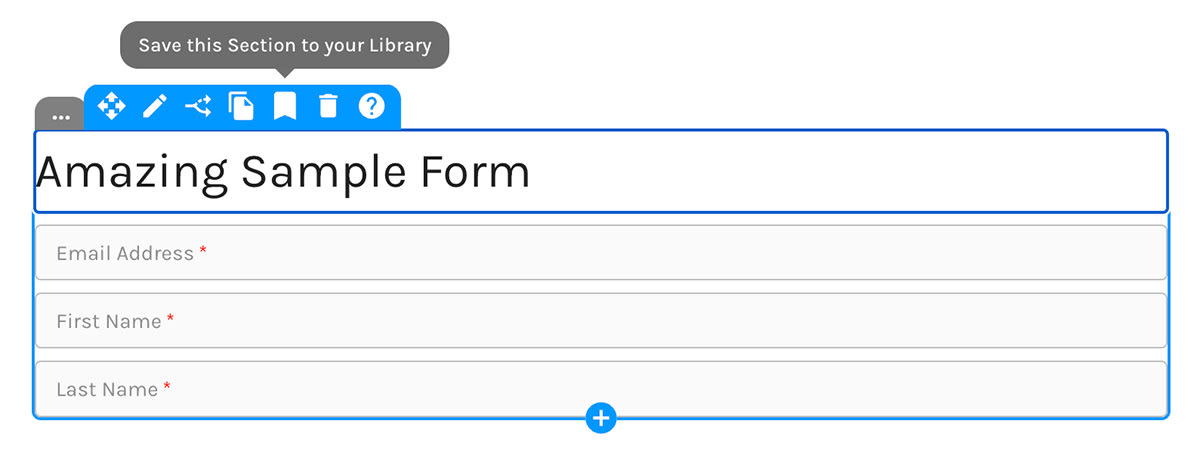
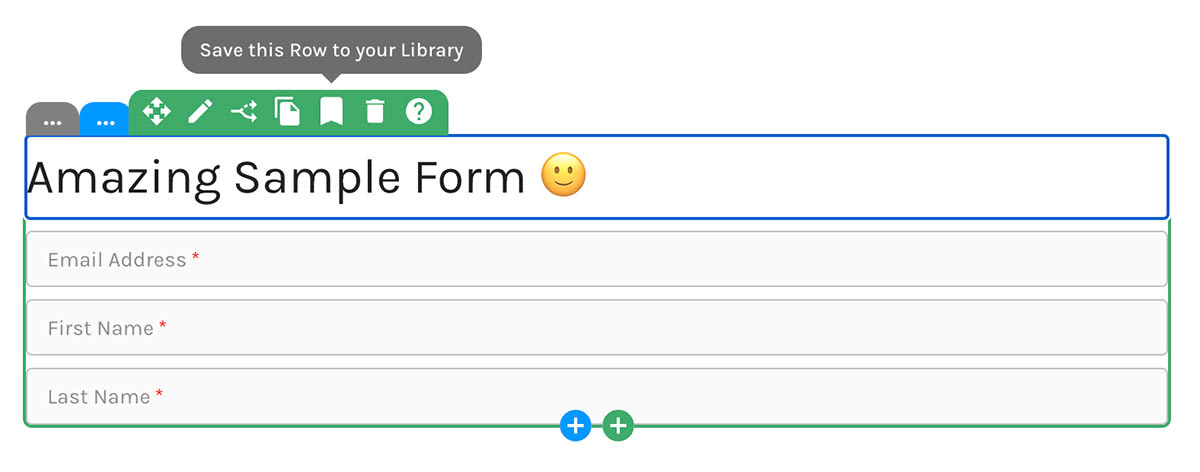
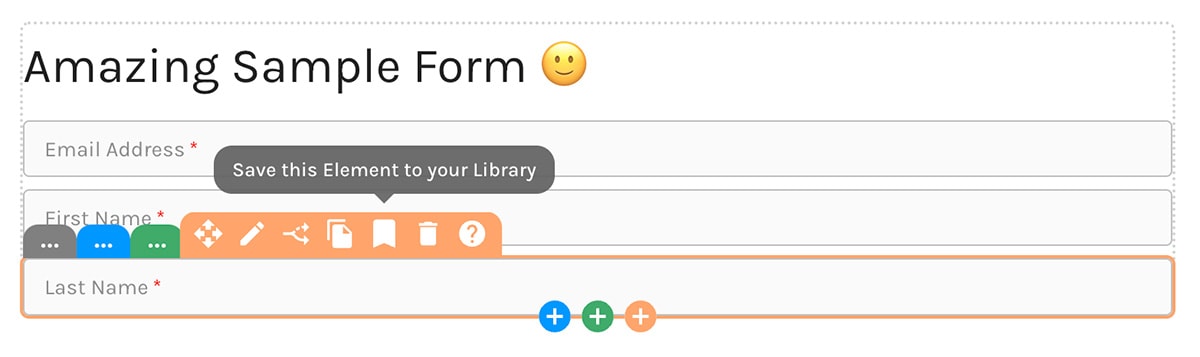
You'll use the same icon whether adding a Section, Row, or Element to your library.
Save a Section to Your Library:
Save a Row to Your Library:
Save an Element to Your Library:
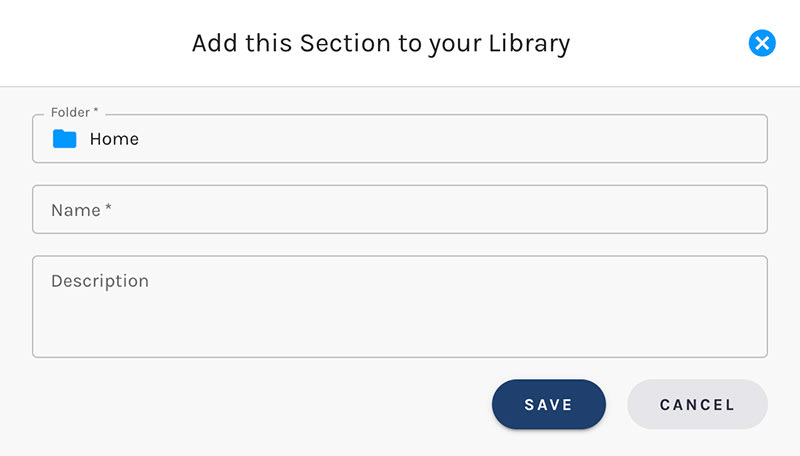
Name Your Template, Choose a Folder
Give your new template a name. You can change template names at any time.
Decide which folder to store your template in.
Save a Section to Your Library:
Adding Templates From Your Library
Look for the "Add From Library" button when you want to add Sections, Rows, or Elements from your library.
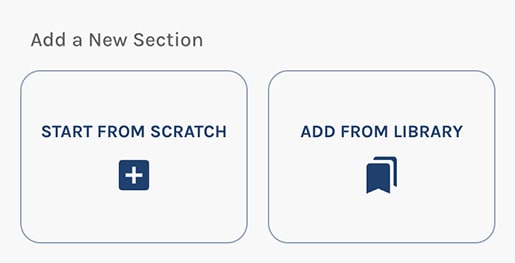
Adding Sections
This one's pretty hard to miss. 🙂
Add a Section frorm Your Library:
Adding Rows
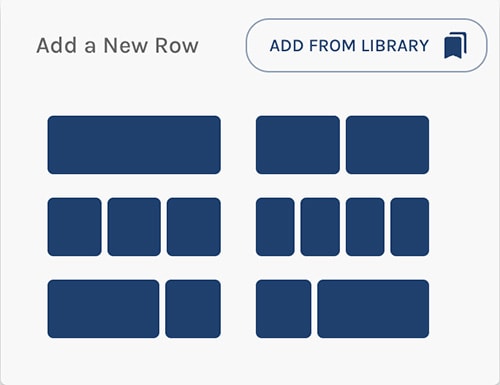
The "Add From Library" button appears at the upper right when adding a new Row.
Add a Row frorm Your Library:
Adding Elements
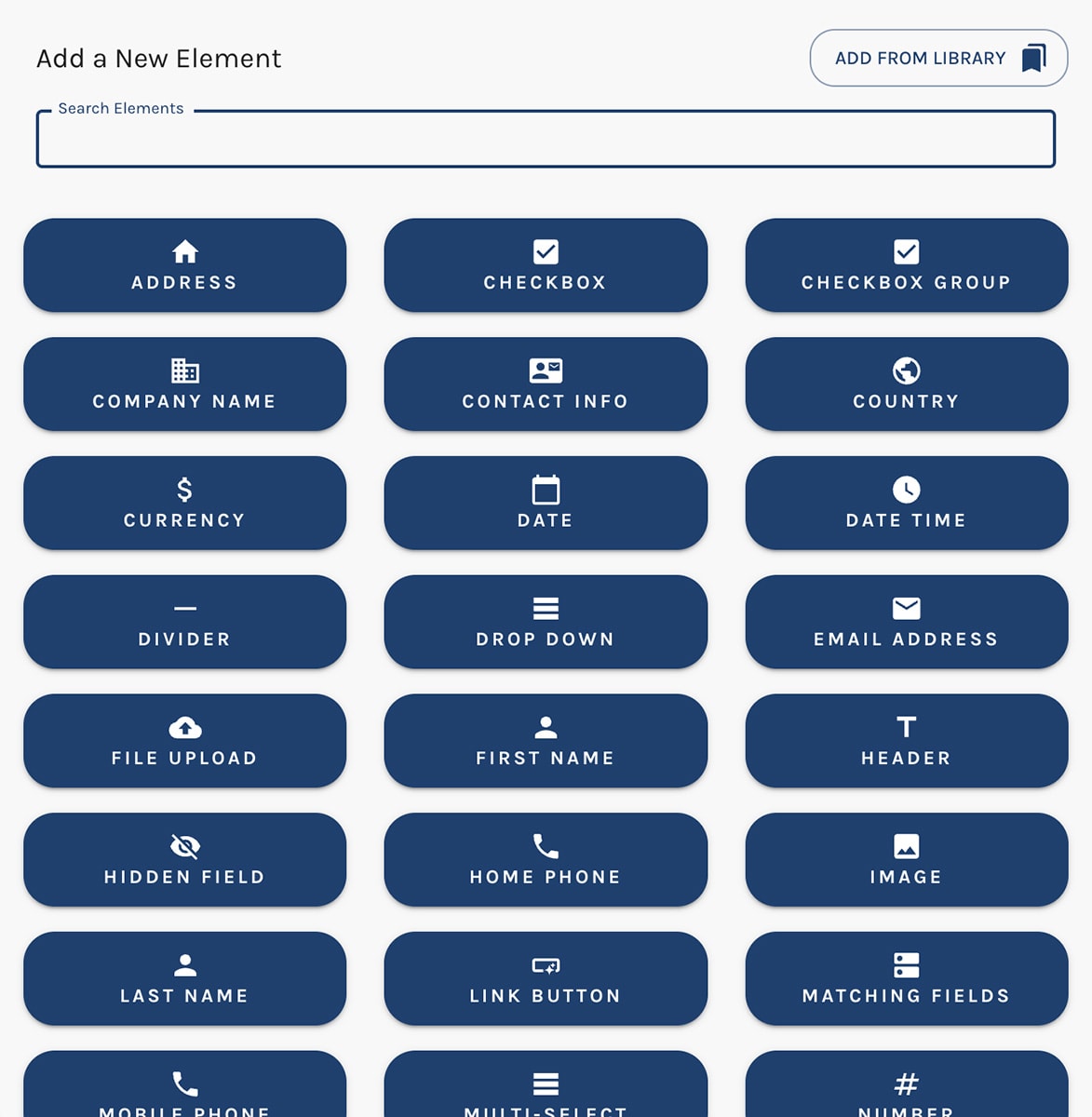
The "Add From Library" button appears at the upper right when adding a new Element.
Add an Element frorm Your Library:
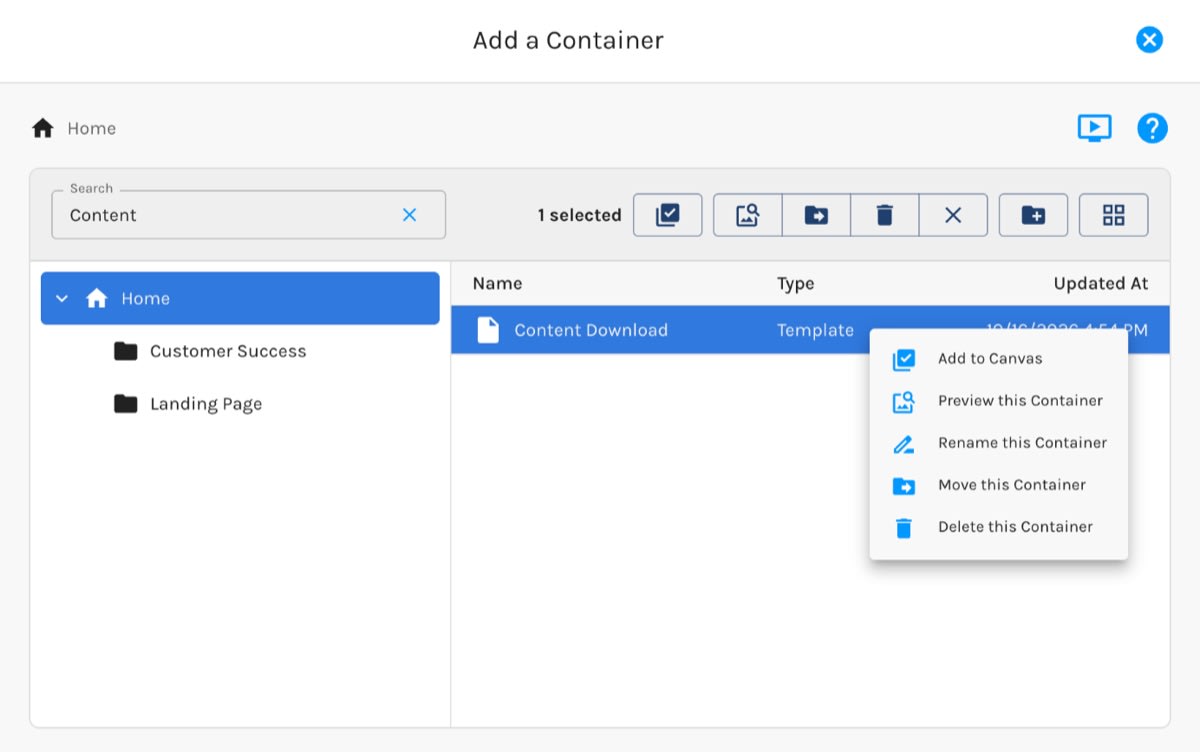
In the Template Library
The Template Library knows if you're adding a Section, Row, or Element. When adding a Section, for example, it will only show Section templates.
Per the screenshot below, when you right-click on any template, you have options to:
- Add the template to the Canvas
- Preview the template
- Rename the template
- Move the template to another folder
- Delete the template
Select a template and Add to Canvas, Preview, Move, and Delete also appear as icons in the toolbar at the top of the library, beside a count of what you've selected.
Template Library Actions: