Form Builder
Paminga's Form Builder makes it easy to create beautiful web forms that make your brand look great online – whether your forms are displayed on mobile, tablet, laptop, or desktop devices.
Creating complex, multi-page forms that leverage conditional fields, conditional navigation, conditional actions, and more is simple and obvious.
Paminga forms may be styled to your liking, or inherit styles from your website, and they may be translated into any number of languages.
Paminga's Form Builder:
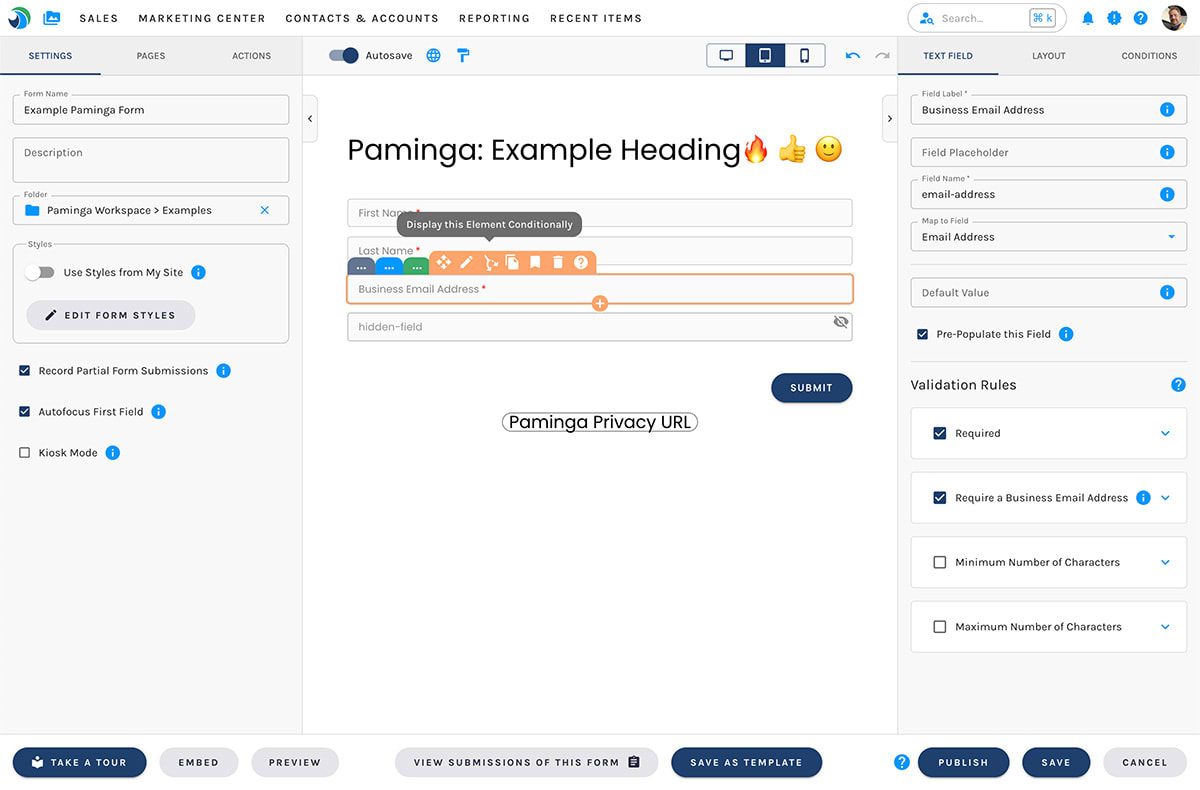
Multi-Page Forms
Create Multi-Page Forms with conditional navigation.
Internationalization
Paminga is the only marketing platform (that we know of) where you can translate forms into multiple languages.
(you can internationalize landing pages, emails, and CTAs too)
Conditional Redirect and Thank You Messages
When your form is submitted, redirect prospects to different URLs – or have the form slide away and display completely different "thank you" messages – based on form field values and values synced from CRM.
Advanced Personalization and Dynamic Content
Show or hide form fields, images, headings, and entire sections of your forms with Dynamic Content.
Take it further with Personas — show completely different content to different audience segments, including unique versions based on what visitors enter in your form fields.
Personalize experiences based on:
- Lead/Contact/Account Standard and Custom Fields from CRM
- Device size (mobile, tablet, desktop)
- Values entered in form fields
- Marketing list membership
...and more
Automatic Styling via Brand Kits
Set up one or more Brand Kits. Toggle between them and watch your form change.
Override brand kit styles on individual forms as needed.
Autosave
The form builder includes auto-saving. It's enabled by default, but you can toggle it on and off for any form as you choose.
Undo and Redo
Paminga records changes as you make them. Click the undo button – or press ctrl+z (cmd+z on mac) – to undo. Click the redo button and... you get the idea. 😉
Publish Your Changes
Changes you make in Paminga's form builder do not go live immediately. This allows you to work through additions or changes without impacting forms that are already live.
When you've made all your desired changes, click the Publish button. Your changes take effect the next time the form is loaded.
Paminga will warn you when navigating away from the builder if you have unpublished changes.
Approval Workflow
If your organization has enabled Approvals, the Publish button is replaced by publication status controls that guide your form through a review process before it goes live.
- Request Review — Submit your form for review by designated approvers. You can select specific reviewers and leave an optional comment.
- Comments — Discuss the form with reviewers in a threaded comment thread. An unread badge lets you know when new comments arrive.
- Approve & Publish — Approvers can sign off and publish in a single step, or approve first and let the author publish when ready.
You can track all pending reviews from the Approval Queue.
Users with the Publish Without Approval permission retain the ability to publish directly, bypassing the review process when needed.
Form Builder Validation
Paminga will make it very obvious if your form is missing required information or has any errors.
Paminga will also prevent you from publishing a form with errors, ensuring that you do not publish a form that cannot provide an excellent experience to your prospects.
Learn How
- Creating a New Form
- Control Your Form's Layout
- Add Elements to Your Form
- Style Your Forms
- Input Validation: Ensure The Data Entered In Your Forms is Valid
- Upon Form Submission: Control what your prospect experiences, as well as what actions Paminga takes for you
- Conditional Rendering: Show or Hide Sections, Rows, and Content Conditionally
- Personas: Serve different content to different audience segments
- Forms Dashboard: See how often each form is seen and submitted, and where


