Dynamic Content
Dynamic Content is baked into all of Paminga's drag & drop asset builders.
Emails, Forms, Landing Pages and CTAs all support conditional rendering of any Section, Row, or Element.
You may choose to show/hide content in your asset based on conditions of your choosing.
Content that may be displayed conditionally currently includes:
- Sections
- Rows
- All Elements
- Images
- Paragraphs
- Headings
- Articles
- Product listings
- Event listings
- Pricing blocks
- ...etc.
Making Content Display Conditionally
No matter which type of content you want to display conditionally, the icon you need to click is the same and appears in the same location.
The image below shows how to access conditional settings for an email address field, but the icon is the same for rows, sections, images, paragraphs, and headings.
Display An Element Conditionally:

You will be taken to the Experiences tab in the right control panel.
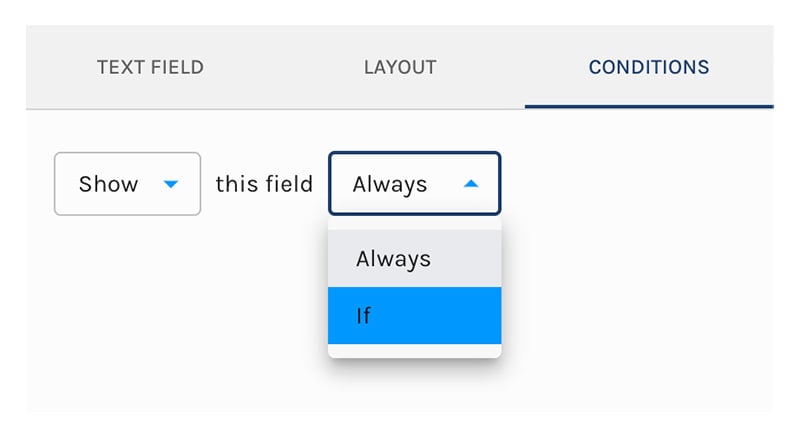
There, you should choose "If" such that the text says "Show the field If".
Conditions Tab:
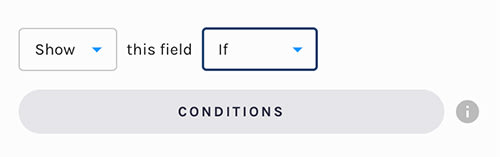
This will expose the "Conditions" button.
Clicking this button will reveal Paminga's segment builder where you may choose the conditions that will cause your content to be shown in your asset.
You'll find that you must choose at least one condition.
Content Conditions:
Available Conditions
You'll find that the current properties may be leveraged when choosing render content condtionally:
- Account standard and custom fields (available if the prospect is known to Paminga)
- Lead/Contact standard and custom fields (available if the prospect is known to Paminga)
- Language: if you've internationalized your asset, you may pivot based on the language the prospect is using
Progressive Profiling
Conditions decide whether a field shows based on rules you write. Progressive Profiling decides it for you, based on what Paminga already knows about the visitor.
Long forms cost conversions. Progressive Profiling lets you ask for a lot over time without asking for it all at once: each time a visitor sees your form, it shows only the first few fields Paminga doesn't yet have a value for. A returning visitor is asked something new, and never asked twice for what they've already told you.
Turn It On
In the Form Builder's Settings panel, check Enable Progressive Profiling, then set:
- Maximum Fields to Show: how many unknown fields to show per visit, from 1 to 10
- Hold Actions until every field has been collected: on by default. See Actions and Progressive Profiling below.
Turning Progressive Profiling on also turns on Pre-Populate this Field for every field on the form, because pre-population is how Paminga learns which values it already has.
Which Fields Show
Paminga works through your fields in the order they appear on the form:
- A field Paminga already has a value for is hidden. That value comes from the contact record (for a field with a Map to Field) or from the visitor's earlier submissions of this form.
- An unknown field is shown, until Maximum Fields to Show is reached.
- Every field after that is hidden until a later visit.
Paminga can only fill in what it knows about visitors it recognizes. A visitor Paminga can't identify sees the first Maximum Fields to Show fields, just as anyone would on their first visit.
Progressive Profiling works on single-page forms. While it's on, you can't add pages to the form, and you can't turn it on for a form that already has more than one page. (See Multi-Page Forms.)
Fields That Always Show
Where the exemption below is available, the email address field shows by default, even when Paminga already has it: without it, a submission can't be matched to a person.
Exempting fields from Progressive Profiling is in beta. It may not be turned on for your account yet. To request access, contact Paminga Support.
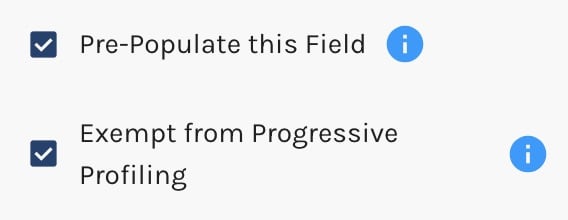
You can exempt any other field the same way. While Progressive Profiling is on, each field's settings include an Exempt from Progressive Profiling checkbox, beside Pre-Populate this Field. An exempt field:
- Shows on every visit, whether or not Paminga already has its value
- Does not count toward Maximum Fields to Show, so a form set to show 3 fields shows 3 unknown fields alongside any exempt ones
The email address field is exempt by default (the checkbox is ticked). Untick it if you'd rather email take its turn like any other field. Use the exemption for anything you need on every submission, like a consent checkbox or a "How can we help?" box.
Exempting a Field From Progressive Profiling:
Actions and Progressive Profiling
Because Progressive Profiling hides fields, a visitor can submit your form before you've collected everything on it. Every submission is recorded, and the contact is created or updated, either way. What you control is when the form's Actions run:
- Hold Actions until every field has been collected on (the default): Actions run only on a submission where no fields were held back.
- Off: Actions run on every submission.
If a visitor never comes back to finish, held Actions never run. Event registrations are never held: they are recorded on every submission.
Progressive Profiling Settings:



