Kiosk Mode
A Form on a tablet at your conference booth gets filled in by dozens of different people, all on the same browser. Normally that is a problem. Paminga recognizes returning visitors by their browser, so it would happily tie every one of those submissions, and every page view that browser ever made, to whoever used the tablet first.
Kiosk Mode tells Paminga that the device is shared. Every submission stands on its own, and the person typing is the only thing that decides who the contact is.
When to Use It
Turn on Kiosk Mode for any Form that more than one person will fill in on the same device:
- Registration or check-in at an event
- A lead capture tablet at a trade show booth
- A sign-up sheet on a lobby or front desk computer
Leave it off for Forms on your website. Visitors there are on their own devices, and you want Paminga to connect their submission to the pages they browsed before it.
Turn It On
There are two places to set it, and they control the same setting.
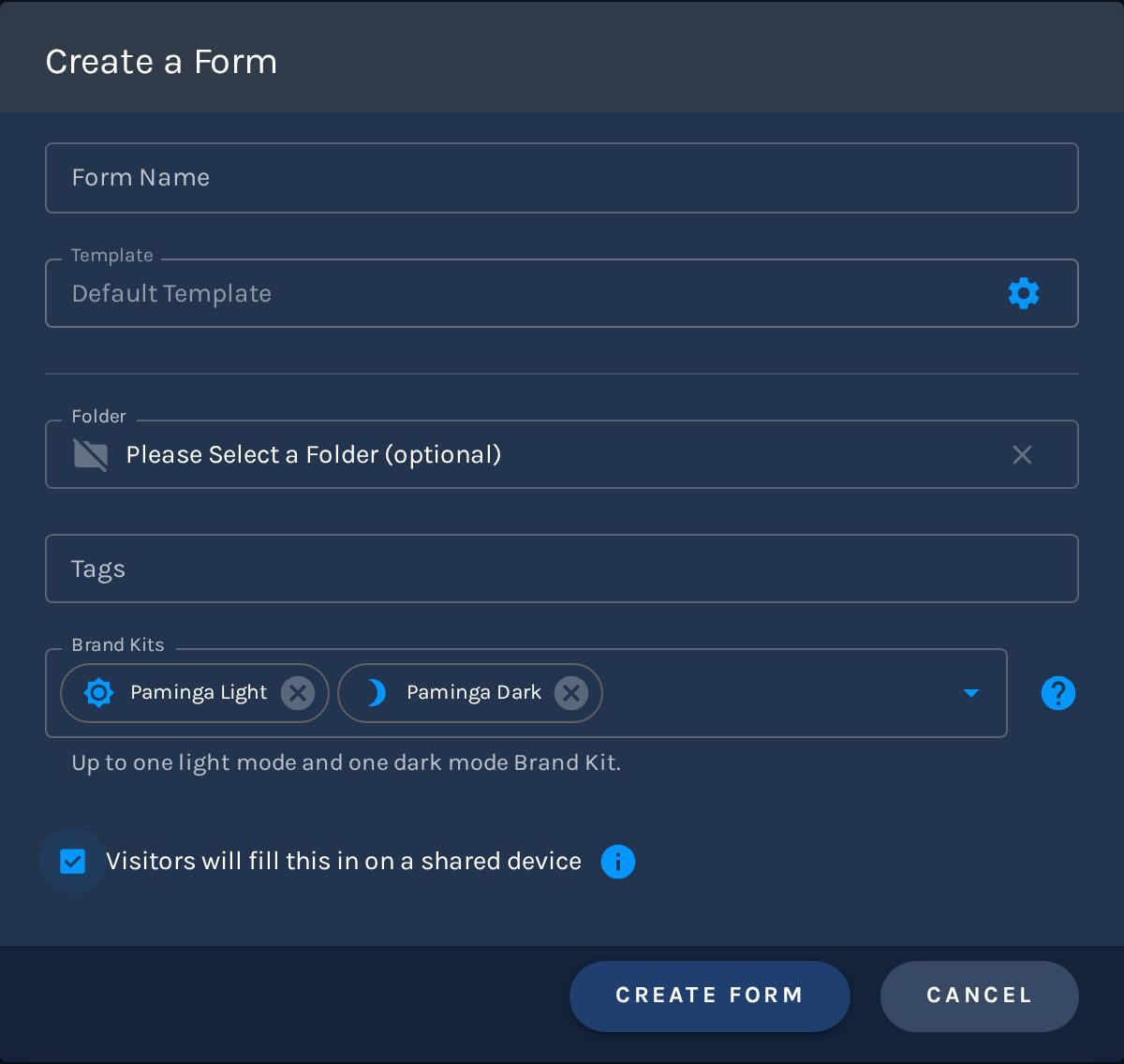
When you create the Form. The Create a Form dialog has a checkbox labeled Visitors will fill this in on a shared device. Check it and the new Form starts with Kiosk Mode on. See Creating a Form.
Kiosk Mode When You Create a Form:
In the Form Builder. Open the Settings tab in the left control panel and check Kiosk Mode. Uncheck it to turn it off. Like any change in the builder, it takes effect for visitors once you publish.
What Changes
With Kiosk Mode on, Paminga treats every visitor as someone it has never seen:
- No link to earlier browsing. The submission is not tied to the other pages visited on that device, so one person's submission never inherits another person's visits. Only the Form's own view and its conversion are credited to the person who submitted it.
- No pre-filled values. The Form never fills in fields from a previously known contact. Every visitor starts with a blank Form, so nobody sees the last person's name or email address.
- No identity carried from an email click. If the device reached the Form from a Paminga email link, that recipient's identity is ignored. The contact is decided by what the visitor enters.
- No language stamped from the device. The browser's language belongs to the venue, not the visitor, so Paminga does not use it to set the contact's language.
UTM parameters and other URL parameters on the Form's link are still recorded, so you can still tell which event or campaign a submission came from.
Give each event its own link with its own UTM values (for example, utm_campaign=spring-summit). Kiosk Mode keeps those, and they make it easy to segment the people you met at a specific event.