Form Submissions
The Form Submissions page is the record of what people actually typed into your forms. Every submission to every Paminga form lands here: who submitted it, which form, the page it was submitted from, and every value entered.
It covers submissions to your current Paminga forms and to Classic forms, in one list. When you need the data outside Paminga, export it to a CSV for one form, or to an Excel workbook with a sheet for each form.
Find it under Marketing Center › Forms › Form Submissions.
The Form Submissions Page:

What Each Row Shows
Each row is one submission, newest first.
| Column | What it shows |
|---|---|
| Form | The form that was submitted. Click the name to open that form. |
| Contact | The contact who submitted it. Click to open their Contact Details. |
| URL | The page the form was submitted from. Click to open it in a new tab. |
| Submission Values | Click the eye icon to see every value submitted. See Submission Values. |
| Completeness | Complete, or Partial for a partial submission of a multi-page form. |
| Submitted At | When the submission arrived, in your own time zone. |
Submitted At uses the time zone in your Preferences. Two teammates in different time zones will see different times for the same submission, and each sees the one that makes sense to them.
Submission Values
The eye icon in the Submission Values column opens the full submission: every field on the form, with the value that was entered. When a field maps to a contact field, a Mapped Field column shows you which one, so you can see exactly where each value went.
A few rows appear only when they apply:
- File Uploads: each uploaded file as a chip. Click an image to preview it, or any other file to open it in a new tab.
- URL Parameters: click to expand the UTM tags and ad click IDs that were on the page's URL when the form was submitted. Familiar parameters are labelled for you (Campaign, Source, Medium, Content, Term, Google Click ID, Facebook Click ID, Microsoft Click ID, and so on). Anything else is shown under its own name, so nothing captured is hidden.
- Browser Language: the language the visitor's browser reported.
- Subscription Management: the subscriptions chosen on a preference center form.
Submission Values:

Filtering and Sorting
The list is filtered and sorted on the server, so a filter covers every submission you have, not just the page you're looking at.
To filter, open the menu on a column header and choose Filter. You can filter on:
- Form: by form name. Contains, equals, starts with, and the other text operators.
- Contact: by the contact's email address, with the same text operators.
- URL: by the page the form was submitted from.
- Completeness: is Complete, or is Partial.
- Submitted At: before, after, on or after, and so on. The date and time you type are read in your own time zone, the same way the column displays them.
You can add more than one filter and choose whether they all have to match or any one of them can.
Sort by Form, Contact, Completeness, or Submitted At. Paminga keeps your sort, filters, and page size in place for several hours, so you can open a contact or a form and come back to the list as you left it.
Submissions for a Single Form
You rarely want every form at once. There are two ways to see one form's submissions:
- From your forms list: on the Forms page, click the View Submissions action on a form's row. The Form Submissions page opens showing only that form's submissions. Your filters then narrow within that form.
- From the Form Builder: click View Form Submissions in the bottom bar to open the same list, for the form you're editing, in a full-screen panel. You don't have to leave the builder.
Exporting Form Submissions
Click Export Form Submissions above the list. You can also start an export from Form Submission Export History.
Exporting Form Submissions:
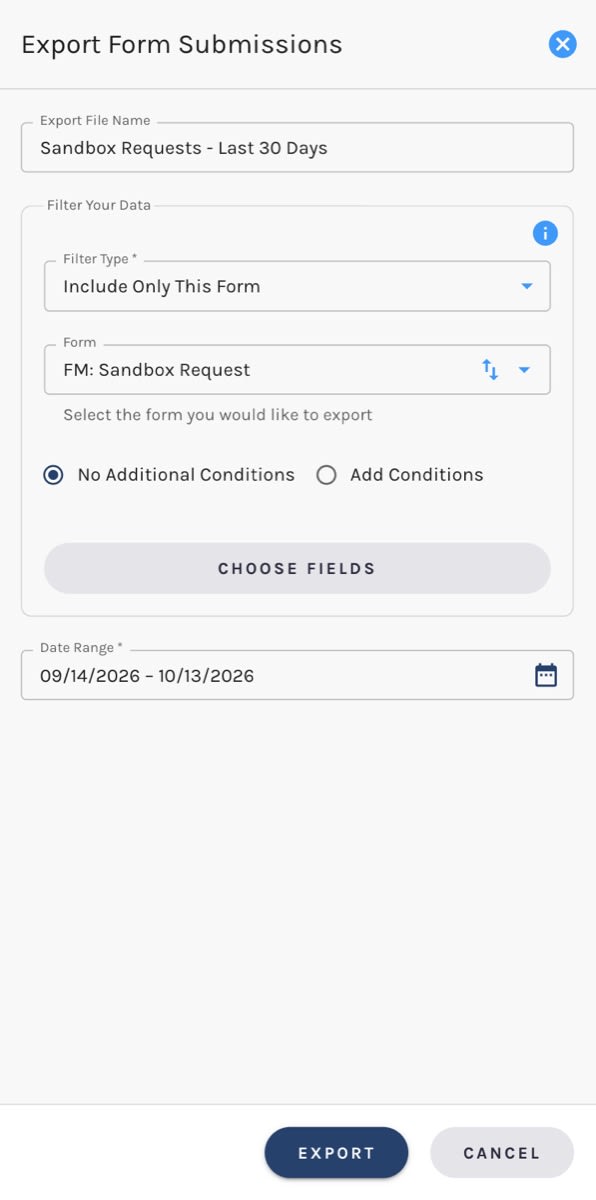
Export File Name
The name of the file you'll download.
All Forms or One Form
Filter Type decides the shape of the file:
- Include Only This Form: choose a form and you get a CSV of its submissions. Each field on the form becomes its own column, so the file is ready to work with in a spreadsheet. Fields that existed on earlier versions of the form are included, so older submissions still line up.
- Include All Forms: you get an Excel workbook with one sheet per form, covering every form (current and Classic) that had submissions in the date range.
When you start an export from a single form's submissions, that form is already selected.
Conditions
Choose Add Conditions, then Choose Conditions, to limit the export to submissions from contacts who match conditions you build with the Segment Builder. For example, only submissions from contacts in the United States, or from members of a particular Marketing List.
Leave it on No Additional Conditions to include every submission in the date range.
Choose Fields
Choose Fields opens the Field Chooser, where you pick the columns in your file. Alongside the submitted values you can include details about the submission itself, the form, and the contact who submitted it.
Submission Values is selected by default. That's the one that turns each form field into a column.
Date Range
A date range is required, and it can't extend into the future. Only submissions made in that range are exported.
What Happens Next
Click Export. The file is built in the background, so you're free to carry on working or log out.
When it's ready:
- A banner appears above the top navigation, wherever you are in Paminga, with a link to download the file.
- A notification lands in your Notification Center with a Download it button.
- The file is listed in the Download Center, which is where to go if you dismissed the notification or want the file again later.
Each export is also recorded in Form Submission Export History.
Exporting is controlled by the Export permission on Forms, in the Assets category of Permissions. Without it, the Export Form Submissions button is disabled. You can still view submissions.


