A/B Testing
A/B testing lets you run multiple design variants of your landing pages simultaneously. Paminga splits traffic equally across your variants, tracks impressions and conversions for each one, and automatically selects a winner when the test period ends — or you can declare a winner manually whenever you're ready.
The feature works identically in both the Landing Page Builder and the CTA Builder.
How It Works
Each variant is a completely independent design of your landing page. When a visitor loads your landing page, Paminga assigns them to a variant and remembers it for the rest of that browser session. Reload the page, or leave and come back in the same session, and they see the same variant — so your test measures a consistent experience rather than a different design on every page view. A fresh session can draw a different variant. Traffic is split equally across all active variants.
Paminga tracks two metrics per variant:
- Impressions — the first time a visitor sees your landing page in a session
- Conversions — when a visitor takes a qualifying action while viewing that variant
At the end of the test period, the variant with the highest CVR (conversion rate = conversions ÷ impressions) wins.
Setting Up Your Test
Enable A/B Testing
Open your landing page in the builder and go to the A/B Testing tab in the left panel. Toggle A/B Testing on. This reveals your variant list and the test configuration settings.
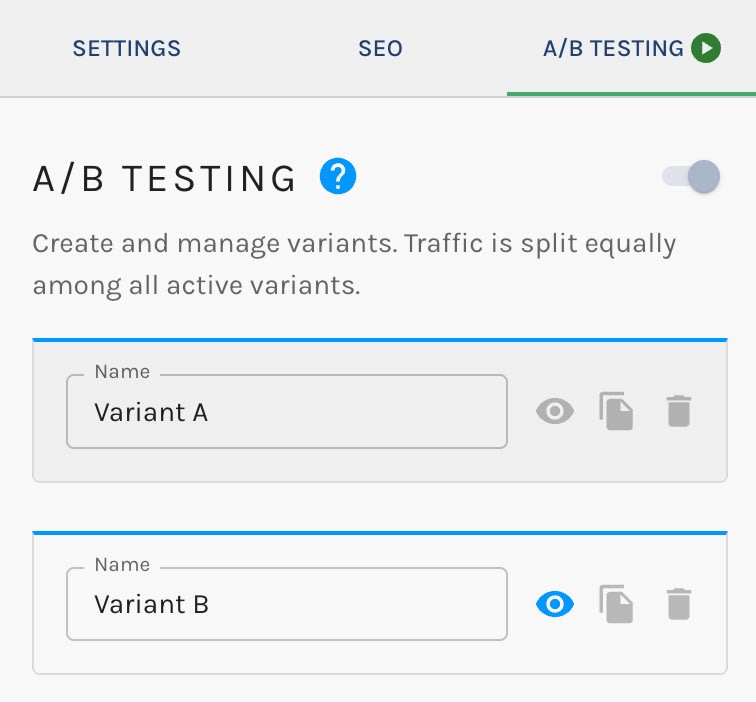
The A/B Testing panel:
Add Variants
You start with one variant — the current design of your landing page. From the A/B Testing panel you can:
- Add a new blank variant using the add button at the bottom of the list
- Clone an existing variant with the clone icon on any variant row, to use it as a starting point
You can have up to 4 variants in a single test. Switch between them from the panel to edit each design independently.
Configure the Test
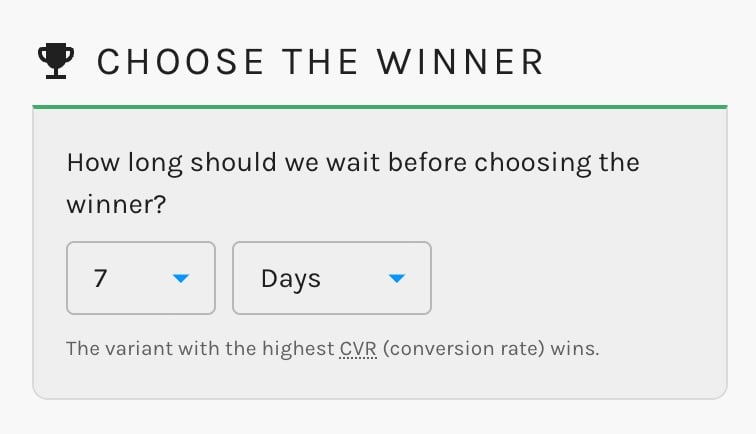
Wait period — How long the test runs before Paminga automatically selects a winner. Choose a number and a unit (Hours, Days, or Weeks). The default is 7 days. Pick a duration long enough to accumulate meaningful traffic for your asset — a test that ends before either variant has been seen enough times tells you very little.
Choose the Winner:
Activating the Test
When you're ready, click Activate in the status bar at the bottom of the A/B Testing panel. A confirmation dialog will note that this publishes your current draft and starts the test immediately. Click Publish & Activate to confirm.
Visitors start seeing variants right away.
You need at least 2 variants before the Activate button is enabled.
Monitoring Performance
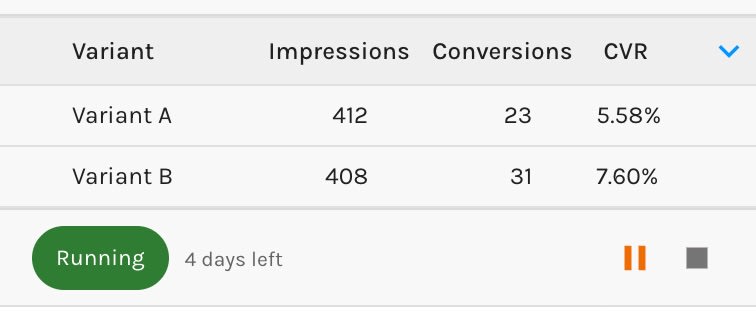
While the test runs, the stats table in the A/B Testing panel shows live results per variant:
| Column | What it means |
|---|---|
| Impressions | How many visitors have been shown this variant |
| Conversions | How many qualifying actions occurred on this variant |
| CVR | Conversion rate (conversions ÷ impressions) |
Stats refresh automatically every 30 seconds. The status bar also shows a time-remaining indicator so you can track progress against the wait period.
Live Results and Status Bar:
Pausing and Resuming
Click the Pause button in the status bar to pause a running test at any time. While paused:
- No new visitors are split across variants
- You can designate a specific variant to serve to all visitors by clicking the Serve this Variant icon (upload icon) next to any variant in the list
Click Resume to restart. Normal variant splitting resumes immediately.
You can add new variants while paused, but they start with 0 impressions. If the wait period ends soon, a new variant won't have accumulated enough data to compare fairly.
Ending the Test
Declare a Winner Manually
Click the End button (stop icon) in the status bar at any time — whether the test is running or paused. A dialog asks you to select the winning variant from the list. Select it and confirm.
Automatic Winner Selection
Once the wait period expires, Paminga automatically selects the variant with the highest CVR as the winner. If two variants tie, Paminga picks the first variant in the original list order.
What Happens When a Winner Is Declared
- The winning variant becomes the live design of your landing page
- All other variants are archived — not permanently deleted (see Running Another Cycle)
- Test status changes to Complete
- The final stats remain visible in the panel for reference
Running Another Cycle
Once a test is complete, you have two options:
Rerun Cycle — Run the test again with the same set of variants from scratch. Stats reset to zero, all variants stay. Use this when you want to validate results or collect more data with the same designs.
Start Fresh — Archive the losing variants and begin a new test with only the winning variant as your starting point. Use this when the result is conclusive and you're ready to move on.
In either case, results from the completed cycle are preserved and accessible in the stats panel — you can browse historical cycles using the cycle navigator.
What Counts as a Conversion?
Each clickable element in your landing page has a Record as Conversion checkbox in its settings panel. When it's checked and a visitor clicks that element, Paminga counts it as a conversion for that variant.
- Button elements — find the checkbox in the button's trigger settings (right panel when the button is selected)
- Image and media elements — find the checkbox in the image trigger settings; only visible when the image has a click action configured
- Links within text — find the checkbox in the link editor; it's checked by default on every new link you create
- Gallery and carousel images — each image has its own trigger settings with the same checkbox
Form submissions always count as a conversion — there's no toggle for that.
If you've configured custom events and marked any as conversion types, those count as well.


