Marketing Campaigns
Marketing Campaigns in Paminga are designed to mirror Campaigns from your connected CRM.
Marketing Campaigns have members with status and an unlimited number of custom fields.
Marketing Campaigns can have an associated folder to store your campaign assets and organize them with sub-folders. This folder supports inherited tokens, and can be cloned at will.
Marketing Campaigns can sync bi-directionally with Salesforce Campaigns.
We plan to add support for additional CRM platforms.
Currently, Marketing Campaigns are best used in conjunction with Salesforce.
We'll soon add support for leveraging them in Paminga only, then syncing to CRM when desired.
Marketing Campaigns and Folders
Each of your Marketing Campaigns can have a corresponding folder (a "Marketing Campaign Folder") in the Finder.
Organize your campaign assets within that folder, creating sub-folders as needed.
- Right click the folder to manage Tokens – which enable personalization at scale
- Clone folders at will. All assets therein will be cloned as well
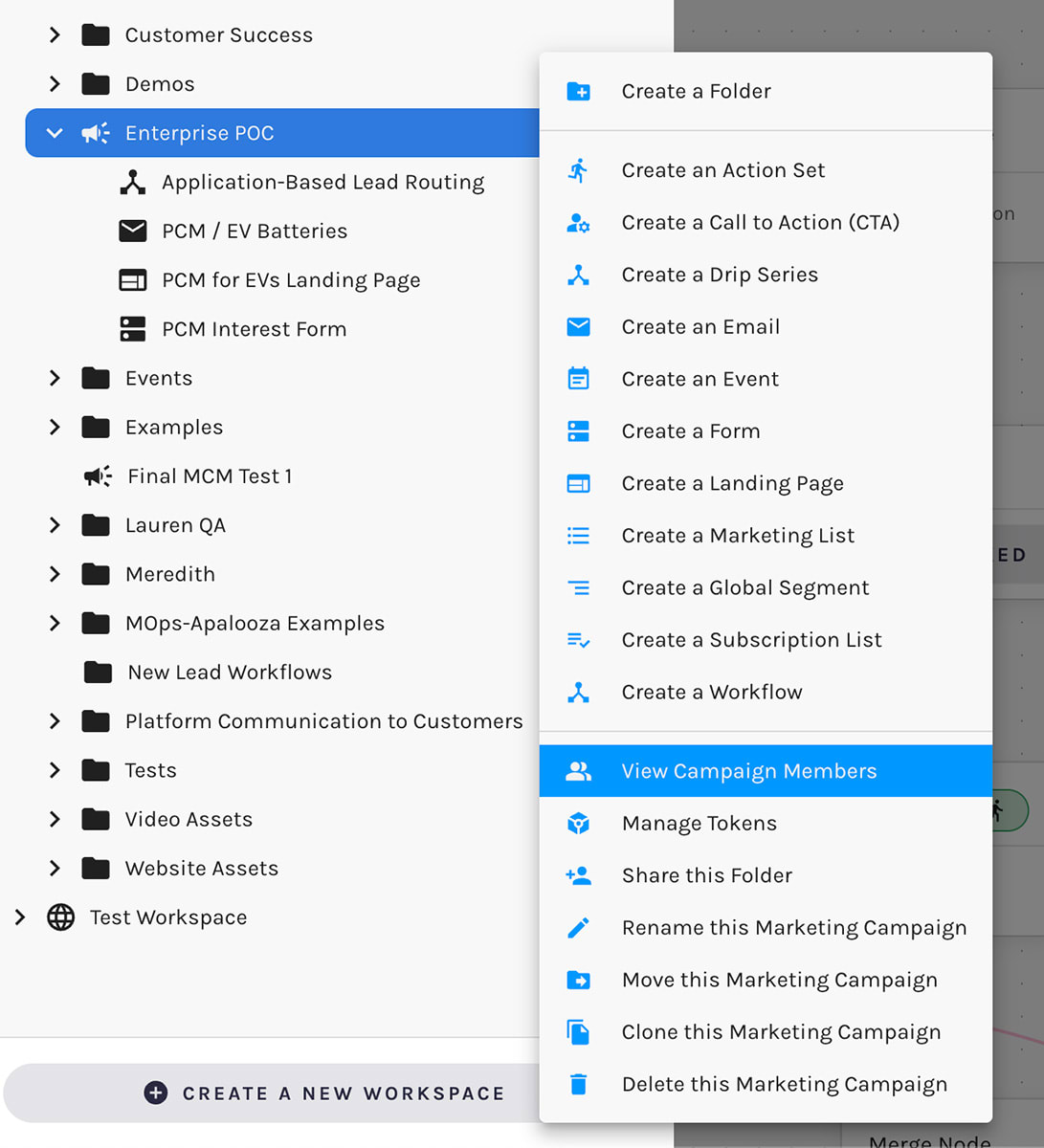
- Right click to view Marketing Campaign Members
Creating Marketing Campaigns
Marketing Campaigns may be created:
- Manually by creating a Marketing Campaign Folder in Paminga's Finder
- Automatically via Salesforce sync
Via the Finder
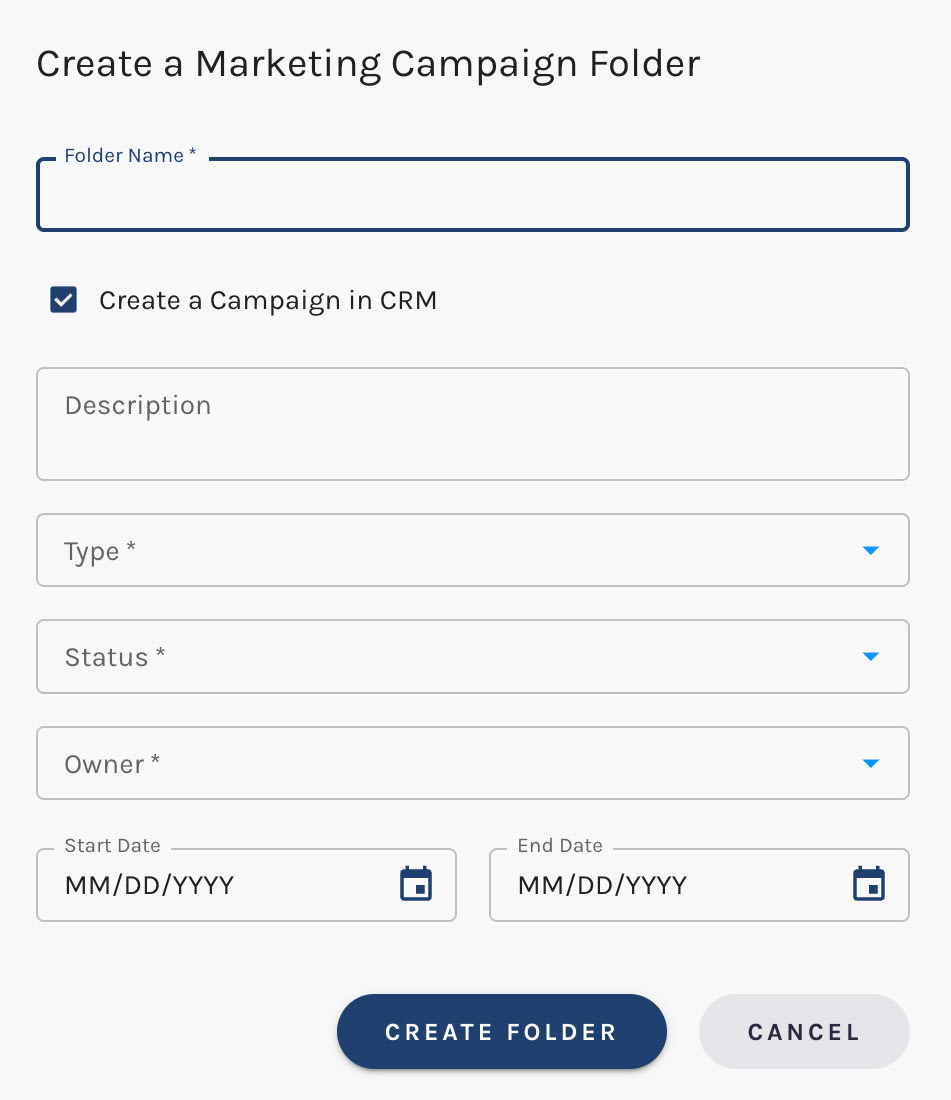
A Marketing Campaign is created automatically when you create a Marketing Campaign Folder in Paminga's Finder.
To create a new Marketing Campaign Folder, right-click on an existing folder and select "Create a Marketing Campaign Folder."
Create a Marketing Campaign Folder

Create a Campaign in Salesforce
If Paminga is connected to Salesforce, you'll see a "Create a Campaign in CRM" checkbox.
If you leave this box checked, a Campaign will be created in Salesforce automatically. Its name in Salesforce will match that in Paminga.
When creating a Salesforce Campaign, you'll need to provide a type, status, and owner.
Create a Marketing Campaign in Paminga and CRM
Marketing Campaign Folders Cannot be Nested
The option to create a Marketing Campaign Folder will not be present if the Finder location you've chosen is nested within an existing Marketing Campaign Folder.
Via Sync From Salesforce
If you've connected Paminga to Salesforce, your existing, active Salesforce Campaigns will be synced to Paminga automatically:
- Your synced Salesforce Campaigns are known as Marketing Campaigns in Paminga
- You can find these synced campaigns by navigating to Marketing Center → Marketing Campaigns
Creating a Finder Folder for a Synced Salesforce Campaign
You may want to create a Marketing Campaign Folder in the Finder to store assets related to campaigns that have synced from CRM.
You'll find a convenient icon to create a Marketing Campaign Folder in the "Folder" column in the Marketing Campaigns table.
When your Marketing Campaign is already tied a folder in the Finder, clicking this icon will open the finder, and expand folders to reveal and highlight that particular Marketing Campaign Folder.
Marketing Campaign Members
You may associate any number of Paminga Contacts to any of your Marketing Campaigns.
Creating Marketing Campaign Members
Members can be added to your campaigns via:
- Paminga's Create or Update Marketing Campaign Members Action
- Sync from Salesforce
Create or Update Marketing Campaign Members Action
This action enables you to create or update Campaign Members in Paminga (and Salesforce if connected), setting Campaign Member Status, plus the values of selected Campaign Member Custom Fields in the process.
Create or Update Marketing Campaign Members Action:
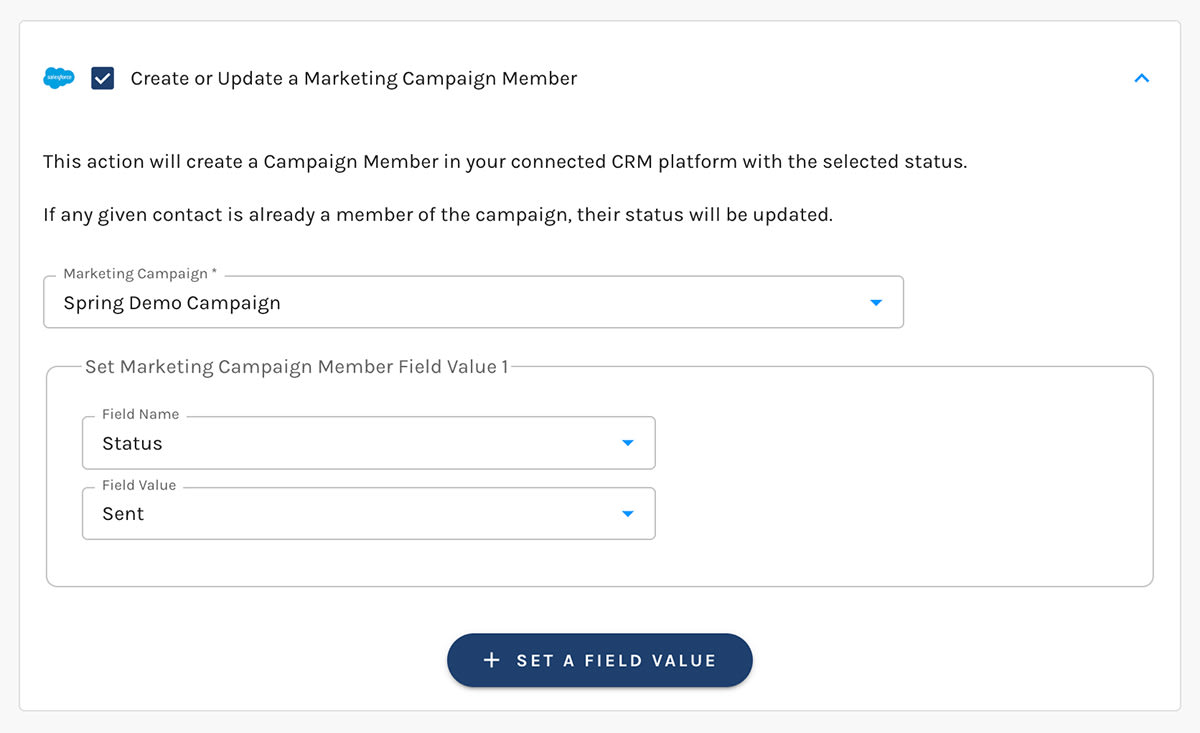
This action may be triggered from multiple places throughout Paminga:
- Any Action Set, which means, by extension, any:
- Goals in Workflows and Drip Series
- Workflow Action Nodes
- Lead Scoring Thresholds
- Lead Stage Change Actions
Viewing Campaign Members
Marketing Campaign Members may be viewed in two ways:
- Navigate to Marketing Center → Marketing Campaigns
Hover click the "View Marketing Campaign Members" icon in the Actions column - Right-click on any Marketing Campaign Folder in the Finder, click "View Campaign Members"
View Marketing Campaign Members
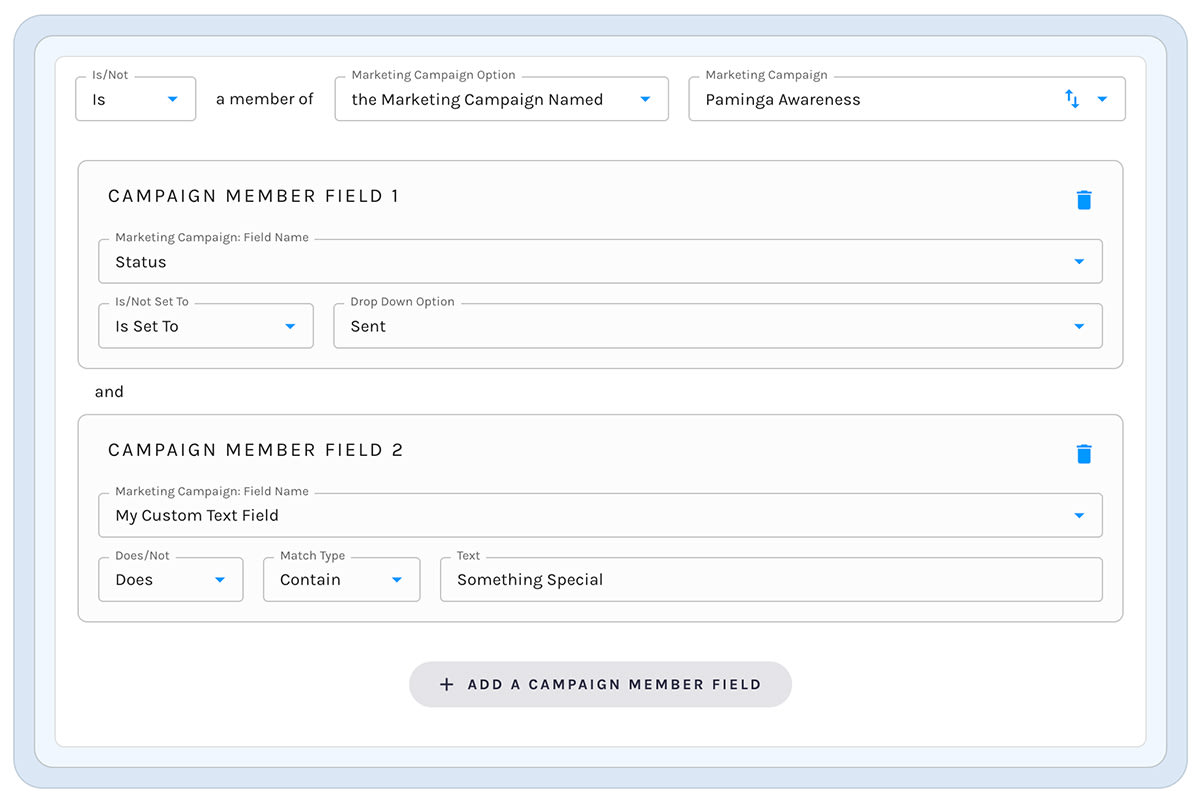
Segmenting on Marketing Campaign Membership and Status
You can segment on Marketing Campaign membership, status, plus the values of any custom fields.
You can do so in limitless combination with any demographic, firmographic, or behavioral fields you choose.
In Paminga, all things conditional are controlled by Segments. This means that you can leverage Marketing Campaign membership conditionally throughout the platform.
Segment on Marketing Campaign Membership + Fields