Share and Export Dashboards
Not everyone who needs your numbers has a Paminga login. A custom dashboard can go to your CEO, your board, or an agency as a public link they open in a browser, or as a PDF.
Public Links
A public link shows the dashboard to anyone who has the link. No sign-in is needed.
Create a Public Link
- Open the dashboard and click the share icon (Share a Public Link) in its header. The dashboard has to be saved first.
- Click + (Create a Public Link).
- Choose when it Expires after: 7, 30, 60, or 90 days, or Never. 30 days is the default.
- Tick Let viewers drill down if you want people with the link to be able to open a number into the rows behind it.
- Click Create Link, then Copy Link and send it.
New Public Link:
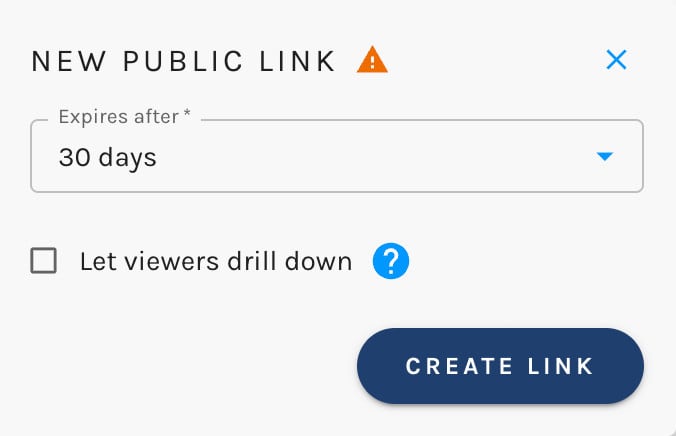
With Let viewers drill down on, anyone with the link can see the names and email addresses of the contacts behind a number. Leave it off unless that's what you intend.
Creating a public link needs the Update permission and edit access to the dashboard's folder.
What Viewers See
Viewers see the saved version of the dashboard, read-only, exactly as you see it: your data access and your time zone. The header says who shared it and when the data is from.
- On a live dashboard, viewers can change the date range.
- On a compiled dashboard, the rolling window is fixed, as it is for everyone.
Changes you save reach the link too. Unsaved edits don't.
When a Link Stops Working
A link stops working when it expires or you expire it, when the dashboard is archived or deleted, or when you lose access to the dashboard or your user is deactivated. The link always acts as you, so it can't outlive your own access. A viewer with a link that no longer works sees "This link is not available" and nothing else.
Manage Your Links
The Public Links list shows the links you've created for this dashboard:
| Column | What it shows |
|---|---|
| Link | The link, with Copy Link to copy it again. |
| Drill | Whether viewers can drill down. |
| Views | How many times it has been opened. Repeat opens from the same place within a few minutes count once. |
| Created | When you created it. |
| Expires | When it stops working. |
Click Expire Now to stop a link immediately. It stays in the list as expired. Turn on Show Expired to see those.
Export to PDF
A PDF export is the dashboard as it appears on screen, with the date range and filters you have on at the time.
- Open the dashboard and click the export icon (Exports) in its header.
- Click + (Create an Export).
- Check the Date Range (on a compiled dashboard it's the dashboard's rolling window), then click Export.
New Export:
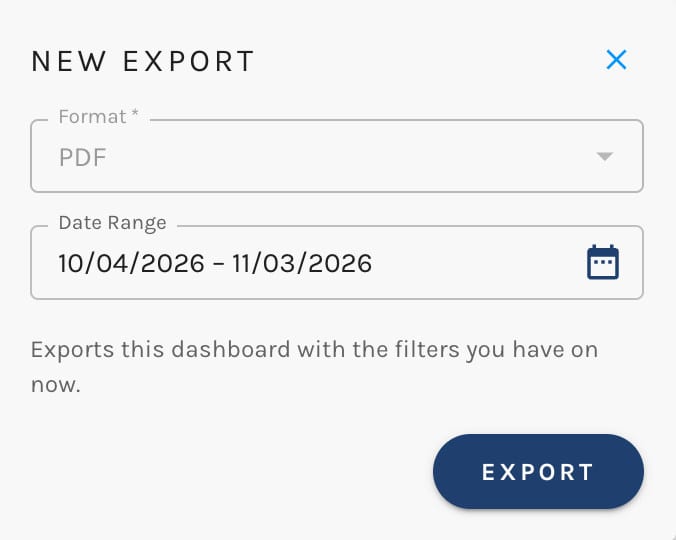
The PDF is built in the background. When it's ready, a notification appears with a Download it button, and the file waits for you in the Download Center. If any dashlets couldn't load, the notification tells you how many. They appear as errors in the PDF rather than silently going missing.
Anyone who can open a dashboard can export it. A dashboard has to be saved, with no unsaved changes, before it can be exported. A compiled dashboard also has to have been prepared at least once. You can have up to three exports in progress at a time. Click Export again for the same view and you'll get the PDF already on its way, not a second copy.
The Exports list shows your own exports of the dashboard from the last 30 days, with each one's date range and status (Preparing, Ready, or Failed), and a Download button.