Email Heat Map
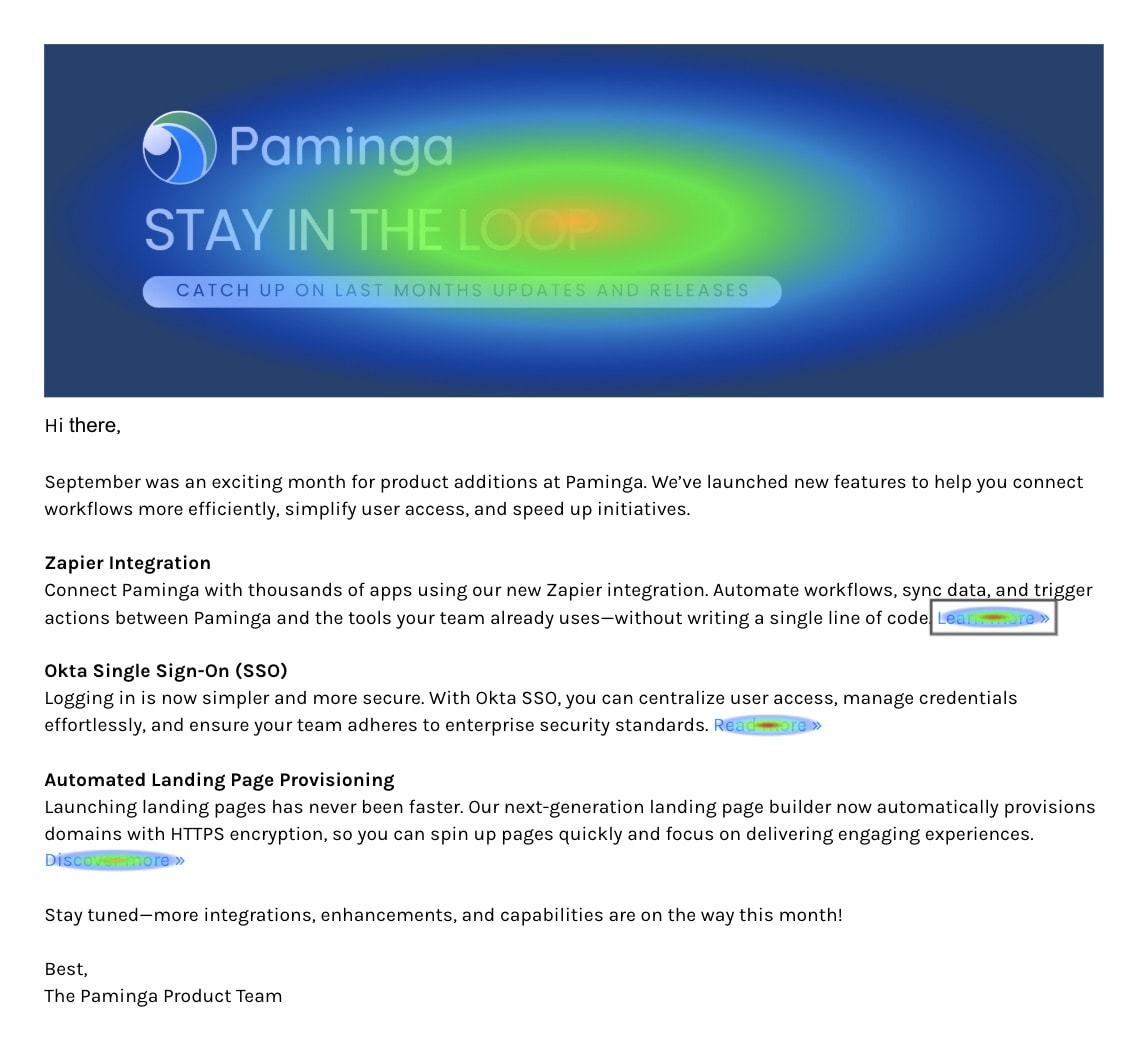
A click-through rate tells you how many people clicked. The Email Heat Map tells you where. It renders your email as recipients saw it and paints each link by how many clicks it earned, from cool blue to hot red, so you can see at a glance whether people go for the hero button, the text link in paragraph three, or the logo.
Use it to settle layout arguments with data, to learn which offers pull, and to find links nobody clicks.
Find it under Reporting › Dashboards › Emails › Email Heatmap, or Marketing Center › Emails › Email Heatmap. You can also jump straight to an email's heat map from:
- The View Heat Map icon on the email's row in your emails list
- The Heat Map button at the bottom of the Email Builder, once the email is published
- View Heat Map on the email's menu in the Finder
The Email Heat Map, With a Link Hovered:
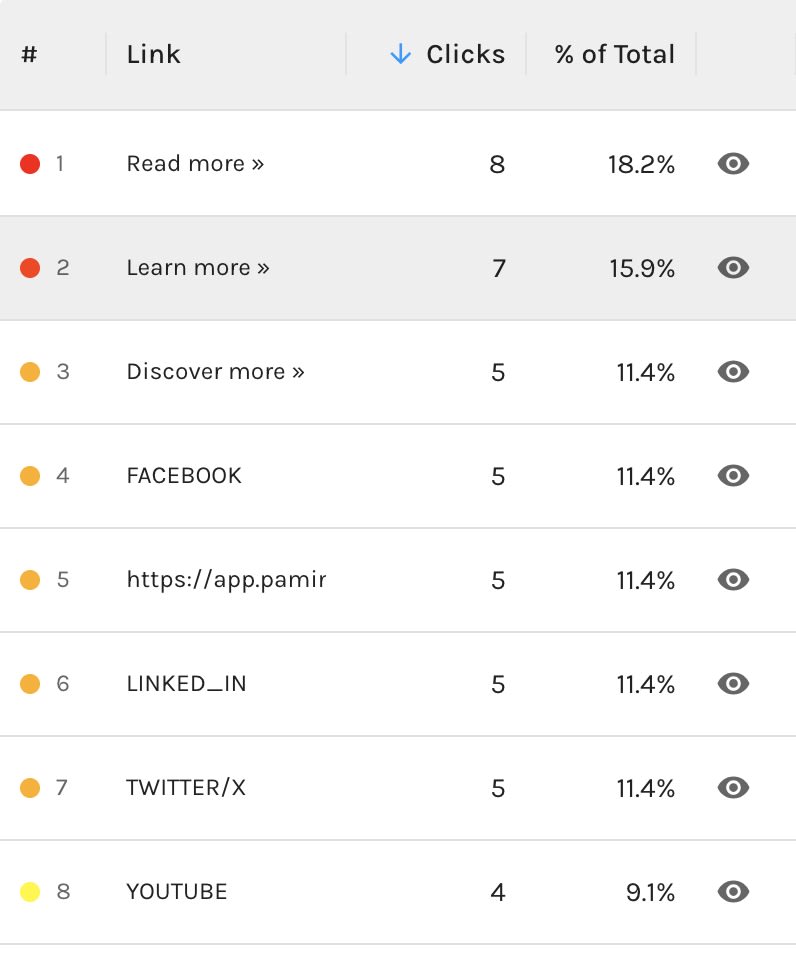
Clicks by Link:
Pick an Email and a Date Range
Choose an email from Select Email at the upper right. The list holds your emails that are not archived.
The date range starts on the email's first send date and runs through today, so you see every click the email has earned. (For an email with no send date, it covers the last 90 days.) Narrow it with Set Date Range to look at one send or one week.
Reading the Heat Map
The left side shows the email's published version. Each link glows in proportion to its clicks: the most-clicked link is red, and the scale runs down through orange, yellow, green, and cyan to blue. The scale is stretched at the low end, so a link with a handful of clicks is still visible next to one with hundreds.
The right side lists every clicked link, most clicks first:
- #: the link's rank, with a dot in its heat color
- Link: the link's text, or its URL when it has no text
- Clicks
- % of Total: the link's share of all clicks on the email
The two sides are connected. Hover a link in the email and its row highlights and scrolls into view. Hover the eye icon on a row and the email scrolls to that link and outlines it. The same link can appear in several places in an email (a button at the top and again at the bottom, say). Each placement lights up.
Unsubscribe Links
When the email has unsubscribe clicks, an Include Unsubscribe Links switch appears at the top. Turn it off to see the heat map of your content without unsubscribes skewing the scale.
The Contacts Who Clicked
Click a link in the email, or its row in the table, to open the contacts who clicked it. The title shows the click count and the link. The list is grouped by contact, with each contact's click count. Expand a contact to see each click: Link Text, URL, IP, User Agent, Sent At, and Clicked At.
That list is a ready-made follow-up audience: the people who clicked "Pricing" are not the people who clicked "Read the blog post."
Clicks That Can't Be Placed
Some clicks can't be drawn on the email. The heat map tells you about them below the table rather than hiding them.
- Links that can't be found in the current version. A link that earned clicks but can't be located in the published version is listed by name, with the total clicks on all such links. One reason is an edit after the email was sent that removed or replaced the link.
- Clicks Paminga couldn't match to a specific link. Only the destination is known for these, so the heat map lists them by destination with their click counts.
- Links that can never be tracked. When a personalized field sets the web address itself (the scheme or domain of the link, not just part of its path or query), the destination isn't known until the email is sent, so Paminga can't track it. The heat map names these links. Move the token into the query string, after the
?, to make the link trackable.
Limitations
- The heat map draws the email's published version. An email that has never been published has nothing to draw.
- Personally authored emails are not supported by the heat map yet. Their clicks are still tracked and still appear in your other reports.
- The heat map covers emails built with the Email Builder. Classic emails are not in the list.


