Email Performance Dashboard
The Email Performance Dashboard answers a question every email marketer asks sooner or later: across everything I sent, which emails actually worked?
It lists every email your account sent in the date range you pick, one row per email, with its sends, deliveries, opens, clicks, visits, bounces, unsubscribes and spam reports. It does not matter what sent the email. A Workflow, a Drip Series, a Send It, a form, an Action Set, a contact import or a Classic Campaign all land in the same table, side by side.
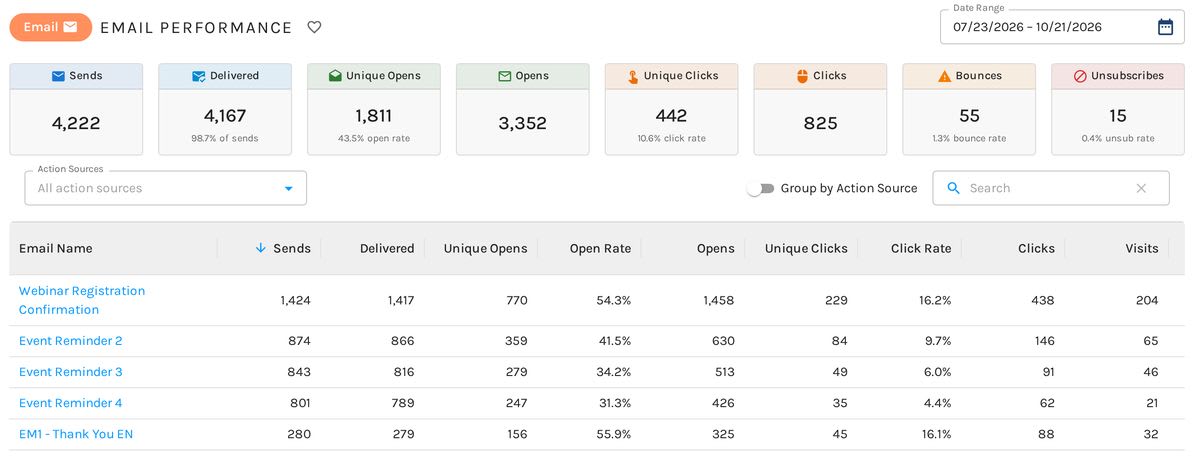
The Email Performance Dashboard:
Turn on Group by Action Source and each email splits into one row per sender, so you can see that your welcome email performs well from the Trial Nurture Workflow and poorly from the Contact Us form.
The Totals
The cards across the top total everything in the table below them:
- Sends: emails sent.
- Delivered: sends minus bounces, with the share of sends that were delivered.
- Unique Opens: sent emails opened at least once by a person, with the open rate. A contact who opens the same email three times counts once.
- Opens: every open by a person, repeat opens included. Opens made by software (a mail client fetching images on its own) are left out.
- Unique Clicks: sent emails with at least one link click, with the click rate. A contact who clicks the same email three times counts once.
- Clicks: every link click, repeats included. Clicks on the unsubscribe link are left out.
- Bounces: emails that bounced, with the bounce rate.
- Unsubscribes: unsubscribes that came through a link in one of these emails, with the unsubscribe rate.
The cards follow your filters and your search, so they always total exactly what the table lists.
The Table
Each row is one email. Click a current email's name to open it in the Email Builder.
The columns repeat the totals for that email, plus four more:
- Open Rate: unique opens divided by delivered emails. This is the open rate most email platforms report.
- Click Rate: unique clicks divided by delivered emails. This is the click-through rate most email platforms report.
- Visits: website visits that started from a link in the email, repeat visits included.
- Spam Reports: spam complaints from recipients.
Click any column heading to sort by it. The table pages on the server, so sorting and paging stay fast however many emails you send.
Group by Action Source
The Group by Action Source switch sits beside the search box. With it on, the table adds an Action Source column and lists each email once per source that sent it.
Grouped by Action Source:
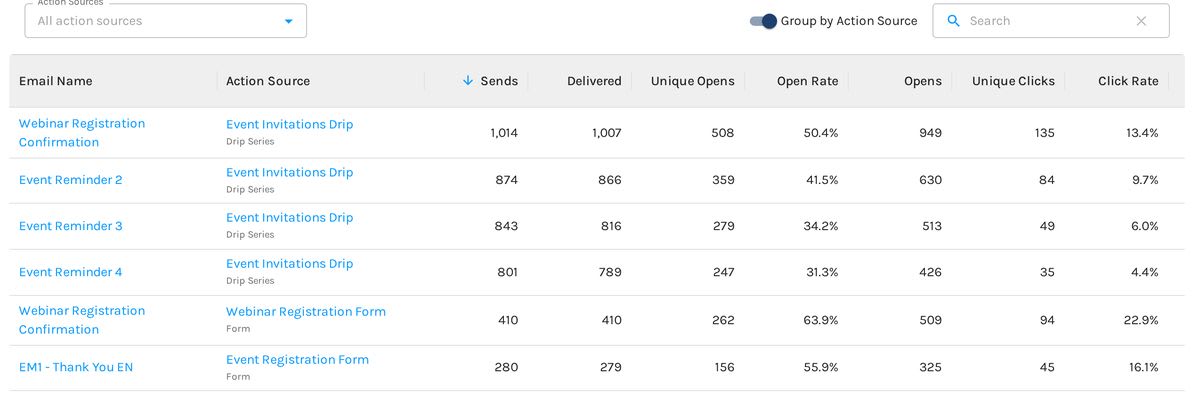
The source column shows the source's name, which links to it where it has a page of its own (a Workflow, a Drip Series, a Send It, a form or an Action Set), with the kind of source underneath.
The search box changes with the switch. Off, it searches email names. On, it searches email names and action source names, so you can type the name of a form and see every email it sent.
Conditional Actions
A Send Email action inside a conditional action is reported under the source the conditional action belongs to. If a conditional action on your Contact Us form sends an email, that email shows under the Contact Us form, with "via conditional action" and the conditional action's name underneath.
That way, a form's row shows everything the form sent, whether it came from the form's own actions or from one of its conditional actions.
Filter by Action Source
The Action Sources dropdown limits the dashboard to the sources you pick. Leave it empty to include every source. Pick as many as you like.
The list names every kind of source that can send email in your account, including:
- Workflow, Drip Series and Send It
- Form and Third-Party Form
- Action Set
- Contact Import and Apollo Import
- Lead Scoring Threshold and Lead Stage Change
- PLG Trigger, CRM Sync, Webhook and Task
If your account has Classic Campaigns, the Classic sources are on the list too. A few sources appear only for accounts that use the feature behind them.
How the Numbers Are Counted
Every number counts events on the day they happened. A send counts on the day it was sent, an open on the day it was opened, and a bounce on the day it bounced.
That matters for short date ranges. An email sent on the last day of your range can collect most of its opens after the range ends. And because Delivered is sends minus bounces counted this way, a range that catches the bounces from an earlier send without the send itself can show fewer deliveries than you expect.
Classic Emails
Classic Campaign emails appear in the same table as everything else. Each Classic Campaign that sent an email gets its own row, because each campaign keeps its own copy of the email.
To see one Classic email across every campaign that sent it, open Classic Emails and click the dashboard icon in that email's actions. The dashboard opens with that email selected and grouped by campaign. Click the × on the email's chip to go back to every email.
Related Dashboards
- The Pulse shows engagement across your account at a glance.
- Workflow Dashboard shows one Workflow, node by node.
- Email Heatmap shows where in an email people click.
- Bounce Reasons shows why each contact bounced.
Want this data in your own reports? The Email Engagement data in Looker Studio counts Workflow and Classic Campaign sends.


